
What is the error 0xc000012f? What causes the error status 0xc000012f? How to fix the error 0xc000012f? This post from MiniTool will show how to fix the Windows bad image error 0xc000012f.
What Is Error 0xc000012f?
When you running a program on Windows 10, you may encounter the error 0xc000012f and the program can’t be launched normally. Usually, the error 0xc000012f means bad image denoting that the program’s executable or one of the supporting modules are corrupted.
In general, the error 0xc000012f often comes with the following error message:
C:\Windows\system32\xxx.dll is either not designed to run on Windows or it contains an error. Try installing the program again using the original installation media or contact your system administrator or the software vendor for support.” In most cases, another error status will be provided 0xc000012f. As showing in the following picture:
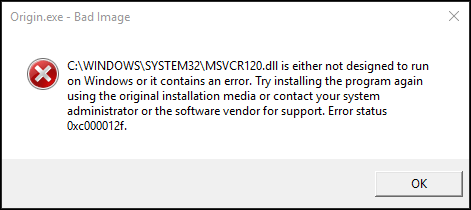
The bad image error 0xc000012f means that you lack the Microsoft Visual C++ Redistributable files which are prerequisites of the programs.
Hence, in the following section, we will show you how to fix the error 0xc000012f.
Top 5 Ways to Fix Error Status 0xc000012f
In this section, we will walk you through how to fix the Windows bad image error 0xc000012f.
Way 1. Reinstall the Program
In order to fix the error 0xc000012f, you can choose to reinstall the program.
Now, here is the tutorial.
- Type Control Panel in the search box of Windows 10 and choose the best-matched one.
- After entering the main interface of Control Panel, choose Uninstall a program under Programs section to continue.
- Then select the program encountering the error 0xc000012f and right-click it to choose Uninstall.
- After uninstalling it, go to the official site, download and reinstall it again.
When all steps are finished, re-launch the program and check whether the error 0xc000012f is solved.
If this solution is not working, try other solutions.
Way 2. Run System File Checker
If there are corrupted system files on your computer, you may also encounter the error status 0xc000012f. In such situation, you can run System File Checker to scan and repair the corrupted system files on your computer.
Now, here is the tutorial.
- Open Command Prompt as administrator.
- In the pop-up window, type the command sfc /scannow and hit Enter to continue.
- Then the scanning process will begin. Please do not close the command line window until you see the message verification 100% complete.
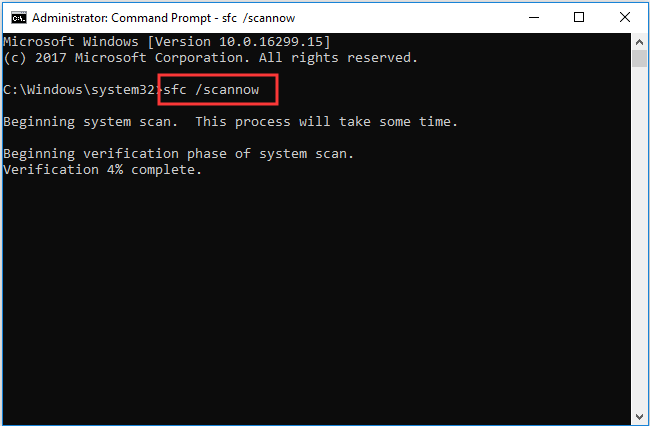
When the scanning process is finished, reboot your computer and check whether the error 0xc000012f is solved.
Way 3. Uninstall Windows Update
In order to fix the error 0xc000012f, you can also try uninstalling the Windows update.
Now, here is the tutorial.
- Press Windows key and R key together to open Run Then type appwiz.cpl in the box and click OK to continue.
- In the pop-up window, click View installed updates on the left panel to continue.
- Then find out the latest Update for Microsoft Windows and right-click it. Then choose Uninstall to continue.
- Next, follow the wizard to complete the uninstallation process.
When all steps are finished, reboot your computer and check whether the error 0xc000012f is solved.
Way 4. Install Visual C++ Redistributable for Visual Studio 2015
Most users say that the fixed the error 0xc000012f by installing Visual C++ Redistributable for Visual Studio 2015. So, you can also try this way to fix the Windows bad image error 0xc000012f.
Now, here is the tutorial.
- Click here to go to the Visual C++ Redistributable for Visual Studio 2015 page.
- Select the proper language and proper version(32-bit or 64-bit) and download it.
- Then install it on your computer.
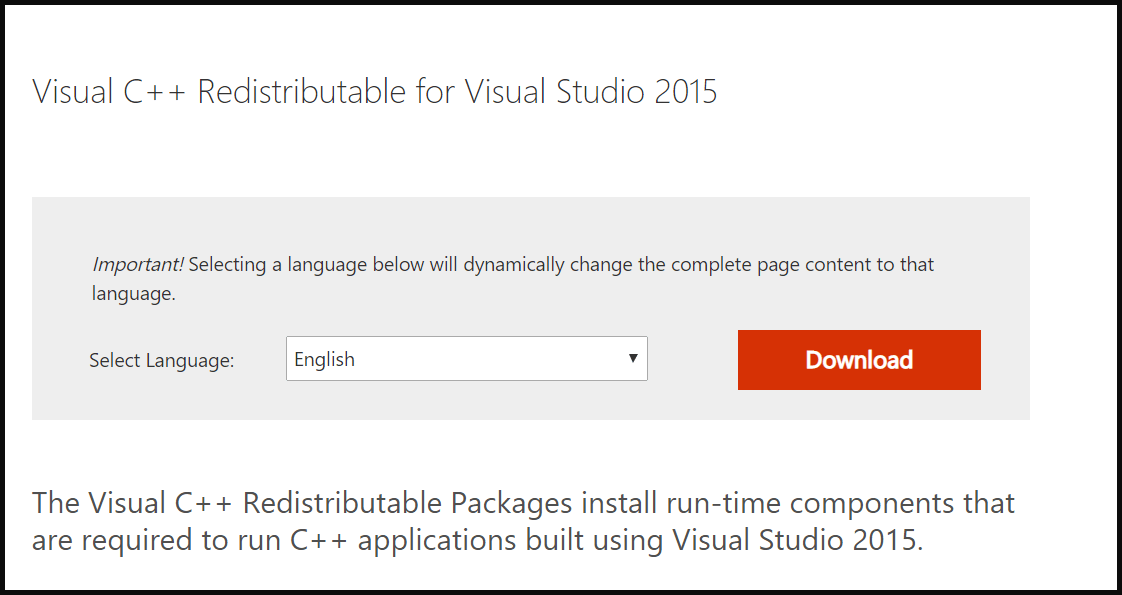
When it is finished, reboot your computer and check whether the error status 0xc000012f is solved.
Way 5. Check for New Updates
Microsoft frequently releases some small or big updates for Windows 10. So, installing all pending updates may help you to fix the error 0xc000012f. So, you can try these way.
Now, here is the tutorial.
- Press Windows key and I key together to open Settings.
- Then click Update & Security to continue.
- In the pop-up window, go to the Windows Update tab, then click Check for updates on the right panel to continue.
- Next, installing all Windows pending updates.
When all process is finished, reboot your computer and check whether the error status 0xc000012f is solved.
![[SOLVED] Windows Update Cannot Currently Check for Updates](https://images.minitool.com/minitool.com/images/uploads/2018/11/windows-update-cannot-currently-check-for-updates-thumbnail.jpg)
Final Words
To sum up, this post has introduced what the error 0xc000012f is and also has shown 5 ways to fix the error 0xc000012f. If you come across the same error, try these solutions. If you have any better solution, you can share it on the comment zone.
User Comments :