
When using the Nvidia GeForce Experience features, you may encounter the “a supported game is required to use this feature error occurs” issue. The error is common when you try to record, use instant replay, and use game filters, etc. Now, let’s see how to fix the annoying issue. Before trying the following solutions, you had better run the game in full-screen mode.
Way 1: Check Game Compatibility
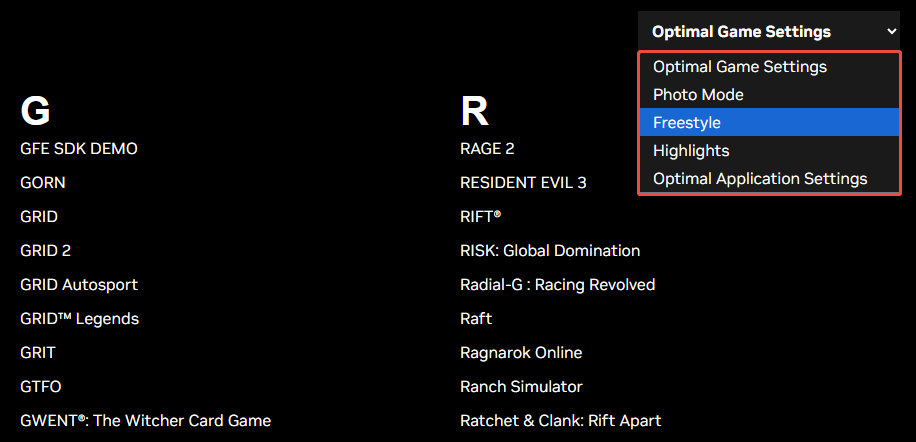
Depending on the feature you’re trying to use, your game will also need to be supported. To fix the “a supported game is required to use this feature” issue, you need to check the game compatibility. Follow the below instructions to do that:
1. Go to the Nvidia-supported games page.
2. Click the drop-down menu to select the feature you’re trying to use and check if the game is listed.
3. Then, launch your game. Once the game reaches its menu screen, press Alt + Z to re-enable the overlay.
Way 2: Change to Desktop Capture Mode
If you’re having trouble recording or creating highlights, try to enable desktop capture mode. This will allow you to record your entire screen with the software. However, this method isn’t ideal if you use multiple monitors.
1. Press the Alt + Z keys together and click the gear icon to open Settings.
2. Click Video capture and enable the Desktop capture mode.
3. Go back to the overlay menu. Turn instant replay back on.
Way 3: Close OBS or Recording Software
Some recording software, such as OBS, can cause issues with Nvidia features. The easiest way to fix this is to close the recording software and any games you are playing. Once you restart the game, the corresponding game error should be fixed.
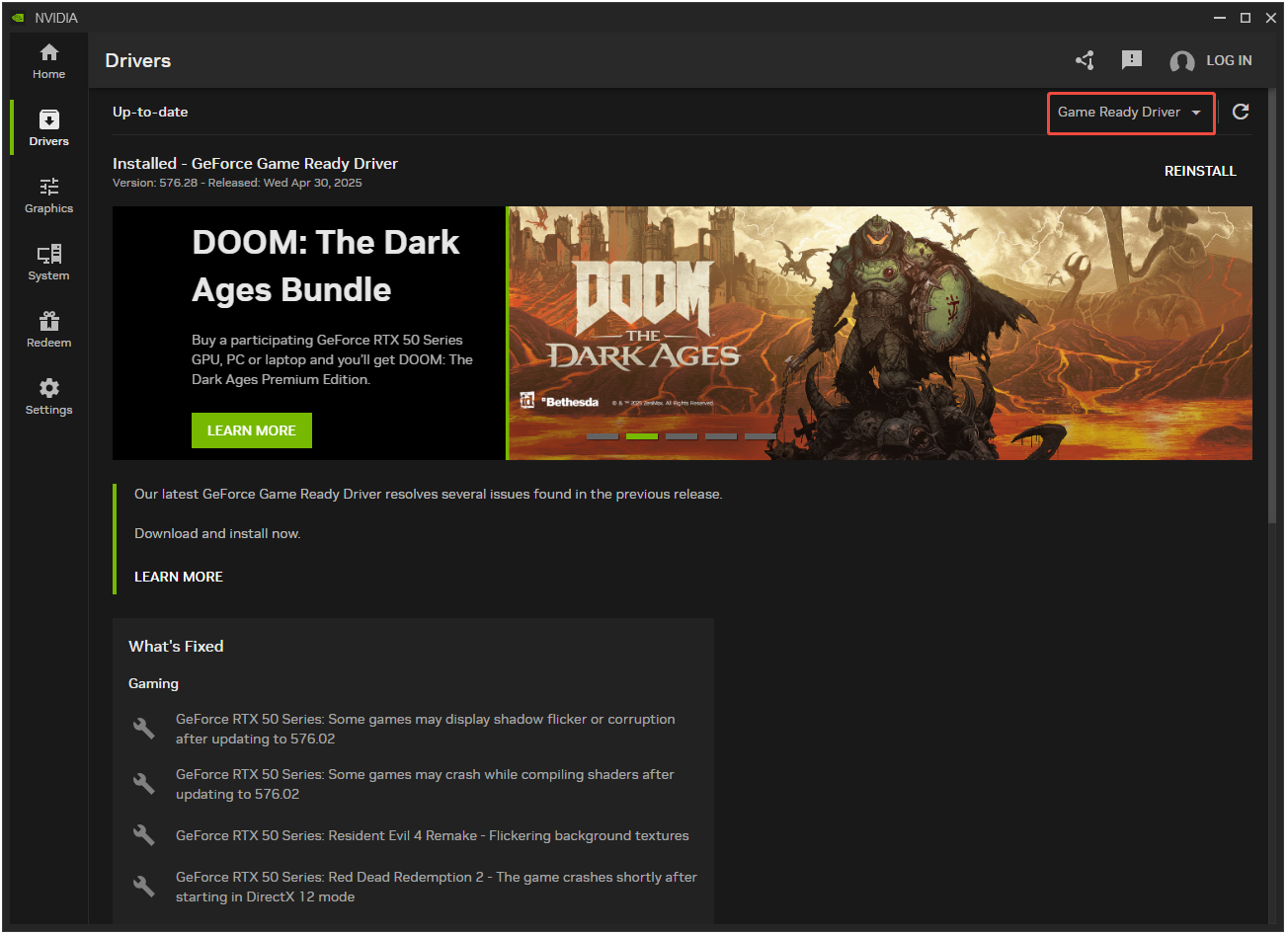
Way 4: Switch to a Previous Nvidia Driver
Switching to a legacy driver can fix supported game errors, but it is required. If the issue you are experiencing is with a specific game, you will need to make sure the driver you choose was released after the game of your choice was released. Typically, you only need to use one of the previous two drivers.
Way 5: Adjust In-Game Overlay Settings
For certain games, especially those with anti-cheat systems, you may need to disable and re-enable the NVIDIA In-Game Overlay.
1. Launch the NVIDIA app and go to Settings > Features.
2. Toggle NVIDIA Overlay off.
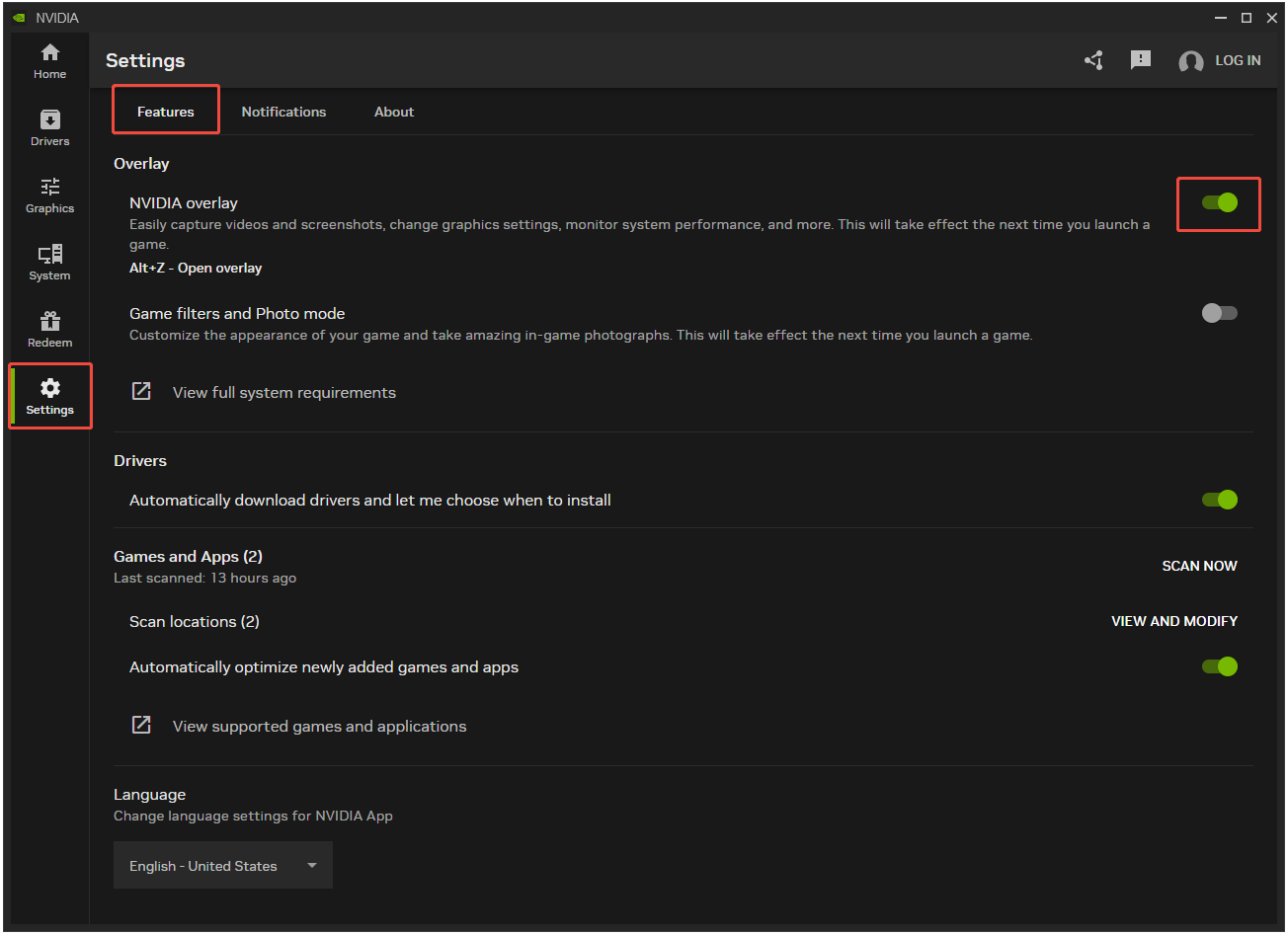
3. Then, launch your game. Once the game reaches its menu screen, press Alt + Z to re-enable the overlay.
Way 6: Change to Desktop Capture Mode
If you’re having trouble recording or creating highlights, try to enable desktop capture mode. This will allow you to record your entire screen with the software. However, this method isn’t ideal if you use multiple monitors.
1. Press the Alt + Z keys together and click the gear icon to open Settings.
2. Click Video capture and enable the Desktop capture mode.
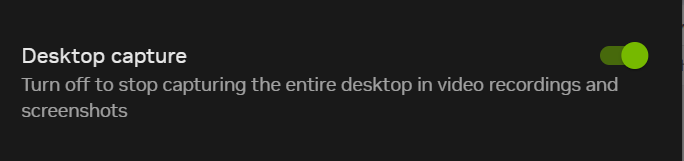
3. Go back to the overlay menu. Turn instant replay back on.
Final Words
How to fix the NVIDIA GeForce Experience error – a supported game is required to use this feature? This post provides a full guide with one-by-one steps.
User Comments :