
Read this MiniTool post to discover detailed information about the Addlink P50, including its wide compatibility, performance, pros, and cons. Furthermore, we outline the methods for backing up data from a PC to this versatile portable SSD and recovering lost data from it.
The Breakdown of Addlink P50
The Addlink P50 is a compact, high-speed USB SSD (solid-state drive), which offers quick file transfers. It is ideal for professionals, creators, gamers, and mobile workloads.
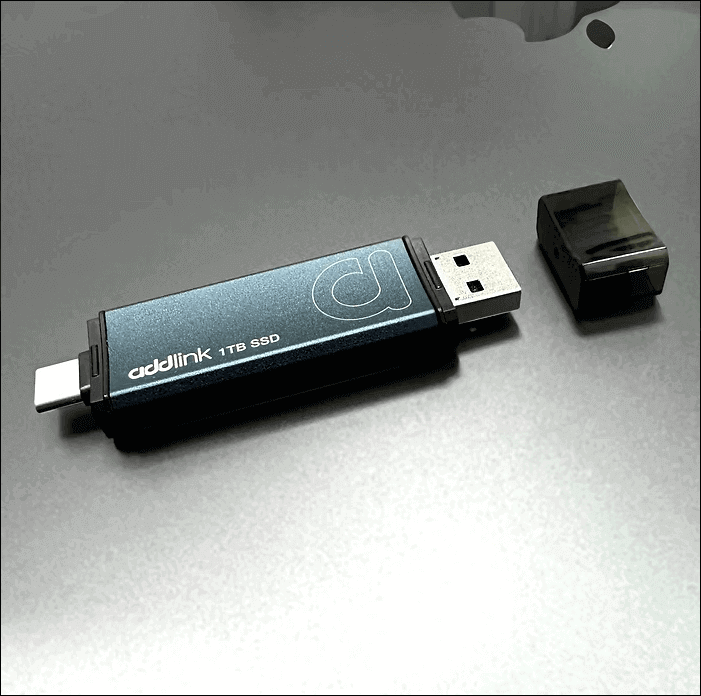
Image from addlink.com
Below is the detailed information about the Addlink P50 portable SSD in specs and key features.
Key Features for Addlink P50
The specs and designs for the Addlink P50:
| Size | 7.6 x 2.1 x 1 cm |
| File system | exFAT (Cross-Platform Compatible) |
| Capacities | Available in 500GB, 1TB, and 2TB |
| Connectivity | USB 3.2 Gen2 speeds and integrated both Type-C and Type-A connectors |
| Performance | Speeds of up to 1050 MB/s for reading and 850 MB/s for writing |
| Design | Small, lightweight (12 g), with a shock-resistant aluminum alloy shell |
| Compatibility | Works with Windows, macOS, Linux, Android, iPhone (15 series & newer), gaming consoles like PS5, tablets, and smart TVs |
| Warranty | 3-year limited warranty |
After introducing the basic information about the Addlink P50, the following are the advantages and disadvantages of this portable SSD.
Pros of Addlink P50
Here are some of the key advantages of the Addlink P50:
- Diverse User Base: This high-speed portable SSD is perfect for photographers, video editors, and gamers who require fast, dependable storage for large files.
- Extensive Compatibility: This portable SSD functions smoothly across PCs, Macs, Linux, Android, iPhone 15+, and gaming consoles.
- Dual Connectors: This SSD features both USB-C and USB-A connectors (via included cables) and uses the exFAT file system to ensure wide compatibility. Its plug-and-play nature means no drivers are needed, making it hassle-free.
- High Transfer Speeds: The device achieves speeds of up to 1050MB/s for efficient file transfers. It supports quickly transferring large files, 4K/ProRes videos, or high-resolution projects in mere seconds.
- Durable Design: It is designed with an aluminum casing for durability and effective heat dissipation, safeguarding the data.
Cons of Addlink P50
The Addlink P50 portable SSD comes with several drawbacks, including:
- Non-Captive Connector Covers: The covers for the connectors are not attached to the drive, which increases the risk of misplacing the covers and may lead to dust or dirt accumulation on the connectors.
- Variable Transfer Rates: Transfer speeds can vary based on the connected hardware, meaning you might not always achieve the maximum advertised speeds. Factors like the USB version and overall system architecture can affect the drive’s performance.
- Notable Performance Drop During Large Transfers: According to PCWorld’s Addlink P50 review, the primary drawback is a severe drop in write speed once the secondary cache is full. When dealing with hundreds of gigabytes in one go, speeds can drop from approximately 1 GBps to just 5-25 MBps, leading to longer transfer times.
- Warms Up: Although built to handle heat with an aluminum body, it can still heat up during intensive activities like gaming or video editing sessions.
- Lack of Bundled Software: The Addlink P50 does not include any bundled software, which means you won’t benefit from additional features such as backup solutions, encryption, or file management tools.
How to Back up PC Data to Addlink P50
As a versatile portable SSD available in 500GB/1TB/2TB, the Addlink P50 provides a reliable option for backing up your PC data.
For data backup, MiniTool ShadowMaker, a professional and green file backup tool, is highly recommended.
It can be used to regularly back up files, folders, disks, partitions, and even the entire operating system.
This easy-to-use tool provides a trial edition, which you can use for free within 30 days.SM-download
MiniTool ShadowMaker TrialClick to Download100%Clean & Safe
With just a few simple steps, you can protect your computer data by backing it up to your Addlink P50 SSD:
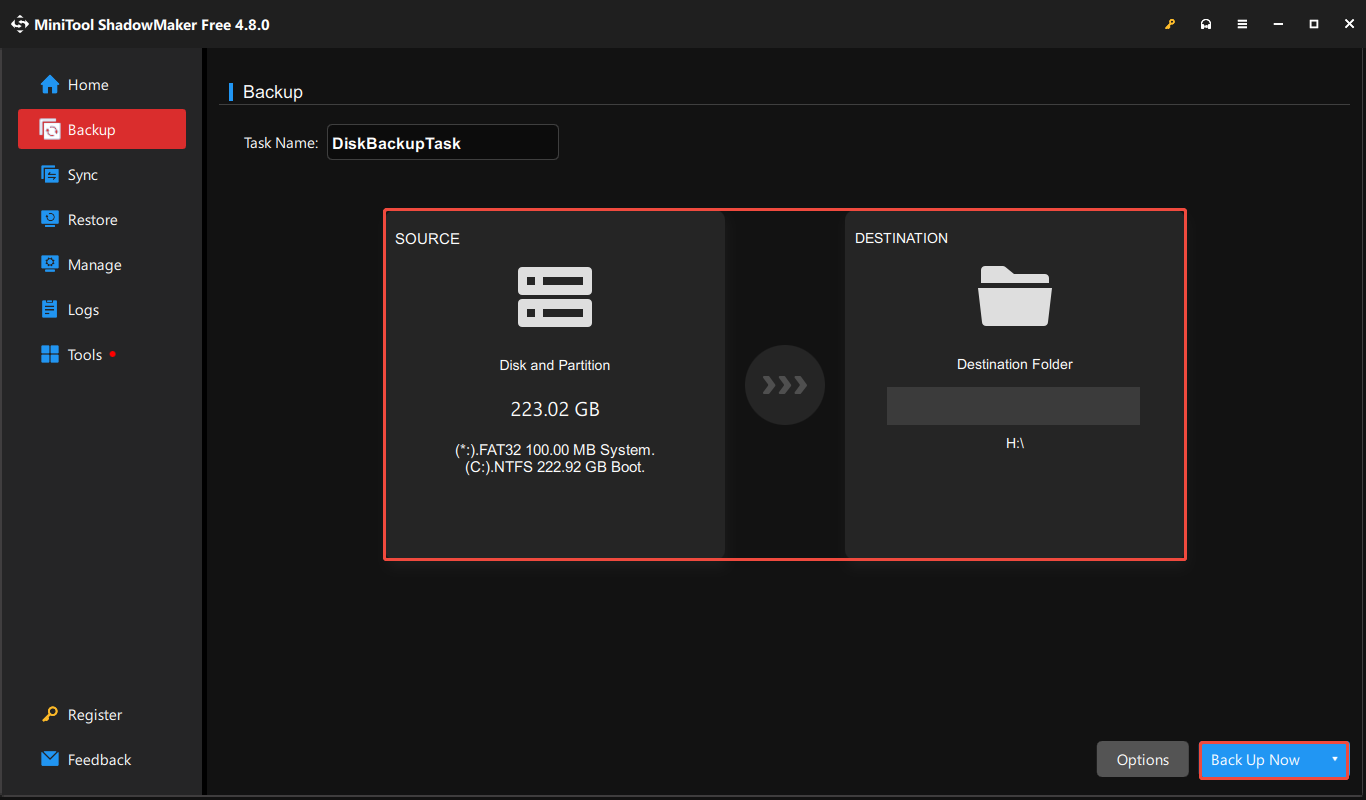
Step 1. Connect this USB SSD to your computer, launch MiniTool ShadowMaker, then select the Keep Trial option to continue.
Step 2. On the main interface of this backup software, go to the Backup tab.
Step 3. Click the SOURCE button to select the files/folders or the partitions/disks you want to back up. Next, click the DESTINATION button to choose the Addlink P50 SSD to store the backup image file.
Step 4. Click the Back Up Now button to begin the backup process, and wait until it completes.
How to Recover Data From the Addlink P50
As mentioned above, this USB SSD doesn’t have bundled software to perform backup actions. The data stored in it may be vulnerable to loss.
If you encounter the data loss scenario on your Addlink P50 SSD, consider using professional data recovery software to rescue your data.
MiniTool Power Data Recovery is recommended here.
It is a reliable, easy-to-use, and free file recovery tool that supports recovering files from SSD, HDD, USB, and other file storage media.
Moreover, this tool can handle various data loss situations, like accidental deletion, disk formatting, virus attacks, and more.
MiniTool Power Data Recovery FreeClick to Download100%Clean & Safe
Here you can see the detailed steps to recover your Addlink P50 SSD files using this software:
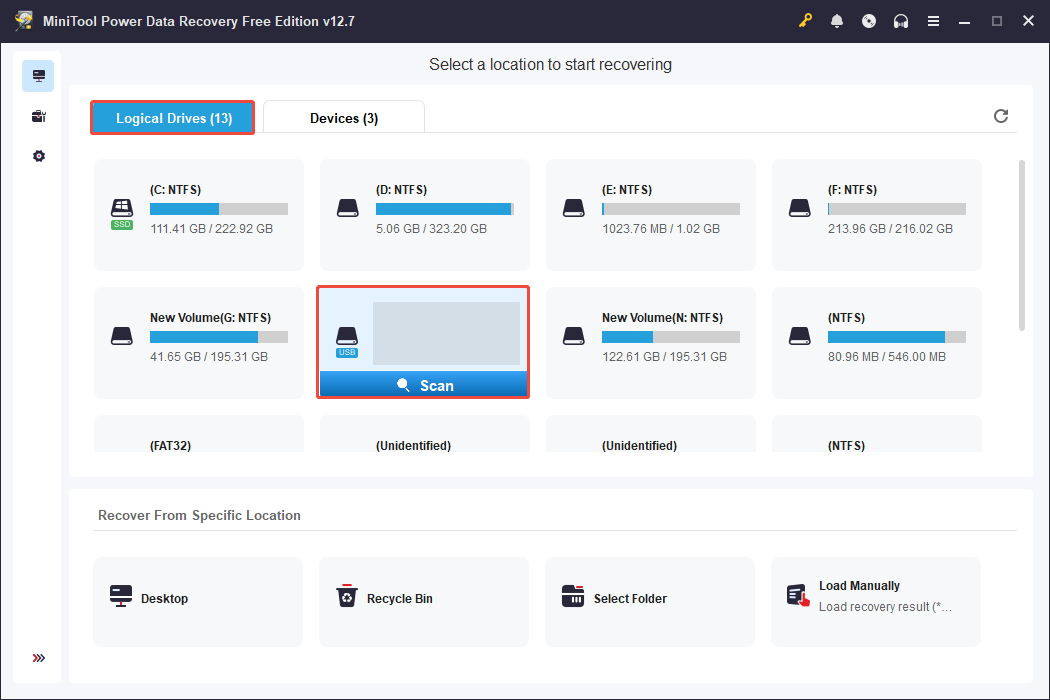
Step 1. Open MiniTool Power Data Recovery to enter its home page. Under the Logical Drives tab, select your Addlink P50 SSD (with a USB icon), then click Scan.
Step 2. After scanning, use the four features to locate the wanted files quickly:
- The Path tab shows files organized according to their initial folder structure.
- The Type tab organizes files into categories based on format, including photos, documents, videos, audios, and more.
- The Filter option allows you to filter out scan results by file type, modified date, file size, and file category.
- The Search feature enables you to quickly locate a specific file by typing the complete or partial file name in the search box and pressing Enter.
Step 3. Preview files to ensure they are needed. Afterwards, check the boxes of your desired files and click the Save button.
In the pop-up window, choose a safe location to save them.
Bottom Line
In conclusion, this post highlights several important features, advantages, and drawbacks of the Addlink P50 SSD.
Furthermore, you will learn the process of backing up data to this portable SSD for safeguarding your data and data recovery if the Addlink P50 SSD data loss.
If you have any problems when using MiniTool products, feel free to let us know via [email protected].
User Comments :