
When you are trying to launch or install a video game, you may receive the following error message - d3dx9_42.dll is missing. If you are finding some methods to get rid of this terrible error, this post from MiniTool maybe is what you need.
When you try to launch or install a video game, you may encounter the “d3dx9_42.dll is not found” issue since there are issues with the DirectX service. You don’t need to worry about the error and just follow the fixes below to get rid of the error.
Fix 1: Install DirectX End-User Runtimes
Installing the DirectX End-User Runtimes package can help you fix the error with d3dx9_42.dll. Here is how to install the package.
Step 1: Search for the Windows End-User Runtimes download package online.
Step 2: Choose the appropriate language for your PC, then click Download.
Step 3: Once you’ve downloaded the file, run it and follow the on-screen instructions to install it.
Step 4: After the package is installed, you should restart your computer. Then, check to see if the problem has been resolved.
Fix 2: Update DirectX on Your Computer
Updating DirectX can also be useful for you to fix the d3dx9_42.dll issue. In general, the most recent DirectX version with the updates they roll out will be automatically installed on Windows 8/8.1/10. While, if you’re using Windows XP/Vista/7, you would have to install the update package to get the latest DirectX version for your computer.
Fix 3: Update Your Graphics Card Driver
Corrupted or outdated graphics card drivers could also cause the “d3dx9_42.dll not found” issue. Thus, you had better update your device drivers to fix the issue. Let’s see how to update the driver.
Step 1: Right-click the Start button and select Device Manager.
Step 2: Double-click the Display adapters category to view your device.
Step 3: Right-click your graphics card and choose Update driver.
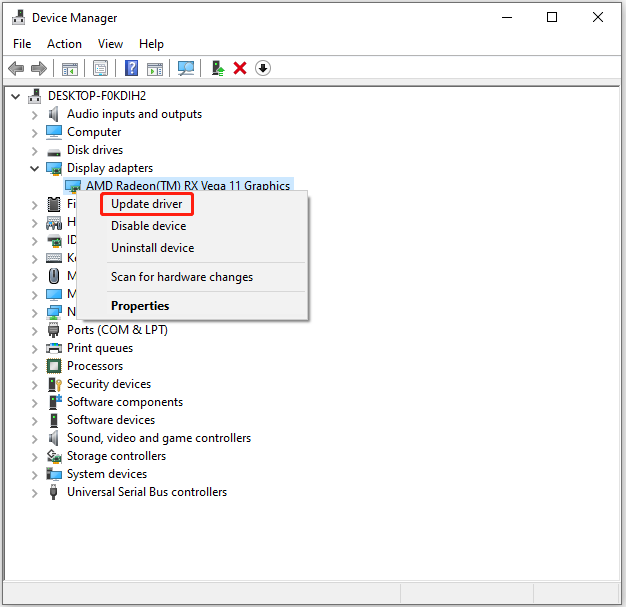
Step 4: In the pop-up window, choose Search automatically for updated driver software. Then follow the wizard to finish the left steps.
Once it’s done, you need to restart the computer to make the changes to take effect. Then you can check to see if the issue still exists.
Fix 4: Reinstall the Application
You can also try reinstalling the application to fix the d3dx9_42.dll error. To learn more information on how to reinstall it, this post – How to Reinstall DirectX in Windows 10 and Fix Its Errors can satisfy your demands.
Fix 5: Run System File Checker
If there are some corrupted or missing system files, you may also receive the error message – the program can’t start because d3dx9_42.dll is missing. Don’t worry, you can run Windows System File Checker (SFC), a built-in utility which enables you to scan and restore the problematic system files, to solve the problem.
Step 1: Click the Start menu. Then type cmd in the search box. Right-click Command Prompt and choose Run as administrator.
Step 2: When you get into Command Prompt, input sfc /scannow and press Enter.
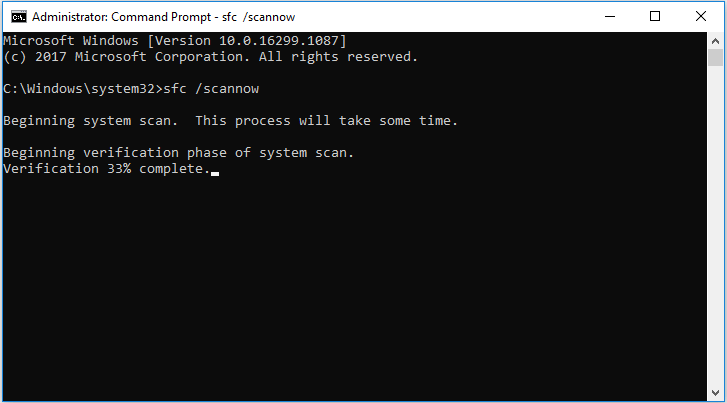
Step 3: Then Windows will scan for system file issues. You need to wait until the process is 100% completed.
Now exit Command Prompt and restart the computer. The “d3dx9_42.dll is missing” error should disappear.
Also see: Quickly Fix – SFC Scannow Not Working (Focus on 2 Cases)
The End
To sum up, this post has introduced 5 methods to fix the “d3dx9_42.dll is missing” error. If you come across the same issue, you can try these solutions. If you have any better solution to fix this error, you can share it in the comment zone.
User Comments :