
The artificial intelligence (AI) technology introduced into the Windows 10 October 2018 Update will play an important role in improving your typing automatically. With this feature enabled, you can enjoy the convenience brought by words correction, words prediction, etc. Also, you can disable it manually if you don’t like it.
After much publicity, the Windows 10 October 2018 Update (version 1809) has been finally rolled out by Microsoft on October 2, 2018. If you are careful enough, you’ll find many big features and enhancements are added to the second semi-annual update. In addition to that, some small changes as well as hidden features are also included in this update, which is noticed by few people.
What Is Typing Insights
One of the most fabulous hidden features of Windows 10 October 2018 Update is the Typing insights, which is used to help people type in a more efficient way by taking advantage of Artificial Intelligence (AI) and Machine Learning (ML).
Now, the question is how to enable Typing insights on Windows 10 October 2018 Update so as to enjoy the convenience it brings. Please keep reading to find your answer below.
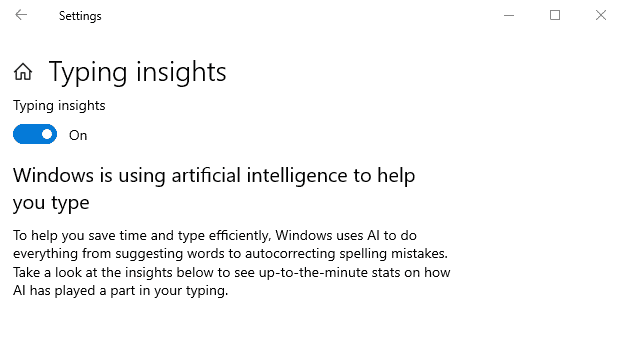
How to Enable Typing Insights
By enabling the Typing insights feature in Settings app, you can see easily how many times that AI has helped you improve typing efficiency; in the meantime, the predictions of words will be provided for you to choose.
Here, I’m going to show you how to turn on the Typing insights feature in 2 ways.
Before the process, you’d better backup files in Windows 10 in case of any accidents.
Way 1 – Enable Typing Insights by Using Settings
Step 1: you have 3 choices to complete this step.
- Click on the start button to open the start menu and scroll down to find “Settings” option which looks like a cogwheel.
- Click on the search box located on the Windows 10 taskbar and input “settings”; then, click on the “Settings” icon under “Best match”.
- Press “Windows” + “I” to open “Settings” directly in Windows 10 October 2018 Update).
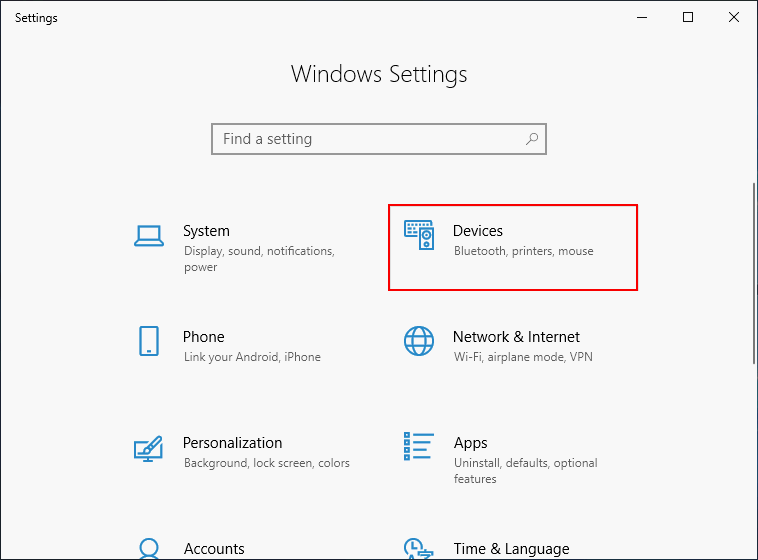
Step 2: click on the “Devices” (Bluetooth, printers, mouse) option in the “Settings” page.
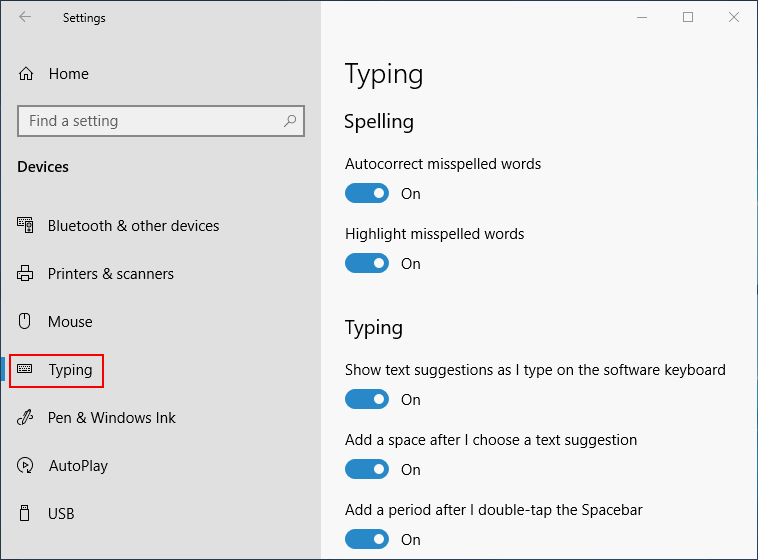
Step 3: click on the “Typing” option under “Devices” in the left pane of Settings window.
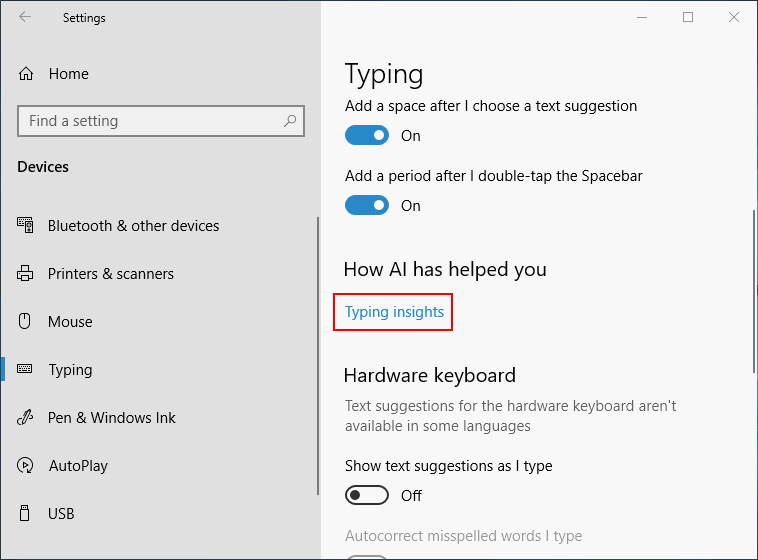
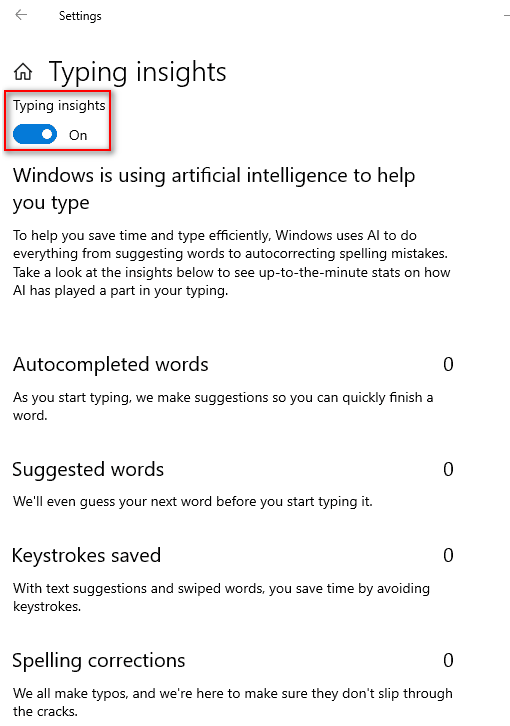
Step 4: find “Typing insights” under “How AI has helped you” and click on it.
Step 5: you’ll be able to enable or disable the Typing insights in the next page after clicking on “Typing insights”. Just adjust the switch to “On” and you can enjoy the artificial intelligence when typing.
Way 2 – Enable Typing Insights with a Registry Tweak
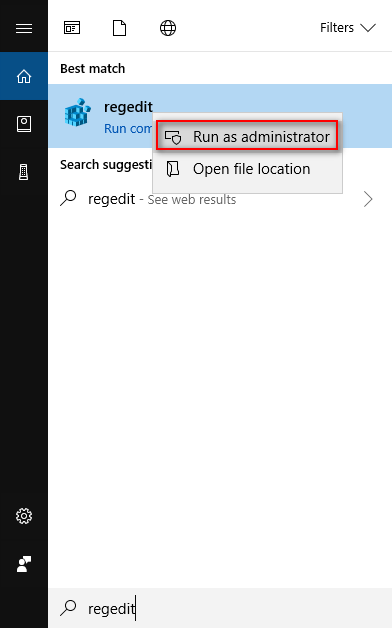
Step 1: click on the search box located on the Windows 10 taskbar and input “regedit”; then, right click on the “regedit” icon and choose “Run as administrator”. (Click on “Yes” in the pop-up window to open Registry Editor)
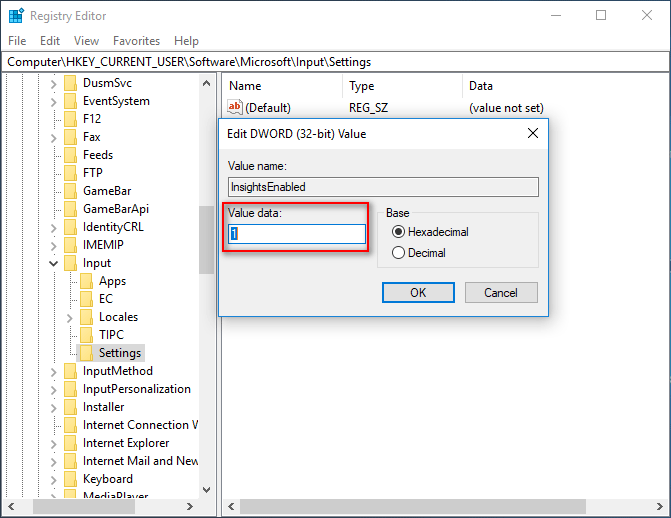
Step 2: open the “HKEY_CURRENT_USER”, “Software”, “Microsoft”, “Input”, and “Settings” in order.
Step 3: find “InsightsEnabled” on the right side of the Settings window. Then, modify or create a new DWORD (32-bit) value (Even if you are using a 64-bit Windows, you should create a 32-bit DWORD value.).
Step 4: Right click on it and do 2 things in the pop-up window – one is setting the “Value data” to be 1 and the other is clicking on the “OK” button to confirm changes.
Don’t worry too much if files get missing from Windows 10 due to improper operations. Just seize time to recover files by adopting a reliable tool.
That’s all I want to say about how to enable Typing insights in Windows 10 October 2018 Update by using Settings app and Registry Editor.
User Comments :