
Windows error code 0x80073d0b is nothing new. What should you do when you encounter this problem? Take it easy, this post on MiniTool Website will help you to get rid of it and provide you with an optimised computer using experience.
Error Code 0x80073d0b
Windows 10/11 allows you to move an inbuilt app to another drive and this feature is helpful for you to manage space on a disk drive. However, an error frequently appears when you do so. There is an error code warning – “The operation did not complete successfully. Try again in a bit. The error code is 0x80073d0b, in case you need it.”
Fortunately, error code 0x80073d0b is not too difficult to tackle, and this guide will provide you with some easy and efficient workarounds. Have a shot!
How to Fix Error Code 0x80073d0b Windows 10/11?
Fix 1: Change the Store Registry
Disabling the registry key is proved to be very useful to address error code 0x80073d0b. You can try the following operation step by step.
Step 1. Press Win + R at the same time to open up the Run box.
Step 2. Type regedit.exe in the box and hit Enter.
Step 3. Copy and paste the next text in the search box and hit Enter to locate FileSystem.
HKEY_LOCAL_MACHINE\SYSTEM\CurrentControlSet\Control\FileSystem Step 4. Scroll down in the right part to find NtfsDisableEncryption.
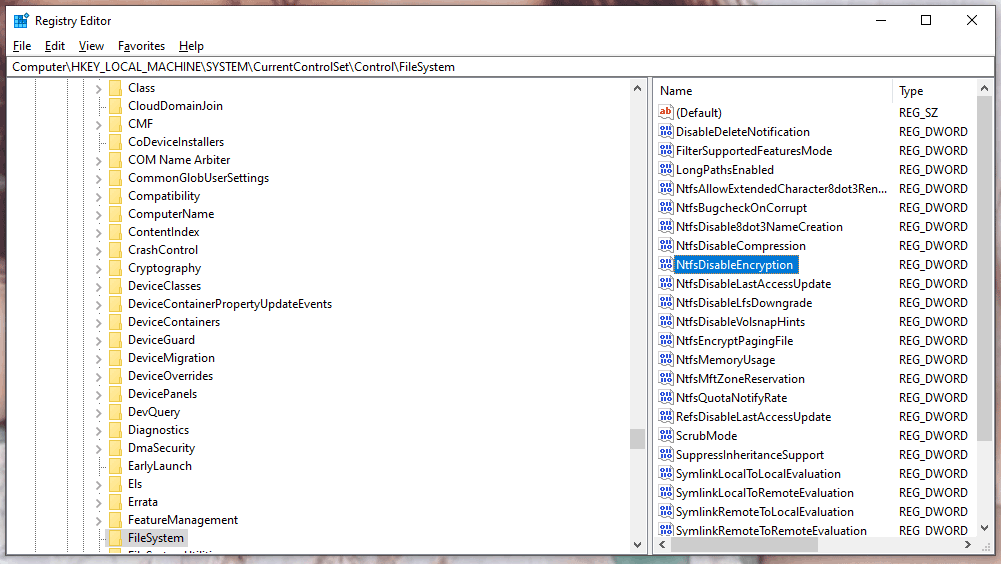
Step 5. Double-click it and set Value data to 0.
Step 6. Click OK and then restart your PC to retry the failed operation.
Fix 2: Disable EFS
EFS, short of Encrypting File System is a service in Windows that makes it impossible to send your apps to a different location by encrypting them. Therefore, disabling EFS might help to solve error code 0x80073d0b.
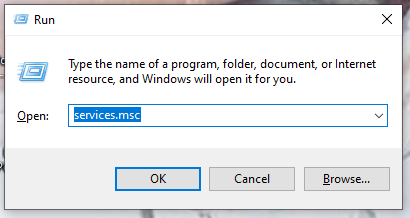
Step 1. Launch the Run dialog.
Step 2. Paste services.msc and click OK.
Step 3. Navigate to Encrypting File System service.
Step 4. Right-click it and select Properties.
Step 5. Choose Manual in Startup type, and click Stop >Apply > OK.
Fix 3: Reset Microsoft Store
If the apps you intend to move are downloaded from Microsoft Store, you can try resetting Microsoft Store. Resetting it can help to solve many internal problems such as corruption and wrongly configured settings.
Step 1. Open Settings and click Apps.
Step 2. In Apps & features, scroll down to look for Microsoft Store.
Step 3. Tap on it and choose Advanced options.
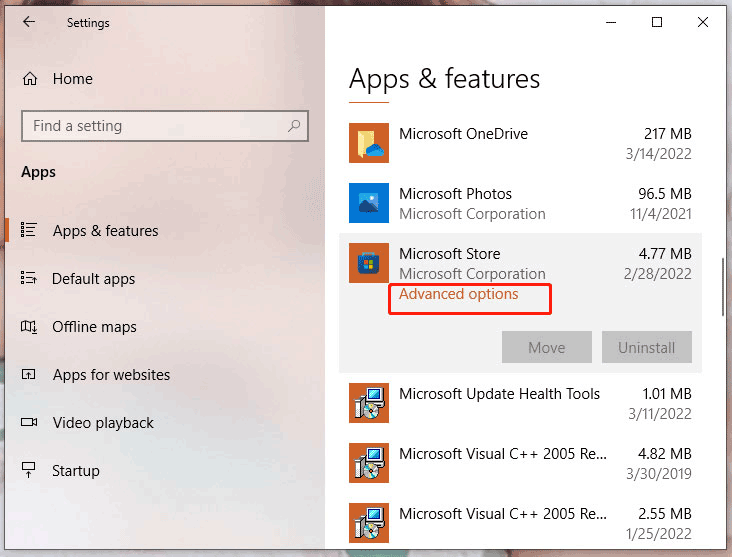
Step 4. Hit the Reset button.
Fix 4: Turn off File Compression
You can save lots of space with File Compression but meanwhile, it may disable you to move Windows apps to another location. As a result, you need to turn off File Compression to avoid error code 0x80073d0b.
Step 1. Press Win + E to open File Explorer.
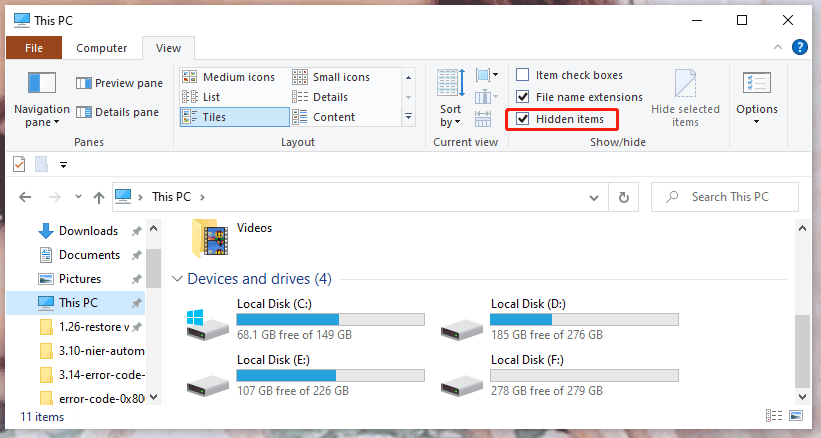
Step 2. Go to View and check Hidden items.
Step 3. Go to C:\Program Files.
Step 4. Find a folder called WindowsApps and right-click it to select Properties.
Step 5. In the General interface, tap on Advanced.
Step 6. Uncheck Compress contents to save disk space and Encrypt contents to secure data and click OK.
Step 7. If asked, confirm Apply changes to this folder, subfolders and files.
Fix 5: Use PowerShell
PowerShell is an advanced tool that allows you to make some radical system changes, you can never be too careful.
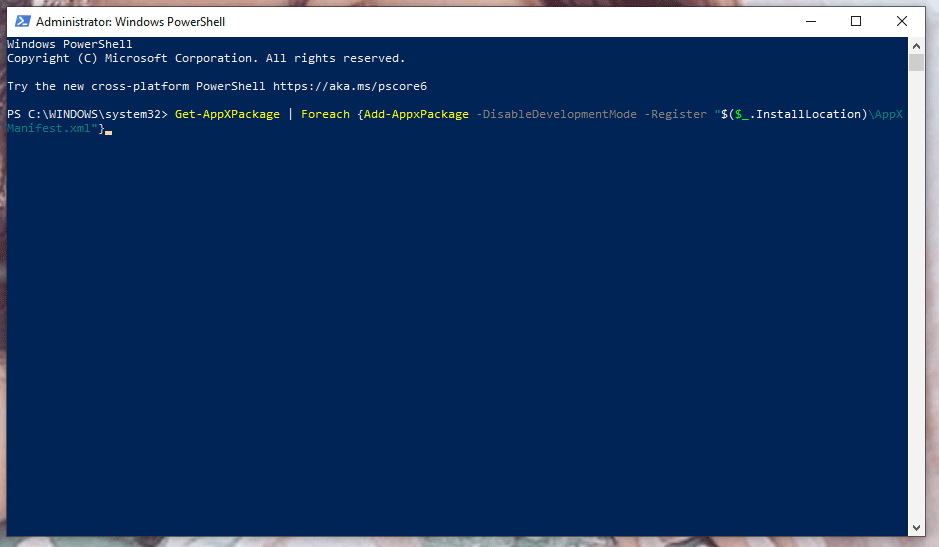
Step 1. Press Win + X to open up Windows PowerShell (Admin).
Step 2. In the new window, paste the following command and don’t forget to hit Enter.
Get-AppXPackage | Foreach {Add-AppxPackage -DisableDevelopmentMode -Register “$($_.InstallLocation)\AppXManifest.xml”}
Step 3. The process might take a few minutes, so you need to wait patiently.
User Comments :