
Do you receive error code 30088-26 or 30010-45 when attempting to install or update Microsoft Office? If yes, this post on MiniTool Website will show you how to get rid of them step by step.
Microsoft Office Error Code 30088-26
While updating or installing the Microsoft Office suite on Windows 10/11, you may fail to do that and receive an error message like this – Something went wrong. Sorry, we ran into a problem. Error code: 30088-26 or 30010-45.
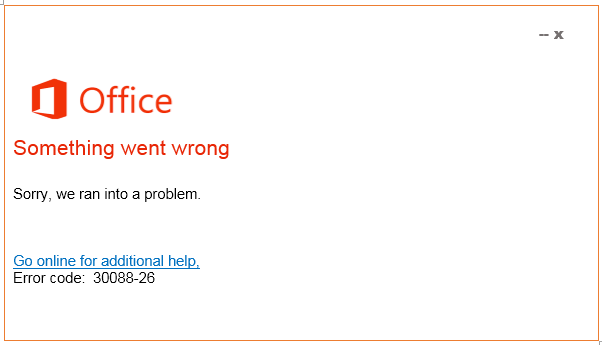
The potential culprits of this error can be:
- Corrupted Office installation – If there is any corruption in the Microsoft Office installation, it might trigger error code 30010-45 or 30088-26.
- Outdated Windows 10 version – Microsoft Office require some infrastructure updates. If these updates are missing, error code 30088-26 can also appear.
- Remnants from a corrupted installation – The previous Office installation might interfere with the installation of a pending update for the same Office application.
To help you get out of this mess, we come up with 3 effective solutions for you.
Microsoft Office is a good helper in our daily life and work. It is a good habit to back up your work files regularly with the free backup tool – MiniTool ShadowMaker. When there is a sudden power cut, system crash, hard drive failure and more, you can restore your data with the backup.
MiniTool ShadowMaker TrialClick to Download100%Clean & Safe
How to Fix Microsoft Office Error Code 30088-26?
Fix 1: Repair Office Installation
If you receive error code 30088-26 when trying to install Microsoft Word, Excel, or PowerPoint, it is likely that the associate registry files are corrupted. In this case, you can repair MS Office from Program and Features.
Step 1. Press Win + R to open the Run dialog box.
Step 2. Type appwiz.cpl and hit Enter to open Programs and Features.
Step 3. Now, you can see a list of applications installed on your computer, right-click on Microsoft Office and hit Change or Modify.
Step 4. Tick Online Repair and hit Repair to start the repairing process.
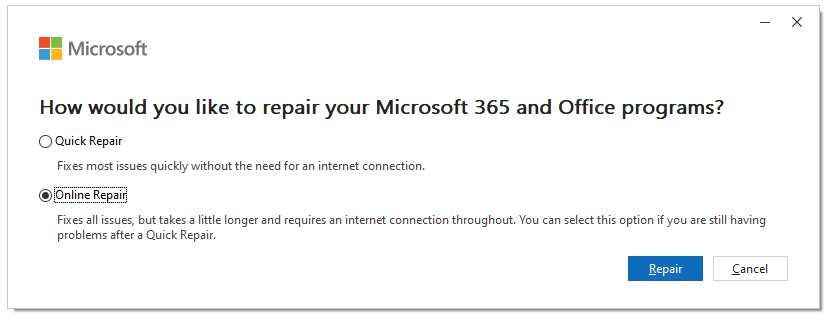
Step 5. Wait for the process to complete and then restart the computer to see if Microsoft Office error code 30088-26 disappears.
Fix 2: Install Pending Windows Updates
If you are not running the latest version of Windows 10, you can try installing all the pending updates to see if there is any improvement for error code 30088-26.
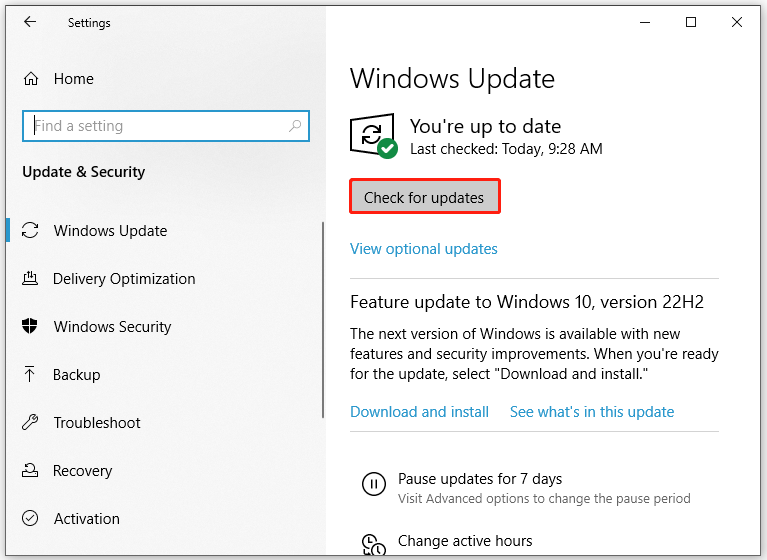
Step 1. Press Win + I to open Windows Settings.
Step 2. In the settings menu, find Update & Security and hit it.
Step 3. Under the Windows Update section, hit Check for updates. Make sure to install every update including security and cumulative updates.
Fix 3: Reinstall Microsoft Office
The last resort is to reinstall Microsoft Office. Here’s how to do it:
Step 1. Go to Windows Settings > Apps > Apps & features.
Step 2. In the app list, locate Microsoft Office and hit the Uninstall button. Hit Uninstall again to confirm this operation.
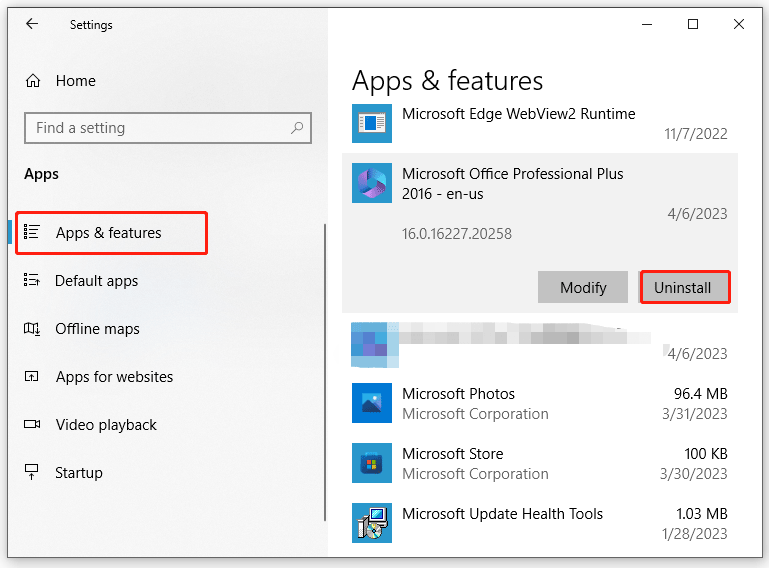
Step 3. After the application is removed from your computer, go to the official website of Microsoft 365 to log in to your Microsoft account and hit Install Office to install it again.
Final Words
In a nutshell, this post offers you how to fix Microsoft Office error code 30088-26 or 30010-45 on Windows 10/11 in 3 ways. Sincerely hope that they do the trick for you!
User Comments :