
Perhaps you are a Microsoft Visio user. After updating to Windows 10 1903, you find that Microsoft Visio hangs when you are using the application with a keyboard. Microsoft said it is a code issue. We introduce one solution in this post which can fix this issue. You can try it to help you out.
Are Your Microsoft Visio Hangs on Windows 10 1903?
Microsoft Visio, which is formerly known as Microsoft Office Visio, is a diagramming and vector graphics application. It is a part of the Microsoft Office family.
The Microsoft Visio service is specially designed to enable the team to work together on diagrams via the web. With it, it will be simple to draw flowcharts, map IT networks, build organizational charts, or document business processes.
If your Visio files are lost or deleted by mistake, you can use a professional data recovery software, MiniTool Power Data Recovery, to get the lost files back. For more information about MiniTool programs, you can visit the MiniTool home page to learn it.
When you are using Microsoft Visio, you may encounter the Microsoft Visio hangs or delays issue when using the application with a keyboard on Windows 10, version 1903. When you search for this issue on the internet, you will discover many users have reported such an issue on the Microsoft 365 Service health dashboard.
Microsoft has determined the Microsoft Visio hangs on Windows 10 1903 issue as a code issue”
“We’ve determined that a code issue within Microsoft Windows is causing the Microsoft Visio service to perform in a degraded state when users are on Windows Build 1903 and have the ‘Show text suggestions as I type’ feature enabled…We’re working on a fix and we’ll perform extensive testing to ensure that it properly resolves the issue before deploying it to the affected environments.”
What Is the Cause of Microsoft Visio Stalls?
As mentioned above, the Microsoft Visio hangs issue is a code issue. To be specific, a code issue in the latest version of Windows 10 leads to the Visio service to face delays or stalls when you are using it with a keyword.
How to Fix the Microsoft Visio Delays Issue?
No matter how serious the issue is, you still need to use Microsoft Visio. And in fact, it is a difficult job to fix Microsoft Visio hangs. You can follow these steps to resolve this issue:
Step 1: Press the Windows icon on your computer.
Step 2: Select Settings from the popup menu.
Step 3: Go to Devices > Typing.
Step 4: Find the Hardware keyboard section.
Step 5: Switch the button of the Show text suggestions as I type option to Off.
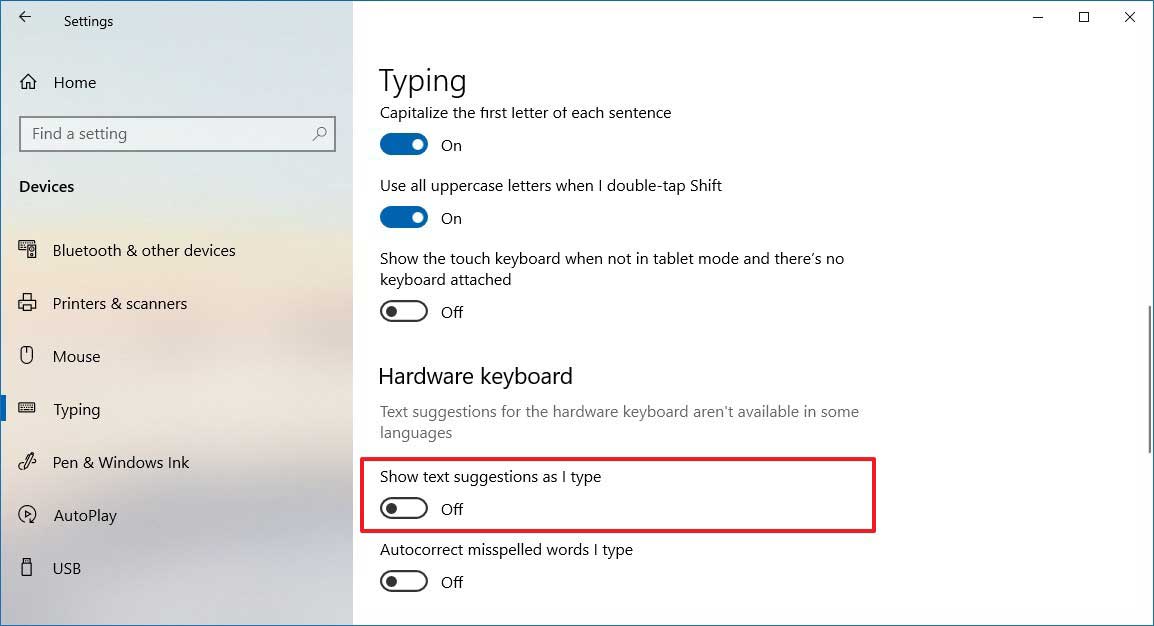
After using these 5 steps, you can go to see whether the Microsoft Visio delays issue disappears. If this issue persists, you can describe this issue in an email and send it to the Redmond official site to ask for help.
If you don’t know which version of Windows 10 you are running, you can use these steps to check:
Step 1: Press Windows logo and R at the same time to open Run.
Step 2: Type winver into the search box.
Step 3: Press OK.
Then, you will see a window in which you can see the Windows 10 version you are running.
Microsoft has reported this issue for a long time. Perhaps, the Microsoft Visio issue will be solved in the next update.
About The Author

Position: Columnist
Stella has been working in MiniTool Software as an English Editor for more than 8 years. Her articles mainly cover the fields of data recovery including storage media data recovery, phone data recovery, and photo recovery, videos download, partition management, and video & audio format conversions.
User Comments :