
Sometimes, you may see the Google Drive icon greyed out. Also, when you open Google Drive, you may see a message saying “Google Drive needs to be running to sync these files”. Now, learn how to get your Google Drive syncing smoothly again.
Method 1: Pause and Restart the Sync Process
If the “Google Drive needs to be running to sync these files” issue appear, try pausing and restarting the app – a common solution recommended by many users. To do this:
1. Open the system tray and select the app’s icon.
2. Click the three-dot menu and choose Pause.
3. After a moment, select Resume to see if file syncing resumes normally.
Method 2: Run Google Drive as an Administrator
Sometimes, if Google Drive isn’t syncing all your files, running it as an administrator is helpful. This could help remove any restrictions preventing the app from syncing all the files. To apply this fix, type Google Drive on the search bar, then select the Run as administrator option.
Method 3: Check the Internet Connection
The “Google Drive not syncing all files” issue might occur due to the connection of the Internet. Hence, you should check if something is going wrong with your Internet connection when encountering the error. To check the errors with network configuration, you can run the Windows Network Diagnostics utility. During the running process, it troubleshoots issues and detects errors.
Method 4: Delete Desktop.ini File
When you encounter the “Google Drive not syncing all files on Windows” issue, it records the resulting error in a file called desktop.ini which is hidden by default. Once it is generated, Google Drive will not sync any files after that point until you resolve the error.
So, in order to fix the error Google Backup and Sync not starting automatically, you can trying deleting the desktop.ini files.
Now, here is the tutorial.
1. Press the Windows + E keys together to open File Explorer.
2. For Windows 10 users, go to View and check the Hidden items option.
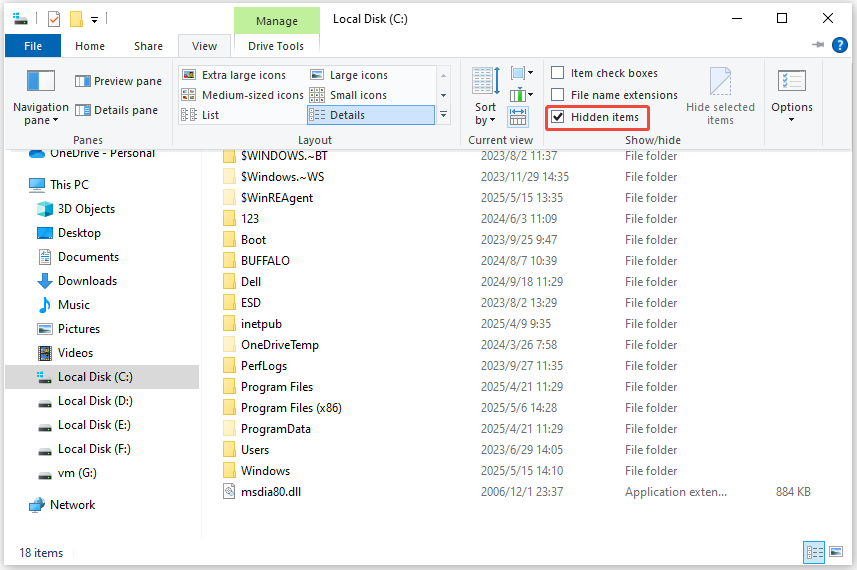
3. Then go back to the Google Drive folder and delete the desktop.ini file.
Method 5: Turn off the Firewall
This solution to fix the “Google Drive needs to be running to sync these files” issue is disabling Windows Firewall. Here is how to do that:
Step 1: Type Control Panel in the Search box to open it.
Step 2: Go to System and Security > Windows Defender Firewall.
Step 3: Turn Windows Defender Firewall on or off. Click Turn off Windows Firewall (not recommended) for both the Private and Public network settings.
MiniTool ShadowMaker TrialClick to Download100%Clean & Safe
Final Words
That is all information about the methods to fix the “Google Drive needs to be running to sync these files” issue. I believe that one of them can be helpful for you. You just need to try them one by one.
User Comments :