
The hard drive controller acts as an intermediary between the hard drive’s storage media and the data bus of your computer. What can you do of this critical component fails all of a sudden? In this post from MiniTool, we will show you some symptoms and solutions of hard drive controller failure.
Hard Drive Controller Failure Symptom
The hard drive controller is designed to boost data transfer between the hard drive’s platters and the computer’s CPU. This component is also responsible for dealing with complex tasks including wear leveling, bad sector management, error connection and more. Like other components of your computer, the hard drive controller might also fail for various reasons. Here are some common symptoms of hard drive controller failure:
- Your hard drive cannot be recognized by the computer.
- The hard drive makes some weird noises.
- Your computer might fail to boot or get stuck on the blue screen.
- The hard drive spins up but shuts down at once.
Fix 1: Check Connection
There are at least 2 cables in the back of the hard drive: power cable and data cable. They are responsible for powering up the disk, so please make sure they are connected in the right direction. If yes, reconnecting them might also do the trick for hard drive controller failure.
Fix 2: Check Configurations
Before detected by your computer, your hard drive should be configured properly in the BIOS menu. For instance, if your BIOS setup supports automatic configurations, it’s advisable to use that setting. After that, your computer will detect the model and the type of your drive and set it up accordingly.
Usually, your BIOS can recognize your hard drive in most cases. If it is not detected by BIOS, the hard drive, interface board, motherboard, or hard drive cable must be faulty.
Fix 3: Replace Hard Drive Cable
If hard drive controller failure still exists, the hard drive cable might be blamed. Replace the current cable with another one compatible with the drive’s model and type in time.
Fix 4: Seek Professional Help
Also, manufacturing defects might contribute to HDD controller failure. In this case, you can contact the computer manufacturer or the hard drive manufacturer for replacement if the hard drive is still under its warranty.
Hard Drive Controller Replacement
If you want to replace your hard drive on your own, follow these steps:
Step 1. Find the serial number on your hard drive.
Step 2. Go to an online or local supplier to get a new hard drive controller and an interface to your computer.
Step 3. Replace the hard drive controller.
- Ground yourself before starting handling the broads.
- Remove all the fasteners and pull out the controller board.
- Carefully remove the foam from the previous controller board’s bottom without destroying it.
- Put the foam in position on the hard drive and don’t obstruct the 2 groups of electrical contacts.
- Put the new controller on your hard drive.
- Replace the fasteners and tighten them.
Step 4. Connect the new hard drive using the USB to IDE adapter and then power on your computer.
Suggestion: Back up Your Data Regularly with MiniTool ShadowMaker
It’s universally acknowledged that hard drive failure or hard drive controller replacement might lead to data corruption or data loss. To better safeguard your valuable data, it’s important to develop a habit of scheduled backup. With a backup, you can easily recover your data in the event of hard drive failure, system crashes, boot issues, etc.
In the sight of data protection, you can rely on a piece of professional PC backup software called MiniTool ShadowMaker which supports backing up various items on your Windows device, including crucial folders and files, selected partitions, the Windows system, and even the whole disk. Here’s how to create a backup with this tool:
Step 1. Download and install the freeware.
MiniTool ShadowMaker TrialClick to Download100%Clean & Safe
Step 2. Launch it and hit Keep Trial to enter its main interface.
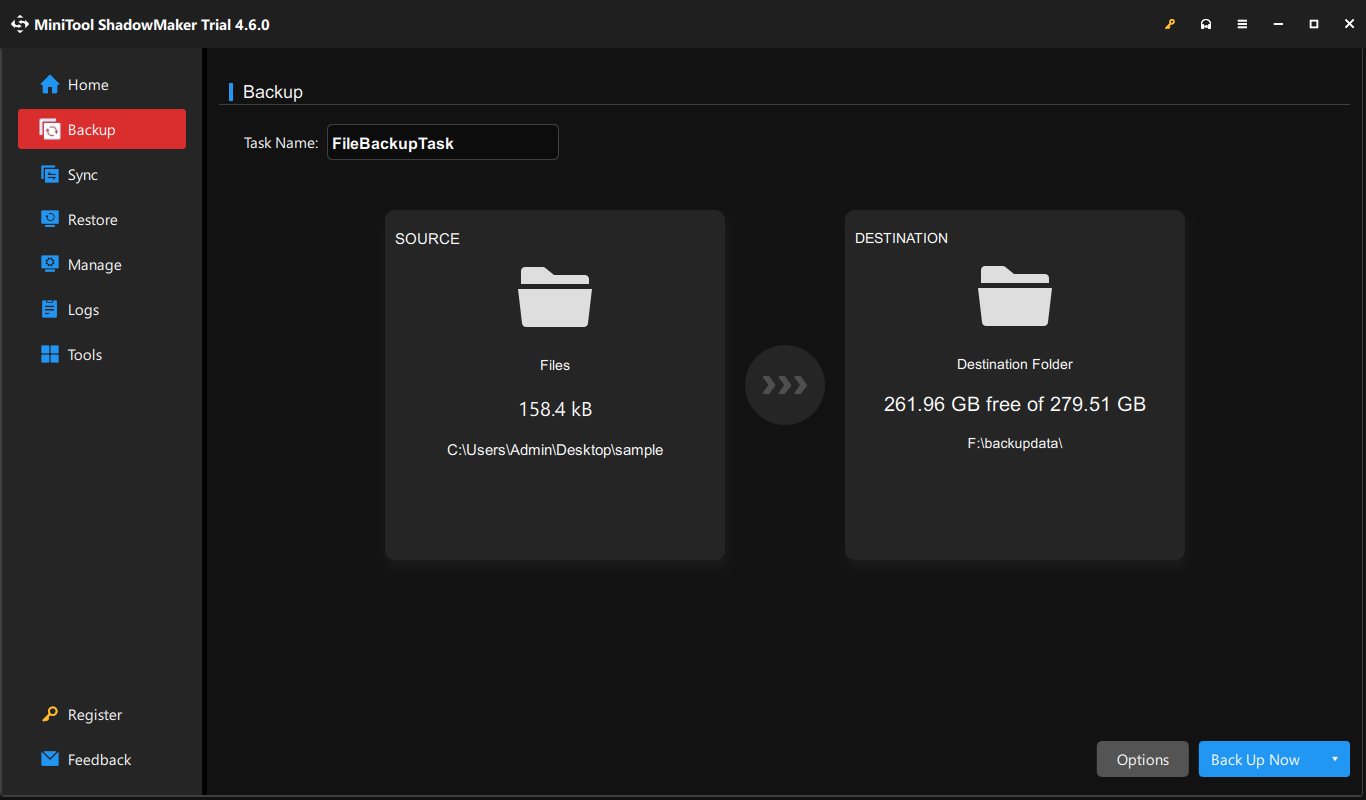
Step 3. In the Backup page, you can select what to backup in SOURCE and where to save the backup image in DESTINATION.
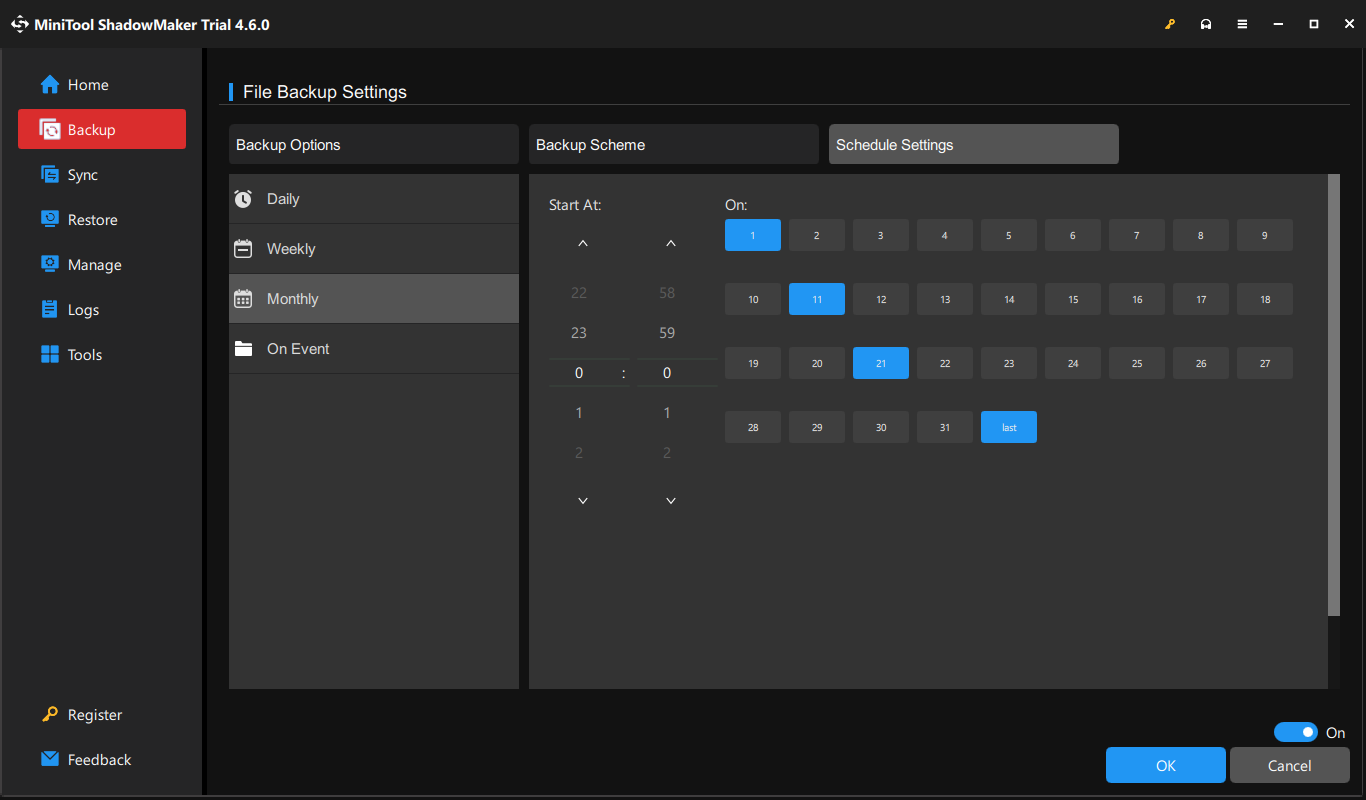
Step 4. To create a scheduled backup, click on Options in the lower right > toggle on Schedule Settings > choose a time point of a day, week, or month > hit OK to save the change.
Step 5. Finally, click on Back Up Now to start the process.
Final Words
That’s all you can know about hard disk controller failure. Most importantly, make sure to create a daily backup of your important items with MiniTool ShadowMaker. We sincerely hope that you can get free from HDD failure and all your data will be safe and sound.
User Comments :