
OneDrive Sync Stuck
I don't know what my One Drive is doing, but the status is always "Preparing to upload" for more than 2 hours now. Nothing is being uploaded and nothing is being downloaded. No information as well about the total files that are already being processed.https://techcommunity.microsoft.com/
It’s not a new thing to see types of sync issues on OneDrive, such as sync stopped, sync interrupted, or upload stuck. There can be multiple factors why OneDrive is stuck on preparing to upload. For example:
- Internet Problem: Network outage or poor network connection is the most common cause of OneDrive sync slow or OneDrive failed to upload.
- OneDrive Limits: OneDrive storage space limit and OneDrive file limit can make OneDrive stuck on Preparing to Upload.
- Your File Is Opened: If the file you are uploading is being opened by another program, the file upload may be stuck or failed.
- Outdated OneDrive: When OneDrive has any pending updates, the current version you are using may have issues during uploading.
How to Fix OneDrive Hangs with Preparing to Upload
Fix 1. Update OneDrive
An old version of OneDrive can increase the chance of getting stuck on Preparing to Upload or other setbacks. Updating it is a necessary step.
To do that, the first thing is to uninstall the current OneDrive by opening Settings > select Apps > Microsoft OneDrive > Uninstall. After that, visit the official download site to download the latest version of OneDrive and then check if it still fails to upload files.
Fix 2. Pause and Resume Syncing
Pausing and resuming synchronization can reconnect OneDrive and then smooth the process of file upload. Here is a tutorial:
Step 1. Navigate to your OneDrive from the taskbar and open it.
Step 2. Click on the gear icon at the top right corner, expand Pause syncing and choose a pause time.
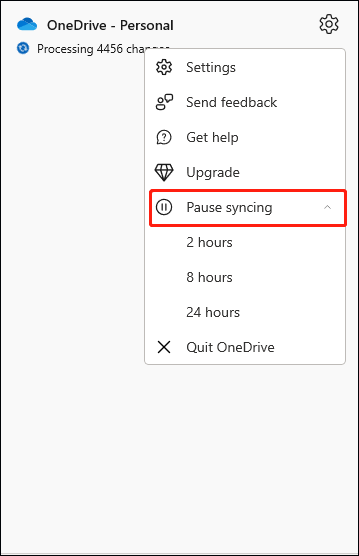
Step 3. Wait for a few minutes and then tap on the gear icon again. Select Resume syncing to start the upload again.
Fix 3. Break Files to Upload
On the one hand, if the file that is uploading is too large, it may not be able to upload to OneDrive. In this case, you can consider breaking the large files into some smaller files and try syncing them to OneDrive again.
On the other hand, check if the name of the uploading files has any invalid characters or is too long to upload. In addition, check whether the file types are invalid or not.
Fix 4. Manage OneDrive Storage
OneDrive only offers 5GB of free personal cloud storage and the upper limit of the file size for each upload per day is 250GB. If you have not enough storage space on OneDrive, no wonder that you get stuck on Preparing to Upload. So, it’s time to manage your OneDrive storage and free up system drive.
To free up your hard drive so that OneDrive can run properly:
Step 1. Press Win + E to bring up File Explorer.
Step 2. Scroll down to find the system drive and right-click on it to choose Properties from the drop-down menu.
Step 3. Go to the General tab and click on Disk cleanup.
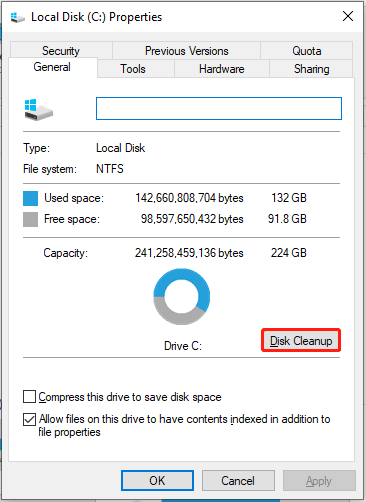
After freeing up OneDrive and hard drive, check if OneDrive stuck on Preparing to Upload still exists.
Fix 5. Reset OneDrive
If none of the above works, try resetting OneDrive to fix the upload issues.
Step 1. Press Win + R to evoke the Run box.
Step 2. Input %localappdata%\Microsoft\OneDrive\onedrive.exe /reset and press Enter.
Step 3. Upon the reset of OneDrive, fire up the Run dialog again, type %localappdata%\Microsoft\OneDrive\onedrive.exe and click on OK. This step is about to reconfigure OneDrive.
Fix 6. Try Another Sync Tool
If you want to get rid of backup or sync errors like OneDrive stuck on Preparing to Upload, a reliable third-party backup software – MiniTool ShadowMaker is a wise choice.
This all-in-one tool boasts a suite of data protection services, including file sync, file backup, disk clone, system backup, partition backup, disk backup, and more, offering a 30-day free trial edition. Let’s show you how it works.
MiniTool ShadowMaker TrialClick to Download100%Clean & Safe
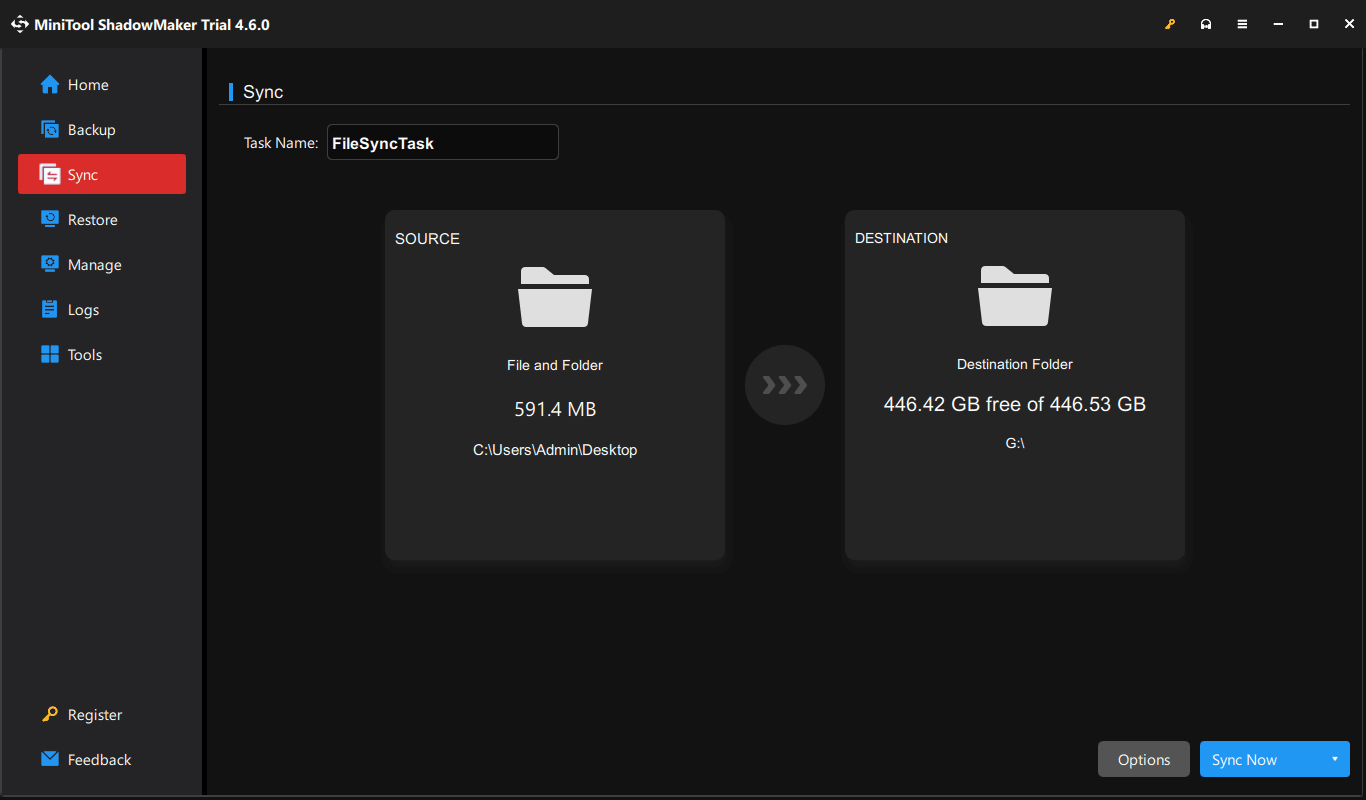
Step 1. Launch MiniTool ShadowMaker and click Keep Trial.
Step 2. Go to Sync > select SOURCE to choose the files you need to sync > switch to DESTINATION to choose storage > click on Sync Now.
Related article: What Is Auto Sync Software? Here Are 4 Recommendations for You
Final Words
That’s all solutions to fix OneDrive stuck on Preparing to Upload and an alternative for OneDrive – MiniTool ShadowMaker. Appreciate your support.
User Comments :