
What is Origin error syncing cloud storage data? What causes the error syncing cloud storage data? How to solve the Origin unable to sync cloud storage data error? This post from MiniTool will demonstrate 4 ways to fix Origin error syncing cloud storage data.
A lot of Origin users have complained that they come across an error syncing cloud storage data, whenever they access their saved games. When encountering the Origin error syncing cloud storage data, users became upset since they thought their data and files had been lost.
If you also have come across the same error Origin unable to sync cloud storage data, you come to the right place. This post will show you how to address the issue Origin error syncing cloud storage data.
4 Ways to Fix Origin Error Syncing Cloud Storage Data
In this part, we will show you how to fix the Origin error syncing cloud storage data.
Way 1. Use the Restore Save Option Inside Origin
In order to fix the error Origin error syncing cloud storage data, you can use the Restore Save option inside the Origin.
Now, here is the tutorial.
- Open the Origin application.
- Then click My Games to choose the game that you will come across the error Origin unable to sync cloud storage data.
- Click View game details.
- Then select Cloud Storage and Restore Save.
- This action will allow you to restore any saved games that were mistakenly removed by the error.
When all steps are finished, reboot your Origin and check whether the Origin error syncing cloud storage data is fixed.
Way 2. Clear Origin Cache Folder
In order to fix the error Origin unable to sync cloud storage data, you can try clearing the Origin cache. But before proceeding on, please make sure that all Origin software has been closed completely.
Now, here is the tutorial.
- Press Windows key and R key together to open Run dialog.
- Then type %ProgramData%/Origin in the box and click OK to continue.
- Delete all files and folders except the folder LocalContent.
- Then open Run dialog, type %AppData% in the box and click OK to continue.
- Navigate to the AppData and delete the Origin folder.
After that, reboot your computer and check whether the Origin error syncing cloud storage data is fixed.
Way 3. Restart the Modem and Router
Some users reported that they fixed the error syncing cloud storage data after restarting the Modem and Router. So, if you come across the error Origin unable to sync cloud storage data, you can try restarting the Modem and Router.
Related article: Modem VS Router: What Is the Difference Between Them?
Way 4. Update Video Card Driver
In order to fix the Origin error syncing cloud storage data, you can try to update the video card driver.
Now, here is the tutorial.
- Press Windows key and R key together to open Run dialog.
- Type devmgmt.msc in the box and click OK to continue. (You can also read the post 10 Ways to Open Device Manager Windows 10 to learn more ways to open Device Manager.)
- In the pop-up window, expand the Display adapter.
- Choose the video card driver from the list.
- Then choose Update driver to continue.
- In the pop-up window, choose Search automatically for updated driver software.
- Next, follow the on-screen instructions to continue.
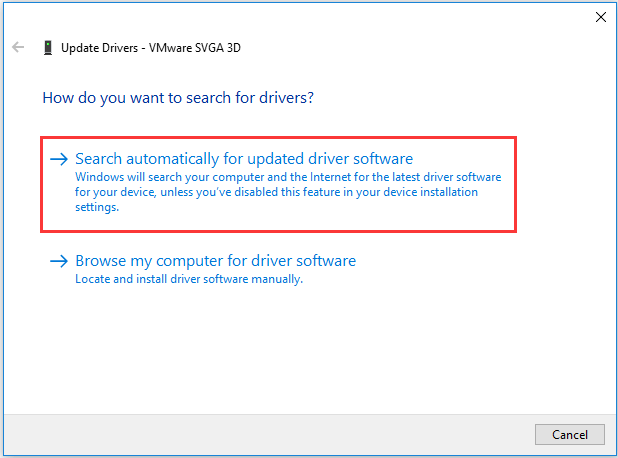
When all steps are finished, you have updated the video card driver and reboot your computer to check whether the Origin error syncing cloud storage data is fixed.
Final Words
To sum up, this post has introduced 4 ways to fix the error Origin unable to sync cloud storage data. If you come across the same error, try these solutions. If you have any better idea to fix the Origin error syncing cloud storage data, you can share it in the comment zone.
User Comments :