
If you are looking for solutions to the “Wi-Fi and Bluetooth missing after Windows Sleep” issue on Windows, you’ve come to the right place. This tutorial from MiniTool focuses on this problem and offers a couple of methods to resolve it.
Wi-Fi and Bluetooth Not Showing up After Windows Sleep
Some users reported that they encounter the “Wi-Fi and Bluetooth missing after Windows Sleep” issue on their laptops. It can be quite frustrating and annoying when you put your laptop in sleep mode and find that Wi-Fi and Bluetooth disappear after waking up from sleep.
The issue that Wi-Fi and Bluetooth disappear after Windows Sleep may be triggered by fundamental problems related to the device drivers or the settings governing power management.
Specifically, outdated or incompatible drivers can lead to a lack of communication between the operating system and the network hardware, resulting in connectivity loss. Additionally, power management settings may be configured in a way that disables the network adapters during sleep or standby modes to conserve energy, which can also contribute to this frustrating problem.
This vexing issue keeps coming up again and again, and only restarting the PC can fix it. If you are struggling with this problem, there are some feasible methods that can help you resolve it permanently.

How to Fix Wi-Fi and Bluetooth Missing After Windows Sleep
Method 1. Disable Wi-Fi in Device Manager
Some users reported that disabling the Wi-Fi adapter fixed Wi-Fi and Bluetooth missing after Windows Sleep on their PC. Here are the instructions:
Step 1. Press Win + X to open the Power User menu and select Device Manager from the list.
Step 2. Expand the Network adapters category and locate your wifi adapter. Next, right-click it and choose Disable device.
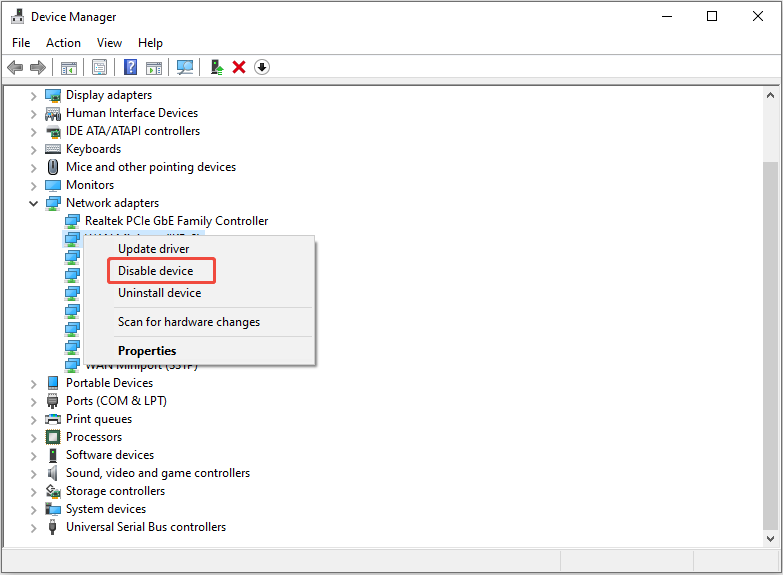
Step 3. Wait 10 seconds and then enable it by pressing Win + R to access the Run dialog box, typing Control Panel, and pressing Enter.
Step 4. In the new window, go to Network and Internet > Network and Sharing Center.
Step 5. Click Change adapter settings in the left pane.
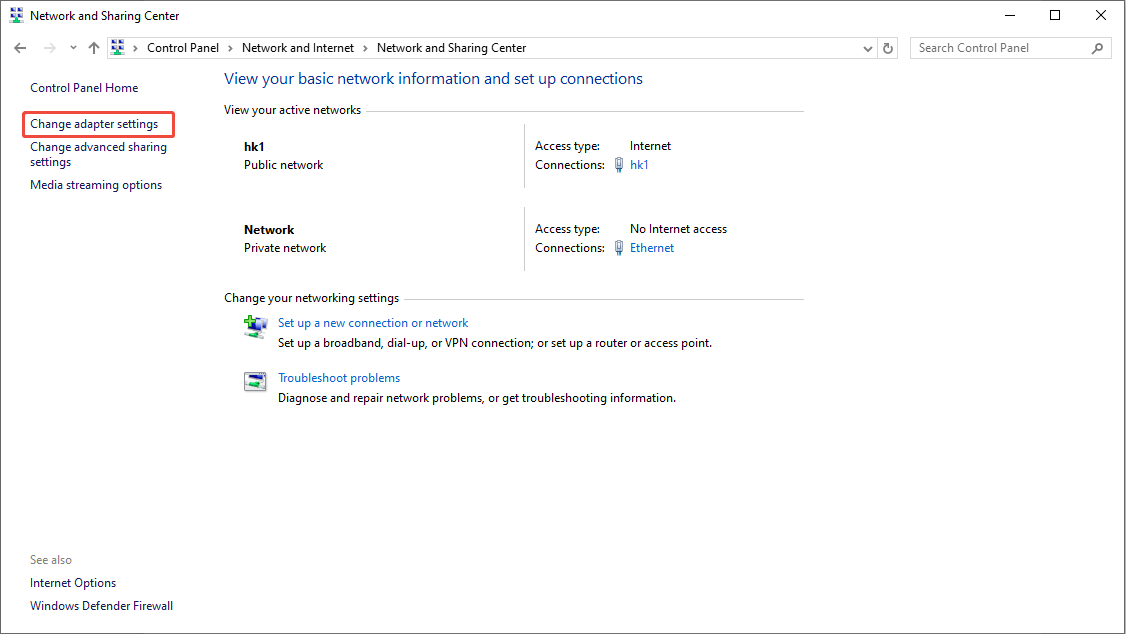
Step 6. Right-click the Wi-Fi adapter and select Enabled. If it is currently enabled, perform a network diagnostic to identify issues with the driver. To do that, right-click on the Wi-Fi adapter and choose Diagnose. Windows will check the device for problems and suggest possible solutions. Click Apply this fix to implement the recommended resolution.
Method 2. Disable Link State Power Management
Link State Power Management (LSPM) is a feature designed to conserve power by diminishing energy usage when PCIe devices, like network adapters, are idle. However, this feature can lead to the issue of Wi-Fi and Bluetooth missing after Windows Sleep, as Windows may not manage to wake them up correctly.
Therefore, follow these steps to disable it to fix the problem:
Step 1. Press Win + S to open Windows Search bar, type Control Panel in the box, and press Enter.
Step 2. Switch to Large icons in View by at the top-right corner. Go to Power Options.

Step 3. Click Change advanced power settings.
Step 4. Expand Wireless Adapter Settings and select Power Saving Mode. Then, set both On battery and Plugged in to Maximum Performance.
Step 5. Next, expand PCI Express and select Link State Power Management. Set both On battery and Plugged in to Off.
Step 6. Click Apply > Ok to apply this change, and restart your computer.
Method 3. Update or Uninstall the Latest Bluetooth and Wi-Fi
Outdated drivers may cause the issue of Wi-Fi and Bluetooth missing after Windows Sleep. Therefore, you can update your Bluetooth and Wi-Fi drivers.
Step 1. Type Device Manager in the Windows Search box and press Enter.
Step 2. Expand the Bluetooth section, right-click your Bluetooth driver, and choose Update driver.
Step 3. Follow the on-screen instructions to complete the update process.
Step 4. Next, expand the Network adapter category, right-click your Wi-Fi adapter, and select Update driver.
Step 5. In the pop-up window, select Search automatically for drivers.
If updating the Bluetooth and Wi-Fi drivers doesn’t resolve the issue, try right-clicking your Bluetooth and Wi-Fi adapter and selecting Uninstall driver.
Method 4. Perform a System Reset
If the Bluetooth and Wi-Fi are still not showing up after waking up your laptop from Windows sleep mode, performing a factory reset could be beneficial. Both Windows 10 and 11 allow you to reset your PC, though your applications and other configurations will be deleted.
Now, before proceeding with the reset, be sure to back up your Windows computer. MiniTool ShadowMaker is the best choice for Windows backup. As reliable backup software, it functions effectively on Windows versions 11, 10, 8.1, 8, and 7, along with Windows Server editions 2022, 2019, 2016, and so forth. MiniTool ShadowMaker provides a variety of features that meet a wide range of requirements.
MiniTool ShadowMaker TrialClick to Download100%Clean & Safe
To perform a system reset, follow the breakdown below:
Step 1: Press Win + I to open Windows Settings, go to the Update & Security section.
Step 2. Navigate to the Recovery tab, under the Reset this PC section, click the Set started button.
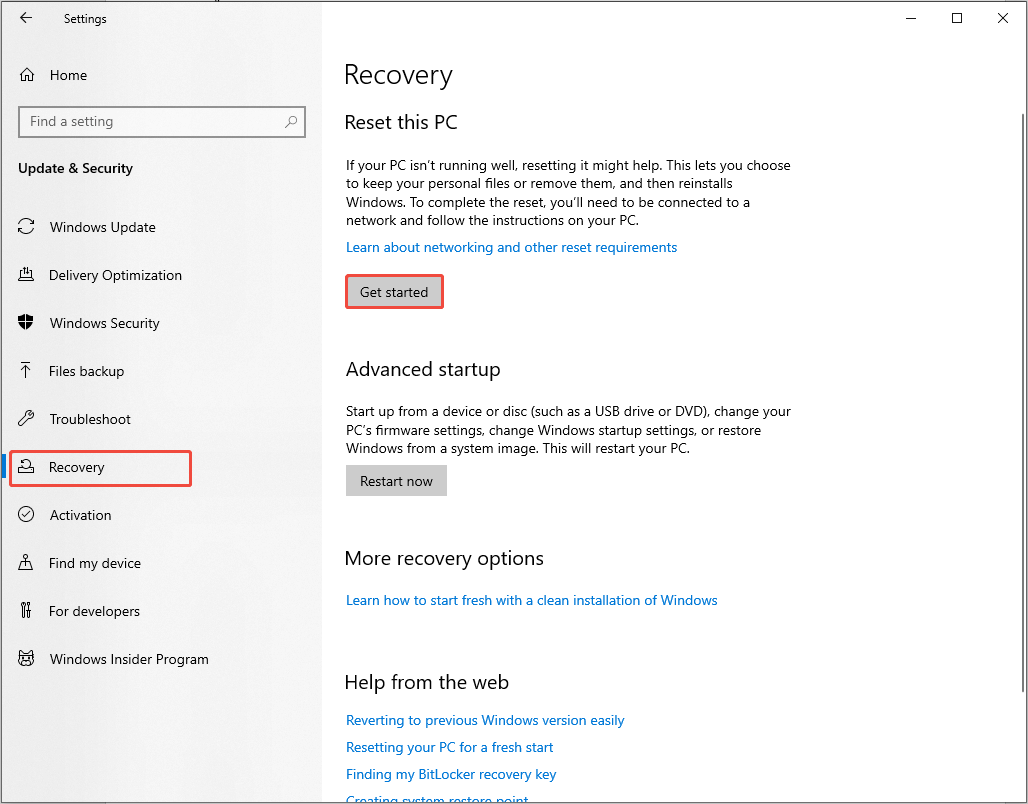
Step3. Choose between Keep my files and Remove everything in the Choose an option screen.
- Keep my files: This option will remove apps and settings on your PC, but keep your personal files.
- Remove everything: This option will remove all of your personal files, apps, and settings.
Final Words
How to fix Wi-Fi and Bluetooth missing after Windows Sleep on a PC? Now, you must get rid of this vexing problem.
User Comments :