
(Win 11 laptop) I am trying to log into my school wifi, which requires both a username and password. Because of this, the Defender menu pops up asking for my credentials. This window does not respond, though. I cannot type in it, click any buttons, or otherwise get it off my screen. Please help!Microsoft
Are you frustrated because Windows security is blocking you from accessing WiFi? You’re not alone. It can be very frustrating when you encounter the “Windows Defender on WiFi login freezing” issue. But don’t worry, there is a solution to this common problem.
Fix 1: Update the Windows System
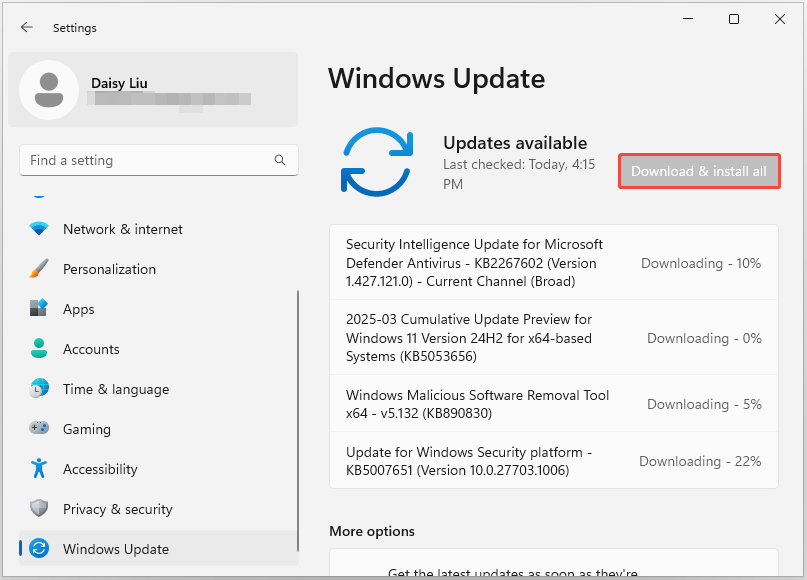
Make sure your Windows system and all drivers are up to date. This issue may have been resolved in a new update. Here is how to check for a Windows update.
1. Press the Windows + I keys to open Settings.
2. Navigate to Windows Update.
3. Click Check for updates. Then, click Download & Install all to install all available updates.
Fix 2: Restart Windows Security-Related Services
To fix the “Windows Defender on WiFi login freezing on Windows 11 24H2” issue, you can also try to restart Windows security services:
1. Press Windows + R to open Run. Then, type services.msc and press Enter.
2. Find Windows Defender Firewall. Right-click it to select Restart.
3. Restart your computer and then try logging on to WiFi again.
Fix 3: Reset Network
Resetting the network is also helpful to fix the “Windows Defender on WiFi login freezing” issue on Windows 11 24H2.
1. Press the Windows + I keys to open Settings.
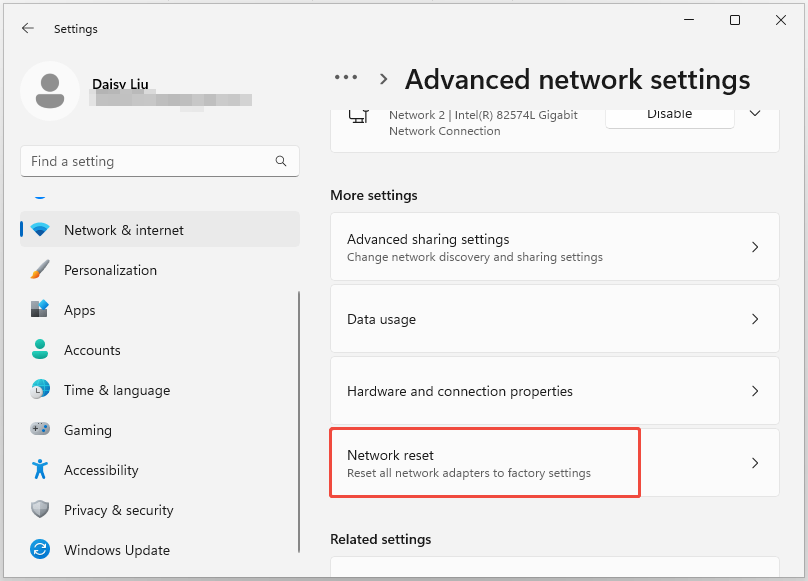
2. Go to Network & internet > Advanced network settings.
3. Scroll down to find Network Reset and click it. Then, follow the prompts.
4. Reboot your system and try connecting to WiFi again.
Fix 4: Forget the Network
According to the forum, forgetting the network is also useful for removing the “Windows Defender won’t let you connect to WiFi” issue on Windows 11 24H2.
1. Restart your pc if it’s still frozen.
2. Click the WiFi icon on the bottom right of the screen and right-click the school’s WiFi you’re trying to connect to.
3. Click Forget network. Click the school’s wifi again and click Connect. This time it should let you enter your username and password without freezing.
Fix 5: Roll Back the System
If it is determined that the problem occurred after updating 24H2, then this may indeed be a problem caused by 24H2 compatibility. If you have updated the system for less than 10 days and still have windows.old and $windows.~bt folders, you can try to roll back the system.
MiniTool ShadowMaker TrialClick to Download100%Clean & Safe
1. Press the Windows + I keys to open Settings.
2. Go to System > Recovery.
3. Under the Recovery options section, in the Previous version of Windows settings, click the Go back button.
4. A window will pop up asking you to tell it why you are going back. You just need to select any of the reasons available. Click Next.
5. Then, follow the wizard to roll back Windows 11.
Final Words
How to fix the “Windows Defender on WiFi login freezing”? If you are hit by the annoying issue, go to try multiple ways in this post and you can easily get rid of the trouble.
User Comments :