
Sometimes after you click "Check for Updates", nothing comes out but a message appears telling you "You’re not up to date." How to fix the “You're not up to date, but no updates available” issue on Windows? This post gives a guide.
Are you encountering the frustrating “You’re not up to date, but no updates available” issue on your Windows computer? This common Windows Update error prevents users from getting critical security patches and feature updates. In this comprehensive guide, we’ll explain why this happens and provide step-by-step solutions to resolve the issue.
Why Windows Shows This Error Message
Several factors can cause the “Windows update says not up to date but shows no updates” issue:
1. Corrupted update components – the Windows Update service or related files may be damaged.
2. Software conflicts – third-party programs can interfere with the update process.
3. Network issues – problems connecting to Microsoft’s update servers.
4. System file corruption – important Windows files needed for updates may be missing or damaged.
Before performing any advanced operations to fix the Windows update issue, you had better back up the PC. The free backup software – MiniTool ShadowMaker is a great assistant that provides an all-in-one backup and recovery solution. It allows you to back up files, folders, disks, systems to different location.
MiniTool ShadowMaker TrialClick to Download100%Clean & Safe
Fix You’re Not up to Date, But No Updates Available
Method 1: Check the Internet Connection
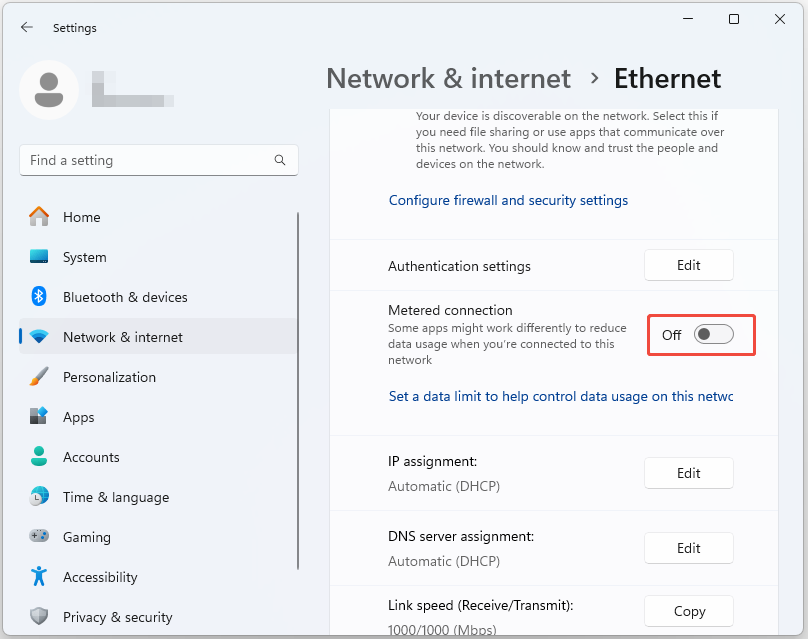
The first step is to check your Internet connection. Windows 11 has an option to set the Internet connection as a metered connection. When you enable this feature for a specific network, Windows changes its behavior to reduce data consumption. Windows Update does not work on metered connections. Please check it and if metered connections are enabled, disable it.
Method 2: Restart Windows Update Components
To fix “You’re not up to date, but no updates available” issue, you can also try restart Windows uodate components. Here are the steps:
1. Open Command Prompt as administrator.
2. Type these commands one at a time and press Enter after eachone
- net stop wuauserv
- net stop cryptSvc
- net stop bits
- net stop msiserver
- ren C:\Windows\SoftwareDistribution SoftwareDistribution.old
- ren C:\Windows\System32\catroot2 catroot2.old
- net start wuauserv
- net start cryptSvc
- net start bits
- net start msiserver
3. Restart your computer and check for updates again.
Method 3: Run Windows Update Troubleshooter
1. Press Windows + I to open the Settings application.
2. Go to System > click Troubleshoot.
3. Click Other troubleshooters and run the Windows Update troubleshooter.
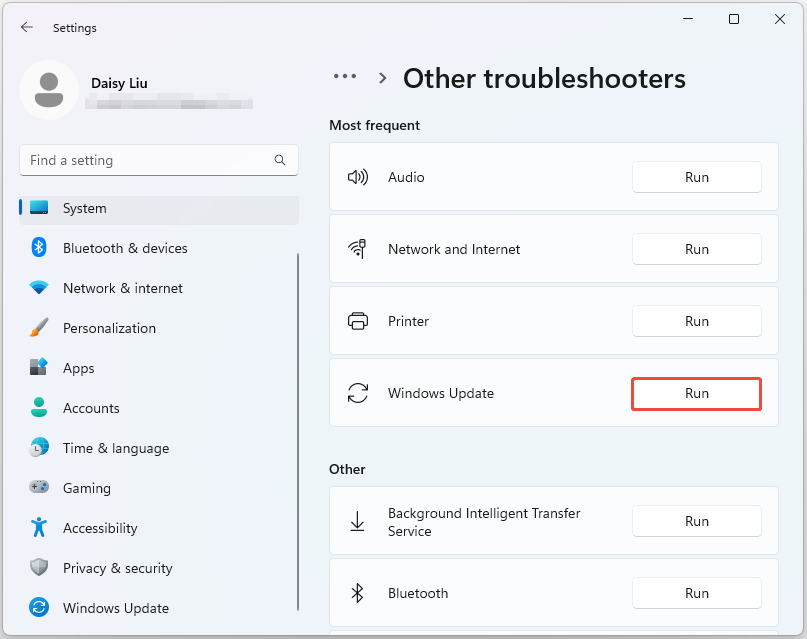
4. Apply any recommended fixes.
Method 4: Manually Install Updates
1. Visit the Microsoft Update Catalog (https://www.catalog.update.microsoft.com).
2. Search for your specific Windows version and the latest cumulative update.
3. Download and install the update manually.
Advanced Solutions
If basic methods don’t work for the “you’re not up to date, but no updates available” issue, try the following fixes:
1. Perform a clean boot
- Type msconfig in the Run dialog.
- Go to the Services tab and check Hide all Microsoft services.
- Click Disable all.
- Restart and try updating again
2. Check disk for errors
- Open Command Prompt as admin.
- Type chkdsk /f /r and press Enter.
- Restart your computer to run the scan.
3. Use the Windows Update Assistant
- Download it from Microsoft’s website.
- Run the tool to force an update.
How to Avoid Future Update Problems
After fixing the Windows 11 update not up to date but no updates issue, how to avoid future update problems?
1. Keep at least 20GB of free space on your system drive.
2. Regularly restart your computer (at least once a week).
3. Maintain a stable internet connection during updates.
4. Don’t interrupt the update process once it starts.
Conclusion
How to fix the “Windows update not up to date but no updates” issue? After reading this post, you may already know the answers. It provides some useful ways to fix the error. You can try these ways one by one until you fix the error successfully.
User Comments :