
MiniTool MovieMaker is designed as an easy-to-use video editing application for beginners. It features a straightforward interface, essential editing tools, extensive effects, and advanced keyframe animation. Together, these features help content creators make videos with ease.
The software is also continually updated with new features and bug fixes. Now, version 9.0 has been released with the following enhancements:
- Brings fade, dissolve, and other advanced video transitions.
- Offers WordArt text templates to add attention-grabbing titles.
- Fixed crashes when cropping reversed videos and adding/deleting effects or filters after cropping clips.
- Fixed installation failures caused by changing the installer file name.
- Fixed an issue where dragging Style text in the preview window left drag trails.
MiniTool MovieMaker 9.0: Fade/Dissolve/Advanced Transitions
Video transitions are a common editing technique used to move smoothly from one scene to the next, indicate a change in time or topic, and create cinematic effects. MiniTool MovieMaker includes extensive transitions, such as light leaks, brush transitions, and page peel effects. In this launch, version 9.0 adds Fade & Dissolve and Advanced video transitions, and classifies some existing transitions into these categories.
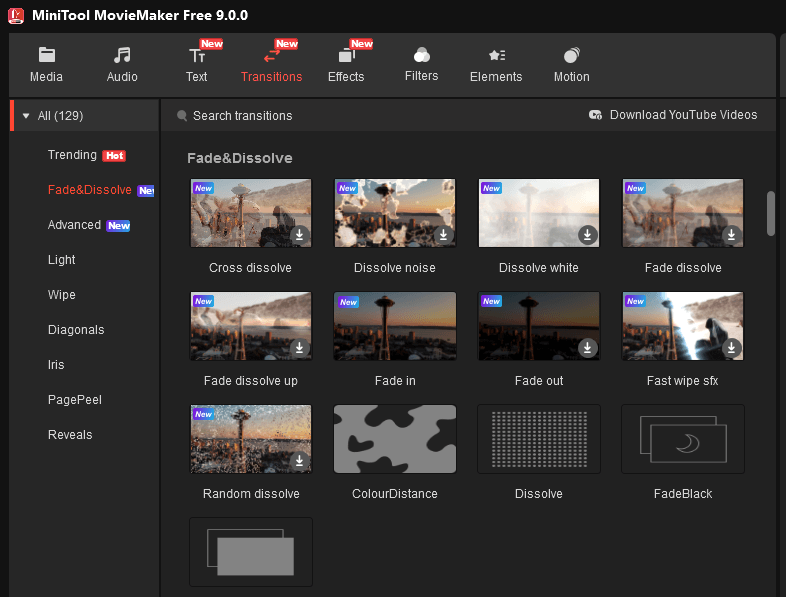
- Fade & Dissolve: This category includes several fade transitions that gradually change the opacity of a clip and move from full visibility to black or from black to full visibility. It also has several dissolve transitions where one clip blends directly into another during the overlap.
- Advanced: This category covers various transitions to create engaging videos, such as fast zoom, water ripple, zoom in, circle open, and more.
 MiniTool MovieMaker
-
 Split and trim videos to remove redundance.
 - Change video aspect ratio to match screen sizes.
- Add bubble texts, bgm, transitions, and more effects.
- Create PiP or split-screen videos by multitrack editing.
How to enhance video clips with transitions? Here is a guide:
Fast track steps:
- Install MiniTool MovieMaker 9.0.
- Import two or more video clips.
- Add a transition between any two clips.
- Export the final video.
1: Install the Video Editor with Transitions
Download and install the video editing software.
2: Import Videos
After installation, launch the software and close the pop-up window to access the main interface. Then, click Import Media Files on the left to add video files. Next, drag and drop them to the timeline to begin editing.
3: Add a Transition
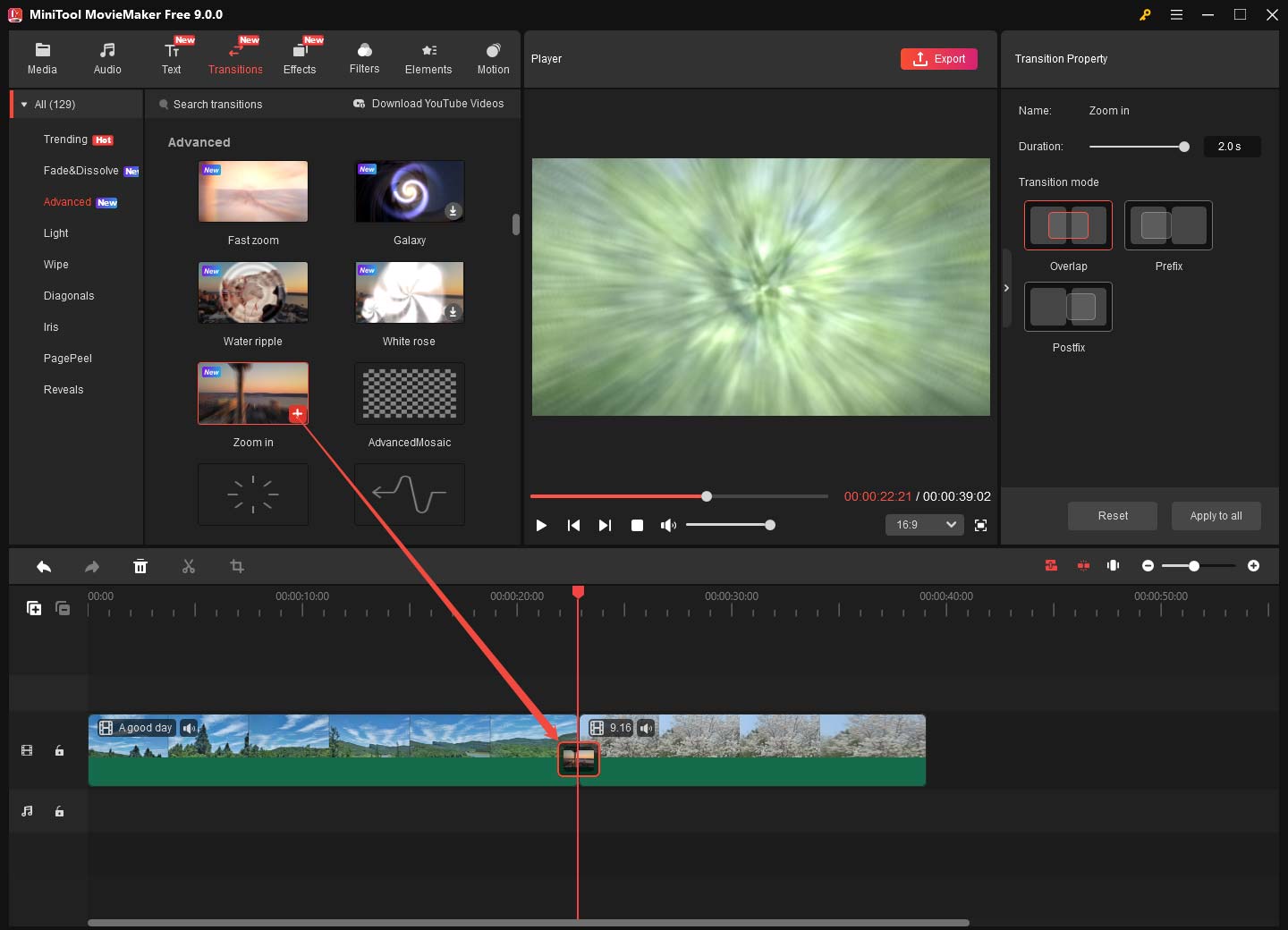
Click Transitions at the top, select a category on the left sidebar, and click the Download icon on the thumbnail to download that transition. Next, drag and drop it to the gap between two clips on the timeline.
4: Edit the Transition
In the Transition Property section on the right, drag the Duration slider to change the duration and select a different transition mode.
5: Export the Video
Click Export in the upper-right corner, then configure output settings, and click Export again to save the video.
MiniTool MovieMaker 9.0: WordArt Text Presets
Video text templates are a key feature of MiniTool MovieMaker, allowing users to add title cards, captions, bubble text, and credits quickly. In this release, the software adds brand-new WordArt presets. They have bold colors and glowing outlines that grab attention immediately, making text stand out on the frame.
These presets let anyone add eye-catching titles instantly without the need to adjust fonts, colors, strokes, or shadows.
Fast track steps:
- Download MiniTool MovieMaker.
- Import a video file.
- Select a text template and apply it.
- Replace the sample text with your text.
- Export the video.
1: Download and Install
Download and install the video text editor.
MiniTool MovieMaker FreeClick to Download100%Clean & Safe
2: Import a Video
Launch the application and enter the main interface. Next, import the target video from the device by clicking Import Media Files.
3: Add a WordArt Preset
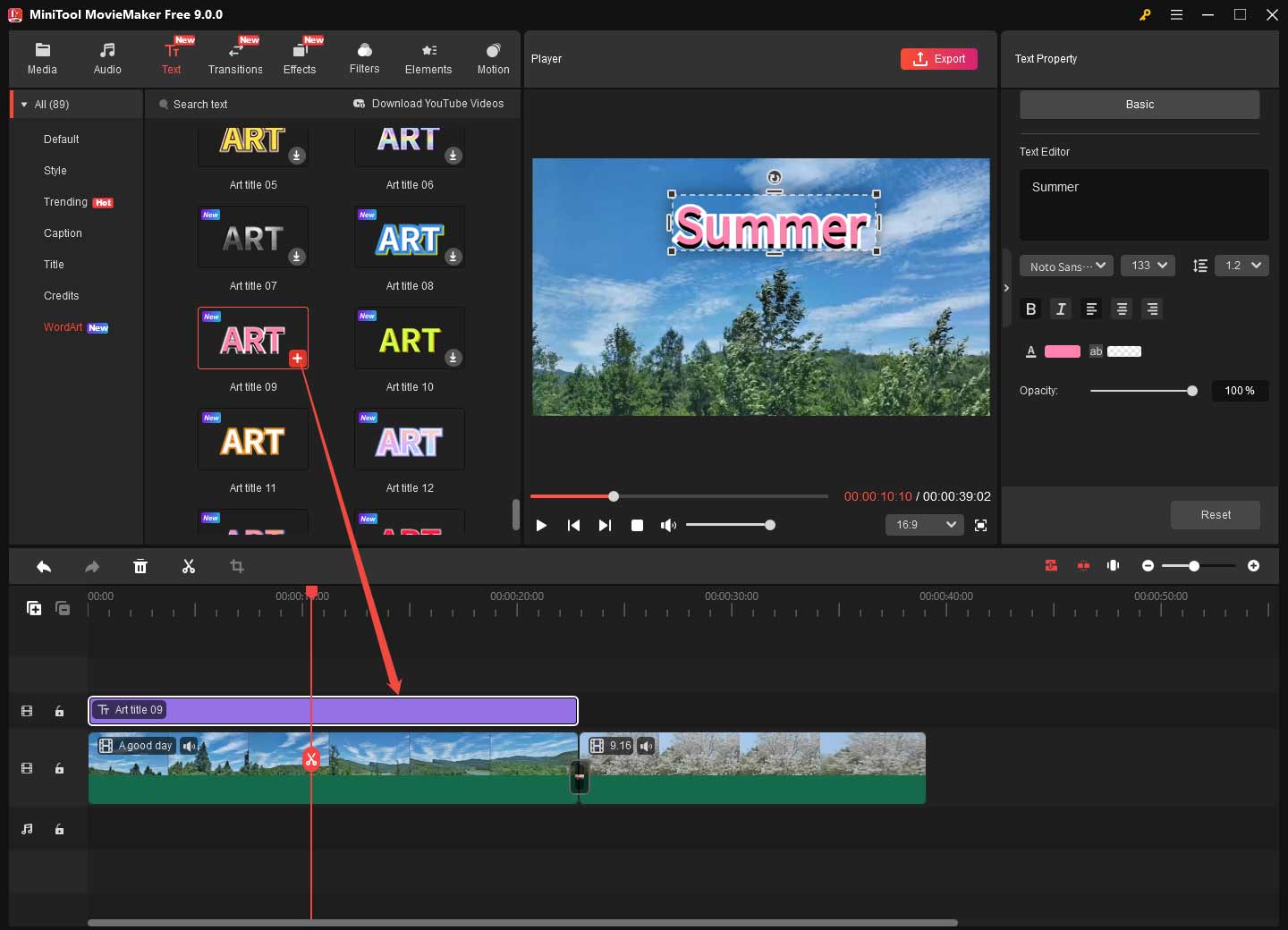
Go to Text at the top, choose a category like WordArt on the left sidebar, download a preset, and add it where you want the text to appear. Then, drag either edge of the text layer on the timeline to adjust its duration. Next, type your text in the Text Editor.
4: Save the Video
Click Export in the upper-right corner to export the video.
MiniTool MovieMaker 9.0: Bug Fixes for Smoother Editing
In addition to transitions and text presets, this upgrade fixed some bugs to enhance the editing experience.
1. Crash Fixes
Crashing is frustrating during editing. Some users reported that the software suddenly crashed in the following situations:
- When cropping a reversed video, the application closed unexpectedly during the crop operation.
- The software crashed when adding or removing effects or filters from a cropped clip.
MiniTool MovieMaker 9.0 addressed both issues in this update, so you can crop, add, or delete effects to enhance your footage without worrying about losing progress.
2. Other Fixes
Some users renamed the online installer file from mmm-setup to MiniTool MovieMaker. When they clicked the package to install the free video editor, they were told that “the software is already running”, causing the installation to fail.
Additionally, some users reported that when they dragged the added Style text in the preview window to change its position, drag trails could be left on the frame.
With this release, the two issues have been eliminated. Users can install the MiniTool video editing software successfully even if they change the installer file name. They can reposition the Style text on the frame and will not be bothered by drag trails, ensuring clean and professional-looking results.
Conclusion
Rated by PCMag as one of the easiest-to-use video editors on the market, MiniTool MovieMaker 9.0 is available now! The software expands its collection of transitions and text templates to empower entry-level users. This upgrade also fixed bugs and optimized the editing experience to help users create videos smoothly.
If you encounter problems using MiniTool MovieMaker, send an email to [email protected] for assistance.
User Comments :