
How to choose an SD card for Insta360 cameras? How to format Insta360 camera SD card? What to do if you encounter Insta360 camera SD card issues? This post from MiniTool offers you a detailed Insta360 camera SD card format guide.
Overview of Insta360 Cameras
Insta360 is a camera company that makes action cameras, 36-degree cameras, editing software for mobile and desktop computers, and stereoscopic 180-degree cameras. Among them, Insta360 cameras have become the first choice for photography enthusiasts due to their multi-lens collaboration, high-resolution recording, and other features.
Insta360 cameras have multiple series. Here are some common cameras and their specific features:
1. 360 Cameras
- Insta360 X5: Released on April 22, 2025, it is equipped with two Sony LYT-818 sensors, a 5nm AI chip and a dual-image chip, which enhances night scene shooting capabilities, introduces magnetic quick release and detachable lens design, supports 8K 30fps, 5.7K 60fps, 4K 120fps video shooting, and is waterproof up to 15 meters.
- Insta360 X4: A powerful 360-degree action camera with excellent 8K image quality.
2. Wide-angle Cameras
- Insta360 Ace Pro 2: 8K AI, action camera with leading image quality, day or night.
- Insta360 GO 3S: A thumb-sized 4K camera with a magnetic body that enables hands-free shooting, suitable for shooting pictures from a unique perspective.
3. Handheld Gimbals
Insta360 Flow 2 Pro: An AI tracking stabilizer suitable for filming, video calls, live broadcasts, etc., which can provide stable shooting effects and intelligent tracking functions.
4. Video Conferencing
Insta360 Link 2 Insta360 Link 2C: AI webcams with professional 4K image quality and clear audio, suitable for video conferencing, live broadcasts, etc.
In addition, Insta360 also has the Insta360 Pro professional 3D VR panoramic camera, which was launched in 2017. It consists of 6 fisheye lenses and has two presentation modes: 360 panoramic and 360 panoramic 3D. It supports 8K ultra-clear picture quality.
How to Choose an SD Card for Insta360 Camera?
SD card is one of the essential accessories for most cameras. In addition, high-resolution photos and videos require more storage space. If you want to add or upgrade the Insta360 SD card, you need to choose the right SD card for Insta360 camera. Then, you need to consider the following factors.
#1. Insta360 SD Card Speed
For Insta360 cameras, the speed level of the SD card is very important. To always get the best shooting results, please use a UHS-I Micro SD card with a speed level of V30 or higher. Otherwise, the shooting may stop, and the footage may be damaged due to mismatched memory cards.
Take the Insta360 X5 as an example. It can shoot 8K videos. The amount of data of such high-resolution videos is very large, and the SD card needs to have fast data writing capabilities to ensure that there will be no data loss or recording interruption during shooting.
#2. Insta360 SD Card Capacity
The capacity of the SD card should be determined according to personal shooting habits and needs. If you only use the Insta360 camera occasionally to record some life clips, a 64GB SD card may be enough.
However, for users who often shoot for a long time or need to shoot a lot of high-resolution videos and photos, it is recommended to choose a large-capacity SD card of 256GB, 512GB, or even 1TB.
#3. Insta360 SD Card Brand
Choosing a well-known brand of SD card is the key to ensure reliability and performance. SanDisk’s Extreme Pro series SD card has become the first choice for many Insta360 camera users with its high-speed reading and writing and stable performance.
Also Read: How to Choose a Right Memory Card for Your Camera
Insta360 Camera SD Card Format
SD card formats include FAT32, exFAT, and NTFS, and the entire series of Insta360 cameras require the exFAT format.
In general, you can format the SD card using the Insta360 camera or the Insta360 app. We recommend regularly transferring camera files to your phone or computer for backup and formatting your camera’s memory card to prevent any anomalies.
How to format your SD card using the Insta360 camera or Insta360 app? Here we take the Insta360 X5 camera as an example.
Use the Insta360 X5 camera:
- Insert the SD card into the Insta360 X5.
- Press the Power button to turn it on.
- Swipe down on the touchscreen to enter the Shortcut Menu > Settings> SD Card > Format to format the SD card.
Use the Insta360 app:
- Insert the SD card into the camera and connect it to the Insta360 app.
- Go to the Settings tab, select Other Settings > Camera Storage > Format Storage to format the SD card.
If the two methods fail, you can do the Insta360 camera SD card format on a Windows PC. Then you can try the following 3 ways. You can choose any of them to format. However, we strongly recommend the first way because it breaks many of the limitations you may encounter when using Windows built-in SD card formatter.
To format Insta360 camera SD card on a computer, you need to insert it into a computer via an SD card reader and format it. Make sure to use the exFAT format, and the allocation unit size should be set to the default.
Way 1. Use MiniTool Partition Wizard
MiniTool Partition Wizard is a free SD card formatter. It can format SD to exFAT, FAT32, NTFS, and EXT2/3/4. Of course, it can also format SSDs and USB flash drives.
Besides, it’s a professional and reliable partition manager that offers a wide range of features related to disk/partition management. It can help you create/format/resize/delete partitions, copy/wipe disks, partition a hard drive, convert disks between MBR and GPT, recover data from hard drives, etc.
MiniTool Partition Wizard FreeClick to Download100%Clean & Safe
Now, follow the steps below to format Insta360 camera SD card via MiniTool Partition Wizard.
Step 1:Launch MiniTool Partition Wizard to enter its main interface. Right-click on the partition on the SD card, and then choose Format from the context menu. You can also select Format Partition from the left panel.

Step 2: On the pop-up Format Partition window, click the down arrow of File System to select exFAT from the drop-down menu, and click the OK button.

Step 3: Finally, click on the Apply button to execute the formatting operation.

Way 2. Use Windows File Explorer
File Explorer is a file manager application that is included in the Microsoft Windows operating system. It is also a commonly used formatting tool, and it is very easy to use. Here is the guide:
- Press the Win + E key to open File Explorer.
- Click This PC on the navigation bar, and go to the Devices and drives section.
- On the right panel, right-click the SD card and then choose the Format option from the pop-up context menu.
- On the pop-up window, select exFAT from the File system drop-down menu and then click Start.

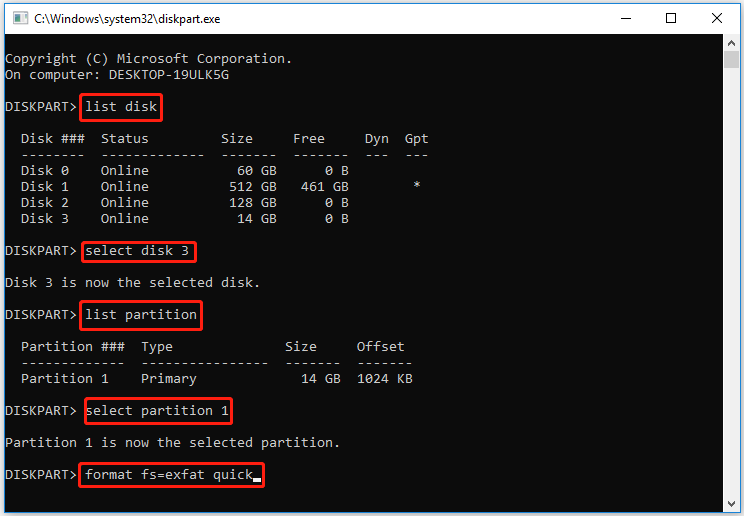
Way 3. Use Command Prompt
Command Prompt is a widely used command-line tool that can also format an SD card to exFAT on Windows 10/11. Let’s see how to format Insta360 camera SD card to exFAT in Command Prompt.
Step 1: Press the Win + R keys to open the Run dialog box, and then type diskpart in it and press Enter. Then click on Yes to open the tool in Command Prompt.
Step 2: To format the drive to exFAT in CMD, type the following commands in order and press Enter after typing each one.
- list disk (This command will list all disks detected by the PC)
- select disk * (* represents the SD card number)
- list partition (This command will list all partitions on the selected disk)
- select partition * (* represents the partition number of the SD partition)
- format fs=exfat quick (This command will quickly format the SD card to exFAT)
Common Issues and Fixes for Insta360 Camera SD Card
Some users may encounter various issues while using the Insta360 camera. In this section, we summarize some common Insta360 camera SD card issues and fixes after investigating many forums and posts.
#1. Card speed is too slow
This error usually occurs when the SD card does not meet the speed standards required by the Insta360 camera. For example, if you use a non-V30-rated SD card with your Insta360 Pro, you will most likely encounter this error due to the high-speed writing required for its lens input.
Well, formatting the SD card can sometimes fix the problem, especially if the issue is caused by data fragmentation. However, the best solution is to use a V30 or higher speed-rated SD card as recommended by Insta360.
#2. SD card is not recognized by the camera
This can happen if the SD card is not formatted correctly, has a corrupted file system, or is physically damaged. If you formatted the card to the wrong format, such as FAT32 instead of exFAT, the camera may not be able to read it.
First, follow the steps above to try reformatting the card using the correct exFAT format. If the problem persists, the card may be physically damaged and needs to be replaced with a new one.
# 3. Data loss during formatting
Formatting an SD card deletes all data on it. If you forget to back up your files before formatting, you will lose precious photos and videos.
You can use a professional data recovery tool to recover files from a formatted drive. MiniTool Partition Wizard is a good choice that can help you perform formatted hard drive data recovery quickly and effectively.
MiniTool Partition Wizard DemoClick to Download100%Clean & Safe
Bottom Line
In the end, this post gives a full guide on the Insta360 camera SD card format. By understanding the different series of Insta360 cameras, choosing the right SD card, learning the methods for formatting, and mastering the troubleshooting tips for common problems, you can ensure smooth recording and optimal performance.
If you have any questions or suggestions on how to use MiniTool Partition Wizard, please do not hesitate to contact us via [email protected].
Insta360 Camera SD Card Format FAQ
1. No microSD card
2. The microSD card has an error
3. The microSD card is full
Back up the files on the microSD card to another device and format the card as exFAT on your computer.
User Comments :