
Quick Answer
The “api-ms-win-crt-runtime-l1-1-0.dll missing” error usually occurs when the Microsoft Visual C++ Redistributable package is missing, outdated, or corrupted.
To fix this issue:
- Re-Register the DLL File
- Install Windows updates
- Download Visual C++ Redistributable for Visual Studio 2015 from Microsoft
- Repair Microsoft Visual C ++ 2015 Redistributable
- Download and install Windows Universal C Runtime
- Copy the api-ms-win-crt-runtime-l1-1-0.dll file from another PC
What Is “api-ms-win-crt-runtime-l1-1-0.dll”?
Before introducing “api-ms-win-crt-runtime-l1-1-0.dll”, let’s talk about DLL.
DLL is the abbreviation of Dynamic Link Library and it is a type of software file. In Windows, many applications are incomplete and inexecutable. They are split into some relatively independent Dynamic Link Library files in Windows. At the time you launch one application, the corresponding DLL file will come into use.
That is to say, a DLL file allows a program to split its various components into different modules so that applications can add or remove some of them to include or exclude some functionalities. This function makes a program cost less space because they do not need the entire DLL file.
DLLs can be divided into two types: load-time dynamic linking and run-time dynamic linking. api-ms-win-crt-runtime-l1-1-0.dll obviously belongs to the run-time dynamic linking. It is considered as an essential file of Windows operating system. A set of procedures and driver functions provided by it can be applied to Windows.
As api-ms-win-crt-runtime-l1-1-0.dll is closely related to Windows operating system, once the DLL file is missing, Windows OS will report this error “The program can’t start because api-ms-win-crt-runtime-l1-1-0.dll is missing from your computer.” when running programs.
What Causes “api-ms-win-crt-runtime-l1-1-0.dll missing” Error?
When you try to launch an application or program such as Microsoft Office and Adobe applications, you may receive an error: “The program can’t start because api-ms-win-crt-runtime-l1-1-0.dll is missing from your computer. Try reinstalling the program to fix this program.”
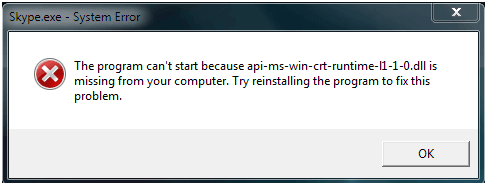
It is troublesome to face this error if you are urgent to use this application.
But do you know what caused this error? There mainly come three reasons:
- As a part of the Visual C++ Redistributable, Universal C Runtime (CRT) has failed to properly install.
- The api-ms-win-crt-runtime-l1-1-0.dll file is supposed to be included in Microsoft Visual C++ Redistributable for Visual Studio 2015. But your computer doesn’t have this software.
- The existing Microsoft Visual C++ Redistributable for Visual Studio 2015 is missing or gets corrupted.
Therefore, if you want to fix this error, you can take these three causes into considerations.
Back up System with MiniTool ShadowMaker Before Troubleshooting the Error
Since all these ways mentioned above are concerned with Windows operating system, it is possible that you may cause sudden system crash because of accidental operations. Therefore, it is necessary to back up your system in advance to prevent sudden system breakdown.
You may need to seek help from third-party software. As for backup software, MiniTool ShadowMaker is a good choice to help you perform system backup in an easy and effective way.
It allows you to back up everything you want, including the operating system, files and folders and even partitions and disks. It helps you create backup images in advance and you can restore them to the previous state if needed.
Apart from powerful backup functions, MiniTool ShadowMaker also supports file sync to save copies to different locations and encourages users to create bootable media.
Come and get MiniTool ShadowMaker Trial to have a free 30-day try.
MiniTool ShadowMaker TrialClick to Download100%Clean & Safe
You can refer to detailed backup operations in the following part.
Step 1: Launch MiniTool ShadowMaker and go to its Backup tab.
Step 2: Under SOURCE, system partitions for Windows to run are selected automatically. Just click DESTINATION and choose a drive to save the system image.
Step 3: Click Back Up Now to execute a system backup.
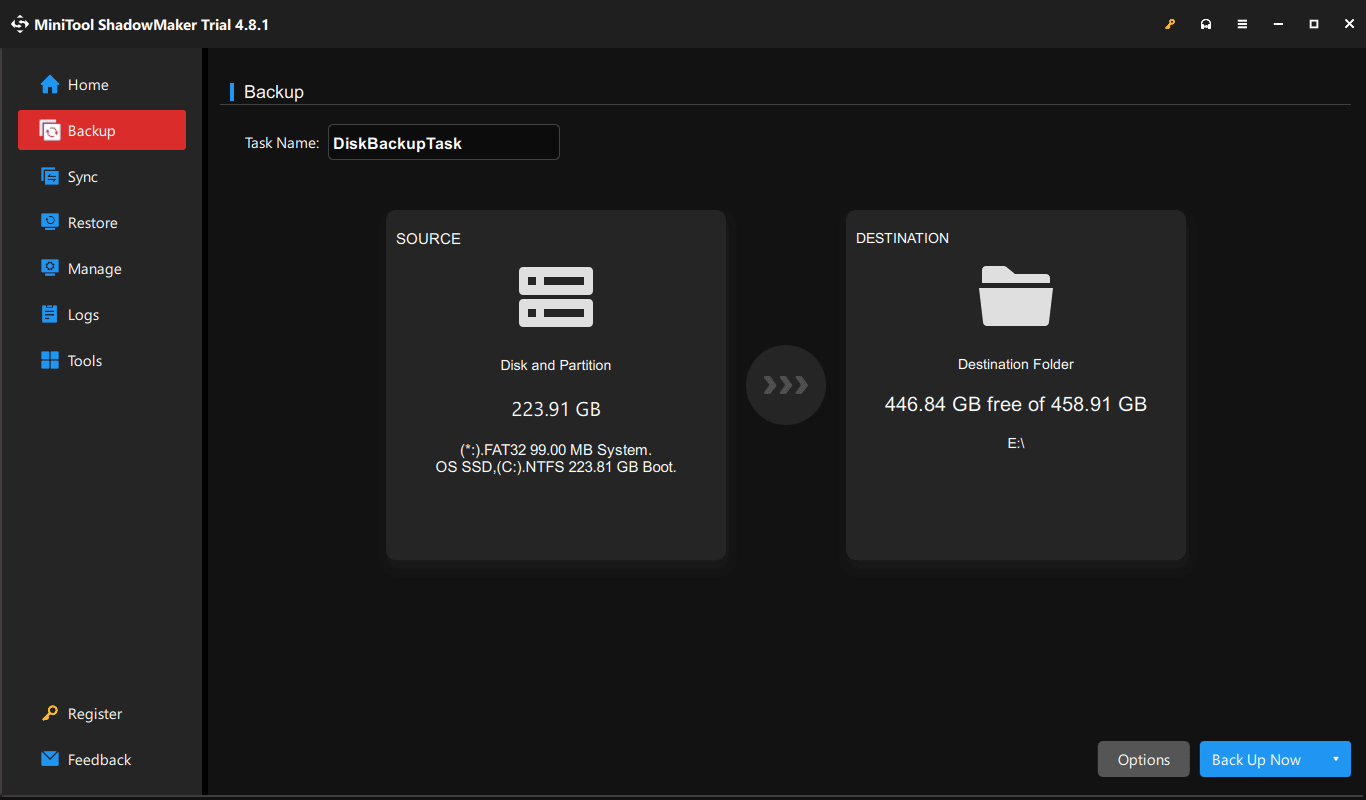
You can create bootable media with MiniTool ShadowMaker in advance. If you want to restore your Windows OS when accidents happen, you can directly enter MiniTool Recovery Environment from the bootable media. Then you can employ Restore function to restore the operating system to the previous state with its backup images.
Six Ways to Fix “api-ms-win-crt-runtime-l1-1-0.dll missing” Error
As for api-ms-win-crt-runtime-l1-1-0.dll missing, it is not as difficult as you think if you master correct methods. The following parts will present you six approaches and you can adopt one way in accordance with your actual situations.
| Solution | Difficulty | Recommended when |
| Re-register the DLL file | Medium | The DLL file exists, but may not be registered correctly. |
| Install Windows updates | Easy | The error occurred due to missing or incomplete system updates. |
| Install Microsoft Visual C++ 2015 Redistributable | Easy | The required runtime components are damaged or missing. |
| Repair Microsoft Visual C++ 2015 Redistributable | Easy | The Visual C++ installation gets corrupted. |
| Install Windows Universal C Runtime (UCRT) | Easy | The required runtime update isn’t installed properly. |
| Copy the DLL file from another PC | Advanced | The DLL file is missing, and another computer has the same Windows version. |
Re-Register the DLL File
As what has been mentioned above, the api-ms-win-crt-runtime-l1-1-0.dll file may get lost if you suffer “api-ms-win-crt-runtime-l1-1-0.dll missing” error.
However, on the one hand, if you find the DLL file is still on your computer but you keep receiving this error message when launching one application, you can try to re-register the DLL file.
On the other hand, if you find the DLL file missing, you can download api-ms-win-crt-runtime-l1-1-0.dll from the internet and save it to another place on the computer. Remember to download the latest version and make sure its source is approved.
But api-ms-win-crt-runtime-l1-1-0.dll download is very likely to prove to be upset. As a result, there comes with another five alternatives. Please go on reading.
Install Visual C++ Redistributable for Visual Studio 2015 from Windows Update
Windows has prepared Visual C++ Redistributable for Visual Studio 2015 itself and you can install it from the Windows snap-in tool – Windows Update.
Detailed instructions are listed as follows.
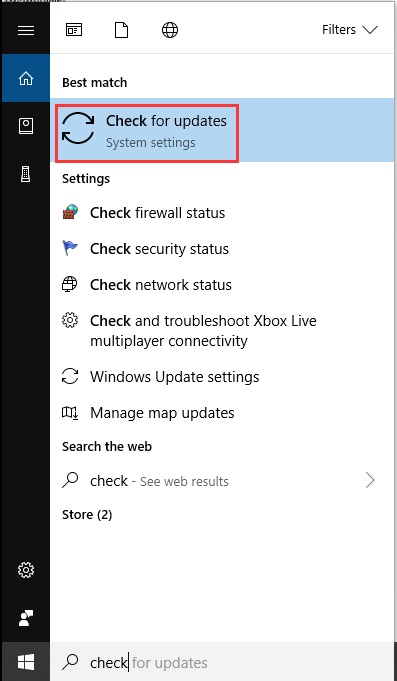
Step 1: Please type “check” in the Windows search box and click Check for updates to enter its main page.
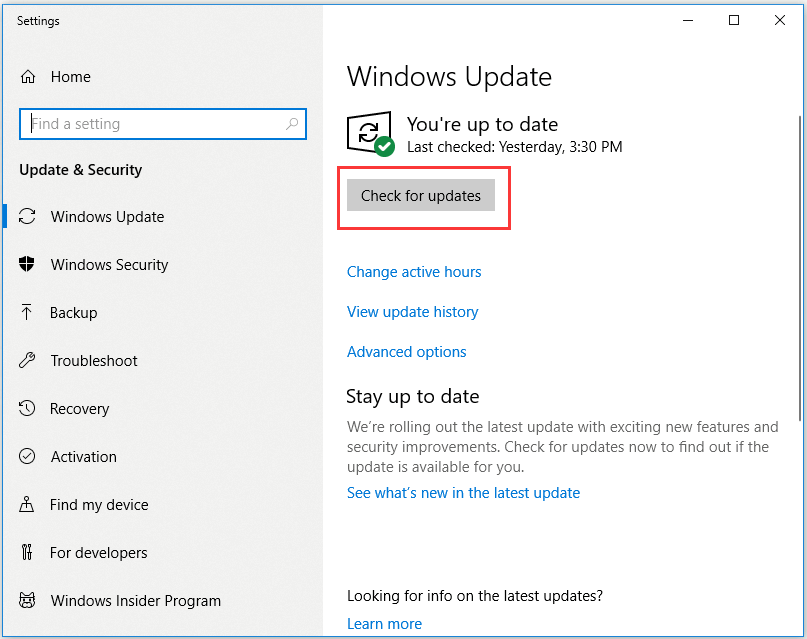
Step2: Under Windows Update, please click Check for updates and Windows will automatically detect the updates for you.
Step 3: After installing updates, please restart Windows.
Step 4: Please launch the applications again. You’ve fixed the error if they are launched successfully. But if you still find that api-ms-win-crt-runtime-l1-1-0.dll is missing from your computer, try other ways listed following.
Download Visual C++ Redistributable for Visual Studio 2015 from Microsoft
If installing Visual C++ Redistributable for Visual Studio 2015 via Windows Update still fails, please download Visual C++ Redistributable for Visual Studio 2015 from Microsoft official website.
Step 1: Please visit Microsoft official website.
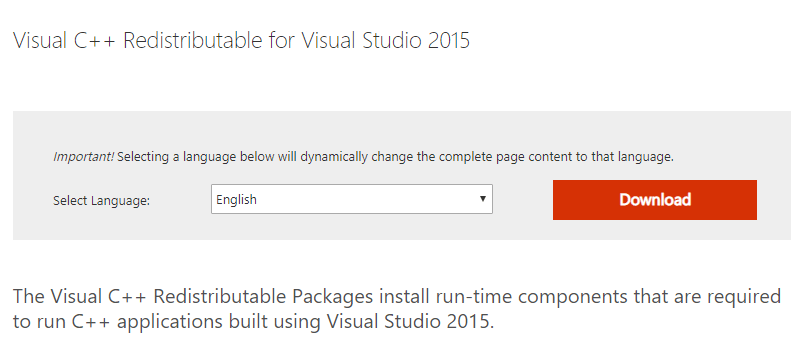
Step 2: Please select one needed language and then click Download to check the system type x64 or x86(x32) according to actual needs. Then click Next to start downloading.
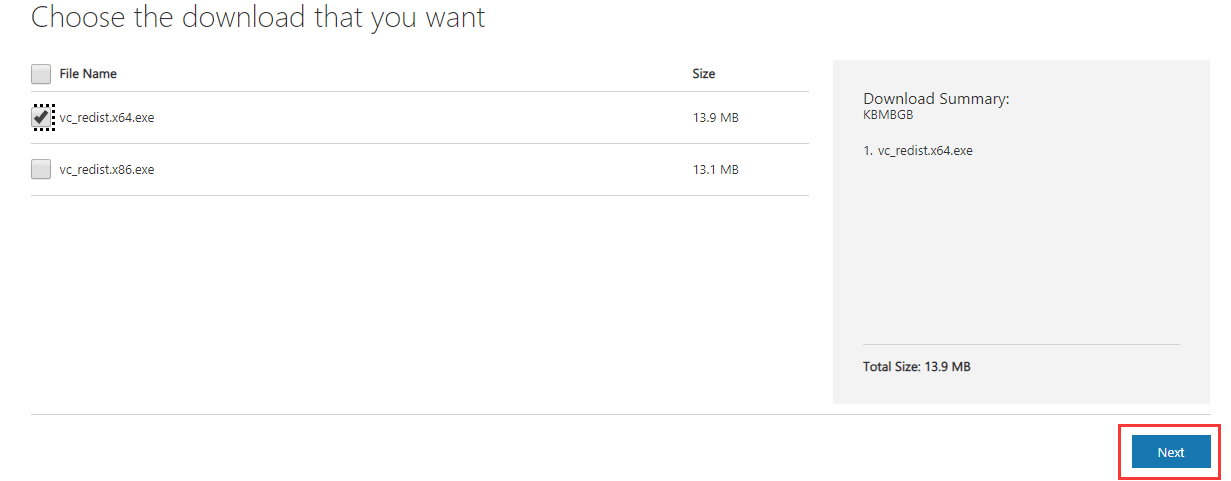
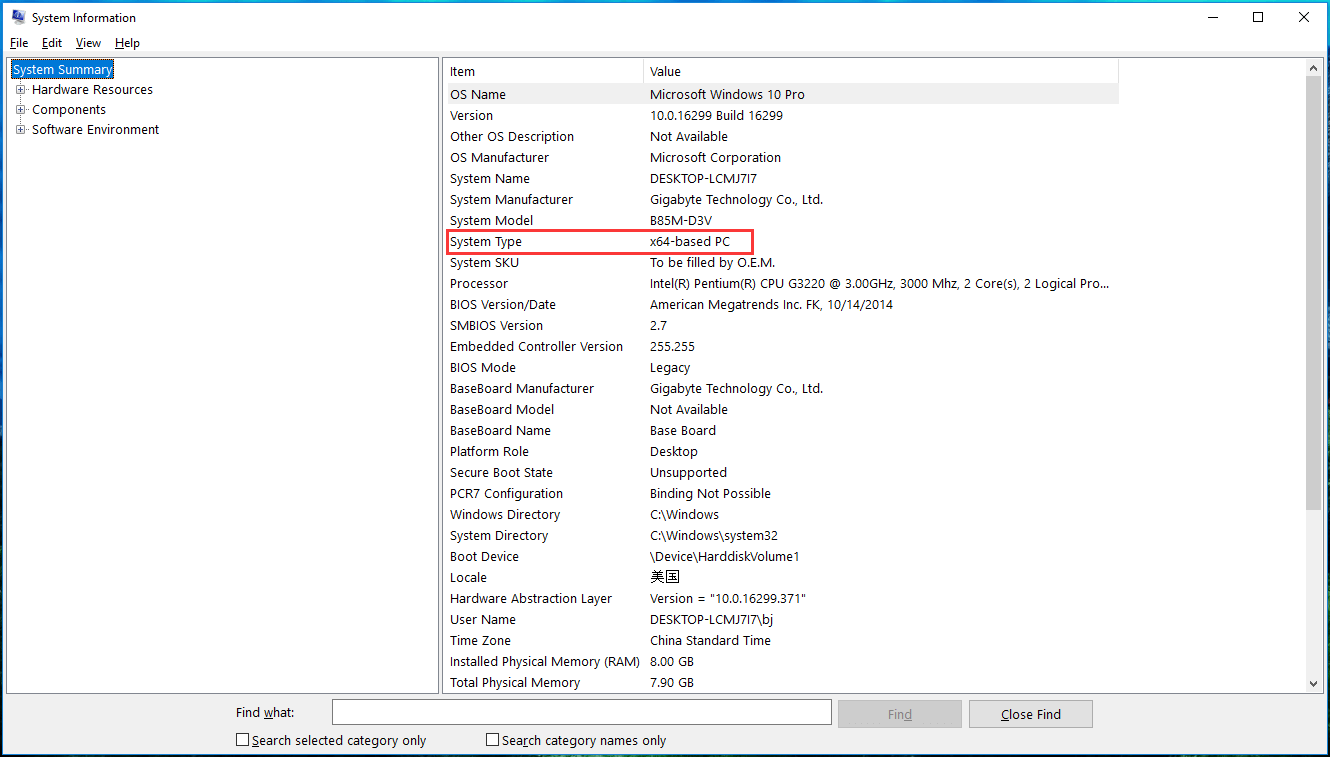
Step 4: When finishing the downloading task, please install it in terms of its functions.
Step 5: Try launching the target application again. It is perfect to run it successfully. But if you still receive the corresponding error, please turn to the next solution.
Repair Visual C++ Redistributable for Visual Studio 2015 on Local Computer
If you already have Visual C++ Redistributable for Visual Studio 2015 on your computer, you can try to repair it on your computer instead.
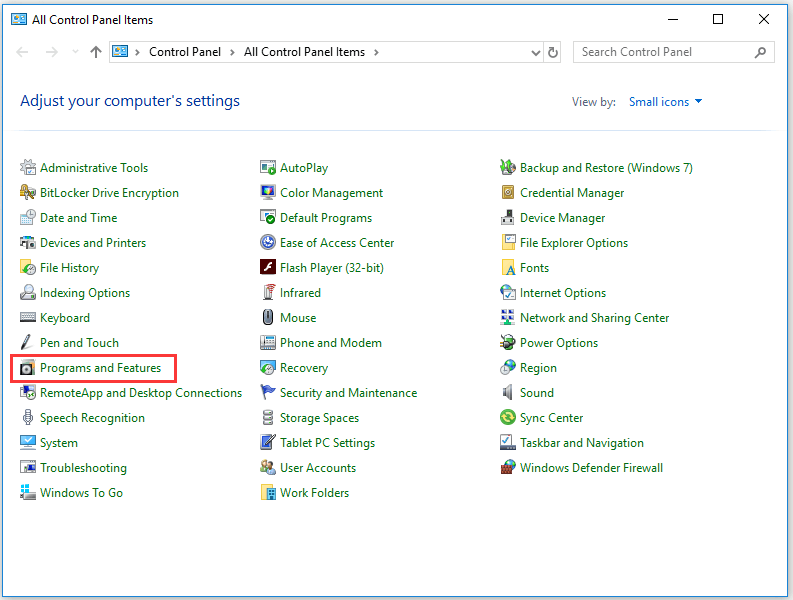
Step 1: Please type down Control Panel in the Windows search box and click it to run.
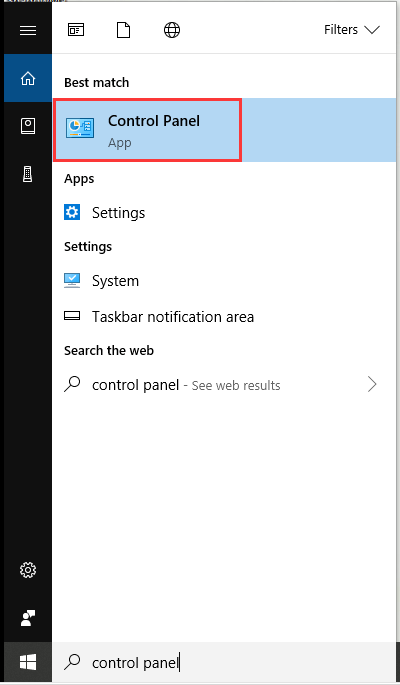
Step 2: Please click Programs and Features by switching large icons to small icons.
Step 3: Please click Microsoft Visual C ++ 2015 Redistributable. Then click Change.
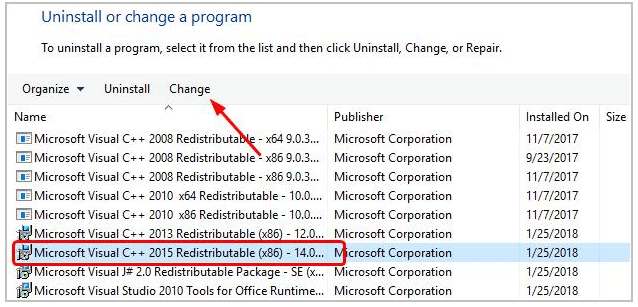
Step 4: Then click Repair to start repairing.
Step 5: When prompted by User Account Control, please click Yes. Then you are supposed to complete the repair by following the screen guides.
Download the Update for Universal C Runtime from Microsoft
The Windows 10 Universal C Runtime (CRT) is considered as an essential component of Windows 10 operating system. It enables CRT functionality on the Windows operating system.
Update for Universal C Runtime allows desktop applications depending on Windows 10 Universal C Runtime release to run on earlier Windows operating systems, including Windows Server 2012 R2, Windows 8.1, Windows RT 8.1, Windows Server 2012, Windows 8, Windows RT, Windows Server 2008 R2 Service Pack 1 (SP1), Windows 7 SP1, Windows Server 2008 Service Pack 2 (SP2) and Windows Vista SP2.
How to get the update for Universal CRT? Please refer to the following two methods.
Option A: Get the update from Windows Update.
Option B: Download the update from Microsoft Download Center.
Step 1: Visit Microsoft Download Center official website.
Step 2: Please select a language and click Download.
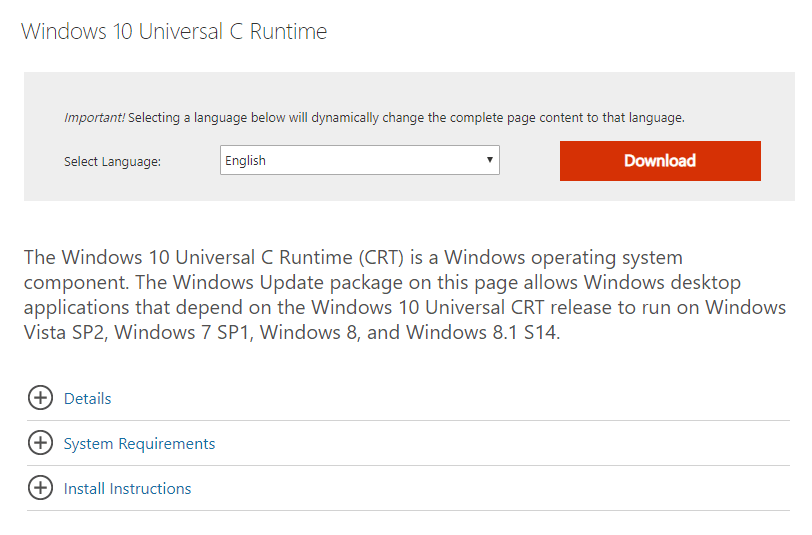
Step 3: Install it in accordance with its instructions.
Copy api-ms-win-crt-runtime-l1-1-0.dll File from Another PC
If all approaches mentioned above turn out be in vain, you can try this one: copy api-ms-win-crt-runtime-l1-1-0.dll file from another computer.
Detailed operating steps are listed as follows.
Step 1: First of all, you still need to check your system details. Please go to Windows search box to type down “system information” to check the OS name and system type.
Step 2: Go to another PC with the same Windows system and press “Windows + E” keys simultaneously to open File Explorer.
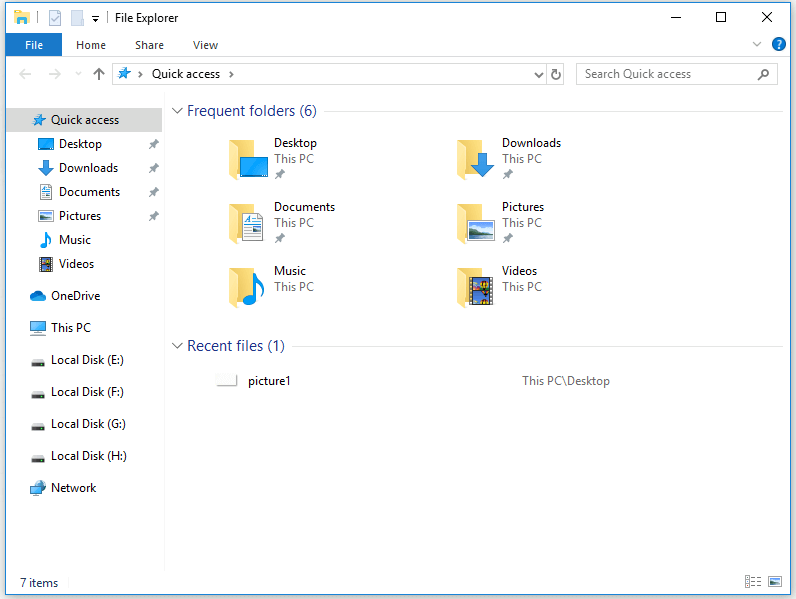
Step 3: Go to C:\Windows\System32. Type down api-ms-win-crt-runtime-l1-1-0.dll in the address bar and click Enter to search.
- If you find api-ms-win-crt-runtime-l1-1-0.dll file here, just go on copying.
- If you can’t find api-ms-win-crt-runtime-l1-1-0.dll file here, go to C:\Windows\SysWOW64 instead. Then type down api-ms-win-crt-runtime-l1-1-0.dll to search again.
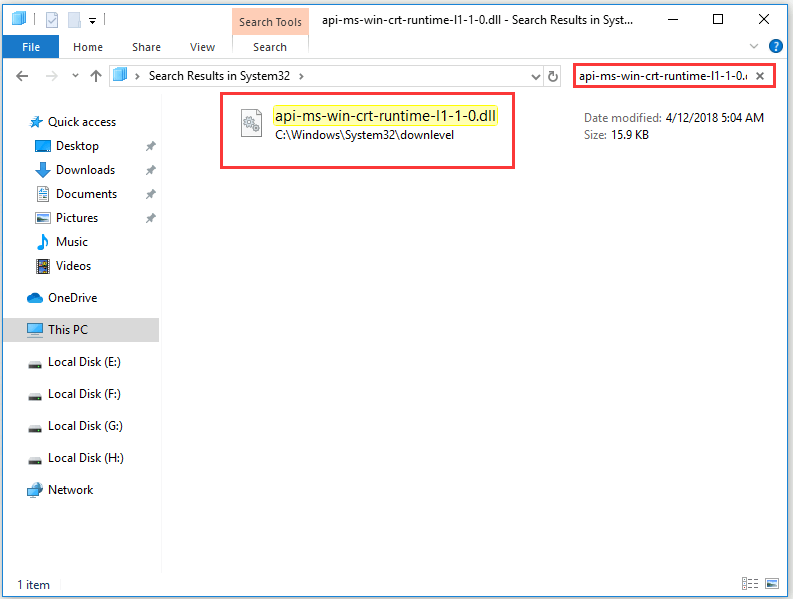
Step 4: Paste the DLL file to the problem computer. Remember the target location should be the same as the original location.
How to Fix api-ms-win-crt-runtime-l1-1-0.dll Missing in Win10/11Click to Tweet
Key Takeaways
- This DLL error is usually related to Microsoft Visual C++ Redistributable or Universal C Runtime.
- Installing Windows updates often addresses the problem.
- Try reinstalling that application if the error only occurs with a specific application.
- Avoid downloading DLL files from unofficial sources.
- Creating a system backup before making major repairs helps quickly restore the PC when needed.
Conclusion
It is sometimes inevitable to meet “api-ms-win-crt-runtime-l1-1-0.dll missing” error when launching computer applications. Many of you may be at a loss when facing this problem. Hope these methods mentioned above can help you solve it.
If you have any question about MiniTool Shadow Maker, please contact us via [email protected].
Api-ms-win-crt-runtime-l1-1-0.dll Missing FAQ
About The Author

Position: Columnist
Vera has been working at the MiniTool Team for over 10 years as a technical editor and content writer. She mainly focuses on disk and partition management, data recovery, Windows backup and restore, and PC troubleshooting. Through in-depth software testing and hands-on experience, she has helped users solve a wide range of computer problems and better protect their data on Windows devices.
User Comments :