
To sync folders in Windows 10 or 11, you can use MiniTool ShadowMaker to sync selected folders to a local drive, Google Drive, or OneDrive. Alternatively, run the OneDrive app to select Desktop, Documents, or Pictures and sync them to the cloud.
Why Need to Sync Folders Windows 10
In your computer, there may be some important data in different folders including financial records, documents, videos, pictures, music files, etc. It would be a huge loss if these files or folders are lost.
To avoid data loss, syncing files and folders is a practical choice. You can sync them to an external drive or a cloud drive such as Google Drive or OneDrive.
Let’s explore how to sync folders in Windows 11/10.
Quickly Choose a Sync Method
Check the following table to quickly choose the right method for your situation.
| Method | Best for |
| MiniTool ShadowMaker Local Sync/Cloud Sync | Syncing selected folders to a local device or a cloud drive (Google Drive or OneDrive), with scheduled sync options. |
| OneDrive | Keeping supported folders available on all devices. |
How to Sync Folders to a Local or Cloud Drive with MiniTool ShadowMaker
MiniTool ShadowMaker is a comprehensive backup, sync, and cloning software designed for Windows 11/10 and Windows Server 2025/2022.
Its Sync feature lets you choose individual files or folders and sync to local storage devices (such as an external drive or USB drive) or a cloud drive like Google Drive/OneDrive. Additionally, it offers an option to schedule sync tasks to run daily, weekly, monthly, or on an event.
MiniTool ShadowMaker TrialClick to Download100%Clean & Safe
Step 1: Launch MiniTool ShadowMaker on your PC.
Step 2: Choose a sync option under Sync.
- Select Local Sync to sync folders to a USB drive, external hard drive, or NAS.
- Choose Cloud Sync to sync folders to Google Drive or OneDrive.
Step 3: Click SOURCE, open your computer drive, the User or Libraries folder, and choose folders that you want to sync.
Step 4: Specify a folder to store synchronized folders.
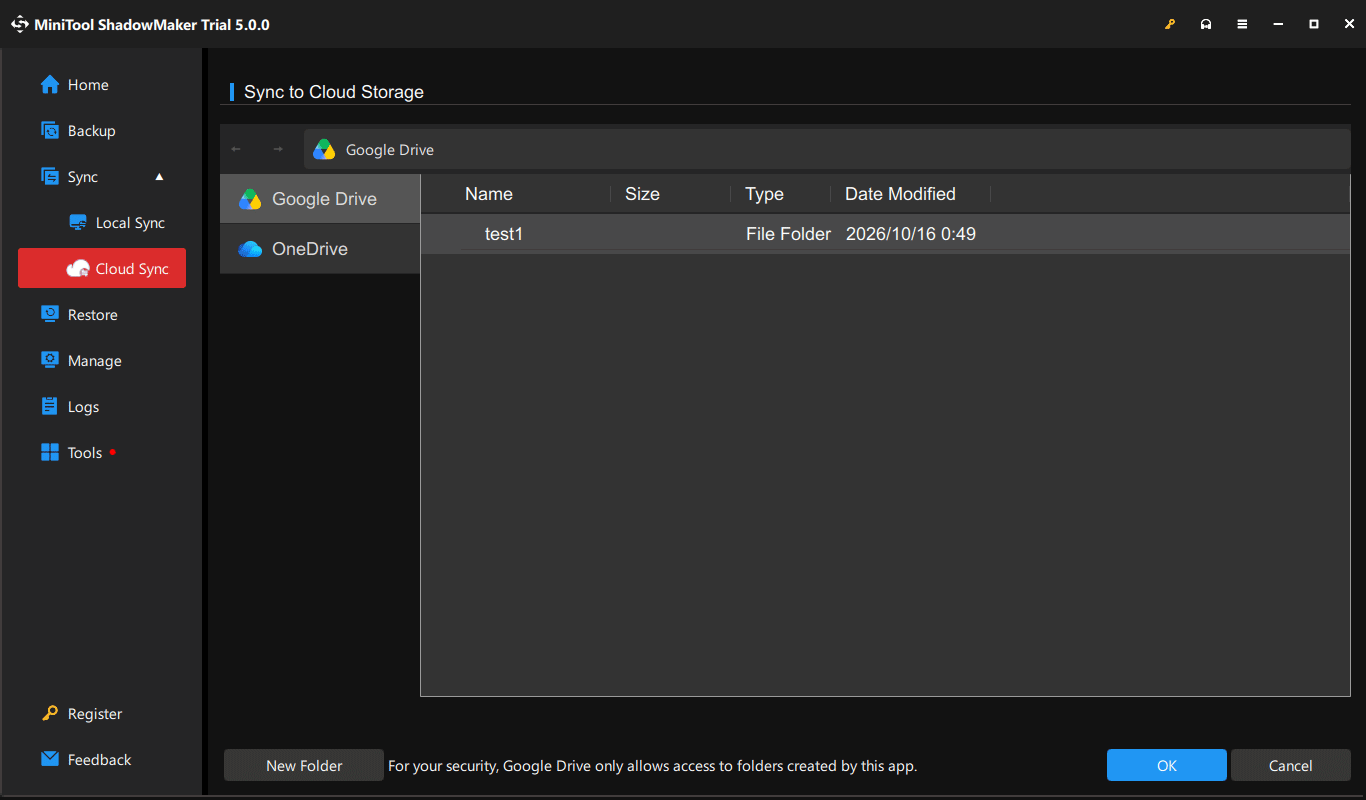
Step 5: Start to synchronize folders.
- When returning to the Sync page, click Sync Now to startfolder sync.
- The progress of folder sync task can be viewed in the Manage page of MiniTool ShadowMaker.
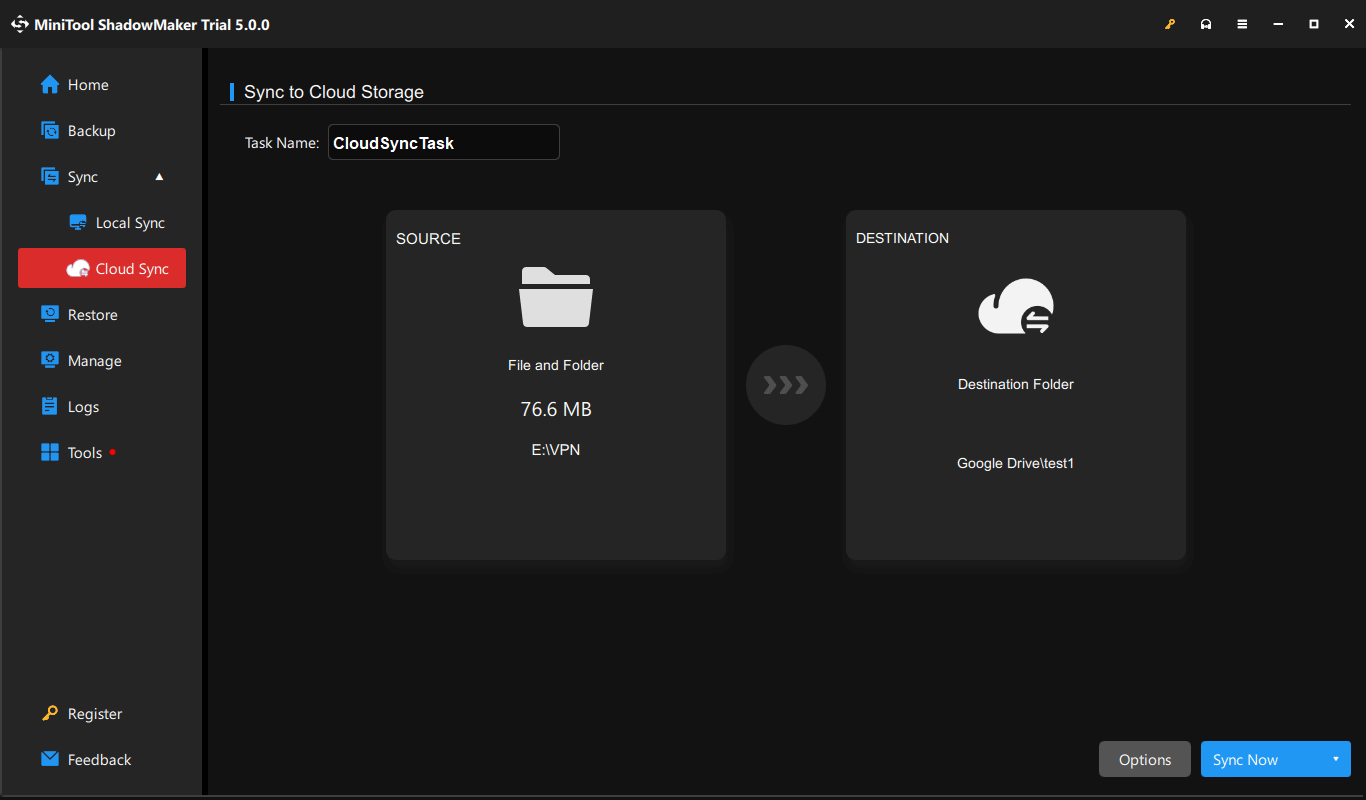
Make advanced settings
In the Sync page, you can find this free file sync software offers you two features: Schedule and Options. Before step 5, you can make some advanced settings for the folder sync task that you are performing, for example, create automatic folder sync tasks, make file comparison and file filter settings.
①Auto Sync Folders Windows 10/11
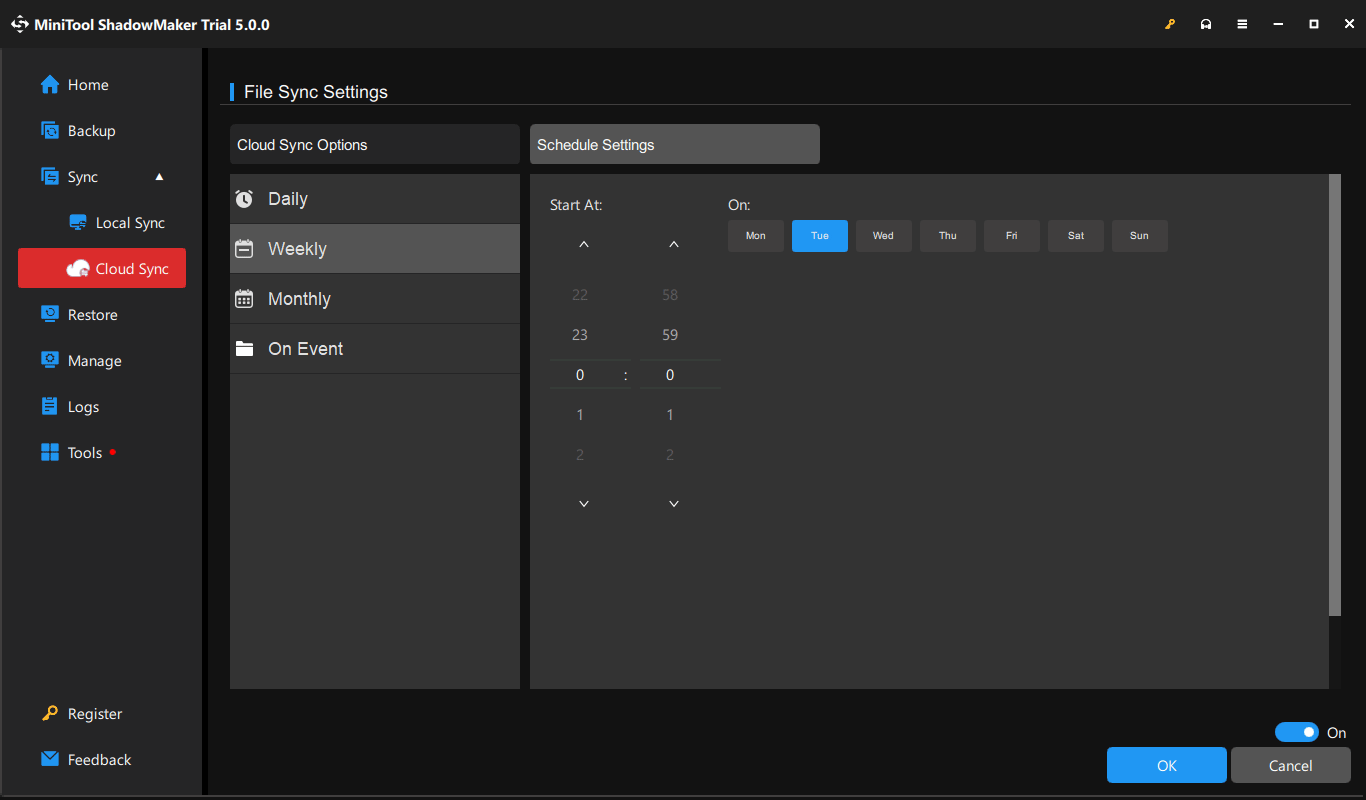
To automatically sync folders, use the Schedule feature.
- Click Options > Schedule Settings and turn the switch to On.
- Then, you will find that this feature offers you four schedule settings including Daily, Weekly, Monthly, and On Event. Just choose one and specify a time point for automatic file & folder sync.
②File Sync Options
After clicking this feature, you can see MiniTool ShadowMaker provides you with two options: Comparison and Filter.
By using the first one, this software will compare the file time and file size of the source and target files.
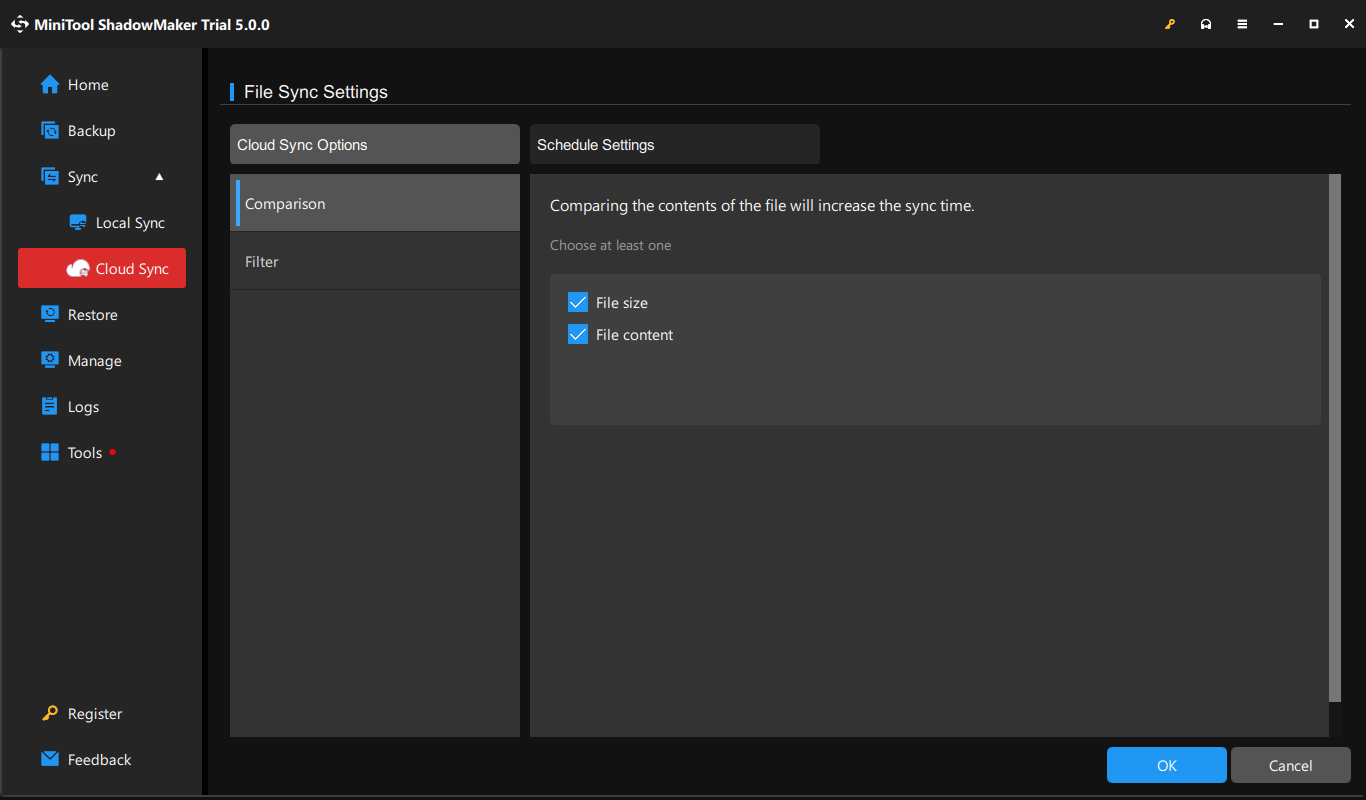
With the Filter feature, you can exclude some files to prevent them from being synchronized.
Sync Folders to the Cloud via the OneDrive App
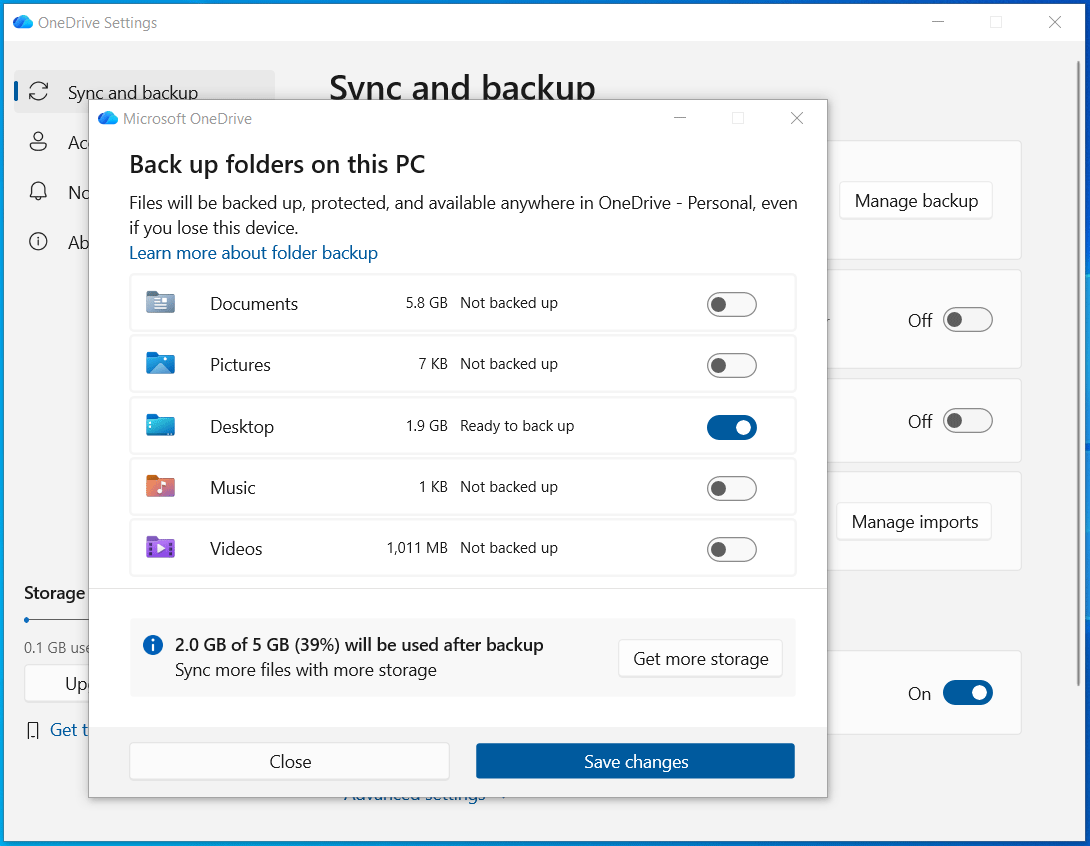
OneDrive, Microsoft’s cloud storage service, is a good option if you want to keep commonly used Windows folders available across your devices. It allows you to sync folders such as Desktop, Documents, Pictures, Videos, and Music to the cloud.
Unlike MiniTool ShadowMaker’s one-way cloud sync, OneDrive can synchronize changes between your local OneDrive folder and the cloud. However, it cannot sync arbitrary folders outside its own directory unless you move them.
Follow these steps:
Step 1: Install the OneDrive app if needed. Then open it in Windows 11 or 10 and sign in to your Microsoft account.
Step 2: Open OneDrive settings and go to Sync and backup.
Step 3: Click Manage backup and enable the switch for folders you want to back up.
Step 4: Save the changes and OneDrive begins syncing.
Bottom Line
Right now, we have shown you how to sync folders Windows 10/11 with two different tools to meet your various needs. Just choose one tool and start a sync task based on actual situations. To sum up, MiniTool ShadowMaker is easy-to-use, flexible and reliable.
Remember to tell us if you have any suggestion or question. Leaving a comment and contacting [email protected] are both OK.
Sync Folders Windows 10/11 FAQ
1. The destination has enough free space.
2. You have permission to access it.
3. The correct source and destination folders are selected.
4. An external drive or USB drive is connected and writable.
About The Author

Position: Columnist
Vera has been working at the MiniTool Team for over 10 years as a technical editor and content writer. She mainly focuses on disk and partition management, data recovery, Windows backup and restore, and PC troubleshooting. Through in-depth software testing and hands-on experience, she has helped users solve a wide range of computer problems and better protect their data on Windows devices.
User Comments :