
Key Takeaways
- A backup retention rule determines how backup data is maintained over time.
- The right strategy can balance data protection, recovery needs, and storage efficiency.
- MiniTool ShadowMaker simplifies backup automation and version control.
What Is a Backup Retention Policy?
A backup retention policy is a set of rules that defines how long backup copies are kept, when they are deleted, and which versions are stored. It ensures you keep multiple backup versions available while minimizing unnecessary storage consumption.
Without clear retention rules, you may retain redundant backups or prematurely delete critical recovery points.
Why Do You Need a Backup Retention Policy?
A well-defined backup retention policy is critical for optimizing data protection and streamlining backup management.
- Reduce Storage Costs: Storing every backup can quickly consume storage space. A retention policy deletes old copies, optimizing storage efficiency and saving costs.
- Improve Data Recovery: A proper schedule ensures important backup versions remain available. When unexpected system problems occur, you can restore your PC to a suitable earlier state. This also adds another layer of protection against data loss.
- Meet Compliance Requirements: Some laws require companies to keep specific financial, health, or personal records for set periods, such as 3–7 years.
What Should a Backup Retention Policy Include?
A clear backup retention rule should define the retention period, backup types, deletion rules, and storage media. Learn more in the following sections.
Backup Retention Period
It is necessary to determine how long each backup is kept, for example, 7 days, 30 days, 90 days, or longer. The proper period depends on data types, available storage space, and recovery needs. For instance, you can keep daily backups for 30 days.
Backup Types
Common backup types include full, incremental, and differential backups. Choose the proper method based on data and storage needs.
- Full backup: Provides complete recovery points but requires more space.
- Incremental backup: Saves changes since the last backup, reducing storage space.
- Differential backup: Copies of data changed since the last full backup and offers a balance between backup speed and storage space.
MiniTool ShadowMaker supports creating full, incremental, or differential backups, providing more flexibility when setting up a backup retention policy.
Deletion Rules
Defining when old backups are removed and how many versions remain is also critical. Automatic cleanup can help remove outdated copies to free up storage space and keep necessary versions available.
Storage Media
Consider where backups are stored, such as local drives, external hard drives, NAS devices, and cloud storage. Using multiple storage locations can provide additional protection.
How to Create a Backup Retention Policy with MiniTool ShadowMaker
To set up a backup retention plan quickly, consider the professional backup software, MiniTool ShadowMaker. Designed for Windows 11/10, this tool provides comprehensive PC protection by backing up files, folders, disks, partitions, and the entire system.
Additionally, MiniTool ShadowMaker offers practical features for automatic backups and setting up backup schemes, including full, incremental, and differential backups. It also helps manage and remove old backup versions.
Follow these steps to build a backup retention strategy:
Step 1: Connect a USB drive or external disk to your PC.
Step 2: Download, install, and launch MiniTool ShadowMaker.
MiniTool ShadowMaker TrialClick to Download100%Clean & Safe
Step 3: Select the backup source and target under Backup.
- Click SOURCE > Folders and Files, choose the file or folders you want to back up, and click OK.
- Go to DESTINATION to choose the connected external drive or USB drive.
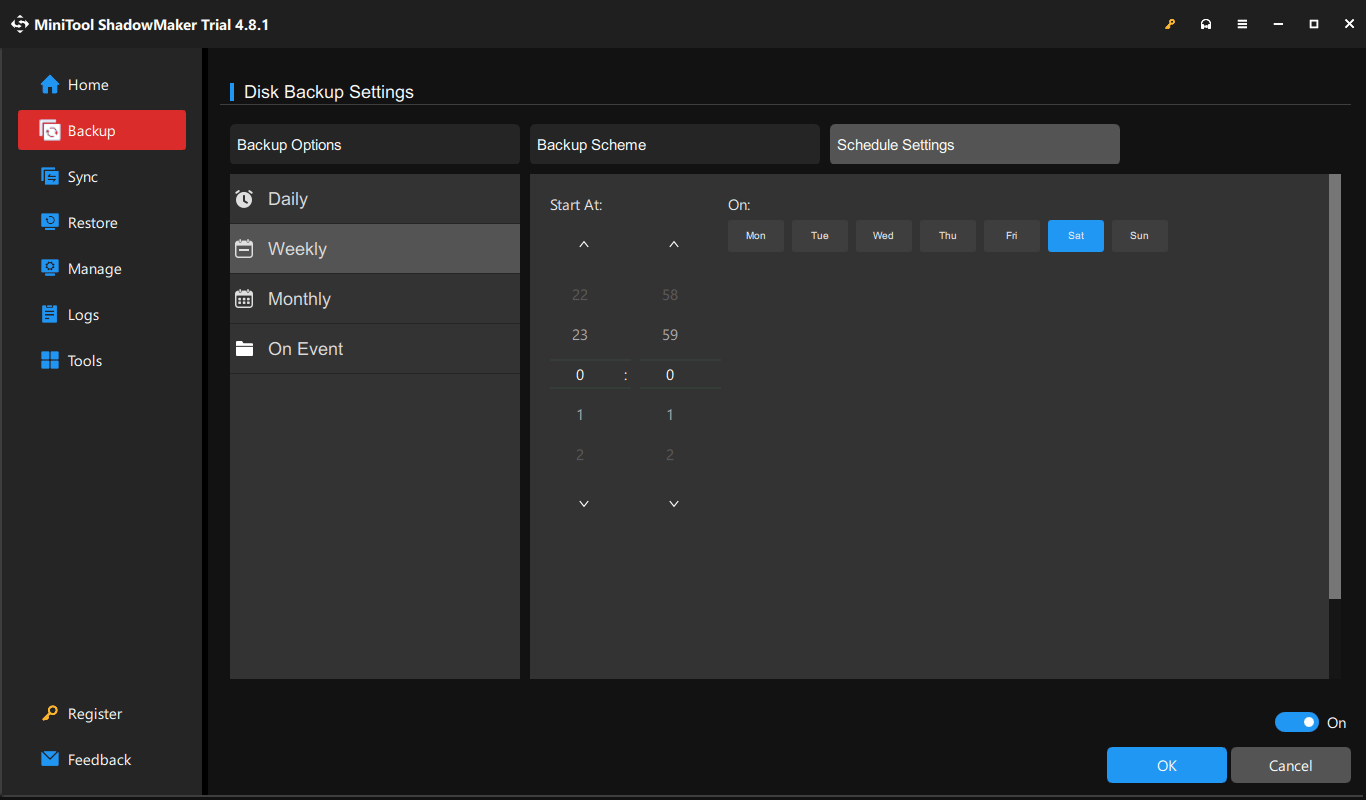
Step 4: Set a backup schedule.
- Click Options under Backup and go to Schedule Settings.
- Switch the toggle to On.
- Configure a plan, such as daily, weekly, or monthly.
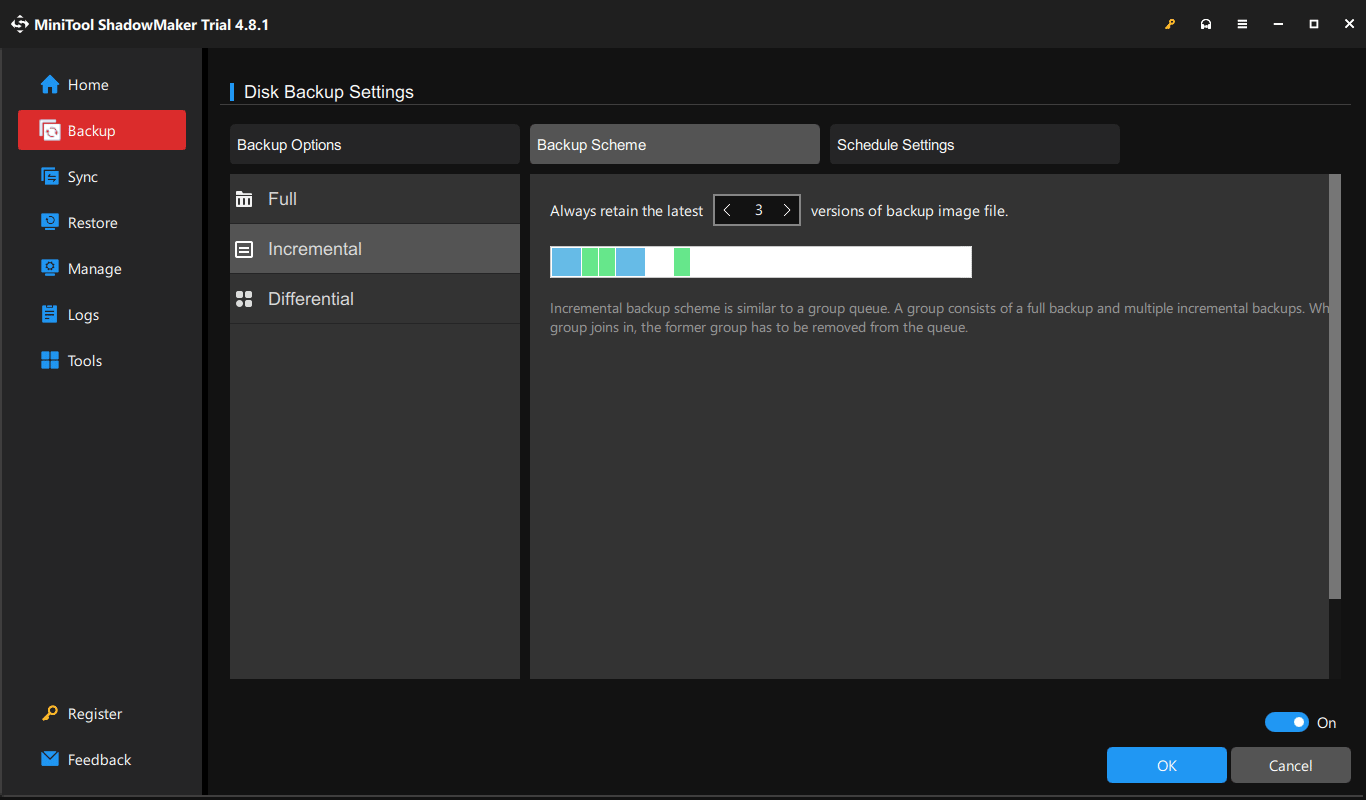
Step 5: Choose a backup scheme.
- Go to the Backup Scheme tab and enable this option.
- Choose Incremental or Differential.
- Set the latest backup versions you need to keep.
Step 6: Click Back Up Now to start the backup immediately.
Once configured, MiniTool ShadowMaker will automatically back up your data and remove old backup versions according to your settings.
Common Backup Retention Strategies
Follow the retention rules below to help you manage backups effectively.
- Short-term retention: This strategy keeps recent backups for a limited period, from 7 to 90 days. Use this to handle frequently changing data.
- Long-term retention: It keeps backups for several months or years. Follow this strategy for financial documents, business records, and historical data.
- GFS (Grandfather-Father-Son) retention: This method keeps backups at different intervals, including daily (Son), weekly (Father), and monthly or yearly (Grandfather) backups. For example, you can retain daily backups for 7 days, weekly backups for a month, and monthly backups for a year or longer.
Backup Retention Policy Best Practices
Consider the following best practices when setting up your backup retention policy:
- Classify your data by sensitivity, business value, and compliance needs.
- Follow the 3-2-1 backup rule to keep 3 copies on 2 different storage media, with 1 copy stored offsite.
- Enforce immutability by locking backups for 30 to 90 days to prevent unauthorized changes or deletion.
- Verify your backups regularly to ensure they work when an emergency happens.
- Automate backup retention instead of doing manual cleanups.
Backup Retention Policy FAQ
Conclusion
A well-planned backup retention policy helps you keep useful recovery versions and save storage space. Use MiniTool ShadowMaker to automate backups and set up incremental or differential backup schemes to delete old backups.
When having issues with our software, contact us at [email protected]
About The Author

Position: Columnist
Vera has been working at the MiniTool Team for over 10 years as a technical editor and content writer. She mainly focuses on disk and partition management, data recovery, Windows backup and restore, and PC troubleshooting. Through in-depth software testing and hands-on experience, she has helped users solve a wide range of computer problems and better protect their data on Windows devices.
User Comments :