
The best backup verification software should provide reliable integrity checks, automated verification, easy recovery testing, and clear backup status reports. This MiniTool post compares popular backup tools to help you choose the right solution.
What Is Backup Verification
Backup verification confirms that your stored data is complete, intact, and restorable. This process ensures your backups are dependable and functional in case of system failures, ransomware attacks, or data loss.
If you only create a backup without verification, you may discover the backup is corrupted or incomplete until you desperately need to recover your data. Verifying backups regularly helps users avoid extended downtime, data loss, and failed disaster recovery efforts.
What Features Should Backup Verification Software Have
Good backup verification software should include these key features:
- An easy-to-use interface for simple backup management.
- Support for multiple storage locations, including local drives, NAS, and cloud storage.
- Scheduled verification for regular backup health checks.
- Reports and alerts for verification results and failures.
- Automatic verification after each backup to confirm backup completion.
- Integrity checks to detect corruption or missing data.
- Restore testing to ensure backups are recoverable.
- Fast verification performance with minimal system impact.
These features help ensure your backups are complete, reliable, and ready for recovery.
# 1. MiniTool ShadowMaker: Easy, Reliable
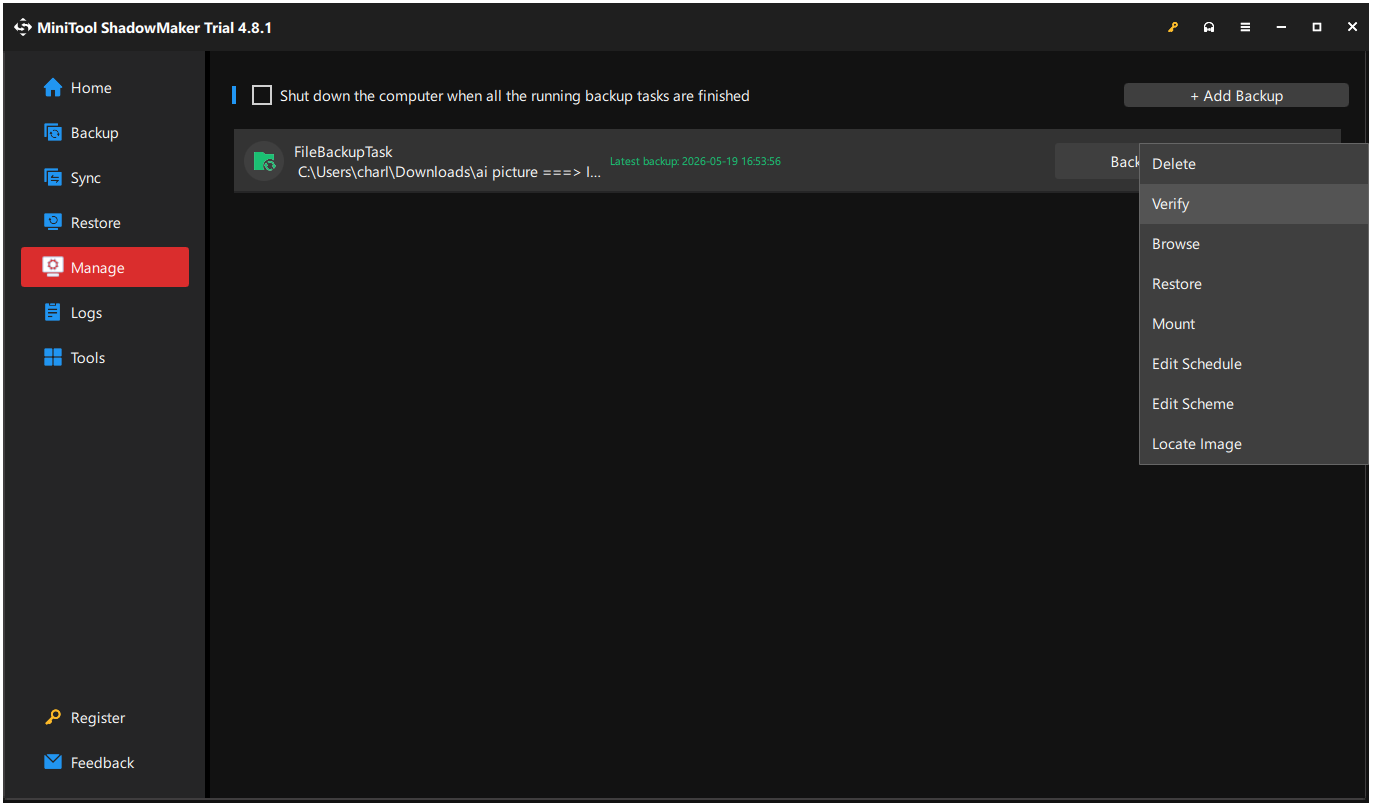
MiniTool ShadowMaker simplifies backup verification through its user-friendly interface and trusted integrity checks. It ensures users can verify that their backup images are complete and accessible for recovery when necessary.
Key Features
- User-Friendly Management: Provides a simple interface that makes backup creation and verification accessible for beginners.
- Backup Image Verification: Checks backup image integrity to help confirm that files and system data can be restored successfully.
- Scheduled Backup Protection: Allows users to create automatic backup tasks and maintain up-to-date recovery points.
- Multiple Backup Modes: Supports full, incremental, and differential backups for different data protection strategies.
- System and Disk Recovery: Helps restore operating systems, disks, and partitions after unexpected failures.
Pros & Cons
| Pros | Cons |
| 1. Easy-to-use interface for backup management. 2. Supports system, disk, partition, and file backups. 3. Offers scheduled and incremental backups. 4. Includes backup verification features. | 1. Some advanced features require a paid edition. 2. Windows-focused solution. |
User Experience
MiniTool ShadowMaker has a simple, easy-to-use interface and supports system backup, file sync, scheduled backup, and disk cloning. Also, this software has image verification to prevent restore errors. It’s suitable for home users needing an easy, verified backup tool.
The simple interface makes it accessible for beginners. Some features are Pro-only, and the free edition shows upgrade prompts that can slightly impact the user experience.
# 2. Acronis True Image: Secure, Advanced
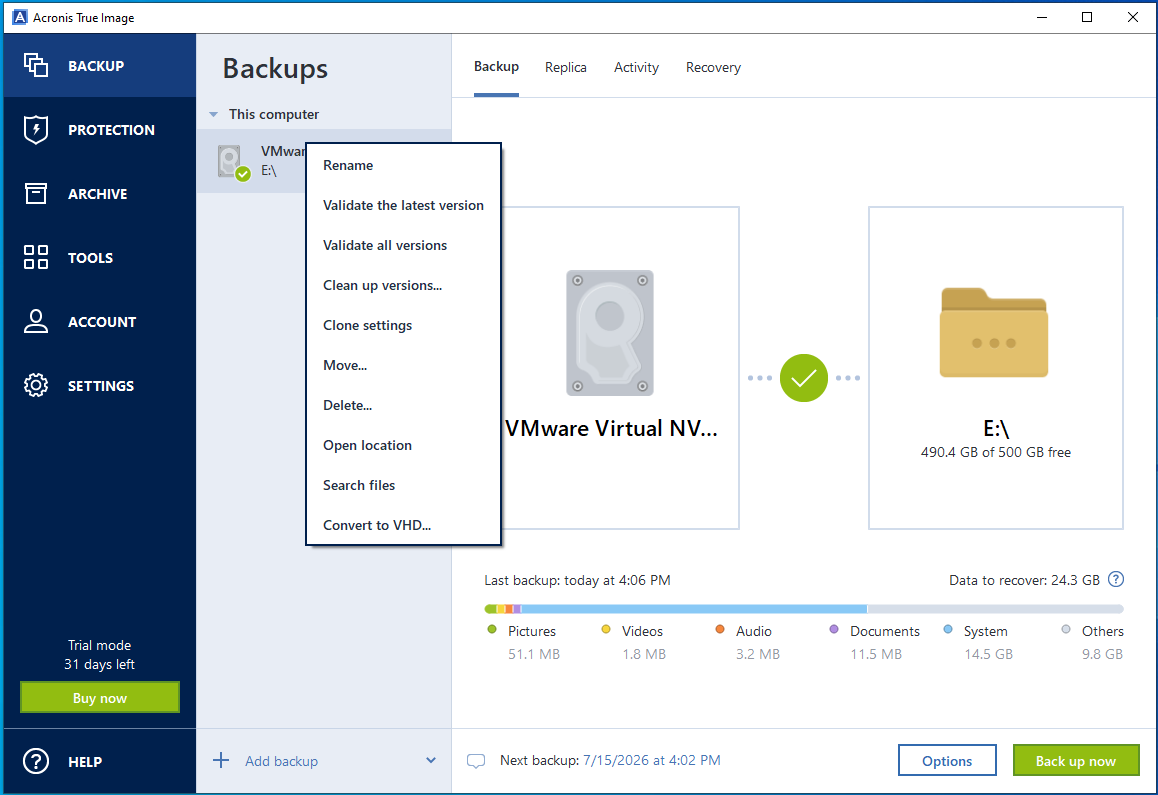
Acronis True Image (formerly Acronis Cyber Protect Home Office) combines secure backup with advanced cyber protection. Its Backup Verification tool uses integrity validation to ensure users’ backups are tamper-proof, available, and ready for recovery.
Key Features
- Advanced Backup Validation: Performs detailed checks to verify whether backup copies remain intact and recoverable.
- Active Cyber Protection: Combines backup reliability checks with ransomware defense and security monitoring.
- Cloud Backup Integration: Supports backup verification across local storage and cloud-based backup environments.
- Automatic Protection Features: Helps reduce manual management through scheduled backups and continuous data protection options.
- Secure Recovery Options: Provides reliable restoration tools designed to minimize downtime after data loss incidents.
Pros & Cons
| Pros | Cons |
| 1. Combines backup verification with cyber protection. 2. Supports local and cloud backups. 3. Includes ransomware protection features. 4. Provides automatic backup and recovery options. | 1. Requires a subscription to unlock advanced features. 2. Offers more features than basic users need. 3. Uses higher system resource usage. |
User Experience
Acronis True Image offers strong backup security with system backup, file sync, scheduled backups, and non-system disk cloning. It also supports backup verification for all backup versions.
It’s ideal for users seeking a comprehensive backup solution, but it may be complex for beginners due to its crowded interface and frequent upgrade prompts. Additionally, it has high hardware resource usage.
# 3. EaseUS Todo Backup: Simple, Flexible
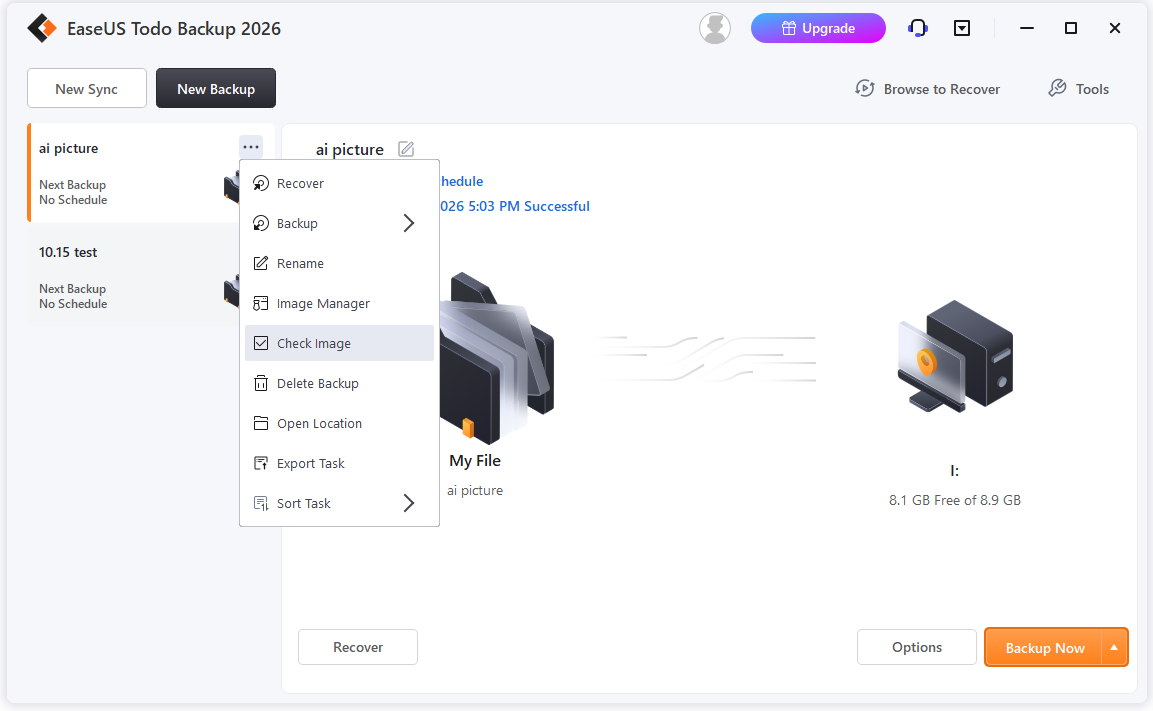
EaseUS Todo Backup is an intuitive data protection platform featuring flexible scheduling, smart backups, and reliable disaster recovery across cloud and external drives. Its simple workflow lets users easily manage and verify backups without complex configurations.
Key Features
- Flexible Backup Solutions: Supports system, disk, partition, file, and cloud backup tasks for various scenarios.
- Automatic Backup Scheduling: Enables regular backup creation to maintain updated recovery versions.
- Backup Integrity Checking: Allows users to verify backup files and confirm their availability before recovery operations.
- Disk Cloning Capability: Creates exact copies of drives for migration, upgrade, or disaster recovery purposes.
- Simple Recovery Management: Provides an intuitive workflow for locating backups and restoring lost data efficiently.
Pros & Cons
| Pros | Cons |
| 1. Simple backup management interface. 2. Supports multiple backup types and storage locations. 3. Includes disk cloning and recovery tools. 4. Offers scheduled backup tasks. | 1. Some features are limited in the free edition. 2. Upgrade prompts appear in the free edition. |
User Experience
EaseUS Todo Backup features a user-friendly interface with a simple layout and large text. Backup verification is straightforward, showing results in a clear pop-up message.
It’s ideal for users seeking uncomplicated backup solutions. However, frequent upgrade prompts can disrupt the overall experience.
# 4. Hasleo Backup Suite: Lightweight, Practical
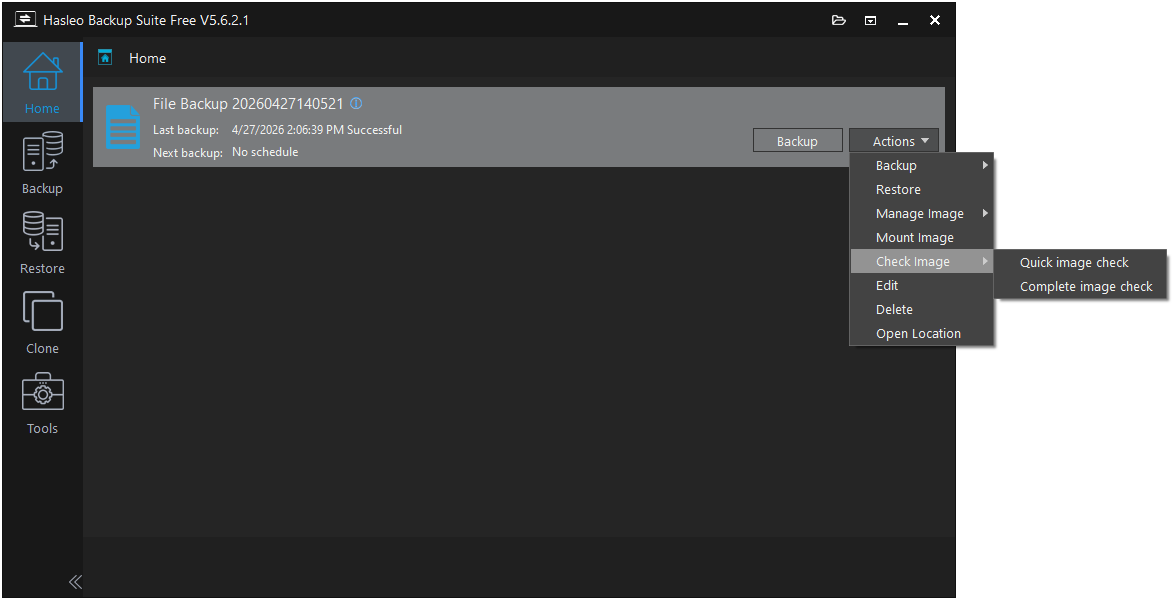
Hasleo Backup Suite is a light and efficient data protection solution. It safely backs up systems, disks, partitions, and files with minimal resource impact. The integrity checks keep users’ data secure without any feature bloat, making it the perfect choice for practical users.
Key Features
- Lightweight Backup Verification: Checks backup consistency while keeping system resource consumption low.
- System and Disk Imaging: Creates complete images that can be used for system recovery and migration.
- Incremental Backup Support: Reduces backup time and storage usage by saving only changed data.
- Bootable Recovery Media: Allows users to restore systems even when Windows cannot start normally.
- Straightforward Backup Controls: Offers essential backup and recovery features without unnecessary complexity.
Pros & Cons
| Pros | Cons |
| 1. Lightweight and easy to use. 2. Supports system, disk, and file backups. 3. Includes incremental backups and recovery media. 4. Provides essential backup features for free. | 1. Limited advanced backup features. 2. Basic interface design. |
User Experience
Hasleo Backup Suite features a clean, ad-free interface with an organized layout. Its card-based task view is user-friendly, and backup verification is straightforward, with clear progress indicators.
However, some technical terms might confuse beginners, making it less friendly for new users.
# 5. AOMEI Backupper: Feature-Rich, Affordable
AOMEI Backupper combines rich backup features with affordable pricing, allowing users to verify backups while managing different protection tasks in one place. It provides a balanced option for users who need more flexibility without a high cost.
Key Features
- Backup Integrity Validation: Examines backup images to ensure they remain usable for future restoration.
- Comprehensive Backup Types: Provides system, disk, partition, file, and sync backup options for different needs.
- Incremental and Differential Backup: Helps optimize storage usage while maintaining multiple recovery points.
- Automatic Backup Management: Supports scheduled tasks and backup schemes for continuous protection.
- Wide Storage Support: Works with internal drives, external storage devices, NAS, and network locations.
Pros & Cons
| Pros | Cons |
| 1. Feature-rich backup and recovery tools. 2. Supports multiple backup modes. 3. Includes scheduling and backup management. 4. Works with various storage devices. | 1. Some features require paid editions. 2. The Interface includes many settings. 3. Free edition has upgrade reminders. |
User Experience
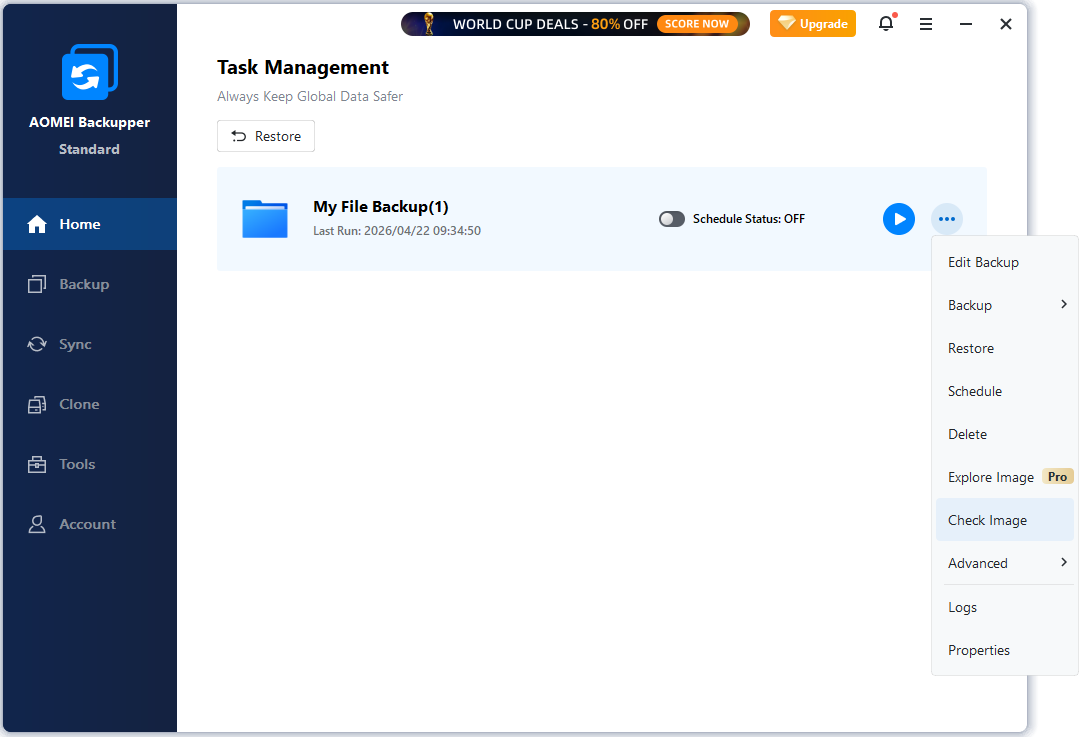
AOMEI Backupper features a user-friendly interface with large buttons, making it easy for beginners and older users. Managing backup tasks and verifying them is straightforward, with clear progress indications.
It offers a good balance of features and price, catering to those seeking more control over backups. However, the interface includes visible Pro feature labels and frequent upgrade promotions, which can impact the overall experience.
# 6. Macrium Reflect: Powerful, Professional
Macrium Reflect delivers professional-level backup verification with powerful imaging and recovery capabilities. It is designed for advanced users who need precise control over backup integrity and restoration processes.
Key Features
- Professional Backup Verification: Uses advanced validation methods to check image integrity and data consistency.
- Reliable Disk Imaging: Creates sector-based backup images suitable for system disaster recovery.
- Rapid Recovery Environment: Provides bootable rescue media for restoring systems after critical failures.
- Incremental and Differential Imaging: Helps reduce backup time while maintaining multiple restore points.
- Advanced Backup Control: Offers detailed configuration options for IT professionals and experienced users.
Pros & Cons
| Pros | Cons |
| 1. Offers advanced backup controls. 2. Supports detailed image validation. 3. Includes rescue media creation. | 1. Less beginner-friendly interface. 2. Paid access required for many advanced features. 3. Limited focus on cloud backup. |
User Experience
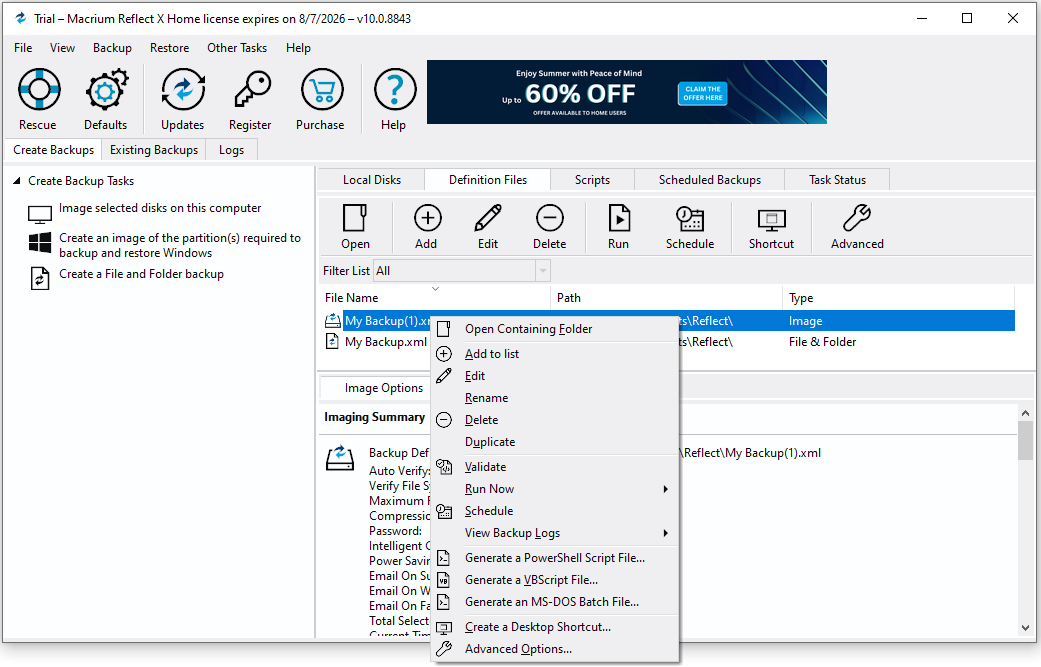
Macrium Reflect features a classic File Explorer-style layout with drag-and-drop controls and an easy-to-switch two-color theme. It offers detailed backup verification progress, making it ideal for advanced users needing professional backup management.
However, its technical terms can be challenging for beginners, and the prominent trial countdown serves as a constant upgrade reminder.
Backup Verification Software Comparison Table
| Software | Verification Feature | Best For | Ease of Use (5/5) |
| MiniTool ShadowMaker | Backup image verification | Home users | 5 |
| Acronis Cyber Protect Home Office | Backup validation | Security-focused users | 4 |
| EaseUS Todo Backup | Backup image verification | General users | 5 |
| Hasleo Backup Suite | Backup image integrity check | Free Windows backup users | 5 |
| AOMEI Backupper | Image verification | Budget users | 5 |
| Macrium Reflect | Image verification | Advanced users | 3 |
Final Verdict
Backup verification is essential for a reliable backup strategy, ensuring that images are complete and ready for recovery.
Various software options cater to different users: MiniTool ShadowMaker, EaseUS Todo Backup, Hasleo Backup Suite, and AOMEI Backupper are user-friendly for home users, while Acronis Cyber Protect Home Office focuses on security, and Macrium Reflect offers advanced options for experienced users.
The best choice depends on individual needs, but MiniTool ShadowMaker is a solid option for ease of use and reliability. Regular verification and restore testing are crucial to ensure backups are usable when needed.
Backup Verification FAQ
About The Author

Position: Columnist
Charlotte is a technology columnist with a strong focus on the Windows operating system, specializing in disk management, backup, and data recovery. She is passionate about analyzing computer errors, identifying root causes, and delivering practical solutions. In her free time, she stays updated on the latest developments in computer systems and hardware while continuously learning new technologies to broaden her expertise. Her writing style is clear and easy to understand, making complex technical topics accessible even to users with limited computer knowledge.
User Comments :