
Need reliable backup software without overspending? This guide from MiniTool discovers the best cost-effective backup software for Windows. We compare pricing, backup features, recovery options, and user reviews.
Backing up your data is essential to protect against hardware failure, ransomware, and system crashes. However, finding a balance between overpriced premium software and limited free tools can be challenging.
This review evaluates six popular Windows backup solutions based on their overall value, features, and reliability:
- MiniTool ShadowMaker
- Acronis Cyber Protect Home Office
- EaseUS Todo Backup
- Macrium Reflect
- AOMEI Backupper
- Hasleo Backup Suite
We analyze their backup capabilities, ease of use, performance, and pricing. Whether you are a beginner looking for simplicity or an advanced user needing disk cloning, this guide will help you choose the best budget backup software.
How to Choose Cost-Effective Backup Software
A common mistake is assuming that “cheaper” automatically translates to “better value”. In reality, true cost-effectiveness is defined by the balance of price and utility, rather than just the lowest sticker price.
A quality backup solution should deliver reliable protection, essential features, and strong long-term value. Before choosing, consider these key factors:
- Backup features: Support for file, system, disk, and partition backups, plus scheduling and incremental backups.
- Recovery options: Reliable restore processes and bootable recovery media.
- Disk cloning: Useful for HDD-to-SSD upgrades and system migration.
- Ease of use: A simple interface makes backup management easier.
- Pricing: Compare free and paid editions to find the best value.
The right backup software should match your backup needs while providing dependable protection at a reasonable cost.
How We Tested These Backup Software Solutions
To ensure a fair comparison, each backup solution was evaluated using the same testing criteria:
- Backup and recovery reliability
- Supported backup types
- Backup speed
- Ease of use
- Scheduling options
- Disk cloning capabilities
- Pricing and licensing
- User feedback
- Overall value
# 1. MiniTool ShadowMaker — Best Overall Value
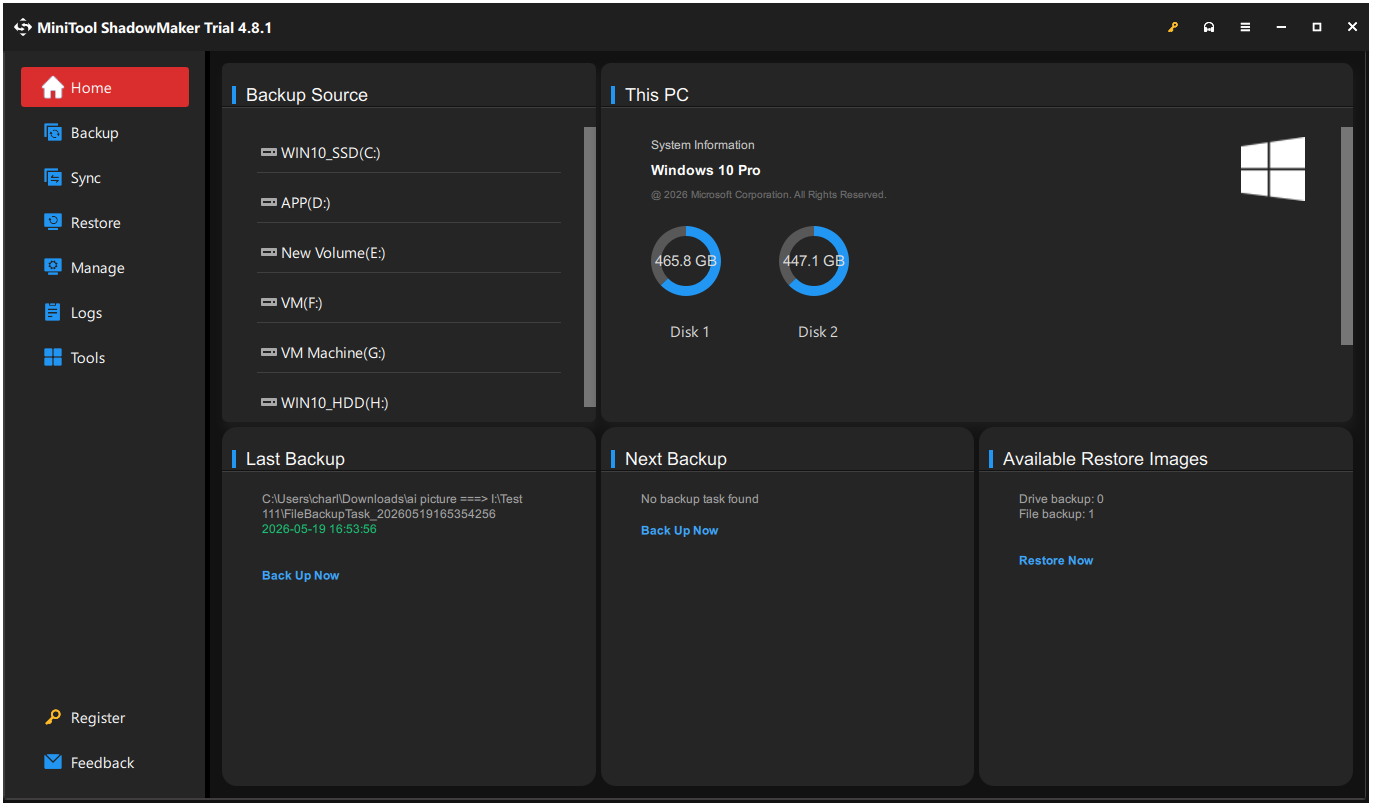
MiniTool ShadowMaker is one of the best overall-value backup and recovery programs for Windows. It offers an annual subscription with an extremely accessible price point, making it affordable backup software compared to mainstream commercial backup software.
Key Features
- Supports system, disk, partition, and file backup.
- Creates disk clones and migrates operating systems.
- Schedules automatic backup tasks.
- Creates bootable recovery media.
- Restores systems to different hardware.
- Supports file sync and event-trigger backup tasks.
- Allows adding the MiniTool recovery environment directly to the Windows boot menu.
- Consumes minimal CPU resources while running.
Pros & Cons
| Pros | Cons |
| 1. Provides a simple interface for beginners. 2. Supports different types of backups. 3. Offers disk cloning and system restore features. | 1. Some advanced features require a paid plan. 2. Certain enterprise-level features require a premium upgrade. |
User Experience
MiniTool ShadowMaker stands out with its modern, clean interface. The simple sidebar, clear Source and Destination icons, and default system backup selection make the first backup easy.
However, the free edition shows upgrade prompts, and advanced tools lack beginner-friendly explanations.
It also offers solid value. The yearly plan costs less than EaseUS and AOMEI, while discounted lifetime plans remain highly competitive, especially for multi-device use.
# 2. Acronis True Image — Best for Security & Cloud Backup
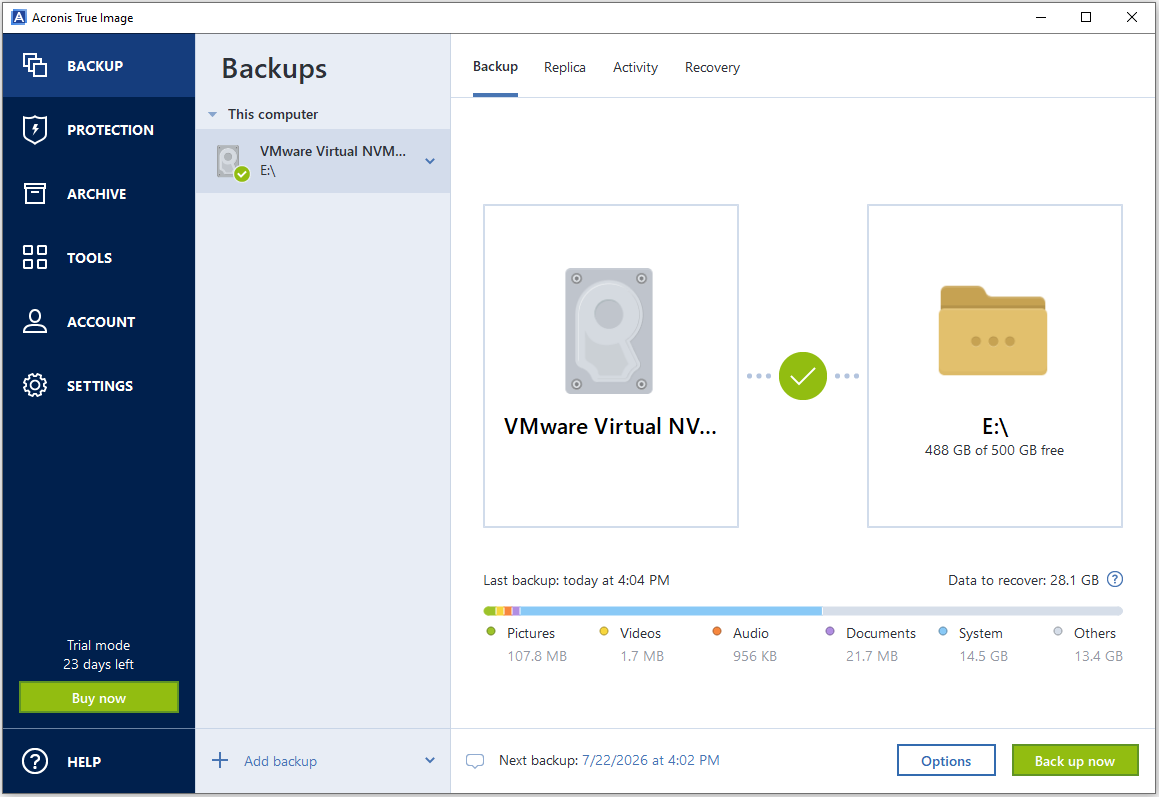
Acronis True Image focuses on security and speed, offering Ransomware Protection and fast cloud backup. Its comprehensive features include AI-based antivirus, cloud storage, and rapid backup and recovery. However, its subscription cost is higher than others.
Key Features
- Creates full system image backups.
- Stores backups in cloud storage.
- Clones active disks and migrates data without needing to shut down or reboot the PC.
- Protects files against ransomware attacks.
- Monitors disk activity for threats.
- Allows restoring a system backup onto entirely different hardware.
- Manages backup schedules and versions.
Pros & Cons
| Pros | Cons |
| 1. Combines AI-driven cybersecurity with robust backup and disk cloning. 2. Supports cloud backup and ransomware protection. 3. Offers strong cross-device backup support. 4. Provides extensive backup scheduling options. | 1. Costs more than most competitors. 2. Requires more system resources. 3. Includes features that may be unnecessary for basic users. |
User Experience
Acronis True Image combines backup, cloud, and security features in one platform. Acronis Cloud is built in, and PC, mobile, and Microsoft 365 backup are easy to access. However, the interface feels crowded because security tools often take focus away from backup.
Acronis True Image is one of the most expensive backup solutions. It only offers annual subscriptions and locks many features behind higher plans. It is better suited for users who need cloud backup and built-in security than simple local backup.
# 3. EaseUS Todo Backup — Best for Beginners
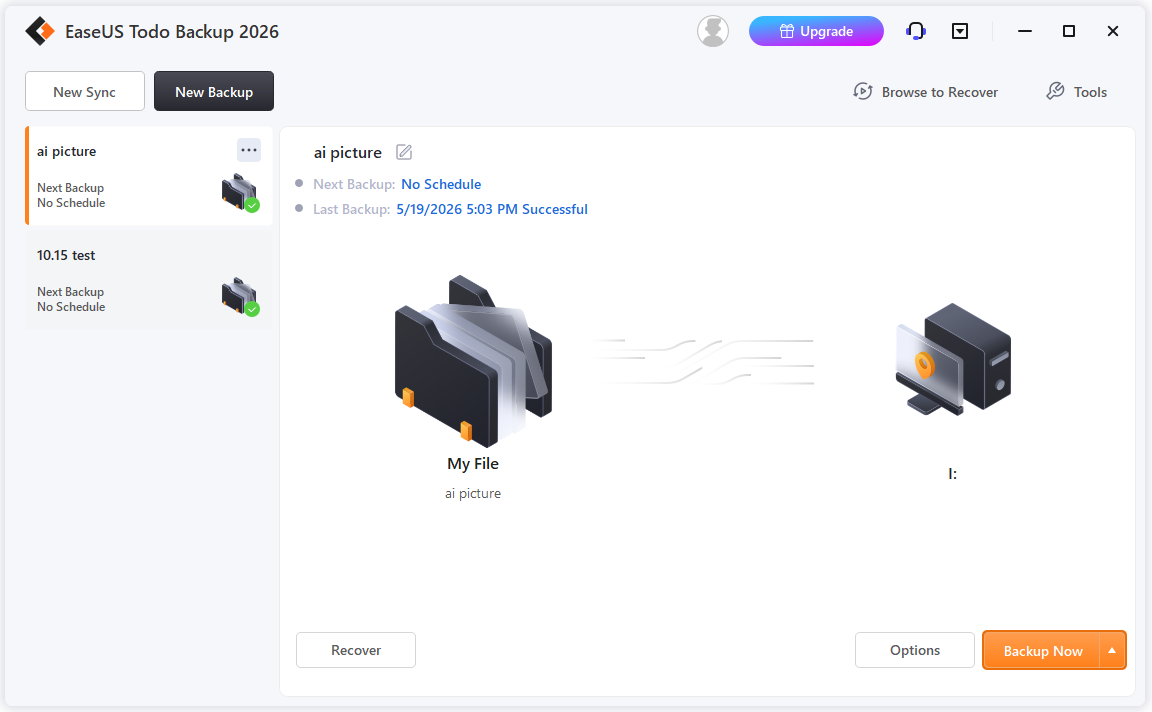
EaseUS Todo Backup is beginner-friendly, with a minimalist UI and straightforward, guided operations. Its interface and guided workflow better suit non-technical users, making it great value for those who want a simple, hassle-free, and one-click backup solution.
Key Features
- Backs up systems, files, disks, and partitions.
- Clones disks and migrates operating systems.
- Schedules automatic backup tasks.
- Merges or deletes outdated backups automatically.
- Performs incremental and differential backups.
- Allows restoring a system backup to a new PC with completely different hardware.
- Supports cloud and network backups.
- Creates bootable recovery drives.
- Supports one-click off-site backups for critical data.
Pros & Cons
| Pros | Cons |
| 1. Provides easy backup and restore workflows. 2. Supports system, file, disk, and partition backups. 3. Includes disk cloning and migration tools. 4. Offers a free edition for basic tasks. | 1. Limited backup options in the free edition. 2. Frequent upgrade prompts during software operation. |
User Experience
EaseUS Todo Backup has a clear, wizard-style interface. The Create Backup button stands out, and large icons make it easy to choose Files, Disk, OS, or Mail. EaseUS Cloud is also built into the backup destination list, making cloud backup simple.
Many features in the free edition are locked, and the interface contains ads for other EaseUS products. Flexible pricing options, including annual and lifetime plans, are available.
Its low-cost cloud storage offers strong value, especially for users needing both local and cloud backup. For local backup only, some cheaper alternatives provide better value.
# 4. Macrium Reflect — Best for Advanced Users
Macrium Reflect is a high-end backup tool for power users and professionals, offering exceptional recovery speeds and enterprise-grade stability.
Its Rapid Delta Restore can recover a crashed system in minutes, and its reliability is a major draw—though the retirement of the free personal edition makes it a steeper investment for casual users.
Key Features
- Creates disk images and system backups.
- Performs full, incremental, and differential backups.
- Clones disks for migration or upgrades.
- Restores systems quickly from backup images.
- Generates bootable rescue media for unbootable system recovery.
- Verifies and encrypts backup files.
- Restores full system images onto entirely different hardware.
- Provides open-source formats for transparent data recovery, such as .mrimgx, .mrbakx, and .vhdx.
- Optimizes built-in hardware support for modern ARM-based devices.
Pros & Cons
| Pros | Cons |
| 1. Supports advanced backup configurations. 2. Offers fast recovery for system images. 3. Provides reliable disk imaging and cloning tools. | 1. Interface is less beginner-friendly. 2. Free edition is no longer available for home users. 3. Advanced features require technical knowledge. |
User Experience
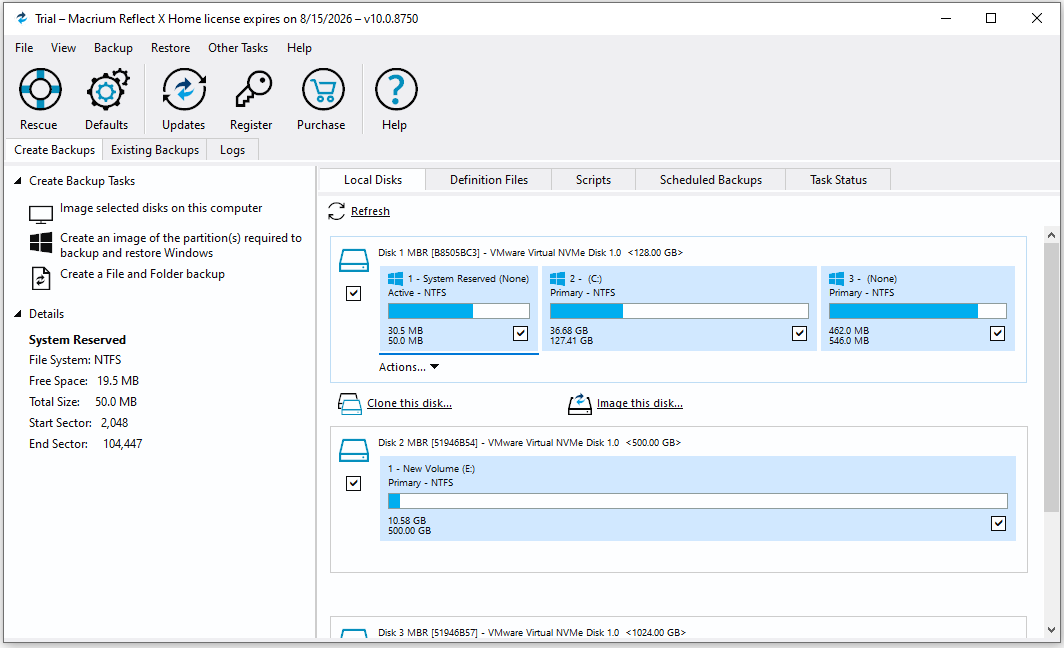
Macrium Reflect is a pure backup and cloning tool with no ads or extra features. Its detailed disk layout and Macrium Image Guardian (MIG) provide strong protection for advanced users. However, the technical interface can confuse beginners, and it lacks a built-in cloud backup option.
Macrium Reflect is expensive, with no free edition after the trial period. It is costly for basic users but valued by professionals for its speed, stability, and reliability.
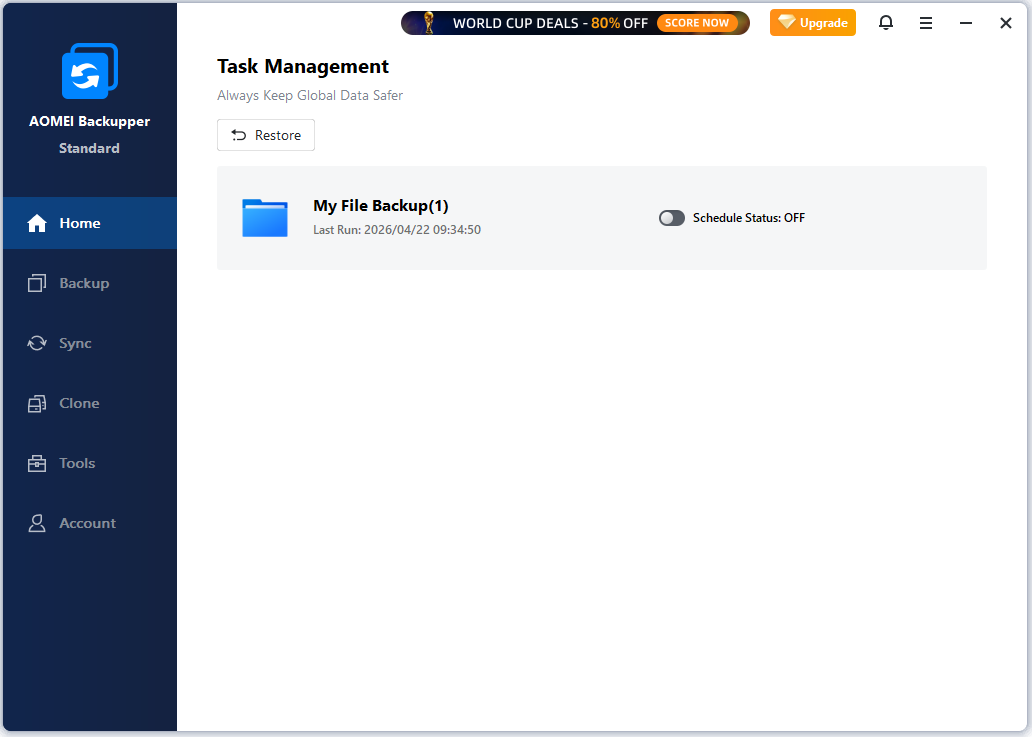
# 5. AOMEI Backupper — Best Feature-to-Price Balance
AOMEI Backupper is a great choice for everyday users, balancing features and price with cost-effective lifetime licenses.
The Professional edition is often discounted, and its one-time purchase model offers reliable automated backups and dissimilar hardware restores without ongoing subscription fees.
Key Features
- Creates full system images, partition backups, and drive clones.
- Clones disks and migrates Windows systems.
- Syncs files and schedules backups.
- Supports full, incremental, and differential backup types.
- Generates bootable rescue media to recover unbootable PCs.
- Supports Windows Server backup tasks.
Pros & Cons
| Pros | Cons |
| 1. Supports multiple backup types and disk cloning. 2. Works in business environments. 3. Offers system migration and sync options. | 1. Interface contains more options than beginners may need. 2. Cloud backup features are limited. 3. Some advanced tools require the Professional edition. |
User Experience
AOMEI Backupper has a clear layout and offers core backup features for free without major limits. However, its interface feels less modern and includes frequent upgrade prompts.
AOMEI Backupper provides strong value through multi-PC lifetime plans and free lifetime upgrades. It is especially cost-effective for families with multiple computers. However, some advanced features, such as System Clone, are locked behind the Pro edition.
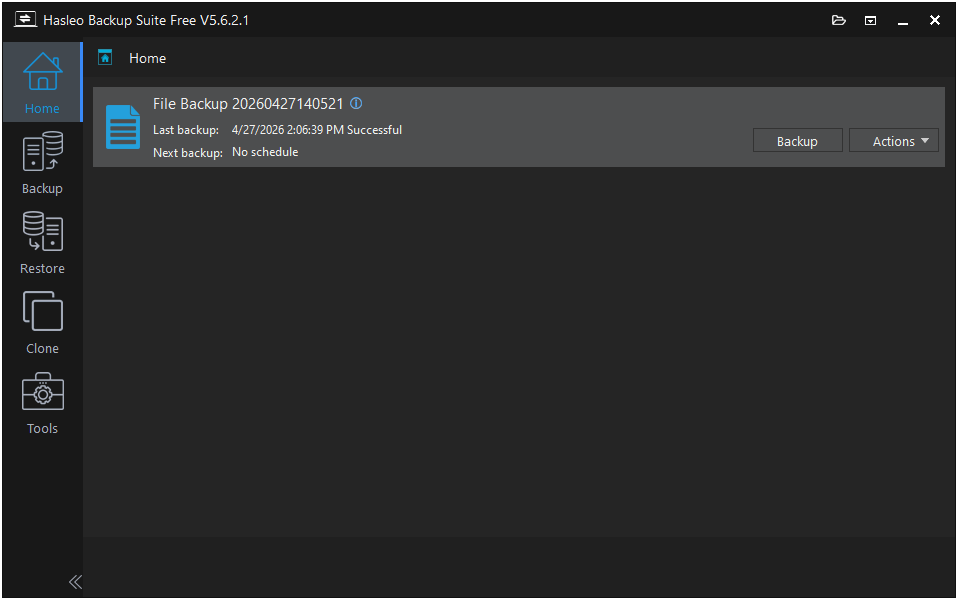
# 6. Hasleo Backup Suite — Best Free Backup Software
Hasleo Backup Suite is a standout “dark horse” that delivers premium-grade backup and cloning completely free and ad-free. It’s one of the few cheap backup software programs offering core features like system cloning and system backup at no cost.
Key Features
- Creates system snapshots, disk images, and file-level backups.
- Clones disks and migrates Windows installations.
- Supports full, incremental, and differential backup modes.
- Schedules automatic backup operations.
- Manages storage by auto-deleting older backup versions.
- Creates WinPE rescue media.
- Compresses and encrypts backup images.
- Supports x86, x64, and ARM64 architectures natively.
Pros & Cons
| Pros | Cons |
| 1. Is Lightweight and uses fewer system resources. 2. Offers free system, disk, and partition backup tools. 3. Provides essential backup features without extra costs. 4. Supports Windows system migration and cloning. | 1. Lacks the advanced backup features found in premium tools. 2. Limits available cloud integration options. 3. Offers a smaller user community and fewer documentation resources. |
User Experience
Hasleo Backup Suite offers a clean, ad-free interface with no pop-ups or bundled promotions. The free edition supports full backup features without speed limits, but the design feels more technical and lacks built-in cloud backup.
With a low-cost full version, Hasleo Backup Suite provides strong value. It is ideal for users who want reliable local backup without expensive subscriptions. Also, it is one of the best backup software for home users.
Cost-Effective Backup Software at a Glance
| Software | Best For | Starting Price | Backup Types | Disk Cloning | Our Verdict |
| MiniTool Shadow Maker | Most users | $36/year | File, Folder, System, Disk, Partition | √ | Best Overall |
| Acronis True Image | Security | $49.99/year | File, Folder, System, Disk, Partition, Cloud | √ | Best Security |
| EaseUS Todo Backup | Beginners | $39.95/year | File, Folder, System, Disk, Partition | √ | Easiest to Use |
| Macrium Reflect | Advanced users | $39.99/year | File, Folder, System, Disk, Partition | √ | Best for Advanced Users |
| AOMEI Backupper | Budget users | $39.95/year | File, Folder, System, Disk, Partition | √ | Best Value |
| Hasleo Backup Suite | Free users | Free | File, Folder, System, Disk, Partition | √ | Best Free Option |
Our Final Picks: MiniTool ShadowMaker is the best overall choice for most Windows users thanks to its balance of features and value. Acronis True Image is better for security-focused users, while EaseUS Todo Backup is ideal for beginners.
Macrium Reflect suits advanced users, AOMEI Backupper offers excellent value, and Hasleo Backup Suite is the best free option.
Cost-Effective Backup Software FAQ
For most users, combining local and cloud backups provides a good balance of cost, security, and convenience.
Final Verdict
There is no single backup solution that’s perfect for everyone. Some products focus on simplicity, others emphasize advanced imaging, integrated security, or affordability.
In this comparison, MiniTool ShadowMaker, AOMEI Backupper, EaseUS Todo Backup, Macrium Reflect, Acronis True Image, and Hasleo Backup Suite each stand out in different areas. The best choice depends on your budget, technical experience, and the features you value most.
Rather than choosing inexpensive backup software based on price alone, consider its backup capabilities, recovery reliability, and long-term value to ensure your data stays protected.
About The Author

Position: Columnist
Charlotte is a technology columnist with a strong focus on the Windows operating system, specializing in disk management, backup, and data recovery. She is passionate about analyzing computer errors, identifying root causes, and delivering practical solutions. In her free time, she stays updated on the latest developments in computer systems and hardware while continuously learning new technologies to broaden her expertise. Her writing style is clear and easy to understand, making complex technical topics accessible even to users with limited computer knowledge.
User Comments :