
Necessary to Format SD Card GoPro
For a GoPro camera, it doesn’t include internal storage. To use it, you need to prepare an external SD card. See our related post – 6 Best SD Cards for GoPro Hero 9/8/7 Black Cameras. If you purchase a new camera and use it for the first time, formatting this SD card is a good first step. This can make sure you have a good picture shoot.
Besides, if you take many pictures or capture many videos on your GoPro camera, you may want to delete them to free up space on the SD card so that you can make a new shoot. In this case, it is a good choice to format GoPro SD card. Sometimes the SD card has something wrong and you need to format it to keep the file system healthy.
Related post: Step-by-Step Guide on How to Repair GoPro SD Card Error
Well then, how to format SD card for GoPro cameras? In this post, you can find multiple ways, and let’s go on reading.
Attention: Back up SD Card GoPro
If you store much amount of important photos and videos on the GoPro SD card, you had better create a backup for them before formatting it. Besides, having a habit of backing up SD card data is good to avoid data loss since mistaken operations can delete your precious pictures by accident.
So, how to back up your GoPro SD card? It is a simple task and you can run professional backup software like MiniTool ShadowMaker. This free backup tool helps you to easily back up files, folders, disks, partitions, and Windows. Scheduled backups, incremental and differential backups can also be created. Now, get this freeware via the following button and start the SD card backup.
MiniTool ShadowMaker TrialClick to Download100%Clean & Safe
Step 1: Insert your SD card into a card reader and then connect it to your computer.
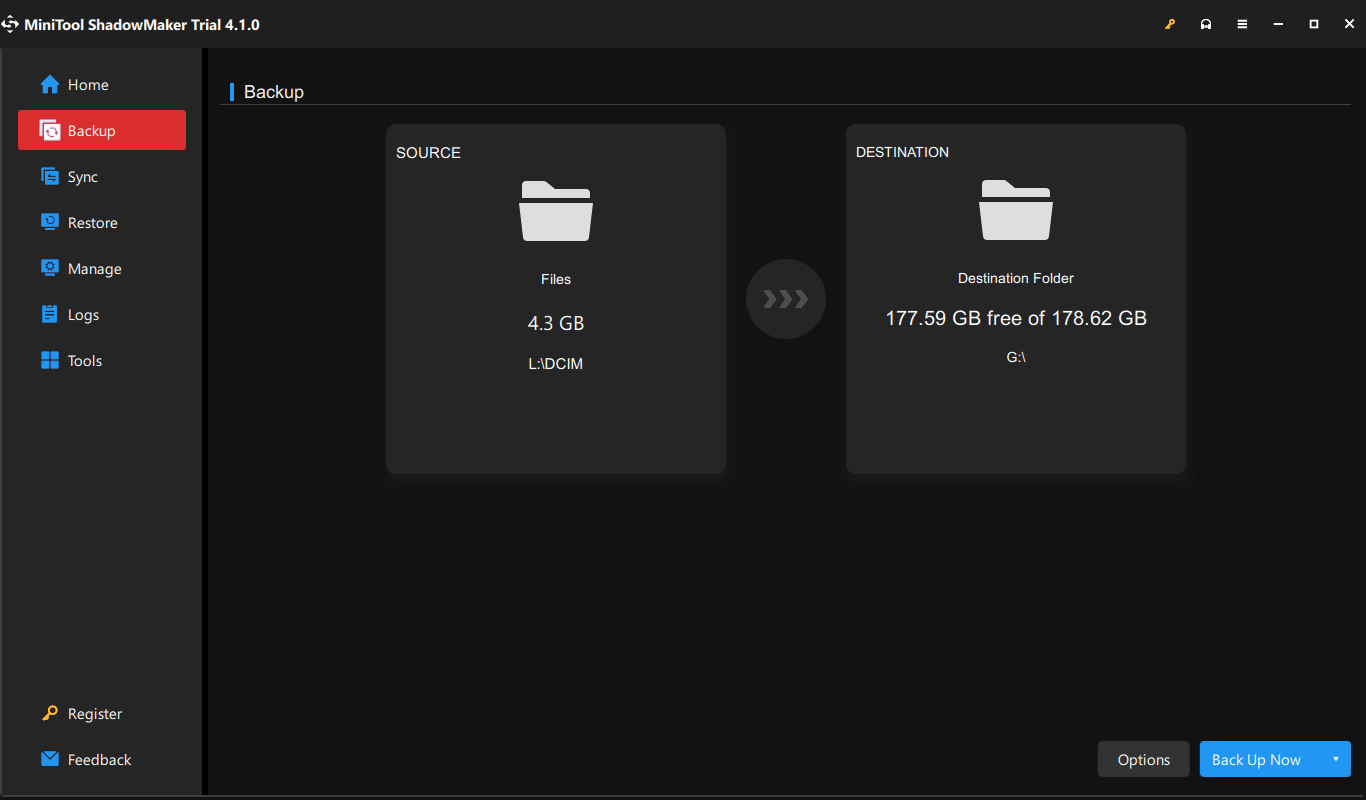
Step 2: Launch MiniTool ShadowMaker and click Keep Trial to enter its main interface.
Step 3: Under the Backup tab, click SOURCE > Folders and Files, choose the pictures you want, and click OK. Then, click DESTINATION to select a drive to save the backup.
Step 4: Click Back Up Now to back up your GoPro SD card.
In addition to using MiniTool ShadowMaker, you can try other ways to back up the SD card data before formatting it. See this guide – How to Back up SD Card to PC? Try 3 Ways to Protect Data.
Then, try one way to format SD card for GoPro. In the following part, we will show you how to format GoPro SD card on computer, on Mac, or in the camera.
How to Format GoPro SD Card
How to Format GoPro SD Card on Computer
To format an SD card in a PC, there are multiple ways you can try – via File Explorer, Disk Management, Diskpart, or a professional partition manager.
In File Explorer, right-click on the SD card and choose Format. Then, choose the file system you need (for a 32GB or less SD card, choose FAT32; for a 64GB or above SD card, select exFAT), check Quick Format, and click Start.

In Disk Management, right-click on the drive of your GoPro SD card and choose Format. If you have a partition manager like MiniTool Partition Wizard at hand, launch it and right-click on the SD card partition, then select Format. In addition, you can also run Diskpart for GoPro SD card formatting. To know details, refer to our previous post – SD Card Formatter & How Do I Format SD Card Quickly.
How to Format GoPro SD Card on Mac
If you are using a Mac, you can connect the GoPro SD card to the machine and format it via Disk Utility.
Step 1: Go to Applications > Utilities > Disk Utility.
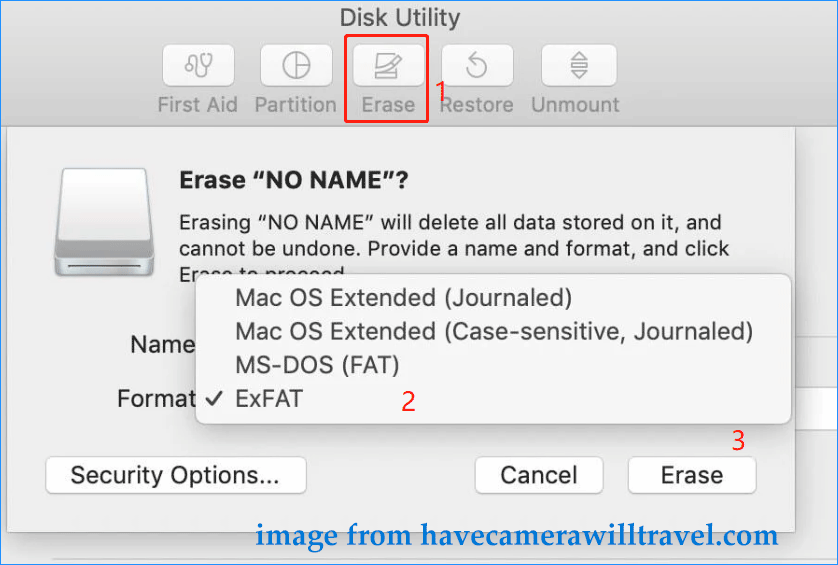
Step 2: Choose the GoPro SD card and tap on Erase from the top menu bar.
Step 3: Choose the proper file system – ExFAT for SD cards over 64GB and MS-DOS FAT for 32GB or smaller SD cards. Then, click Erase.
How to Format SD Card on GoPro
In addition to taking the help of a Windows computer or Mac to format your GoPro SD card, you can format this SD card in the camera. You don’t need to remove the SD card from the camera. See how to do this thing.
GoPro offers multiple camera options, including GoPro Hero 4, GoPro Hero 5, GoPro Hero 6, GoPro Hero 7, GoPro Hero 8, and more. The formatting steps are a bit different based on different cameras.
For GoPro 4 and Lower
Step 1: Turn on your GoPro Hero and then press the Front Mode repeatedly until you see the setup menu.
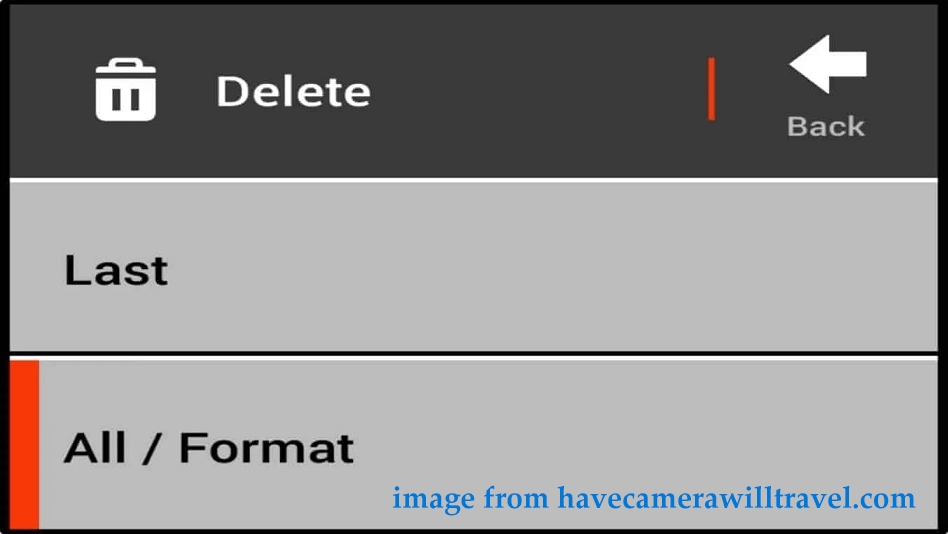
Step 2: Continue pressing the mode to show the trash can icon. Then, select it by clicking on the shutter button.
Step 3: Choose All / Format > Delete.
For GoPro Hero 5 and Higher
Step 1: In the camera, swipe down on the touchscreen to find PREFERENCES.
Step 2: Scroll down to select Format SD card.
Step 3: Choose DELETE/FORMAT.
The detailed steps may be a little different but approximately the same.
Related post: 5 Ways to Format SD Card for Camera [on Camera & Windows]
Final Words
That’s the basic information about how to format GoPro SD card on a Windows PC, Mac, or in the camera. Before the formatting operation, back up your important pictures and then choose a proper way based on your needs.
About The Author

Position: Columnist
Vera has been working at the MiniTool Team for over 10 years as a technical editor and content writer. She mainly focuses on disk and partition management, data recovery, Windows backup and restore, and PC troubleshooting. Through in-depth software testing and hands-on experience, she has helped users solve a wide range of computer problems and better protect their data on Windows devices.
User Comments :