
Minecraft has different system requirements for Java Edition and Bedrock Edition on a PC. Check your PC specs to find out whether it meets the minimum requirements. If not, lower the game settings, free up RAM, or upgrade your hardware.
What Is Minecraft?
Minecraft is a sandbox video game developed by Mojang. Players can explorer a blocky, procedurally-generated 3D world, and may discover and extract raw materials, craft tools, build structures and earthworks.
Minecraft offers two main PC editions: Java Edition and Bedrock Edition, and each one has different requirements.
Before installing the game, check the minimum and recommended system requirements below to see whether your PC can run Minecraft smoothly.
Minecraft Java Edition System Requirements
Minecraft Java Edition is the original version of Minecraft, known for its extensive mod support, custom multiplayer servers, and classic gameplay mechanics. It is available on Windows, Mac, and Linux.
See its minimum and recommended system requirements:
| Feature | Minimum Requirements | Recommended Requirements |
| Target | 1080p at 30 FPS using the Fast preset | 1080p at 60 FPS using the Fancy preset |
| OS | Windows 10 64-bit, Windows on ARM, macOS 12+, or Linux 64-bit | Windows 11 64-bit, macOS 14+, or Linux 64-bit |
| Architecture | x64, ARM64 | x64, ARM64 |
| RAM | 8 GB (with discrete GPU) or 12 GB (with integrated GPU) | 16 GB |
| CPU | Intel Core i3-10100, AMD Ryzen 3 3100, Qualcomm Snapdragon X, or Apple M1 (4 physical cores minimum) | Intel Core i5-12400, AMD Ryzen 5 5600, or Apple M2 Pro |
| GPU | Vulkan 1.3 capable GPU with at least 2 GB VRAM, including NVIDIA GTX 950 or newer, AMD Radeon RX 460 or newer, Intel Arc A310 or newer (discrete) or Intel i5-6400 or newer (integrated iGPU), Apple M1 or newer, or Qualcomm Snapdragon X | 6 GB VRAM. NVIDIA GeForce RTX 2060, AMD Radeon RX 5600 XT, Intel Arc A580, or Apple M2 Pro. |
Minecraft Bedrock Edition System Requirements
Bedrock Edition is the multi-platform version of Minecraft, supporting cross-platform play across Windows, consoles, and mobile devices.
Learn its minimum and recommended system requirements:
| Feature | Minimum Requirements | Recommended Requirements |
| Target | 1080p @ 30 FPS, Fast preset | 1080p @ 60 FPS, Fancy preset |
| OS | Windows 10 version 19041.0 or higher | Windows 10 version 19041.0 or higher |
| Architecture | ARM, x64 | ARM, x64 |
| RAM | 4 GB | 8 GB |
| CPU | Intel Celeron J4105 / AMD FX-4100 | Intel i7-6500U / AMD A8-6600K |
| GPU | Intel HD Graphics 4000, AMD Radeon R5 220, or equivalent GPU supporting Shader Model 5.0. | NVIDIA GeForce 940M / AMD Radeon HD 8570D |
| Motion controller | Not specified | Windows Mixed Reality motion controllers |
| Headset | Not specified | Windows Mixed Reality immersive headset |
Can My PC Run Minecraft?
To see if you can run this game on your PC, check your PC’s specifications first.
1. Press Windows key and R key together to open Run dialog.
2. Type dxdiag in the box and click OK to continue.
3. Check the Operating System, Processor, and Memory .
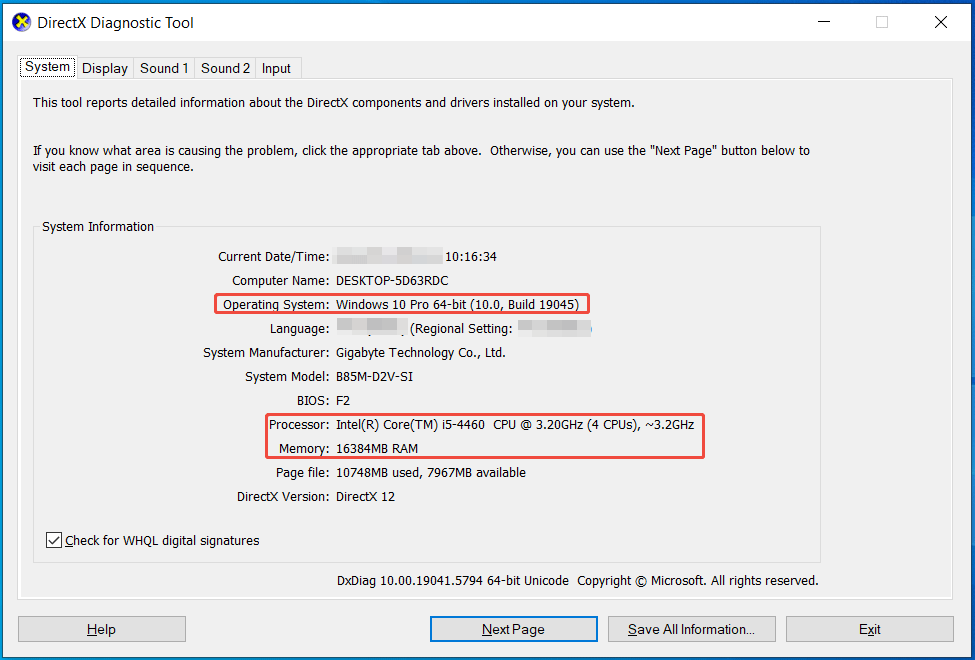
4. Then switch to the Display section to view the graphics card information.
After checking your PC specifications, compare them with the system requirements for the Minecraft edition you want to play. If your PC meets the requirements, install the game to play. For a better experience, ensure the computer satisfies the recommended specs.
What to Do If PC Doesn’t Meet the Minecraft System Requirements?
If you are still using older hardware, you may still play Minecraft Java Edition, but performance and visual quality are not guaranteed. Try adjusting settings first before buying new hardware.
Lower Minecraft Settings
Lowering the in-game video settings may help reduce hardware usage:
- Reduce Render Distance
- Set Graphics to Fast
- Reduce Simulation Distance
- Lower the particle setting
- Lower the game resolution
- Turn off shaders and resource packs
Free up RAM
Close browsers and unnecessary background apps before playing Minecraft to free up RAM and improve game performance.
For exact steps, follow the freeing up RAM guide.
Upgrade Processor
In order to enjoy better game performance, you can upgrade the processor. So, you need to choose and purchase a processor that matches your motherboard.
Then, follow the CPU upgrade guide.
For laptops, CPU upgrades are often limited or impossible because the processor is usually soldered to the motherboard. In this case, consider using a computer that meets Minecraft system requirements.
Add More RAM
If your PC has insufficient RAM to run Minecraft, consider adding more memory to improve game performance.
But before adding RAM, you need to how much RAM your computer has installed and how much RAM your motherboard can support. Then purchase a compatible RAM and install it on your computer.
Learn how to add RAM to a laptop.
Upgrade to an SSD
If Minecraft is installed on a traditional hard disk drive (HDD), upgrading to a solid-state drive (SSD) may improve the gaming experience. An SSD can provide fast speeds, helping reduce loading times and lags in gaming. Or, you can upgrade your small SSD to a larger one for more space.
To run this task, use MiniTool ShadowMaker. It includes the Clone Disk feature to clone an HDD to an SSD or clone a small SSD to a larger SSD, without reinstalling Windows and apps.
MiniTool ShadowMaker TrialClick to Download100%Clean & Safe
Step 1: Connect your SSD to the computer and launch MiniTool ShadowMaker.
Step 2: Go to Tools > Clone Disk.
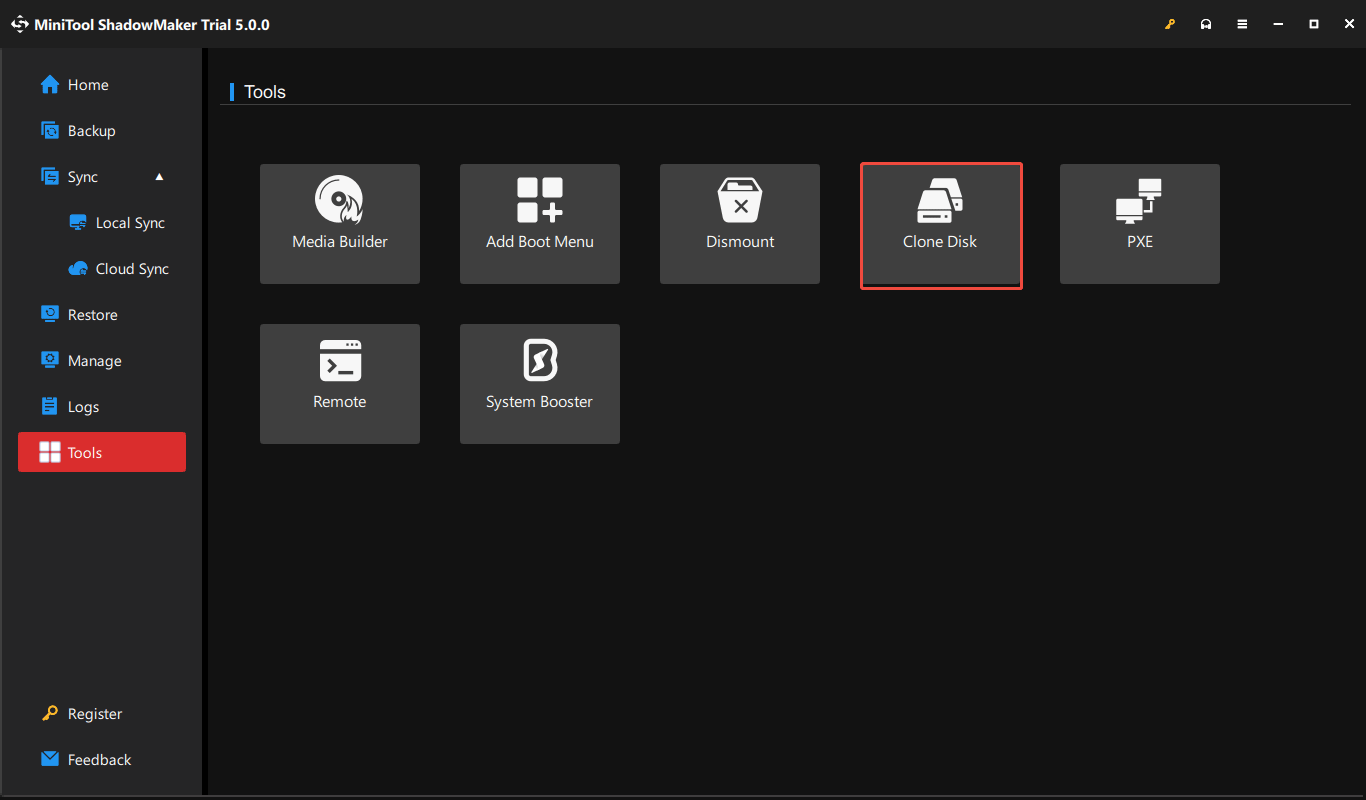
Step 3: Select the source drive (HDD) and target drive (SSD).
Step 4: Activate this software with a key if you clone a system disk. Then, begin the cloning process.
Bottom Line
To sum up, this post has introduced what the minimum and recommended system requirements for Minecraft are and also shown you how to check computer specifications.
Before running Minecraft, please check whether your computer can satisfy the minimum Minecraft system requirements. If not, follow the instructions above to improve the game performance on low-end PCs, or consider hardware upgrades.
If you have any issues, leave a comment below or send an email to [email protected].
Minecraft System Requirements FAQ
About The Author

Position: Columnist
Vera has been working at the MiniTool Team for over 10 years as a technical editor and content writer. She mainly focuses on disk and partition management, data recovery, Windows backup and restore, and PC troubleshooting. Through in-depth software testing and hands-on experience, she has helped users solve a wide range of computer problems and better protect their data on Windows devices.
User Comments :