
What is Ocean of Games? What does Ocean of Games virus do? If your computer is infected by this virus, what can you do to remove it? This post from MiniTool will provide you a couple of removal solutions and introduce a piece of software to safeguard your computer. Let’s check it out.
In the vast gaming domain, the allure of free content often leads people to lower their guard against dangers. Ocean of Games may offer a paradise for free downloading of games, but it lurks many unknown and disturbing threats behind them that could cause serious damage to your computer security as well as the cybersecurity and ethics of the gaming community.
Understanding of Ocean of Games
What is Ocean of Games? “Ocean of Games” is a website that offers a large number of free PC games, ranging from the latest popular games to classic masterpieces. Users can easily browse through different types of games, search for their favorites, or check out the latest releases.
The platform’s user-friendly layout and rich game library make it popular among players looking for free games. However, despite the wide variety of free games offered by Ocean of Games, safety is always the top priority. The possible dangers are as follows:
- Viruses and malware: When you download games from unauthorized websites such as Ocean of Games, you may unintentionally download viruses or malware, which can infect your computer.
- Phishing scams: Some unscrupulous persons may use Ocean of Games or other websites to trick players into revealing personal information.
- Data security risks: Sharing personal information on Ocean of Games may expose you to data security risks.
Identify if Your Computer Is Infected with Ocean of Games Virus
The fact is, Ocean of Games virus is not a computer virus in the traditional sense. Instead, it is considered related to adware or potentially unwanted programs (PUPs). PUPs (including adware, and browser hijackers) are not viruses, but they also can be dangerous as they may show you malicious websites and scam pages.
Once installed, Ocean of Games may collect your data through trackers, including your web browsing habits, the websites you visit and the search terms you use. Subsequently, this data is used to target you with advertisements and redirect you to virus-infected websites, and significantly slow down your computer performance. Ocean of Games may also download other malicious software on your computer, such as viruses and spyware.
When the malicious virus is running, the following symptoms should be noted:
#1: Your computer may run slowly and have poor overall performance.
#2: There are some plug-ins or extensions on your web browser that you don’t remember adding.
#3: You will see various types of advertisements, such as ad-supported pop-up windows.
#4: Suspicious processes running in the Task Manager.
#5: You have a problem while opening the Windows Security app in Windows 10/11.
If you notice one or more of the above symptoms, check whether your computer is infected with a virus and try the following methods to eliminate it.
Related article: Do Computers Slow Down with Age? How to Speed It Up?
Quick Fixes for Ocean of Games Virus Removal
If your computer is infected, the most important thing you need to do is to remove the Ocean of Games virus from your computer. Computer viruses are almost always invisible. With the signs mentioned above, you could do some checks to see if you already have one. Next up, we will perform Ocean of Games virus removal in the following paragraphs.
Suggestion: Backup Important Files via MiniTool ShadowMaker
Before proceeding on, it’s strongly suggested you back up all your precious files to prevent your computer from further attack. If you are looking for a comprehensive and user-friendly backup tool, MiniTool ShadowMaker is definitely a choice that is worth considering.
It can effectively make backups for your Windows system, files & folders, disks & partitions, providing multiple advanced services to ensure the security and integrity of data. Besides data backup, file sync and disk cloning are also supported. This free program is perfect for novice users with its one-click system backup solution.
Now, we will show you how to back up your files with MiniTool ShadowMaker.
Step 1. From the following button, download, install, and launch it.
MiniTool ShadowMaker TrialClick to Download100%Clean & Safe
Step 2. Click on Keep Trial to enter its main interface and then go to the Backup section.
Step 3. Choose the SOURCE module, click Folders and Files and select items as backup source.
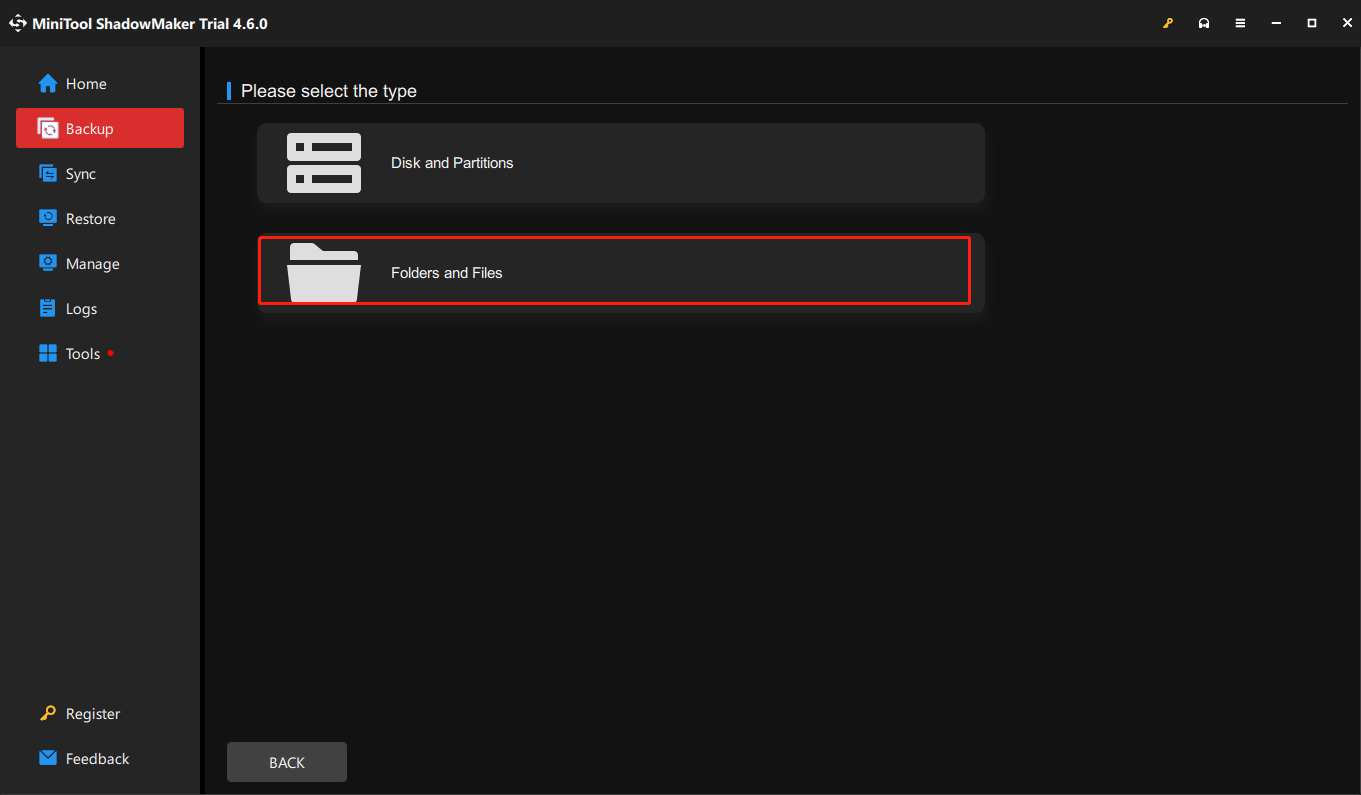
Step 4. Next up, click on DESTINATION to select a target disk. It is recommended to save the backups to an external hard drive. Then click OK to continue.
Step 5. After selecting the backup source and location, you can navigate to Options to create an automatic backup.
Step 6. Finally, click on Back Up Now to start the task at once.
After all steps are finished, you have successfully backed up the files.
Solution 1. Disconnect from the Internet
When you are trying to remove a virus from your computer, you had better disconnect from the Internet to prevent further damage. Some viruses are spread via the Internet connection. This step prevents the malware from communicating with external servers and spreading further while you work on removing it.
Solution 2. Remove Browsers’ Cache and Malware Extensions
As mentioned earlier, Ocean of Games threat is a kind of adware or browser redirect virus. This virus can collect users’ web browsing habits and carry out attacks by showing ads and redirecting users to malicious or fraudulent pages.
Therefore, clearing the browser cache and removing malicious software extensions will not only ensure network security and personal privacy but also completely eliminate such threats. Follow the steps:
Step 1. Open your browser (take Chrome as an example) and navigate to the extensions page by typing chrome://extensions/ in the address bar.
Step 2. Review and look for any that appear suspicious or are related to Ocean of Games.
Step 3. Then click on Remove.
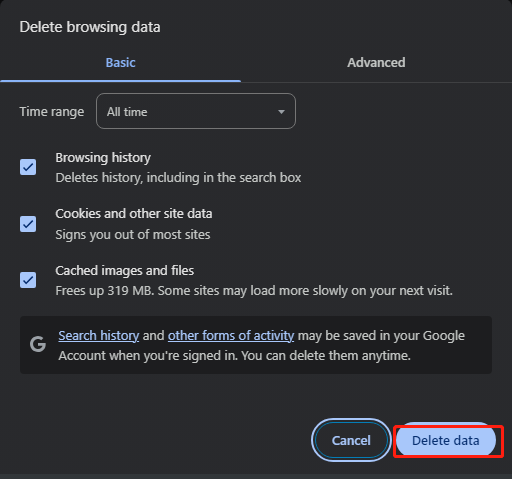
Step 4. As for Chrome cache, type chrome://settings/clearBrowserData in the search bar.
Step 5. Set time to All time and click on Delete data.

Solution 3. Boot Your Computer into Safe Mode
In order to perform Ocean of Games virus removal, you need to boot your computer into Safe Mode. Now, here is the tutorial.
Step 1. Press Win + I hotkeys to open Settings.
Step 2. Locate the Recovery tab and choose click Restart Now under the Advanced startup.
Step 3. Go to Troubleshoot > Advanced Options > Startup Settings. Then click Restart to continue.
Step 4. Press 5 or F5 to restart the computer in Safe Mode with Networking, but you need to keep your PC disconnected from the network.
Uninstall Ocean of Games
In Safe Mode, it will only run the default settings and basic device drivers, isolating problems related to Ocean of Games virus. In this case, you can look for and delete its file locations to perform Ocean of Games virus removal.
Run a Virus Scan
Since your computer is in Safe Mode, you cannot launch Avast as normal though it is still protecting your computer. So, you can take the following steps to run a virus scan.
Step 1. Press Win + R together to open the Run dialog.
Step 2. Type cmd in the search box and click OK to continue.
Step 3. In the Command Prompt interface, type C followed by the location of your Avast installation files, such as C:\Program Files\Avast Software\Avast. Then click Enter to continue.
Step 4. Type the command sched /A:* and press Enter. Then Command Prompt will confirm the boot-time scan.
Step 5. After that, type shutdown /r and hit Enter.
Finally, your computer will begin to restart. The Avast will begin to scan your computer and remove the virus. It may take some time and you need to wait patiently.
Solution 4. Perform a System Restore
System Restore is a Microsoft Windows utility tailored to protect and revert the operating system to a previous state. The utility is useful when there is a need to undo system changes made since the restore point was created, while avoiding a reinstallation of the entire OS. In this way, you can run a system restore to retrieve your system to the state where you have not downloaded the game infected with the virus. Take the steps below.
Step 1. To open the System Restore tool, evoke Windows Search > type create a restore point > choose it.
Step 2. In the System Properties window, go to the System Protection > click on System Restore > select an appropriate restore point.
Step 3. Click Scan for affected programs to confirm which apps and drivers will be removed because they were added after creating the restore point.
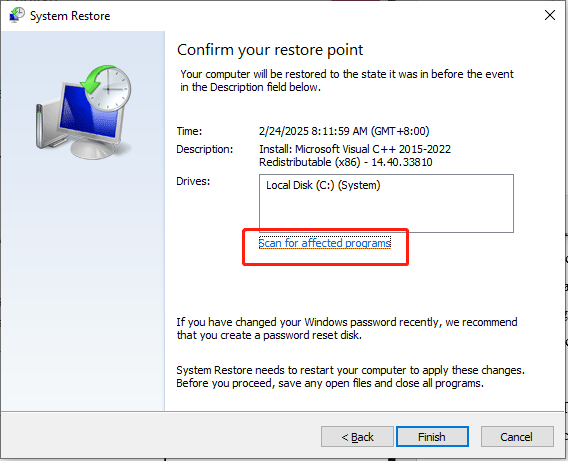
Step 4. Tap on Close > Next > Finish to begin restoring the system files and settings.
Solution 5. Clean Registries Created by Ocean of Games
Cleaning registries can help you remove errors in your system and entries that Ocean of Games leaves behind, deleting the threat completely. Check the steps:
Step 1. Fire up the Run window, type regedit and press Enter.
Step 2. In Registry Editor, follow the path to locate any entries created by Ocean of Games.
HKEY_LOCAL_MACHINE\Software\Microsoft\Windows\CurrentVersion\Run
HKEY_CURRENT_USER\Software\Microsoft\Windows\CurrentVersion\Run
HKEY_LOCAL_MACHINE\Software\Microsoft\Windows\CurrentVersion\RunOnce
HKEY_CURRENT_USER\Software\Microsoft\Windows\CurrentVersion\RunOnce
Step 3. To find a virus-created value, you can right-click on it and click Modify to see which file it is set to run. If it’s the virus file location, remove the value.
Solution 6. Reset Your PC
If none of the above solutions worked for you, then resetting your PC to its factory settings should be the last resort. The feature allows you to restore your device to its original state, which can be useful whether you’re facing performance issues, malware problems, or simply want a fresh start. Here’s how to reset your PC:
Step 1. Open Settings from the left side of Start menu.
Step 2. Find Update & Security > choose Recovery from the left-hand panel.
Step 3. Click on the Get started button under Reset this PC > select Keep my files or Remove everything. Here we take the latter as an example.
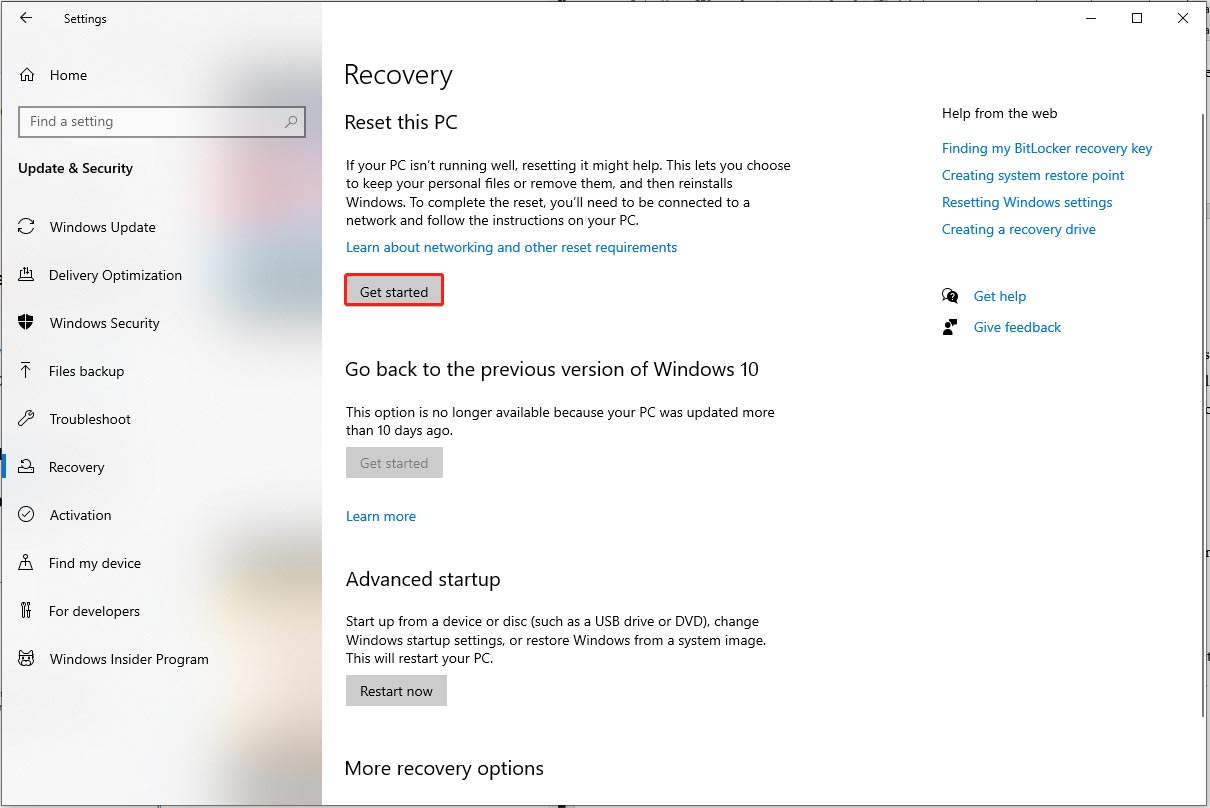
Step 4. Choose from Just remove my files and Remove files and clean the drive.
Step 5. Click on Next in the Warning window > click on Reset in the Ready to reset this PC window > tap Continue in the Choose an option interface. Then wait for the process to finish.
Bonus tip
Furthermore, if you decide to use Ocean of Games or any similar platform, please follow the following safety precautions:
Install reliable antivirus software: To protect your computer from malicious software, please install and update well-known antivirus software regularly.
Be cautious when clicking links: Be extra careful when opening files from unknown sources or clicking on suspicious links.
Avoid sharing sensitive personal information online: Do not share any sensitive personal information on the internet.
Do research before downloading: Please check the reviews and feedback of the website and game, before downloading anything.
Scan downloaded files: Before accessing any downloaded files, make sure they are virus-free.

To Wrap Things Up
That’s all proven and effective solutions for Ocean of Games virus removal. Hope this guide could help you successfully get rid of the nasty problem. In addition, it’s highly recommended you protect your computer by backing up important files and downloading games in a legal way.
If you have any problems while using MiniTool ShadowMaker, please contact our support team for assistance via [email protected]. We will reply to you as soon as possible.
User Comments :