
The system restore error 0x80042302 usually occurs due to issues with Volume Copy Service (VSS) or incorrect settings. This guide offers 3 solutions to fix this issue on Windows 11 and Windows 10.
Quick Answer
To fix the “System Restore does not appear to be functioning” error 0x80042302:
- Enable VSS in Services
- Run SFC to fix corrupted system files
- Perform a clean boot
If Windows System Restore is not working properly, consider using MiniTool ShadowMaker as a reliable alternative for system backup and recovery.
About System Restore Error 0x80042302 Windows 11/10
Recently, some computer users say they have encountered the system restore error code 0x80040302 when they are making a system restore.
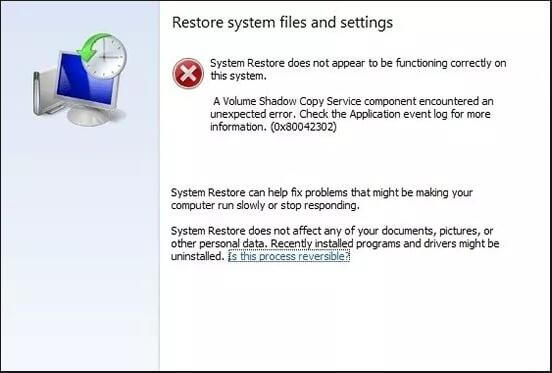
And the detailed error information is ‘System Restore does not appear to be functioning correctly on this system. A Volume Shadow Copy Service component encountered an unexpected error,’ as shown in the following picture.
Causes of System Restore Error 0x80042302
System Restore does not appear to be functioning in Windows 11/10 for some reasons, including:
- The Volume Shadow Copy Service (VSS) is disabled or not set to start automatically.
- Missing or damaged Windows system files prevent the restore process from completing.
- Third-party software conflicts with VSS functionality.
3 Solutions to System Restore Error 0x80042302 in Windows 11/10
#1. Set Volume Shadow Copy Service to Automatic
The Volume Shadow Copy is a built-in utility of Windows that allows taking manual or automatic backup copies. So if you encounter the issue system restore not working, you can try to check whether the status of Volume Shadow Copy services is disabled. If yes, try changing it.
Step 1: Press Windows key and R key together to launch the Run dialog box.
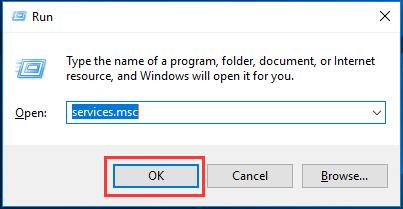
Step 2: Type services.msc in the run box and click OK or hit Enter to continue.
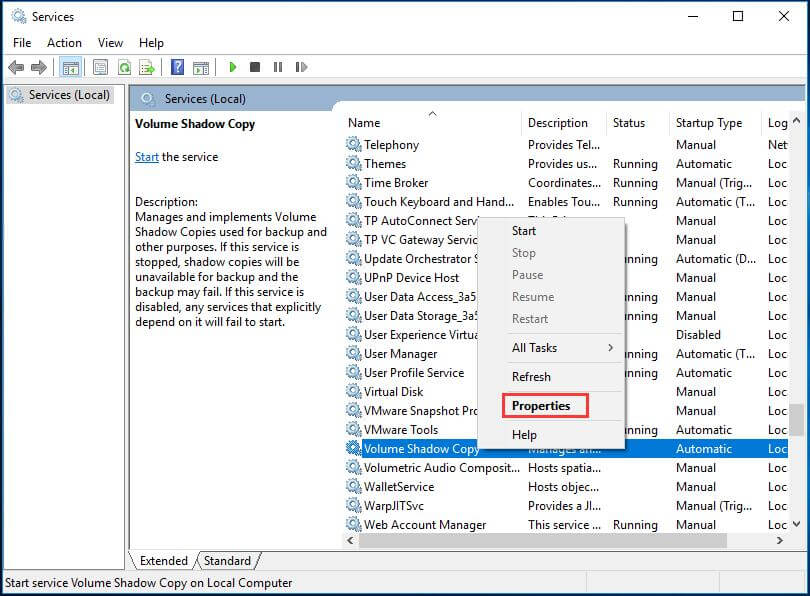
Step 3: And you will see a popup window, you need to choose the Volume Shadow Copy from the list. Then you need to right-click the Volume Shadow Copy and choose Properties from the context menu.
Step 4: You need to check whether the Startup type is automatic. If no, change the Startup type to Automatic from the drop-down menu.
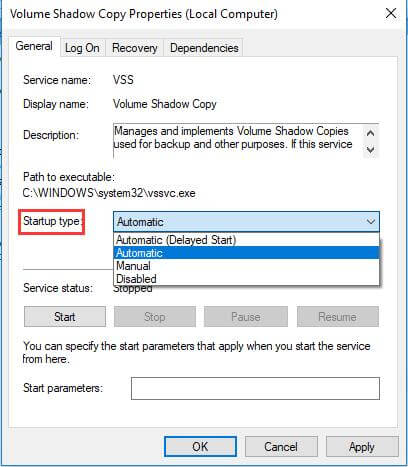
Step 5: If the Services status is stopped, you need to start it by clicking the Start button and click OK to continue.
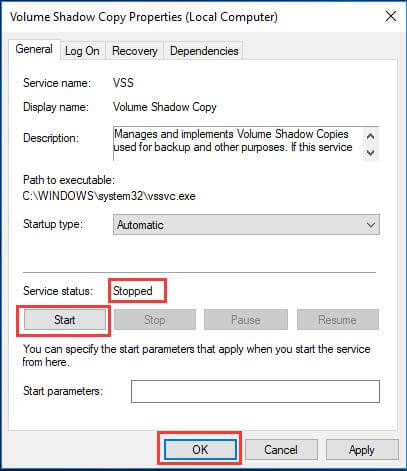
After that, you can restart your computer and try to check whether the system restore error 0x80042302 is solved.
#2. Run System File Checker
Corrupted system files may also lead to the system restore error code 0x80042302. So if you encounter the system restore does not appear to be functioning problem, try System File Checker, the built-in tool, to check and fix the corrupted system files.
Step 1: Type Command Prompt in the search bar of Windows 10/11, then right-click it to select Run as administrator from the context menu.
Step 2: Then in the popup window, you need to type the sfc /scannow command and hit Enter to continue.
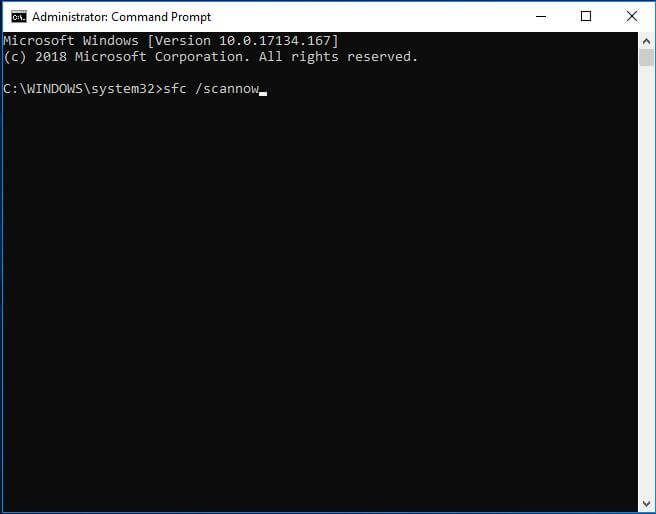
After scanning, restart the PC and check if the issue is resolved in Windows 11/10. If not, run a DISM scan, then run SFC again to scan Windows system files and replace any corrupted files that may prevent System Restore from working.
#3. Perform a Clean Boot
In order to solve the issue system restore does not appear to be functioning, you can try to perform a clean boot to solve the error 0x80040302.
Now, we will introduce how to perform a clean boot step by step with pictures.
Step 1: Press Windows key and R key together to open the Run window.
Step 2: Type msconfig.exe in the box and click OK or hit Enter to continue.
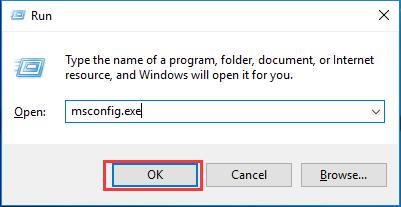
Step 3: In the popup window, you need to go to the General tab and uncheck the Load startup items option under the Selective startup section.
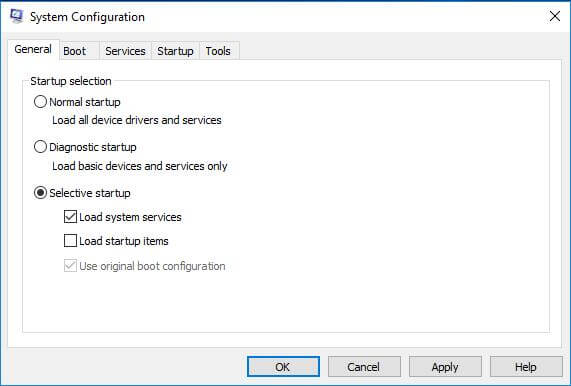
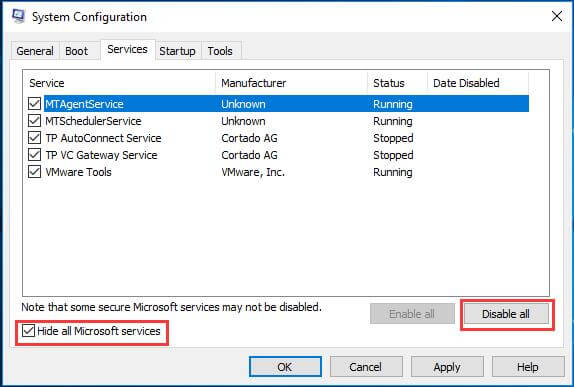
Step 4: Then in the Services tab, you need to check Hide all Microsoft services and click Disable all to continue.
Step 5: Then you need to go to the Startup tab and click Open Task Manager to continue.
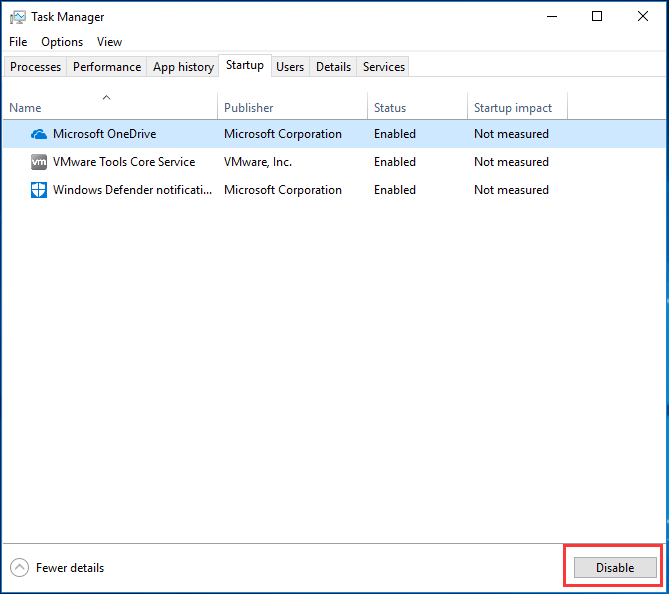
Step 6: Next, you will see all startup items are listed here. You need to select them and click Disable button. Then close the Task Manager window and click OK to continue.
Step 7: After that, you can see a popup window. Click Restart button to restart your computer.
In the clean boot mode, perform a system restore and try to check if the system restore error 0x80042302 is solved.
Alternative: Use MiniTool ShadowMaker for System Backup and Recovery
If System Restore fails to work properly, a third-party backup tool like MiniTool ShadowMaker can provide a more reliable way to back up and restore your system.
Designed for Windows 11 and Windows 10, this backup software helps you create system images and restore your PC when unexpected system failures occur.
It supports creating a bootable USB drive or CD/DVD for disaster recovery and enables system restoration to dissimilar hardware.
Additionally, MiniTool ShadowMaker can back up files, folders, disks, and partitions to an external hard drive with flexible options including automatic, incremental, and differential.
MiniTool ShadowMaker TrialClick to Download100%Clean & Safe
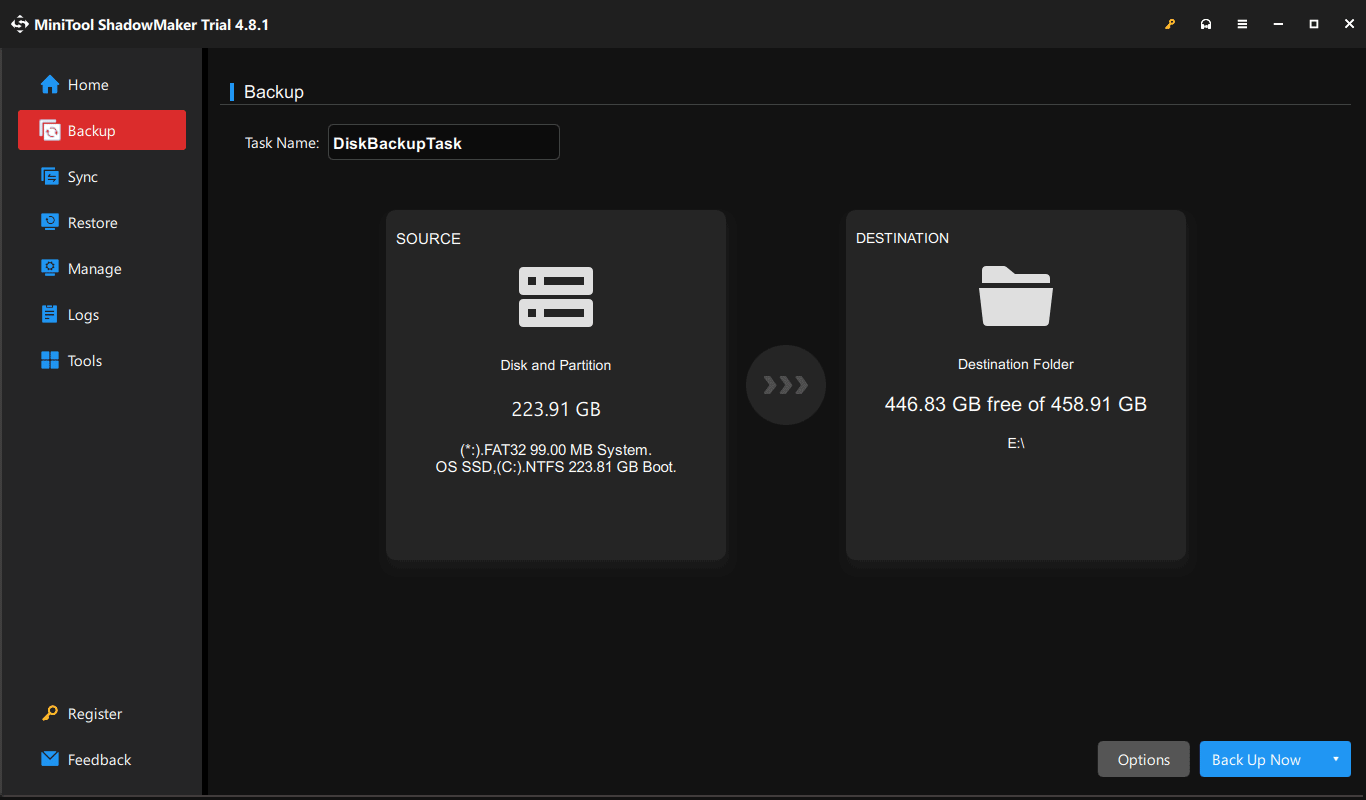
Step 1: Launch MiniTool ShadowMaker in Windows 11/10.
Step 2: Navigate to Backup, click SOURCE, and choose what to back up. By default, system partitions are selected automatically.
Step 3: Go to DESTINATION to select a drive.
Step 4: Click Back Up Now to begin the backup.
How to Fix System Restore Error 0x80042302? Top 3 SolutionsClick to Tweet
System Restore vs System Backup: What’s the Difference
System Restore and system backupwork in different ways. The following table explains some key differences.
| Feature | System Restore | System Backup |
| Main purpose | Undo recent system changes | Create a complete copy of the system |
| Personal files | Not affected in most cases | Can be backed up and restored |
| Best for | Fixing issues after driver/major system changes | Disaster recovery and complete system recovery |
Bottom Line
In conclusion, we have introduced four ways to solve the issue system restore error 0x80042302. You can try to take advantage of any one to solve the system restore does not appear to be functioning.
Now, it is your turn to have a try. In addition, if you have any better solution to solve the issue error 0x80042302, you can share it in the comment zone. If you have any problem with MiniTool ShadowMaker, you can feel free to contact us via the email [email protected].
Error 0x80042302 FAQ
About The Author

Position: Columnist
Vera has been working at the MiniTool Team for over 10 years as a technical editor and content writer. She mainly focuses on disk and partition management, data recovery, Windows backup and restore, and PC troubleshooting. Through in-depth software testing and hands-on experience, she has helped users solve a wide range of computer problems and better protect their data on Windows devices.
User Comments :