
How can you clone USB drives or clone an external hard drive that connects via USB with ease and would not bring any damage to the original data? To clone USB flash drive or clone USB hard disk, you can take a USB clone tool. We will introduce two MiniTool USB clone tools in this post which are MiniTool ShadowMaker and MiniTool Partition Wizard.
Quick Answer
A USB clone tool can be used to create an exact copy of a USB flash drive or USB hard drive. If you need to migrate data or create a backup for the USB device, MiniTool ShadowMaker and MiniTool Partition Wizard can help.
Why Do You Need a USB Clone Tool
USB flash drives and USB hard disks are widely used for data storage. In many cases, cloning a USB drive with a reliable tool is the most efficient way to duplicate all its contents.
Common situations include:
- Create a backup copy of a USB drive to protect important files from USB corruption or accidental deletion.
- Clone a bootable USB drive to another USB drive to create an identical bootable copy.
- Transfer data to a new USB drive without manually copying data, saving time.
- Upgrade your smaller USB drive to a larger drive via cloning without losing data.
What to Do Before Cloning a USB Drive
Before using a USB clone tool for cloning, follow these preparation steps to ensure the process goes smoothly.
- Back up important data on the target USB drive, as the cloning process will erase the existing data.
- Check if the target USB drive has enough disk space to hold all the source data.
- Connect both the source and target USB drives correctly.
- Note the exact drive letters to avoid wiping the wrong drive.
2 USB Clone Tools
Quick Comparison of 2 USB Clone Software
| Tool | Best for | Main features |
| MiniTool ShadowMaker | Users who want to clone USB drives and protect data. | Disk cloning, file/folder/partition/system/disk backup, bootable media creation, etc. |
| MiniTool Partition Wizard | Users who need disk management and USB migration. | Partition and disk management, disk benchmark, copy disk, etc. |
Here is a video guide:
USB Clone Tool – MiniTool ShadowMaker
The first USB clone tool is MiniTool ShadowMaker. It is a professional backup software designed to back up files, folders, disks, partitions and the operating system. It can back up Windows so as to protect your computer from virus attack. It is even able to back up files when the computer can’t boot.
Besides, MiniTool ShadowMaker is also a piece of free USB cloning software which enables you to clone USB drive without losing any personal data, just needing a few steps. Also, you can use this tool to clone bootable USB Drive to another USB Drive.
So just get the free USB cloning software – MiniTool ShadowMaker from the following button to copy from one USB drive to another USB. If you want to clone a system drive, you need to purchase an advanced edition.
MiniTool ShadowMaker TrialClick to Download100%Clean & Safe
Here is the tutorial on USB cloning.
Step 1: Connect USB stick or USB hard disk to your computer.
Step 2: Launch the free cloning tool – MiniTool ShadowMaker, click Keep Trial, go to Tools page, and click Clone Disk for USB to USB migration. Then you can choose Options to configure disk ID and disk clone mode.
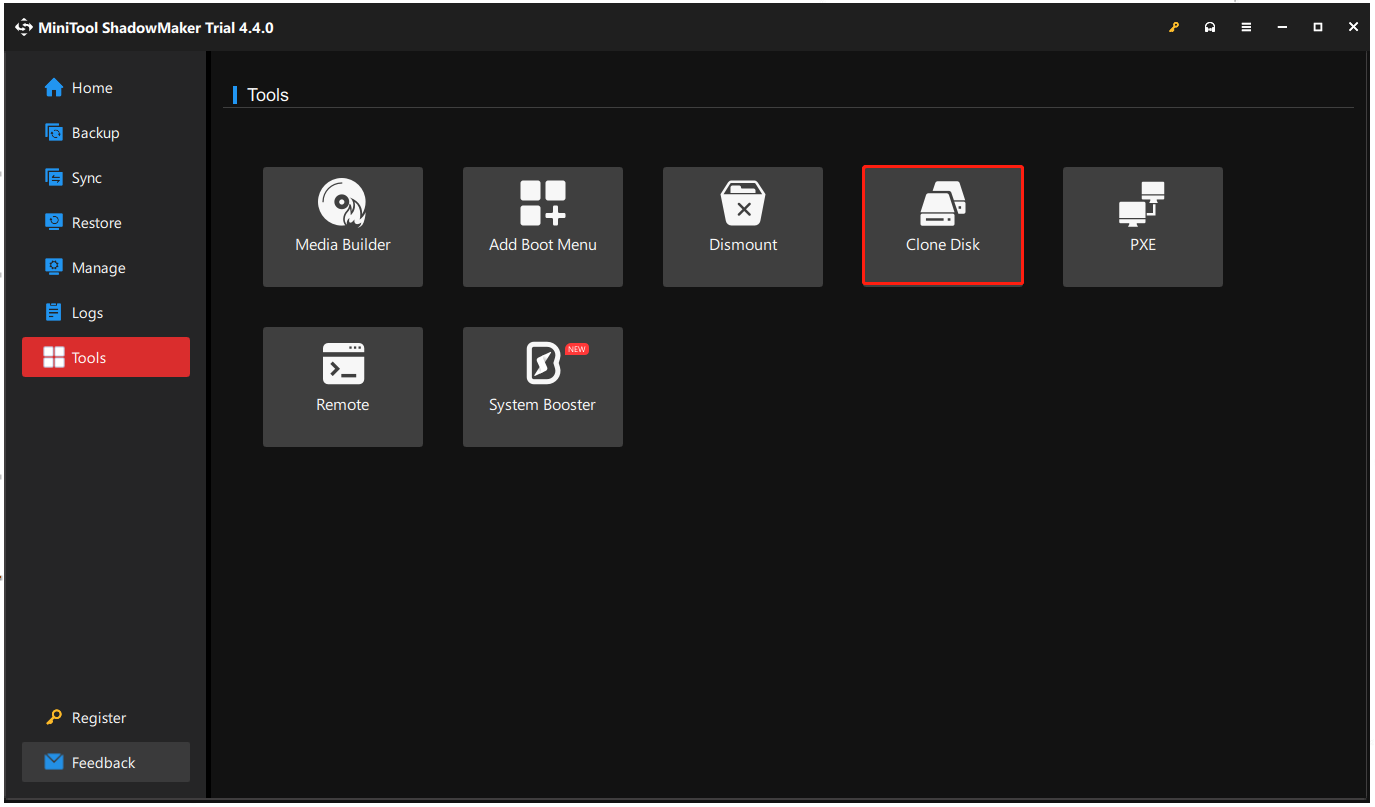
Step 3: After that, choose the disk clone source and destination. You should choose USB flash drive as the clone source. After confirming the clone source and destination, you can perform the USB cloning. For more detailed steps, you can refer to the post: Clone OS from HDD to SSD with 2 Powerful SSD Cloning Software.
Step 4: If you choose to use the same disk ID, you will receive the following message. It means that you need to disconnect either the original hard drive or the target hard disk. Or if you have cloned the operating system and want to boot the computer from the target disk, please change the BIOS settings firstly.
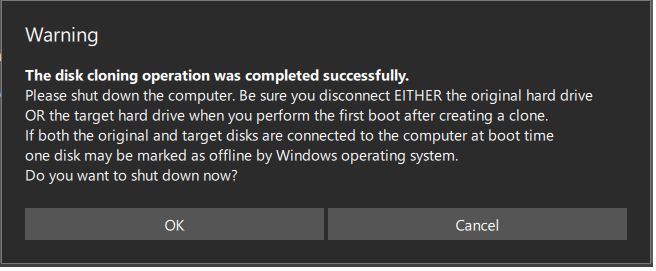
When you have finished all the above steps, you can find it is very convenient and easy to clone USB drive or USB hard disk with this professional USB clone tool.
In addition, it can be used as a bootable USB clone tool because you can clone the operating system to a USB hard drive or external hard drive which can be used to boot the computer when some accidents happen.
If you want to clone USB drive or USB hard disk or system disk without data loss, try this cloning tool – MiniTool ShadowMaker.
MiniTool ShadowMaker TrialClick to Download100%Clean & Safe
How to Clone a USB Drive to Another Drive with a USB Clone ToolClick to Tweet
USB Clone Tool – MiniTool Partition Wizard
Now, it is time to demonstrate the second USB clone tool.
The second free USB cloning software is MiniTool Partition Wizard. It is a professional partition manager, designed to optimize partition and disk use. It can handle various partition and disk matters with its powerful features, such as analyzing disk space, checking hard drive errors, checking file system, extending partition and so on.
In addition, MiniTool Partition Wizard can also help you to perform data recovery or partition repair when the partition comes across some accidents.
To clone USB drive or clone USB hard disk, MiniTool Partition Wizard has a powerful feature – Copy Disk, which can be used to perform USB clone without data loss. Also, it can be used to clone bootable USB Drive to another USB Drive.
Thus, just get the free USB clone tool from the following button, we will show you how to perform USB to USB migration.
MiniTool Partition Wizard FreeClick to Download100%Clean & Safe
Here is the tutorial on USB clone.
Step 1: Connect the USB drive or the USB hard disk to your computer.
Step 2: Launch the USB cloning software – MiniTool Partition Wizard. Select the USB flash drive as clone source and choose Copy from the context menu.
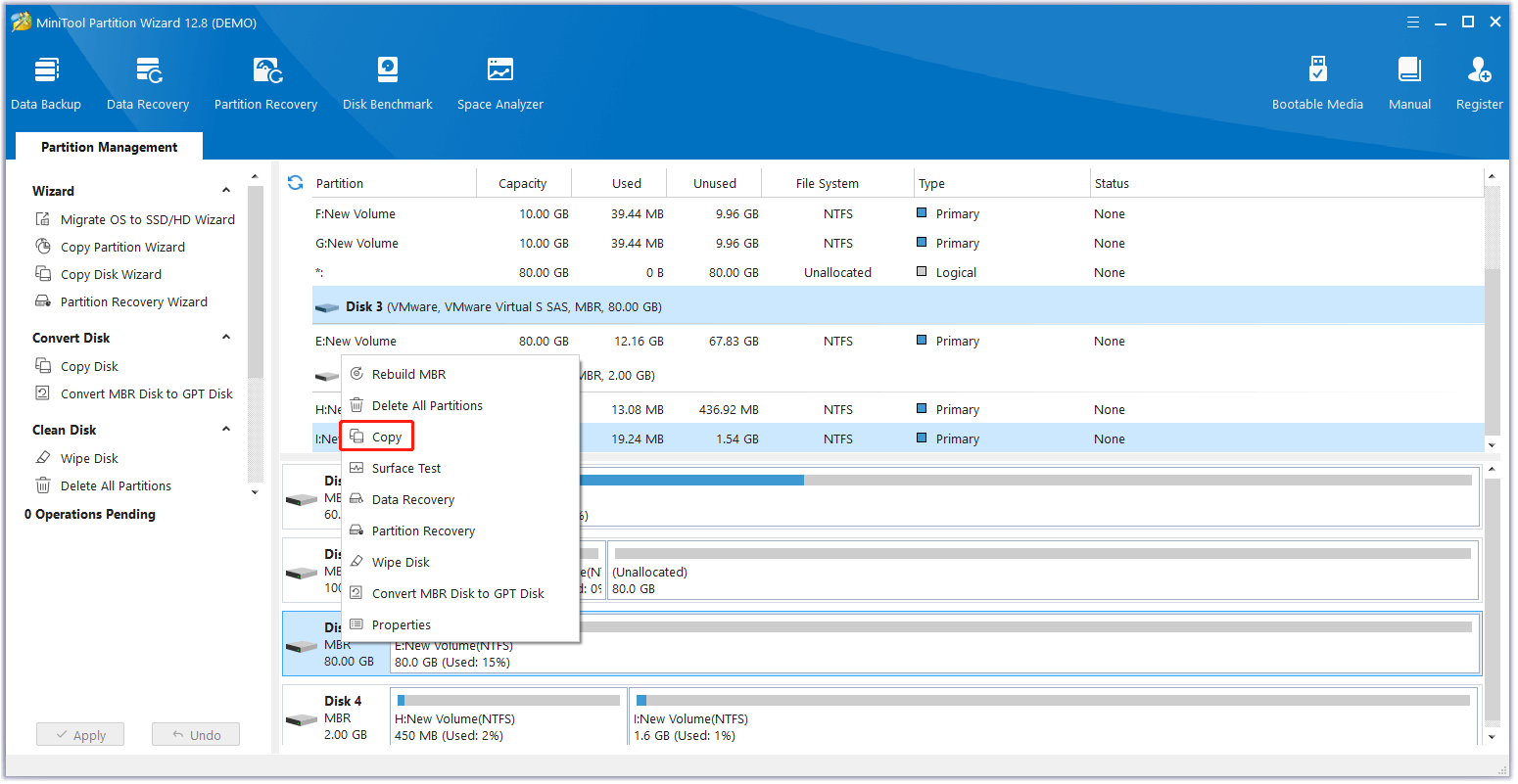
Step 3: Next, choose a target disk to save the USB files. All data on the target disk will be destroyed during the USB clone process. So back up files in advance. Next, you are required to choose a copy option. At the same time, there are two important things you need to pay attention to.
- For SSD users, it is recommended to check the option Align partition to 1MB since it can improve the disk performance.
- If you want to clone USB drive or USB hard disk to the GPT disk, the option Use GUID Partition for Table for the target disk should be chosen. However, this is a paid feature and you should purchase an advanced edition.
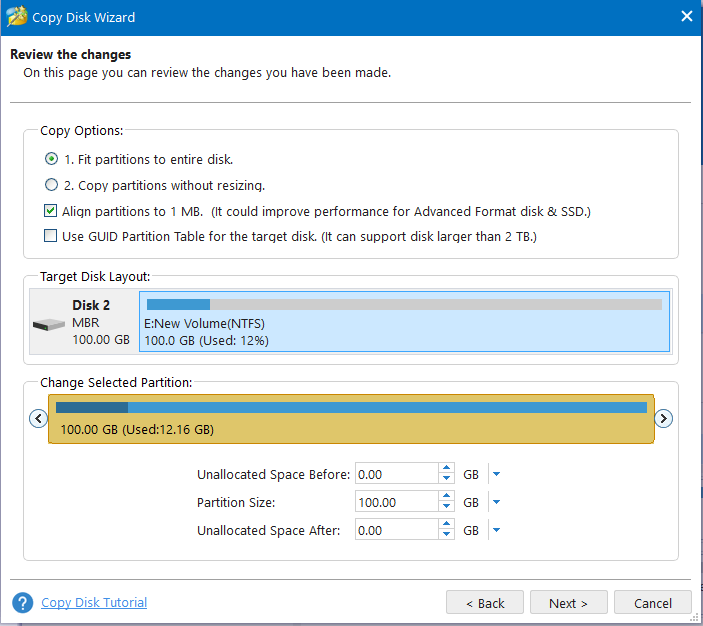
Step 6: Read the note carefully. Then click Apply to execute the USB clone.
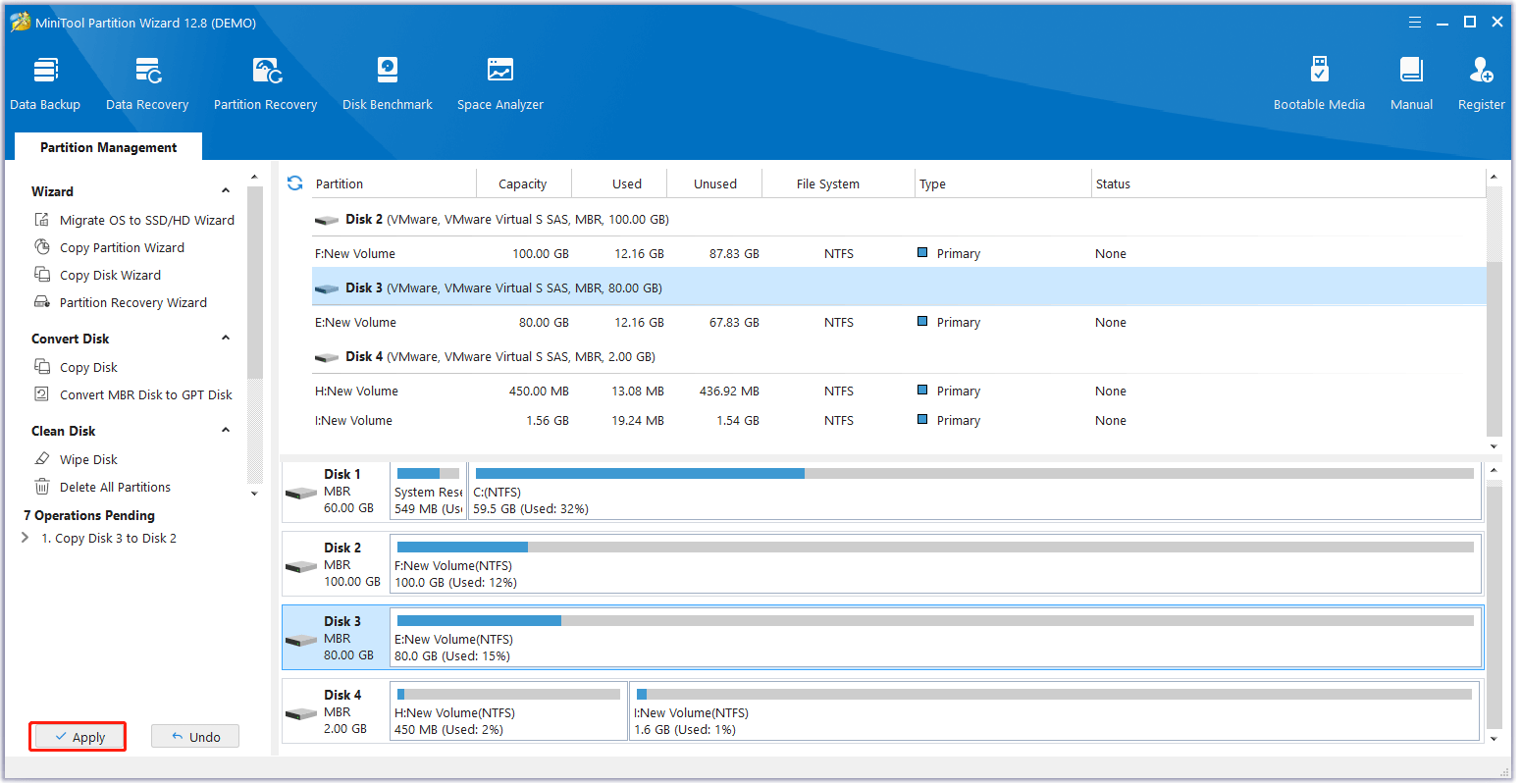
When you have finished all the above steps, you can successfully clone USB drive or clone USB hard disk to another drive with this best USB clone tool without data loss.
This post has introduced two free USB clone tools. Both of them can copy from one USB drive to another USB or clone the system disk to another one without data loss.
MiniTool ShadowMaker TrialClick to Download100%Clean & Safe
MiniTool Partition Wizard FreeClick to Download100%Clean & Safe
How to Clone a USB Drive to Another Drive with a USB Clone ToolClick to Tweet
Clone USB Drive vs Copy Files
Sometimes you may create a backup for the drive data via simple copy & paste. Copying files and USB cloning can both transfer data, but they work in different ways. The table below highlights their key differences.
| Method | What it copies | Best for |
| Copy files | Individual folders and files | Moving personal data |
| Clone a USB drive | Files, partitions, boot information, and drive structure | Creating an exact copy |
Bottom Line
In conclusion, if you want to clone USB flash drive or clone USB hard disk to other storage devices, try these two free USB clone tools – MiniTool ShadowMaker and MiniTool Partition Wizard.
And if you have any better solution to clone USB drive, please share your opinion in the comment zone.
And if you have any problem with MiniTool products, you can contact us via the email [email protected] and we will reply to you as soon as possible.
USB Clone Tool FAQ
About The Author

Position: Columnist
Vera has been working at the MiniTool Team for over 10 years as a technical editor and content writer. She mainly focuses on disk and partition management, data recovery, Windows backup and restore, and PC troubleshooting. Through in-depth software testing and hands-on experience, she has helped users solve a wide range of computer problems and better protect their data on Windows devices.
User Comments :