
Normally, to access a bootable environment, you need to create bootable media, such as a USB flash drive or CD/DVD, with a Bootable Media Builder. However, MiniTool ShadowMaker offers a more convenient option: adding MiniTool ShadowMaker to the Windows boot menu. Then, you can select MiniTool ShadowMaker from the boot menu to enter the MiniTool Recovery Environment without using external bootable media.
How to Add Boot Menu?
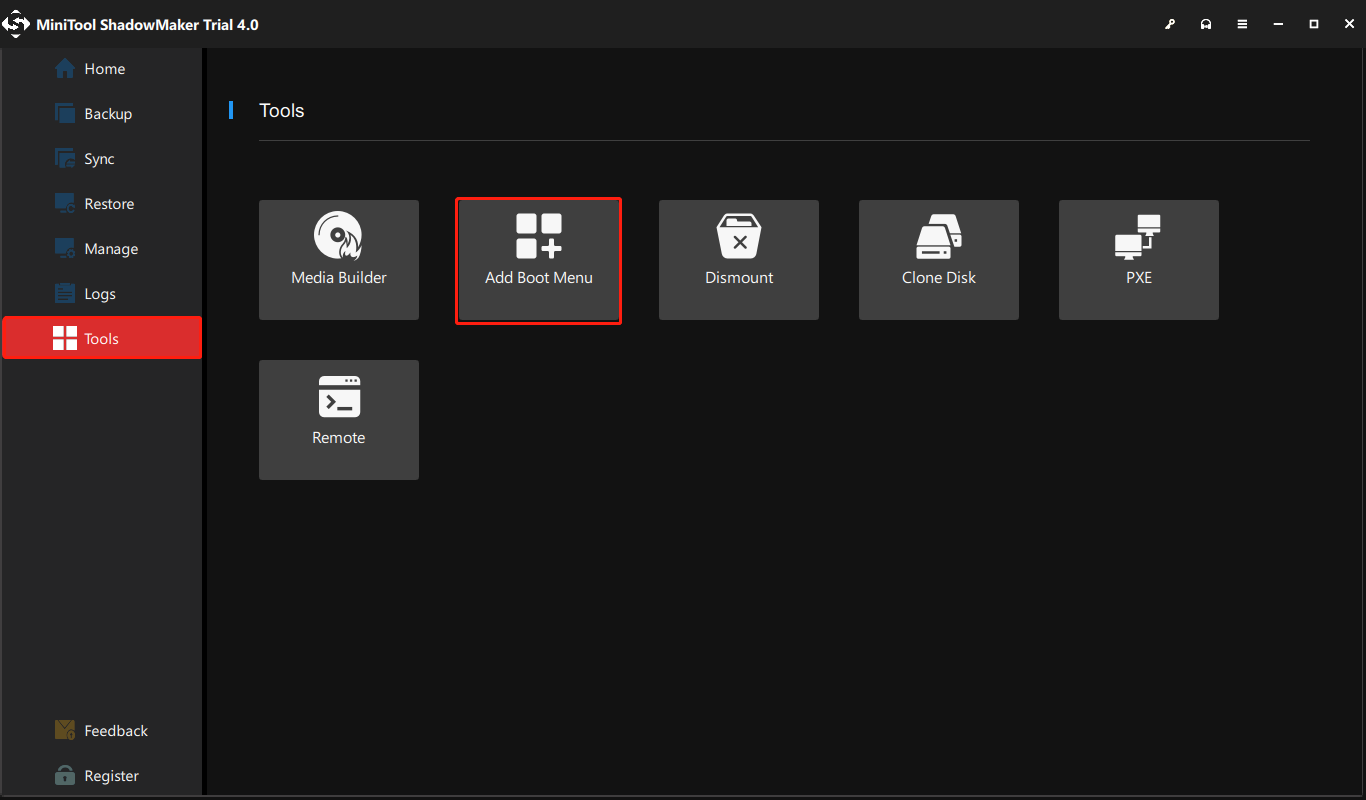
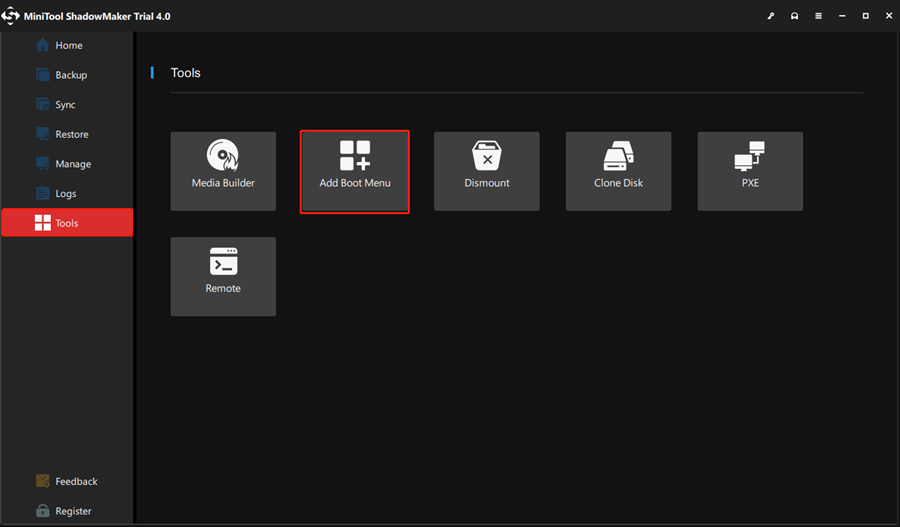
Step 1: Open MiniTool ShadowMaker first. Go to the Tools tab and click Add Boot Menu.
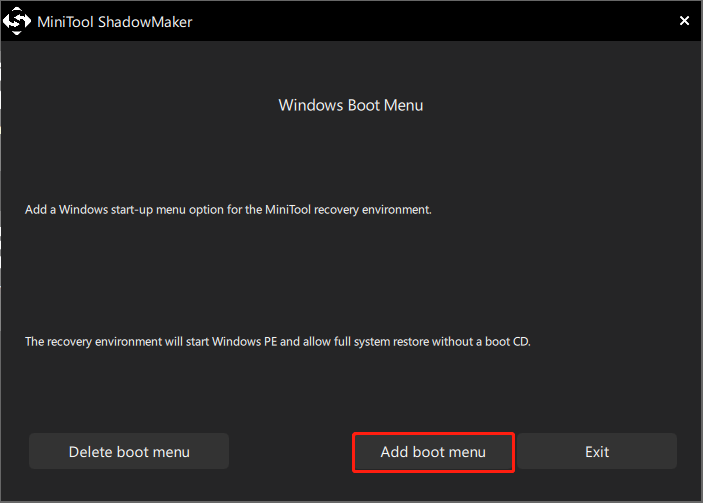
Step 2: Select Add boot menu.
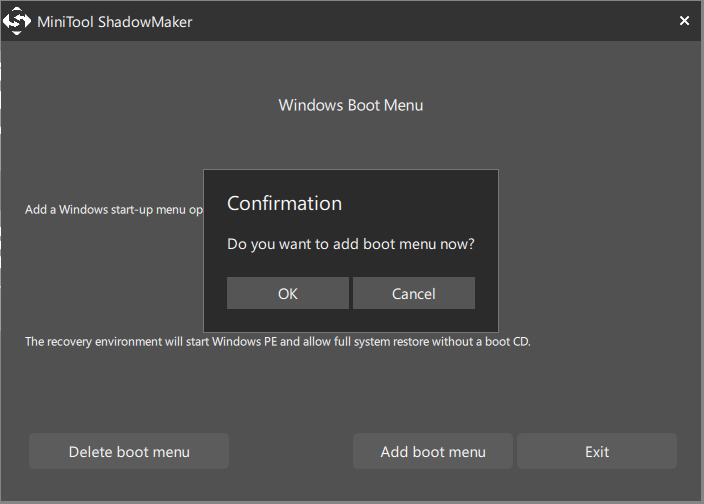
Step 3: Confirm the operation.
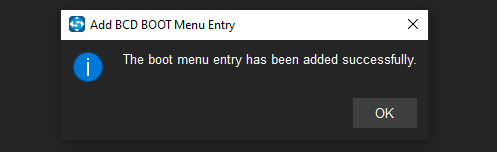
Step 4: Wait for the operation to complete.
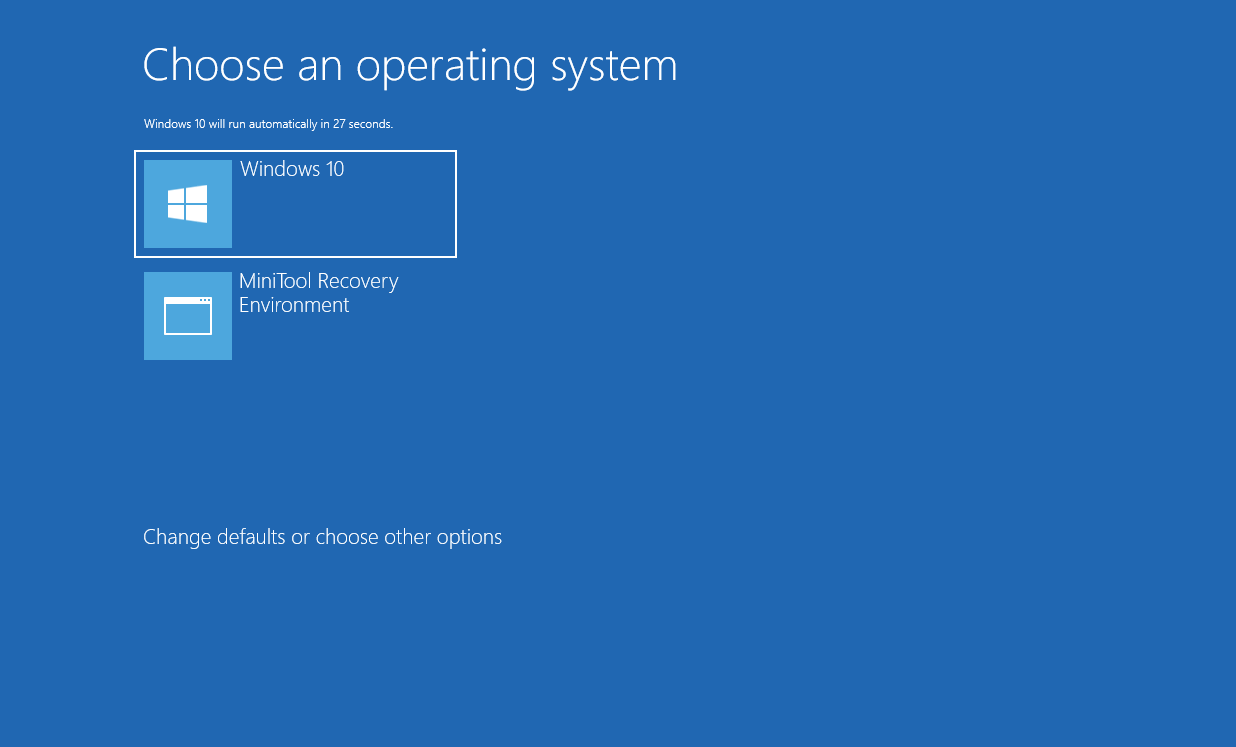
Note: When MiniTool Recovery Environment is added to the Windows start-up menu, you can choose to enter Windows OS or choose to enter MiniTool Recovery Environment.
How to Delete Boot Menu?
If you no longer need MiniTool Recovery Environment, you can delete the boot menu.
Step 1: Open MiniTool ShadowMaker first. Go to the Tools tab and click Add Boot Menu.
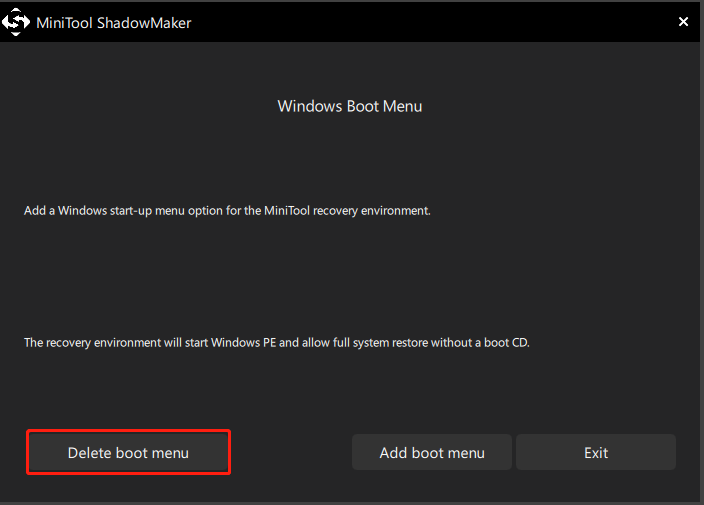
Step 2: Select Delete boot menu.
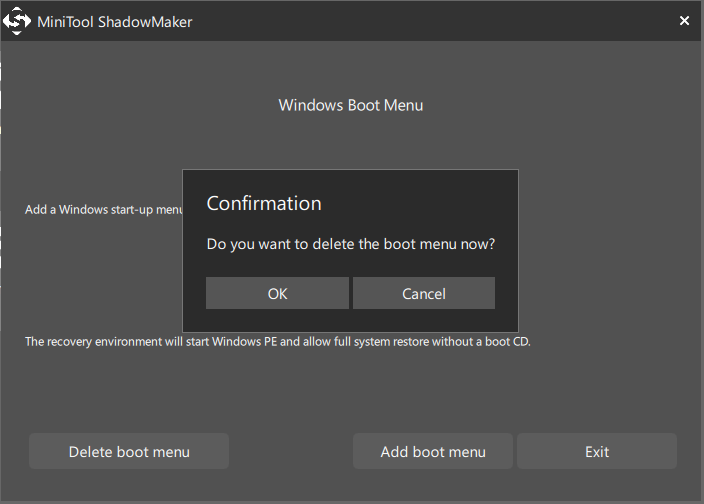
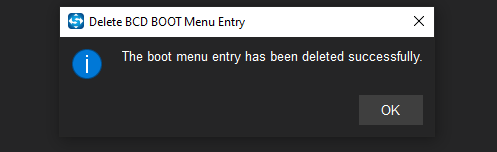
Step 3: Confirm the operation.
The deletion will be finished quickly.
User Comments :