
This guide explains how to select files and folders, choose Google Drive or OneDrive as the destination, authorize access, and start a cloud sync task in MiniTool ShadowMaker.
What Is Cloud File Sync
Cloud file sync keeps files and folders synchronized between a local device and cloud storage, allowing you to access and manage files across devices. Depending on the sync service and its settings, synchronization can be one-way or two-way and may occur in real time or at scheduled intervals.
MiniTool ShadowMaker includes Cloud Sync, which lets you sync files and folders from a Windows computer to Google Drive or OneDrive. This helps you keep copies of important files in the cloud and access them from other devices.
Key Features of Cloud Sync in MiniTool ShadowMaker
With MiniTool ShadowMaker, you can customize your cloud sync tasks to suit your needs:
- Flexible File Selection: Choose specific files and folders to sync to Google Drive or OneDrive.
- One-Way Sync: Sync files from your local computer to cloud storage without syncing cloud changes back to the local source.
- Scheduled Syncs: Set sync tasks to run at your preferred times.
- File Filtering: Exclude pagefile, swap, temporary, and other unnecessary files from sync tasks.
- Flexible File Comparison: Choose to compare files by size or content to determine which files need to be synced during subsequent syncs.
How to Sync Files and Folders to Google Drive
Follow the steps below to select files and folders, connect your Google Drive account, configure the sync settings, and start the sync task.
Step 1. In the left navigation pane, click Cloud Sync under Sync. Additionally, rename the task if needed (optional).
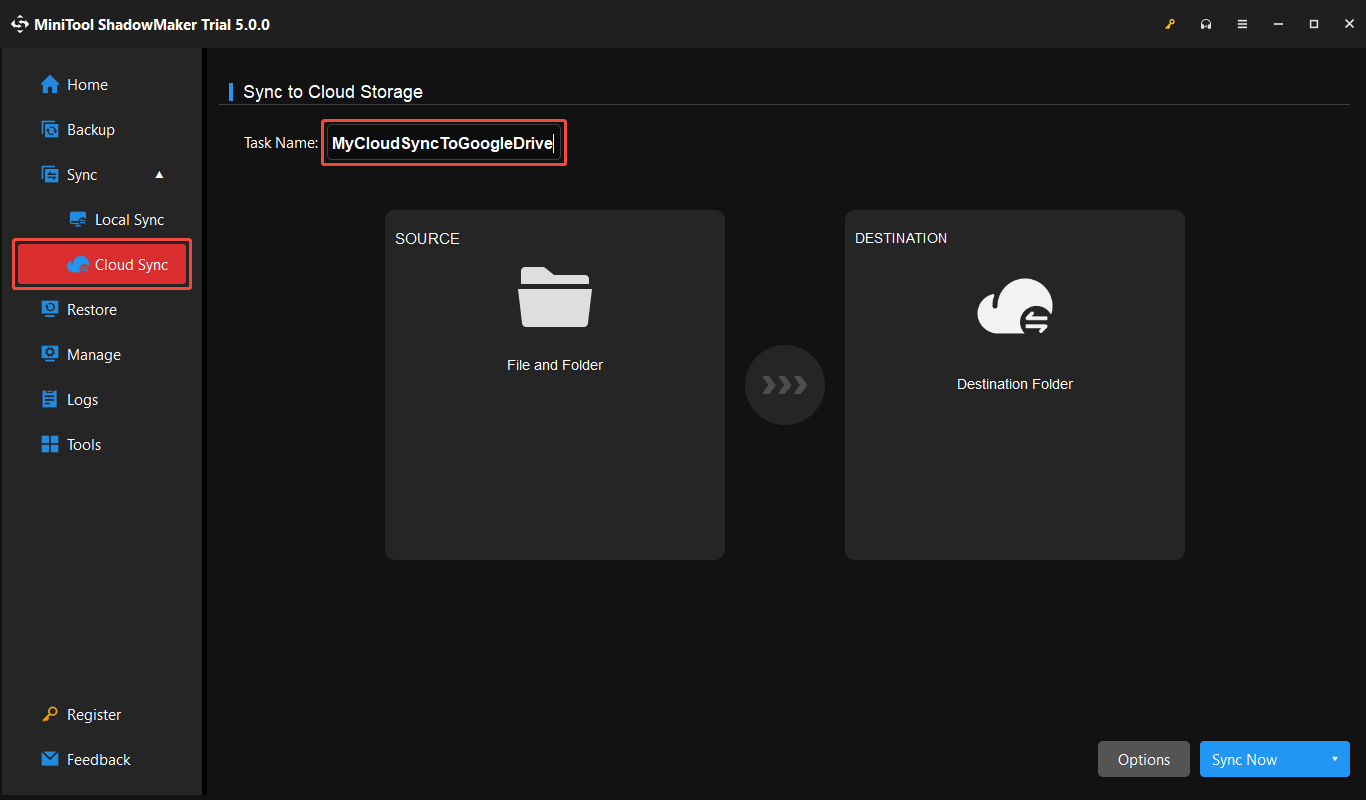
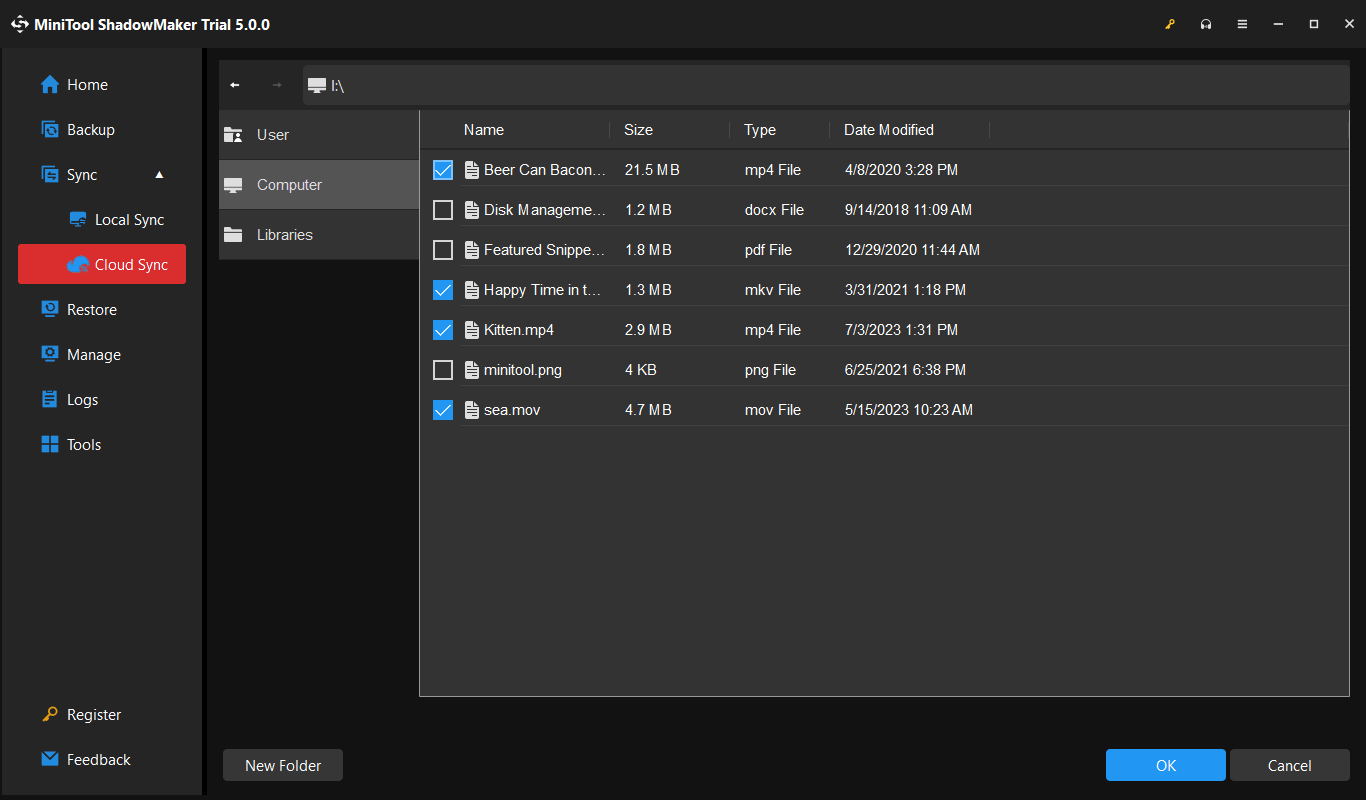
Step 2. Click SOURCE to select the files or folders you want to sync.
In the pop-up window, choose a source location:
- User: Browse files and folders in your Windows user folder.
- Computer: Browse the drives and partitions detected by Windows.
- Libraries: Select files and folders from your Windows libraries.
After selecting the files or folders, click OK to return to the Cloud Sync page.
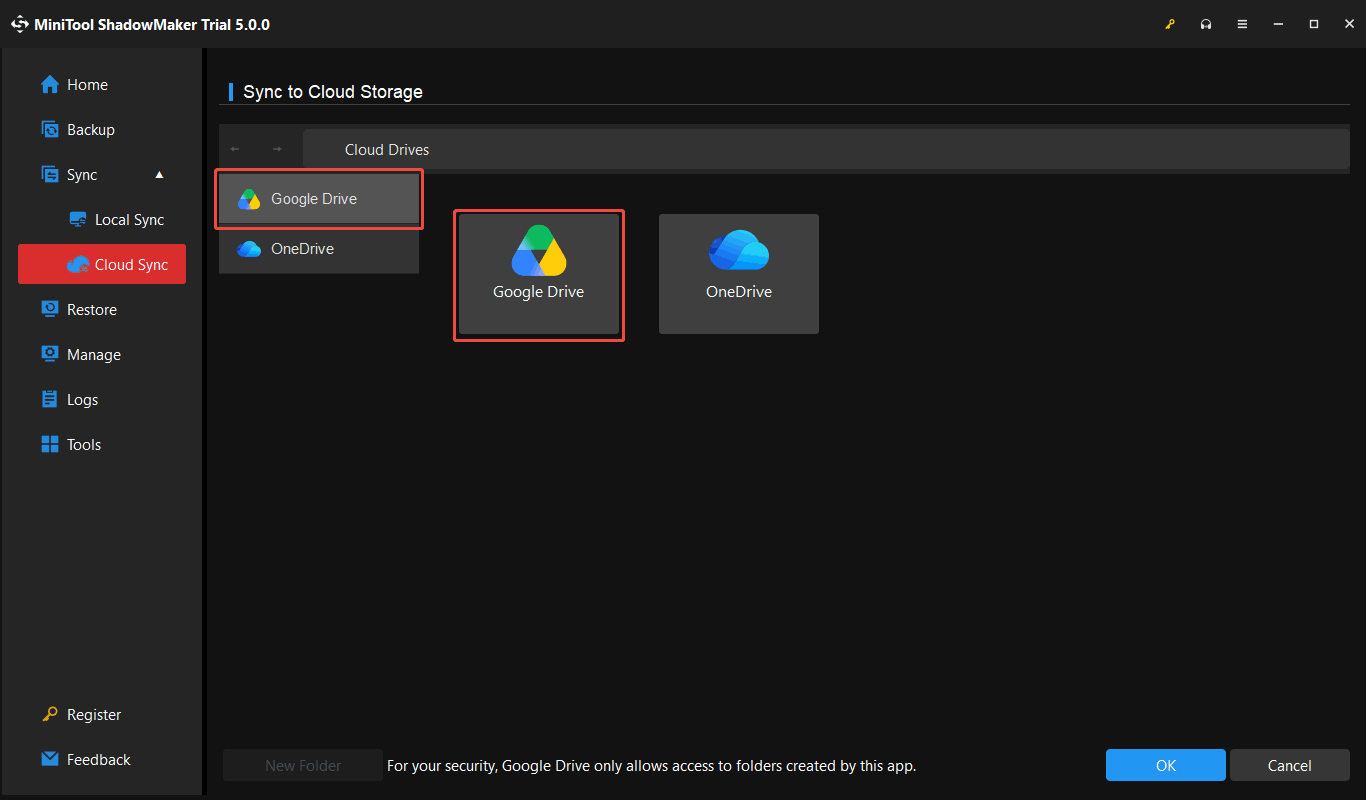
Step 3. Click DESTINATION, then choose Google Drive.
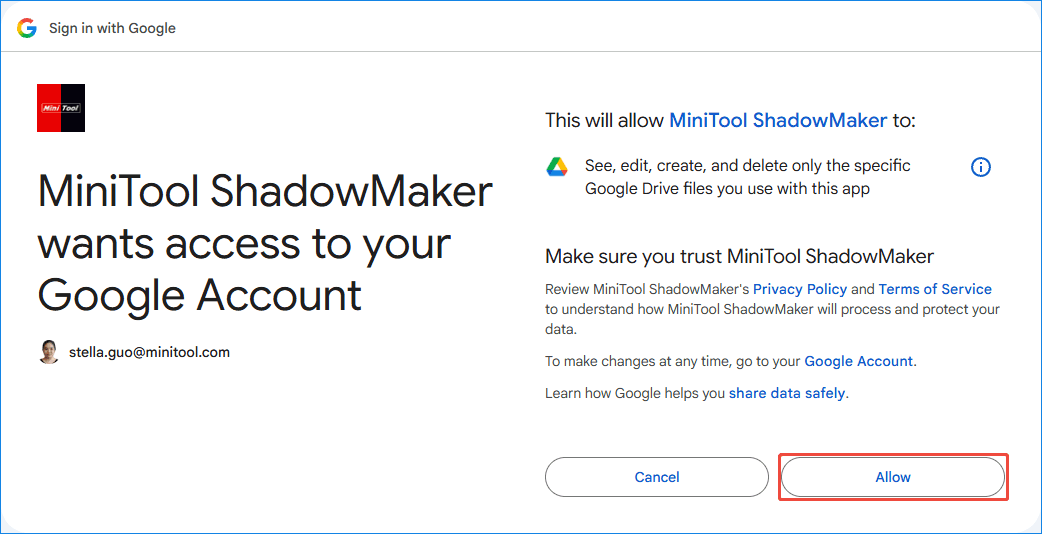
Your default web browser will open the Google sign-in page. Sign in to your Google account and click Allow when prompted to authorize MiniTool ShadowMaker to access Google Drive.
When the message “Authentication successful. Please return to the application window to continue.” appears, go back to MiniTool ShadowMaker.
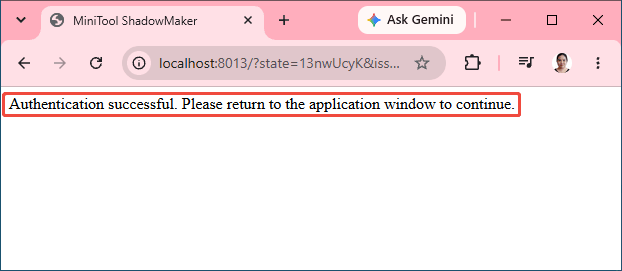
Step 4. Create a Google Drive destination folder.
For security reasons, MiniTool ShadowMaker can only access folders created by its own in Google Drive. When you set up Google Drive Cloud Sync for the first time, the New Folder window will appear, prompting you to create a folder. Enter a folder name and click Create.
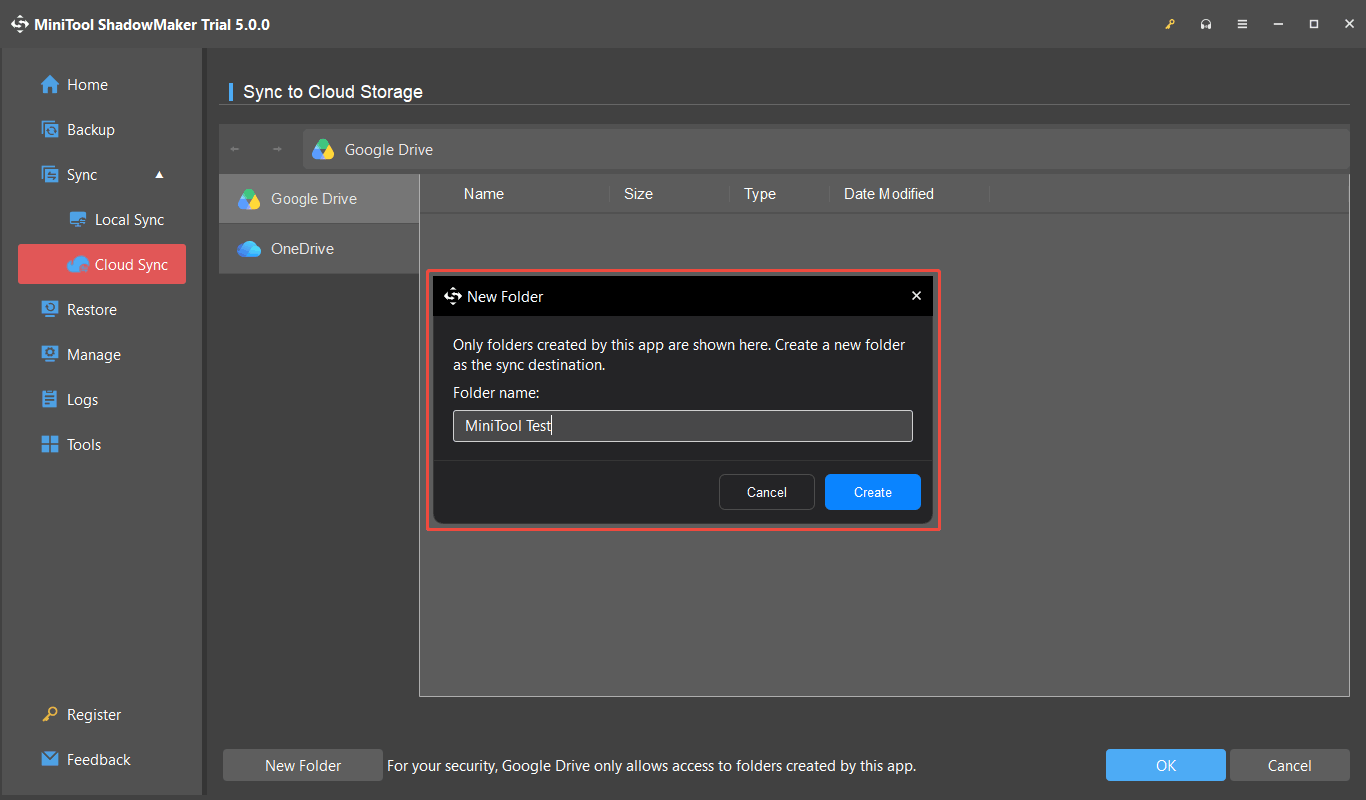
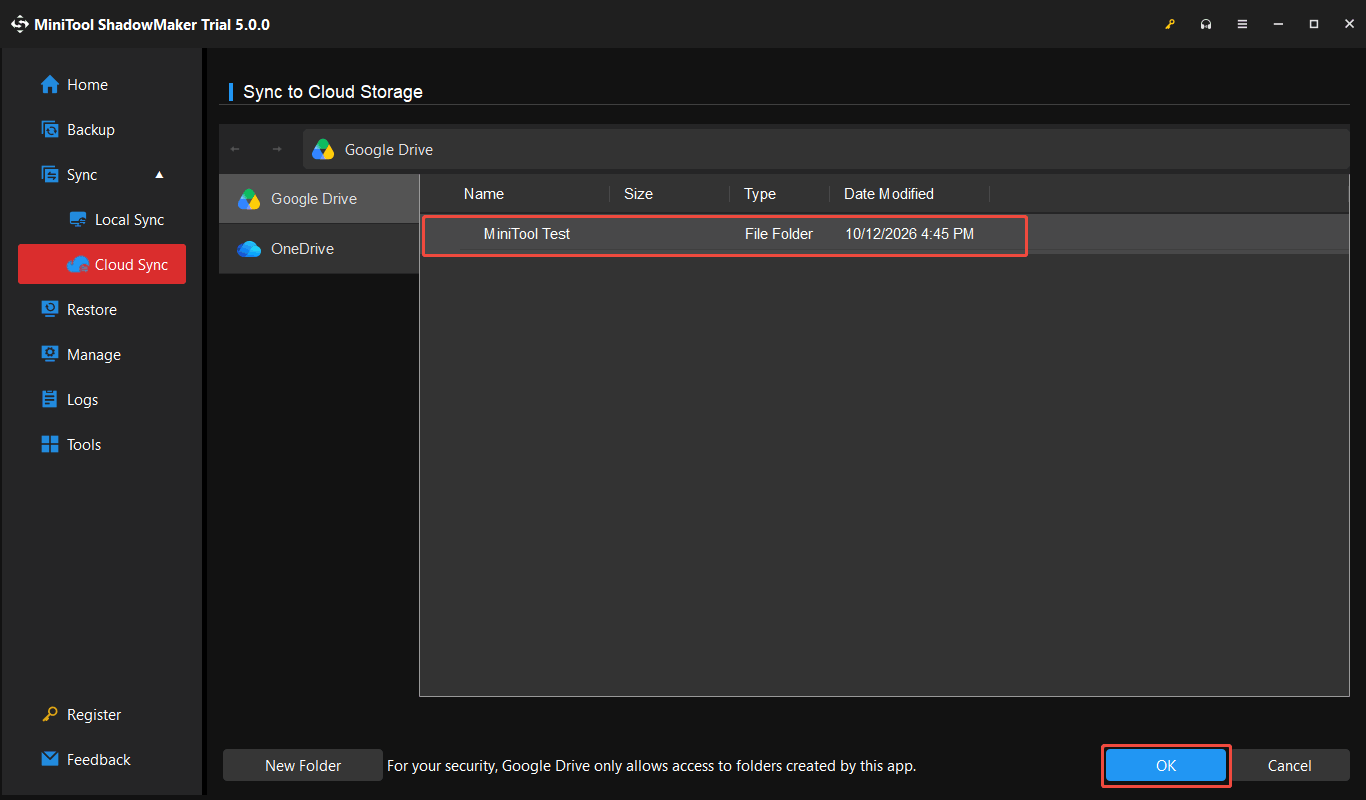
Step 5. Select the folder you created and click OK to set it as the destination.
Step 6. Configure the sync settings (optional).
After returning to the Cloud Sync interface, click Options to open the File Sync Settings window. You can see these options:
- Comparison: Choose File Size and/or File Content to determine how files are compared during subsequent syncs.
- Filter: Set conditions to exclude unwanted files from the sync task.
- Schedule Settings: Turn on this option to schedule sync tasks. You can choose a suitable sync frequency and configure the schedule as needed.
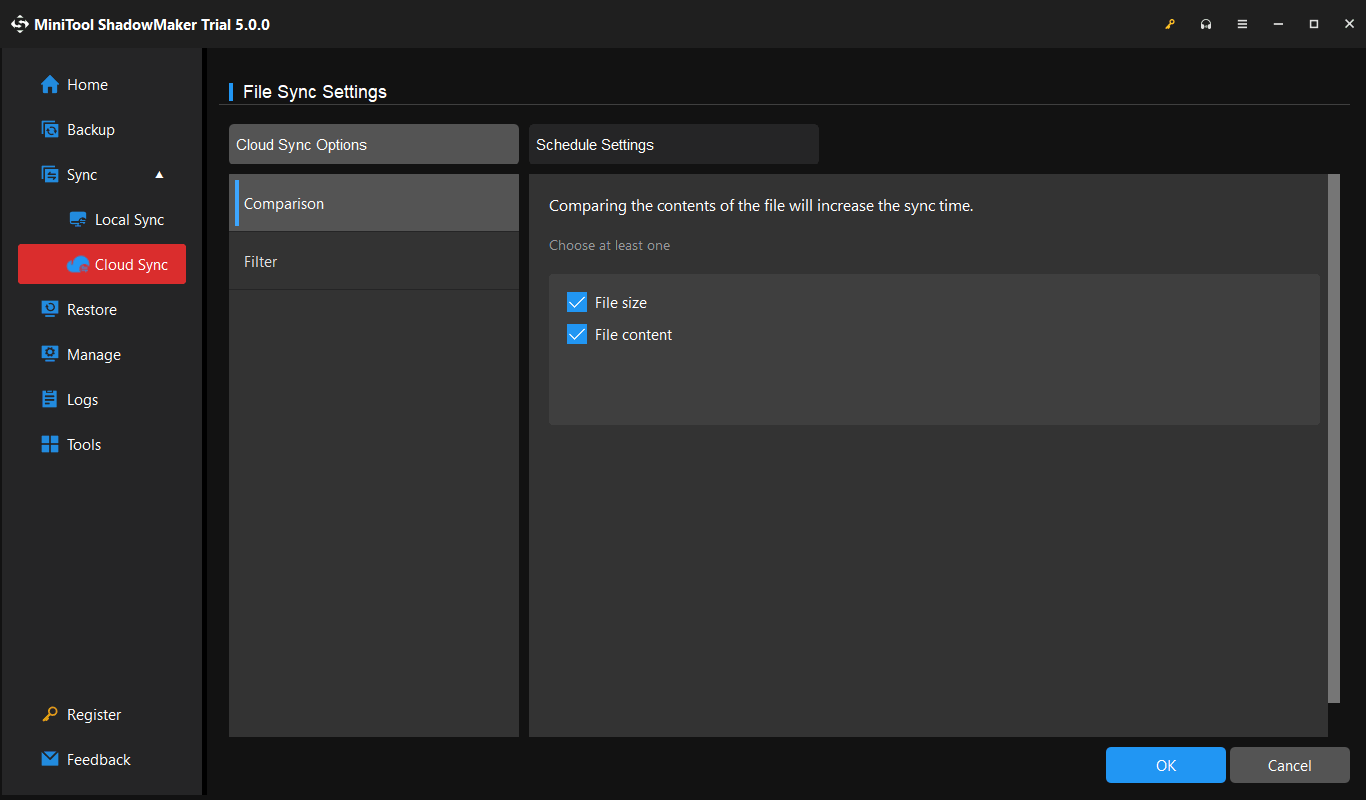
After configuring the settings, click OK to save your changes and return to the Cloud Sync interface.
Step 7. Start the cloud sync task.
- Sync Now: Start syncing the selected files and folders immediately.
- Sync Later: Save the task settings so you can run the task later.
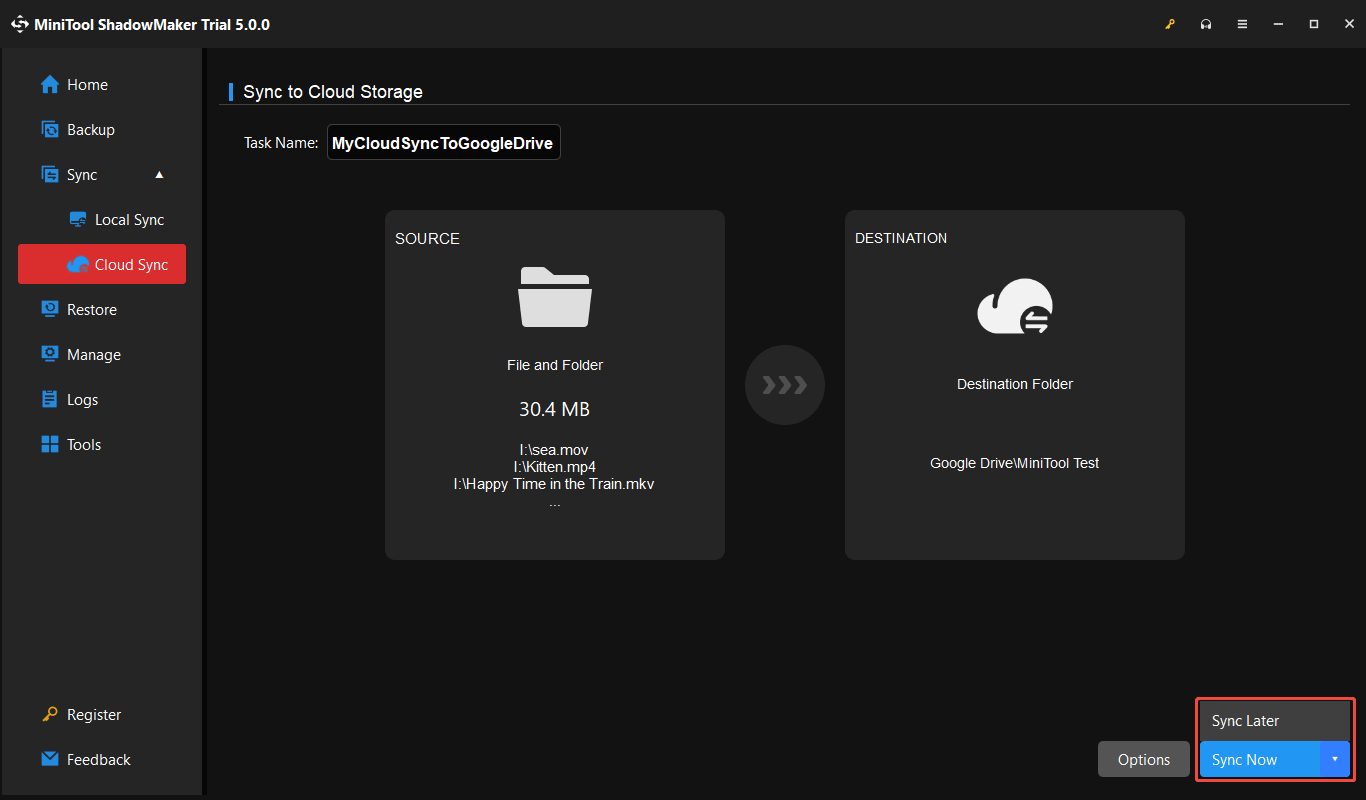
If you select Sync Now, wait for the sync process to finish. The selected files and folders will then be synced to the chosen cloud location.
How to Sync Files and Folders to OneDrive
Follow the steps below to select files and folders, connect your OneDrive account, configure the sync settings, and start the sync task.
Step 1. Go to Cloud Sync under Sync. Then, rename the cloud sync task.
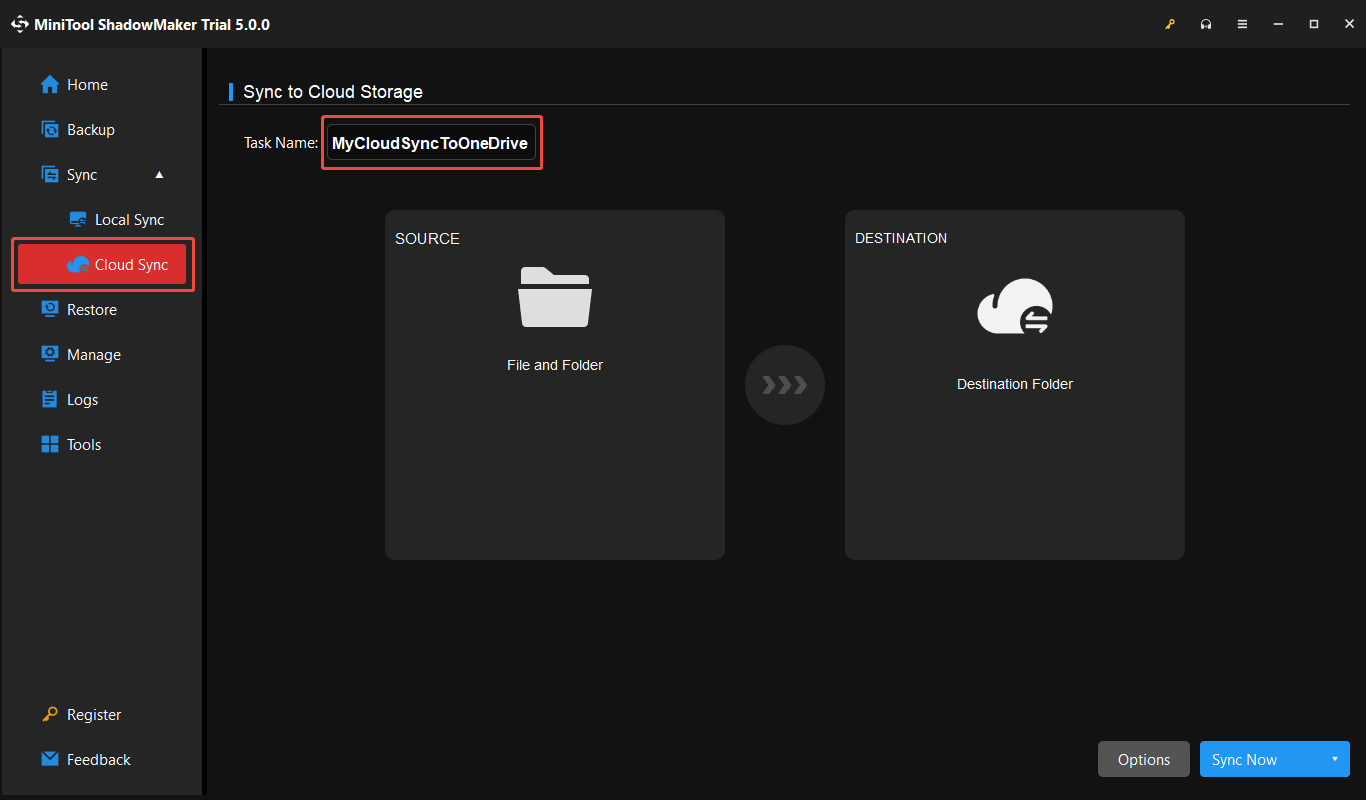
Step 2. Go to SOURCE to select the files and folders you want to sync to OneDrive.
Step 3. Go to DESTINATION and choose OneDrive.
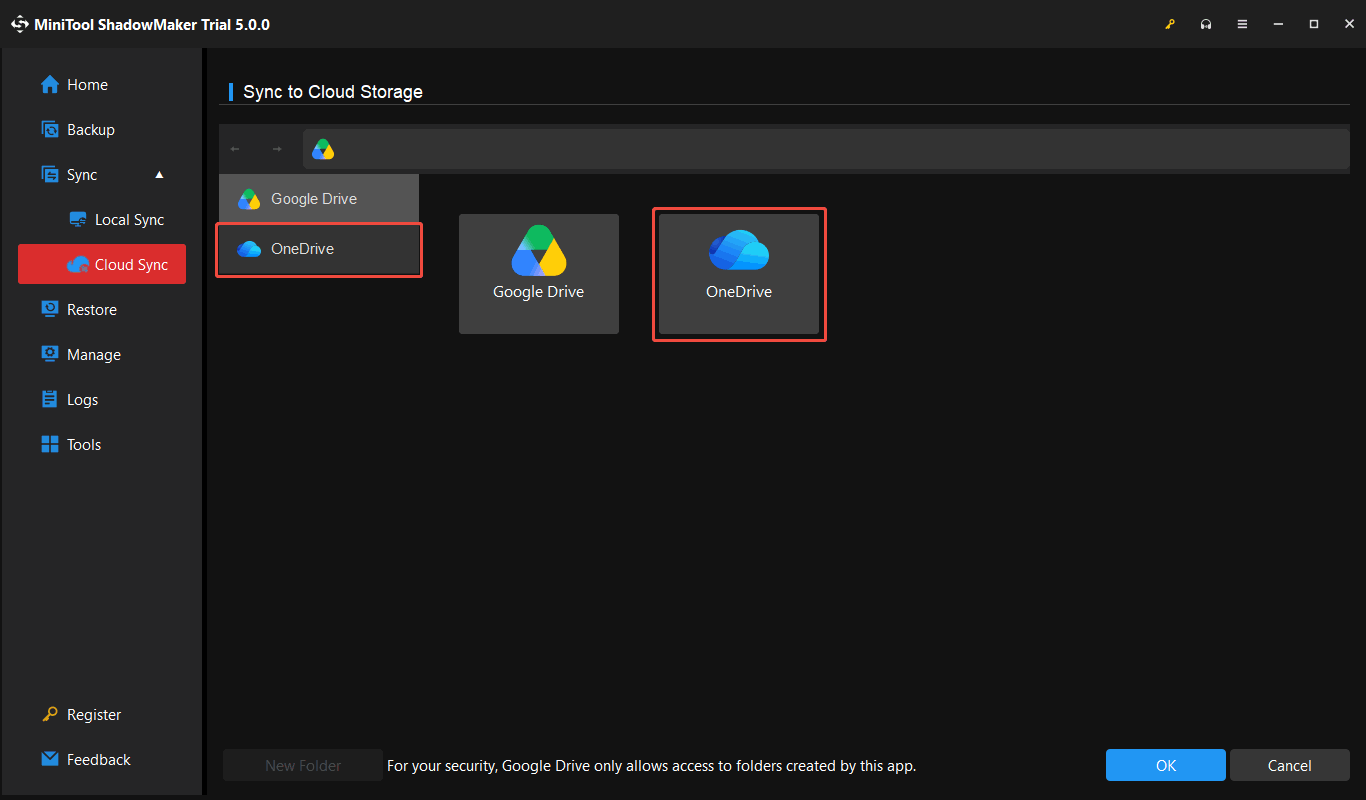
Follow the on-screen instructions to sign in to your Microsoft account and authorize access if prompted.
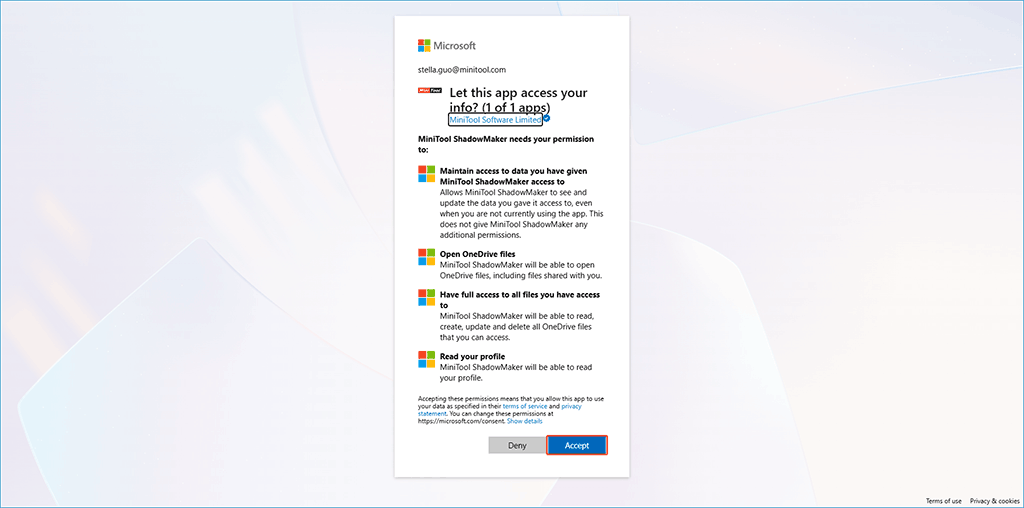
When the message “Authentication successful. Please return to the application window to continue.” appears, switch to MiniTool ShadowMaker.
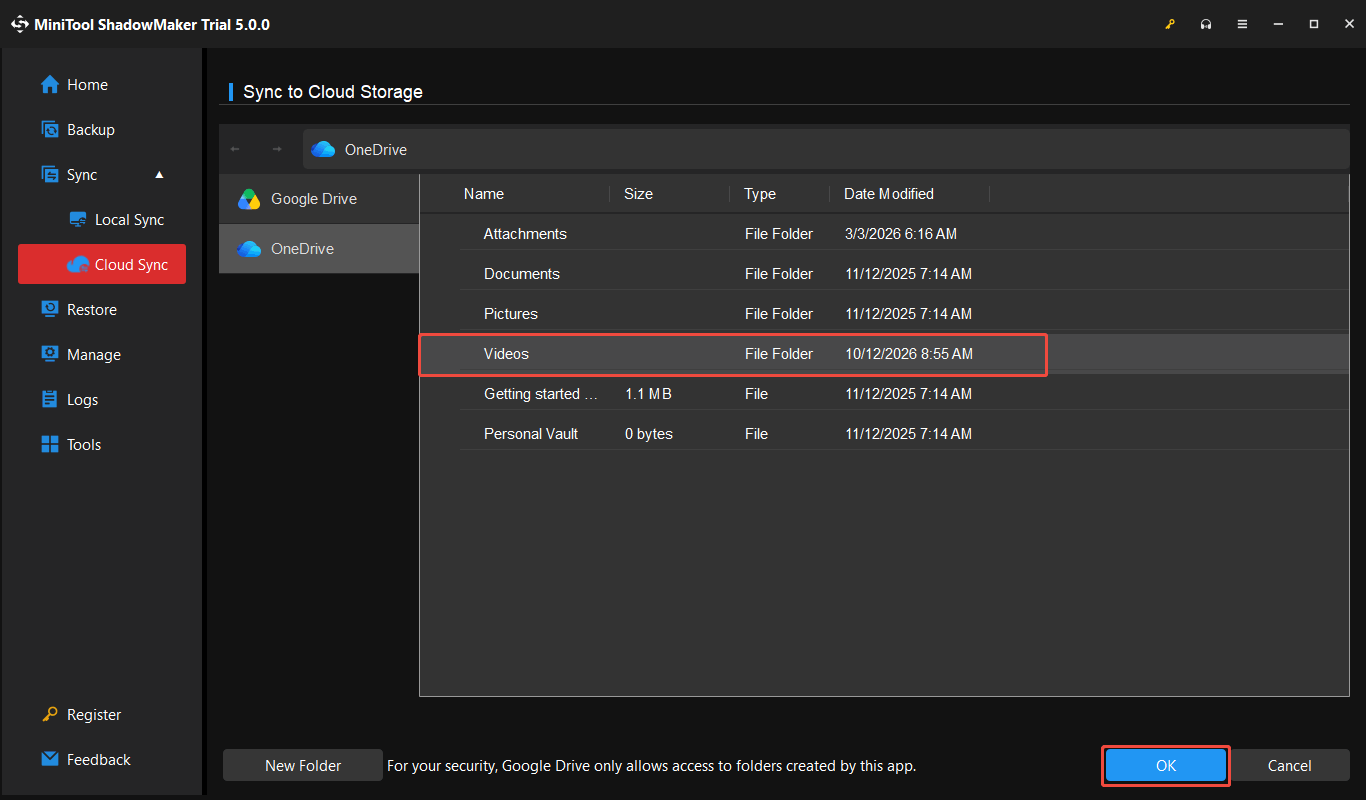
Step 4. MiniTool ShadowMaker can access the root directory of your OneDrive account, just select an existing folder or create a new one. Then, click OK to confirm your selection.
Step 5. Configure the sync settings (optional).
After returning to the Cloud Sync interface, click Options to open the File Sync Settings window. Then configure the cloud sync settings according to your preference.
Step 6. Click OK to save your changes and return to the Cloud Sync interface.
Step 7. Start the cloud sync task.
- Sync Now: Start syncing the selected files and folders immediately.
- Sync Later: Save the task settings so you can run the task later.
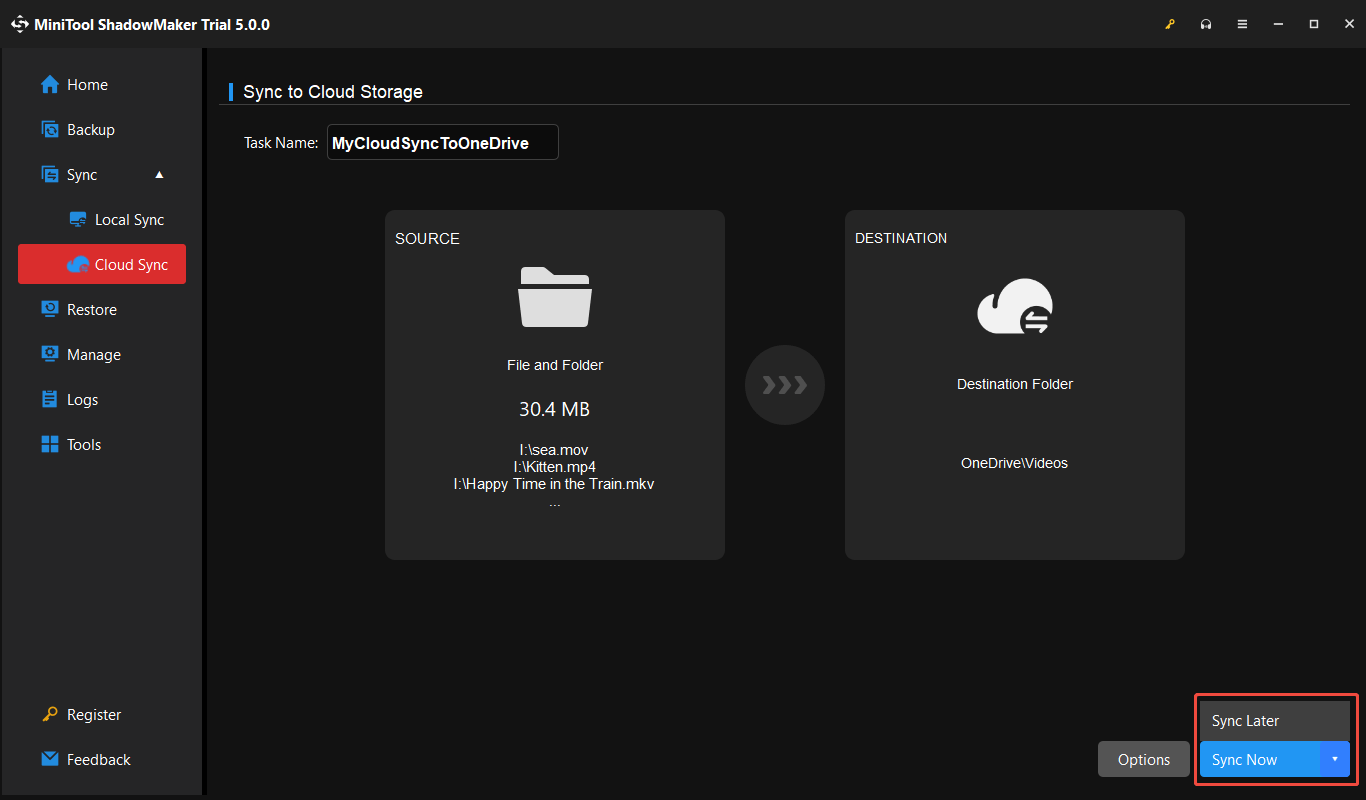
If you select Sync Now, wait for the sync process to finish. The selected files and folders will then be synced to the chosen cloud location.
User Comments :