
iPhone Deleting Messages by Itself
iPhone should be a device to save the files you need. But, if iPhone deleted messages by itself, things will not be good.
The following is a real-life case about iPhone randomly deleted messages issue from discussions.apple.com:
All of my messages have been randomly erased from my phone overnight. I did a hard reset and nothing came up after that! What can I do to get them all back? I have no backup or iCloud. I don’t understand why this happened. Please help!!!!!
This is not a rare phenomenon. When you search for it on the internet, you will discover many similar cases, such as iPhone messages disappeared after iOS update or all my messages deleted iPhone 7 plus after restoring from a previous backup.
Why Did My iPhone Delete All My Messages
As for iPhone deleting messages by itself issue, we summarize these four possible reasons:
1. iOS Update
iOS always keeps updating from time to time. Perhaps, you choose to update your iPhone to experience its new features. However, unfortunately, your data on the device gets lost including messages after iOS update.
2. Restoring from a wrong backup
When you choose to restore your iPhone with iTunes or iCloud, the backup file will replace all the original data on the device. Thus, if you choose a wrong backup file, iPhone messages disappeared issue can occur.
3. Syncing with iTunes
A wrong operation when syncing your iPhone with iTunes can also lead to iPhone text messages loss issue.
4. Incorrect settings.
Some of you may don’t know you can even set the iPhone to keep your text messages within a specified period. Just go to Settings > Messages > Keep Messages to check whether it is set as Forever. If not, it may be the reason for text message that deletes itself iPhone issue.
Now you figure out the causes of iPhone deleting messages by itself. The next things you concern about suppose to be how to recover deleted text messages iPhone and how to solve iPhone deleting messages by itself issue.
Keep on reading and you will find what you want to know.
How Do I Recover Deleted Text Messages on My iPhone for Free
PhoneRescue for iOS is an iOS data recovery tool that can help retrieve deleted or lost messages from an iPhone, a computer backup, or an iCloud backup.
This tool has three recovery modules, including Recover from iOS Device, Recover from Backup and Recover from iCloud. They can help you restore iPhone data in different situations.
Unlike Apple’s standard backup restoration methods, PhoneRescue for iOS allows you to scan a backup and select the messages you need instead of restoring the entire backup to your iPhone.
In this guide, we will walk you through the detailed steps to recover messages iPhone in these three cases:
- How to Recover Deleted Messages from iPhone Directly
- How to Recover Deleted Messages from iTunes Backup File
- How to Recover Deleted Messages from iCloud Backup File
Before starting the scan, avoid using the iPhone unnecessarily. New data and other operations may reduce the possibility of recovering deleted content.
How to Recover Deleted Messages from iPhone Directly
If you don’t back up your iPhone data with iTunes or iCloud, you can recover deleted messages from iPhone directly with the Recover from iOS Device module.
This tool supports recovering messages, message attachments, and other personal data, media data, as well as app data from all iOS devices with iOS version 5 and above.
Connect your iPhone to the computer with a USB cable and launch the software to start message recovery.
Phone Rescue for iOS (Windows)Click to Download100%Clean & Safe
Phone Rescue for iOS (Mac)Click to Download100%Clean & Safe
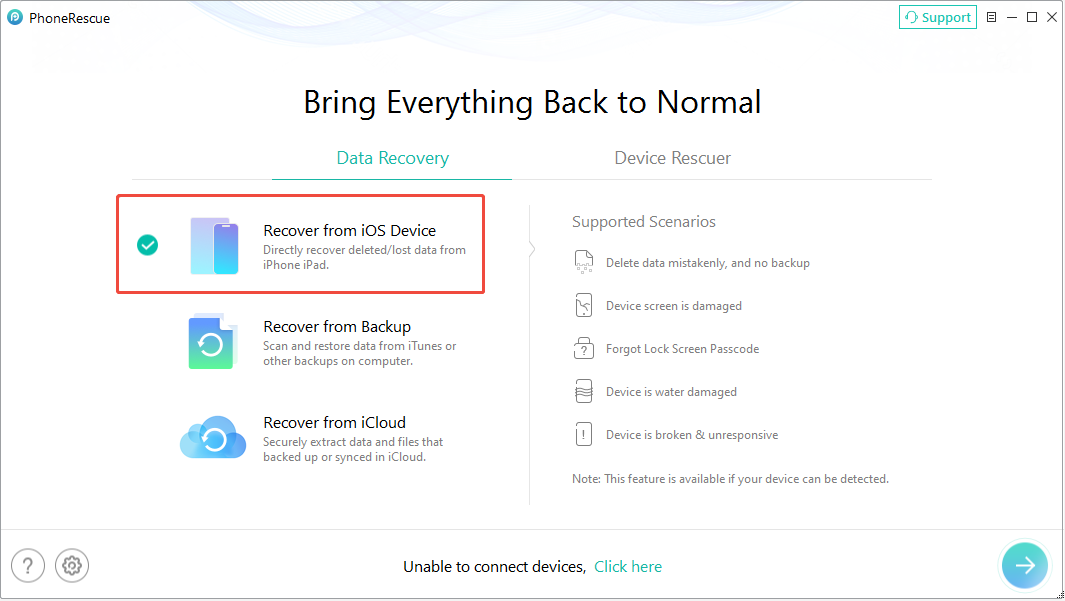
Step 1. On the main interface of PhoneRescue for iOS, select Recover from iOS Device and continue.
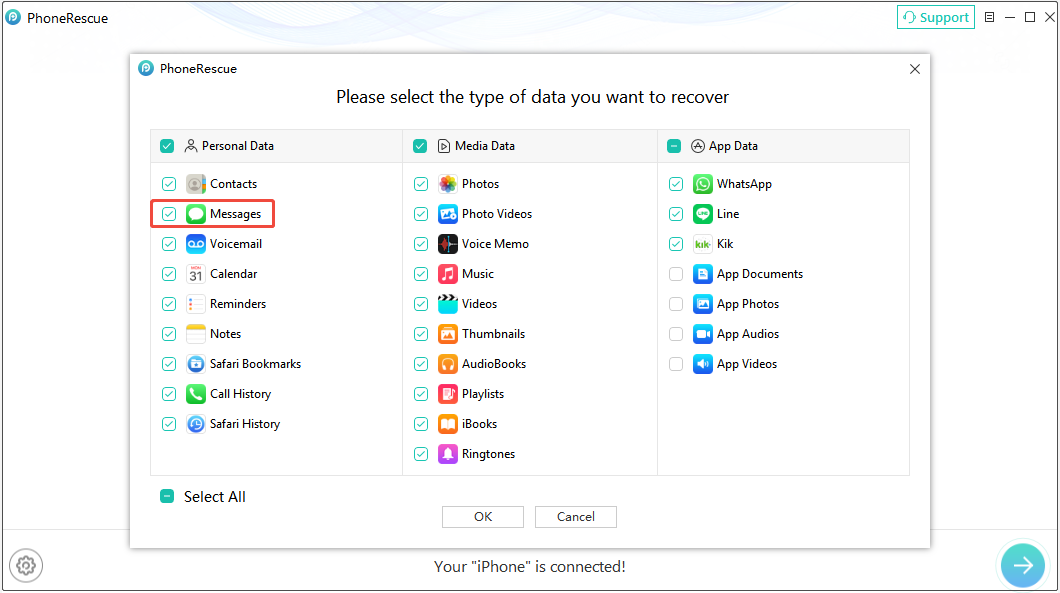
Step 2. After the iPhone is detected, select Messages from the available data categories and start the scan.
Step 3. When the scan finishes, browse the available messages. Finally, you can select the messages you want to recover and save them to your iPhone or computer.
How to Recover Deleted Messages from iTunes Backup File
If you previously backed up your iPhone to a Windows PC with iTunes, you can use Recover from Backup in PhoneRescue for iOS to look for the deleted messages.
This approach is useful when the messages are included in an earlier backup. Instead of restoring the entire backup to your iPhone, PhoneRescue can scan the backup and let you select the data you need. This helps avoid replacing the current content on the device.
Step 1. Launch PhoneRescue for iOS and select Recover from Backup.
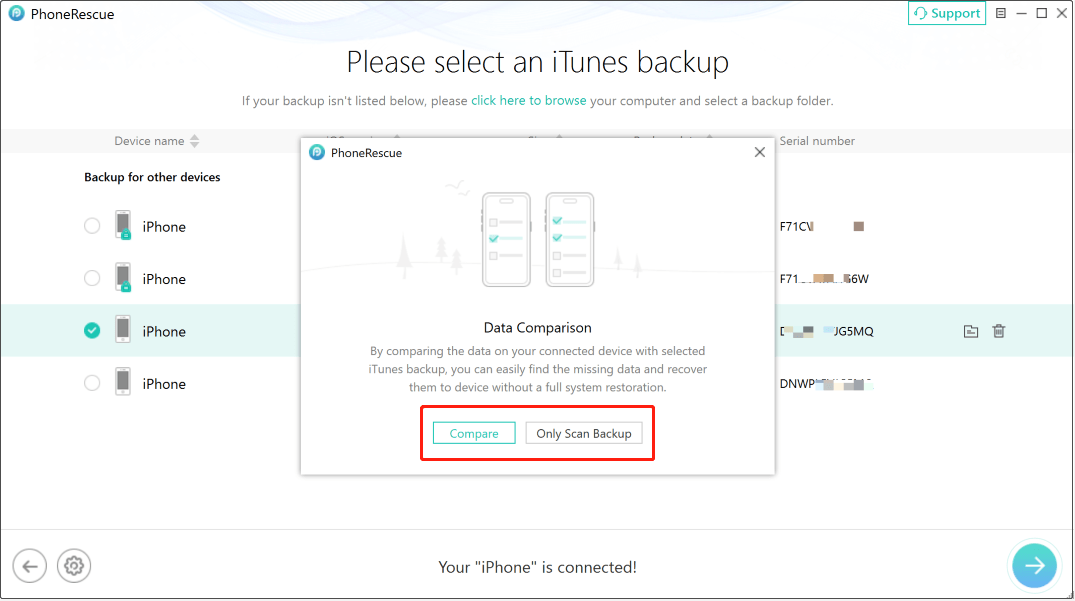
Step 2. Choose the iTunes backup that may contain the deleted messages. PhoneRescue can automatically detect available backups stored on the computer. Depending on your needs, select the appropriate scanning option and continue.
- Only Scan Backup: Scans the selected backup and displays all available data it contains, including messages that may exist on your phone.
- Compare: Compares the selected backup with the data currently on your iPhone and displays items that are not present on the device.
Step 3. Select Messages from the data types available for scanning and start the scan.
Step 4. After the scan is complete, select the messages you want to keep. Follow the on-screen instructions to save them to your computer.
This method is more selective than Apple’s standard backup restoration process because you can extract the required messages without restoring the complete backup to your iPhone.
How to Recover Deleted Messages from iCloud Backup File
If your iPhone messages were included in an available iCloud backup, PhoneRescue for iOS can also scan the backup and help you retrieve the messages you need.
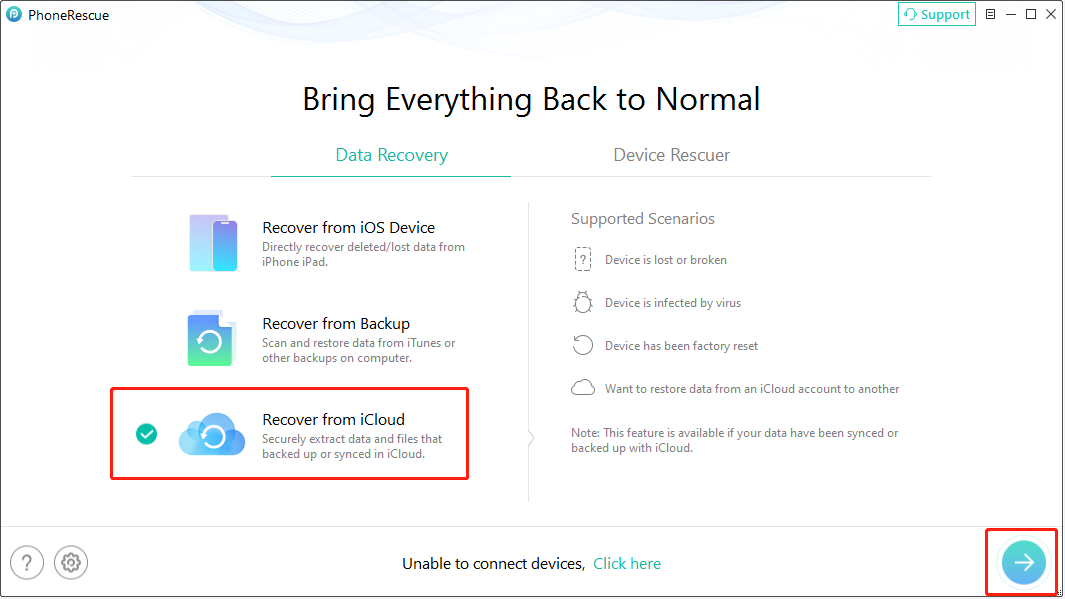
Step 1. Open PhoneRescue for iOS and select Recover from iCloud.
Step 2. Sign in with the Apple account associated with the iCloud data and select the appropriate iCloud backup.
Step 3. Select Messages from the available data categories and start scanning the backup.
Step 4. Once the scan is finished, select all the messages you want to recover and save them to your computer or iPhone.
This tool is particularly useful when you want to retrieve deleted messages while keeping the current data on your iPhone unchanged.
How Do I Stop My Messages from Deleting on My iPhone
After recovering your iPhone messages, you can feel free to fix iPhone deleting messages by itself issue.
The solutions vary in different situations.
Choose the Proper Backup File to Restore
If iPhone randomly deleted messages issue is caused by restoring from a wrong backup, please make sure that you choose the proper one next time.
Back up Your iPhone Files to Keep Them Safe
If the issue is caused by iOS update or syncing with iTunes, there is no effective measure to avoid it. However, you can form a good habit of backing up your iPhone data regularly to keep them safe.
Backing up iPhone with iTunes and iCloud are two recommended ways from Apple. You can visit this Apple official page to get the ways: How to back up your iPhone, iPad, and iPod touch.
On the other hand, you can choose to use a piece of third-party software to back up your iPhone data to the computer. MiniTool Mobile Recovery for iOS can also be used as such a tool.
Change Messages Settings on iPhone
If the issue is caused by an improper setting, you can just correct the settings on your iPhone.
Please go to Settings > Messages > Keep Messages. Then, switch the option to Forever.
Bottom Line
If your iPhone is deleting messages by itself, you can try the troubleshooting methods in this guide to identify the cause and prevent further message loss.
If important text messages have already disappeared, PhoneRescue for iOS may help you recover them from your iPhone or an available backup.
iPhone Delete Messages by Itself FAQ
Go to Settings > Messages > Keep Messages.
Tap Forever.
Then, your iPhone will not automatically delete messages on your iPhone.
Download and install this software on your computer.
Open the software.
Connect your iPhone to your computer via a USB cable.
Let the software scan the device.
Select the needed messages from the scan results and recover them to your computer.
About The Author

Position: Columnist
Shirley holds a bachelor’s degree in English and has been an editor at the MiniTool Team for many years. She specializes in IT-related content, with a focus on data recovery, file backup, disk management, and other technical topics. She is committed to delivering clear, accurate, and practical solutions to help users resolve common computer issues.
User Comments :