
Data Loss After iOS Upgrade
When a new iOS version is released, most users will choose to update the iOS version to the latest one. Thus, they can enjoy the new and attractive features.
However, according to online information, a large number of users are suffering from data loss due to iOS updates. Here, a user describes his problem as follows.
I decided to update my iOS as others are eating up my storage. Since my iPhone storage is full, I decided to update using iTunes via a laptop. I left it for a while and was happy to see the update download was finished. To my horror, all my data is gone... Is there a way to recover all the missing data prior to the update?discussions.apple.com
Have you ever encountered the same or similar situation? Do you know how to get your lost data back on your iPhone or other iOS devices after an update?
In order to assist you in resolving this distressing situation, this article presents a variety of techniques to help retrieve lost data after updating iOS.
3 Ways to Recover Files After iOS Upgrade
Way 1: Retrieve Lost Data From iTunes Backup After iOS Update
Before trying to recover lost iOS data from iTunes backup files, make sure you have backed up your iPhone or other iOS devices to iTunes and have the iTunes backup file stored on your computer. Also, ensure that you have installed the latest version of iTunes on your PC.
Here we take iPhone for example.
Step 1. Connect your iPhone to the computer with a USB cable.
Step 2. Open iTunes on your computer to start the data recovery procedure.
Step 3. Select your iPhone when it appears in the iTunes window. Then go to the Summary tab and click the Restore Backup button.
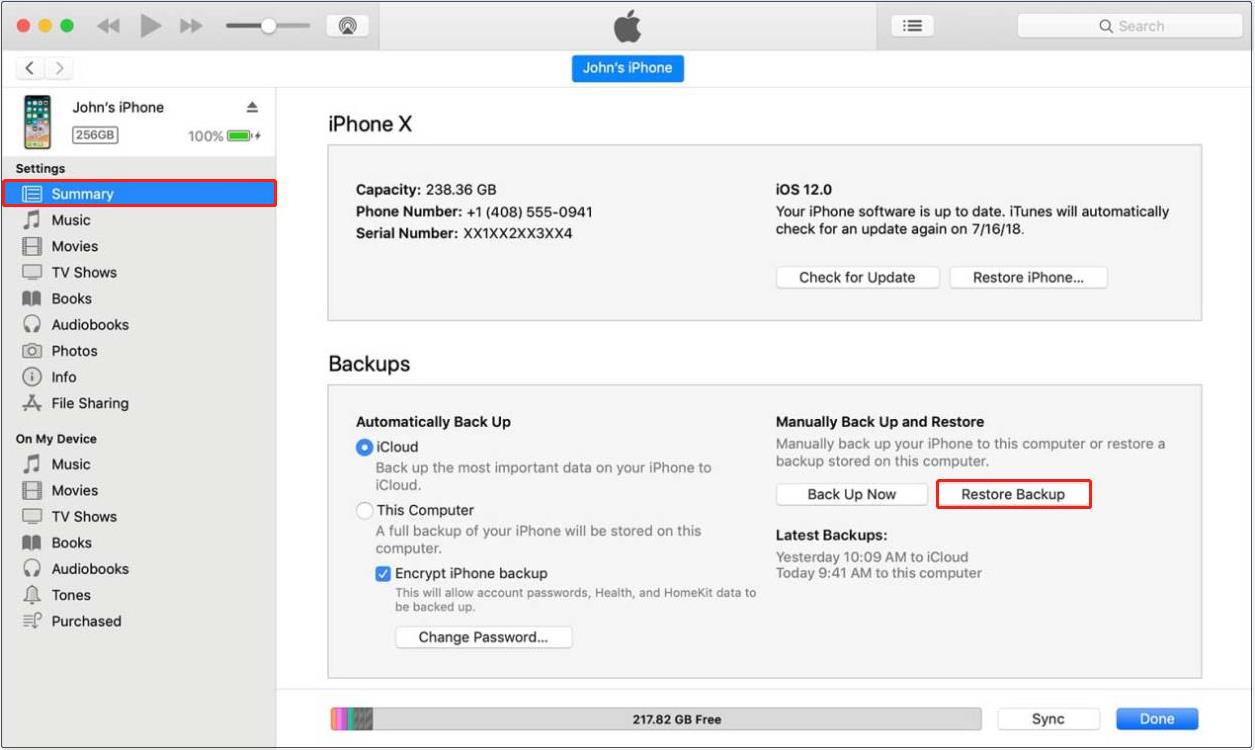
Step 4. Choose the needed backup file from the available selections. Be sure to check the device name and date of each backup file to ascertain the most appropriate one for your device. Next, click on the Restore button and wait a while for the process to work properly.
Way 2: Recover Files From iCloud Backup After iOS Update
To restore lost data from iCloud backup, you need to make sure that you have backed up your device to iCloud, and make sure you have a stable Wi-Fi network connection. Otherwise, you may fail to restore files from iCloud.
Step 1. Go to Settings > General > Reset, and tap Erase All Content and Settings to remove all settings and information from your device.
Step 2. After all the content and settings are erased, the iPhone will go to the Setup Assistant mode beginning with a Hello screen.
Step 3. Tap on the screen to start the setup process on your device and join a stable Wi-Fi network.
Step 4. From the Apps & Data screen, tap Restore from iCloud Backup, and then sign in to iCloud with your own Apple ID and password.
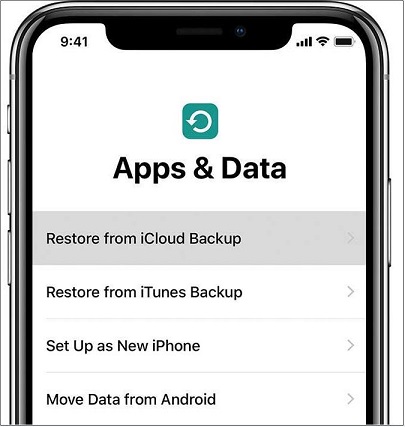
Step 5. Select the most suitable backup file based on the date and size of each backup file, then wait for the contents in the backup to be returned to your device.
The process may take some time, depending on the size of your iCloud backup and the speed of your network.
For more information about how to restore iOS data from backup files, you can read this post: Restore your iPhone, iPad, or iPod touch from a backup.
Way 3: Restore iOS Data via PhoneRescue for iOS After iOS Update
Apart from iTunes and iCloud, you can try using iPhone recovery software – PhoneRescue for iOS to carry out iOS data recovery.
It supports recovering contacts, messages, reminders, photos, videos, voice memos, and other types of data. Lost iOS files could be recovered by using PhoneRescue for iOS as long as these files are not overwritten by new data.
To avoid data being overwritten, you should stop using your iOS device as soon as possible after data is lost.
Phone Rescue for iOS (Windows)Click to Download100%Clean & Safe
Phone Rescue for iOS (Mac)Click to Download100%Clean & Safe
PhoneRescue for iOS provides three data recovery modules, including Recover from iOS Device, Recover from Backup, and Recover from iCloud.
Module 1: Recover from iOS Device
This module allows you to restore iOS data from iOS devices directly without a backup.
Before scanning and recovering data:
- To make this recovery module work successfully, you need to download and install the latest iTunes application from the Microsoft Store on your computer.
- Connect your iOS device to your PC and make sure the device is detected by your computer.
Step 1. On the main interface of the recovery tool, choose the Recover from iOS Device module and continue.
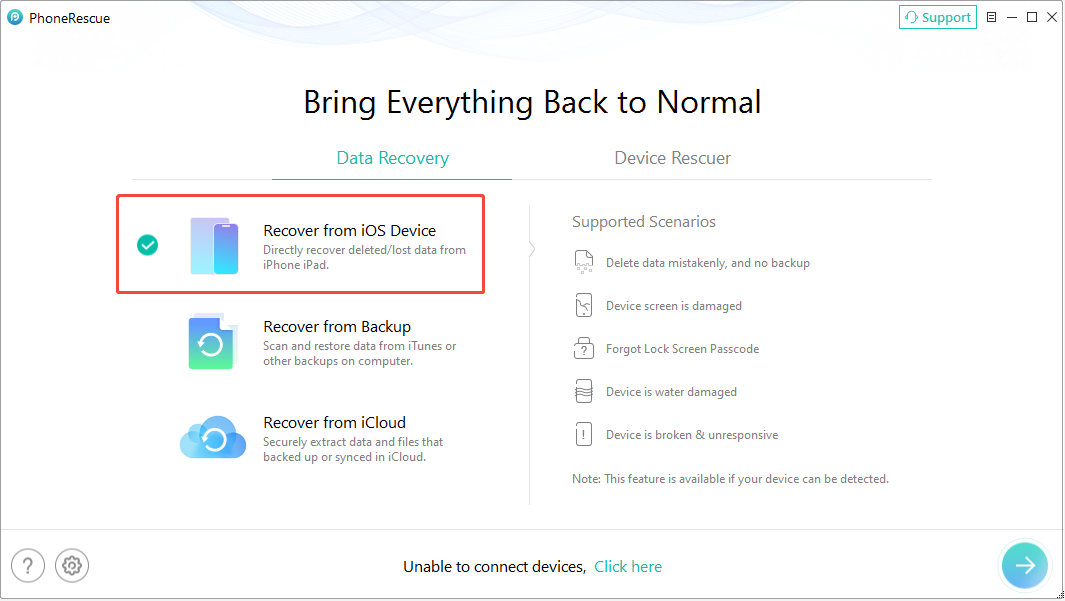
Step 2. Choose the types of data you want to recover, such as photos, messages, contacts, or notes, and start scanning your device.
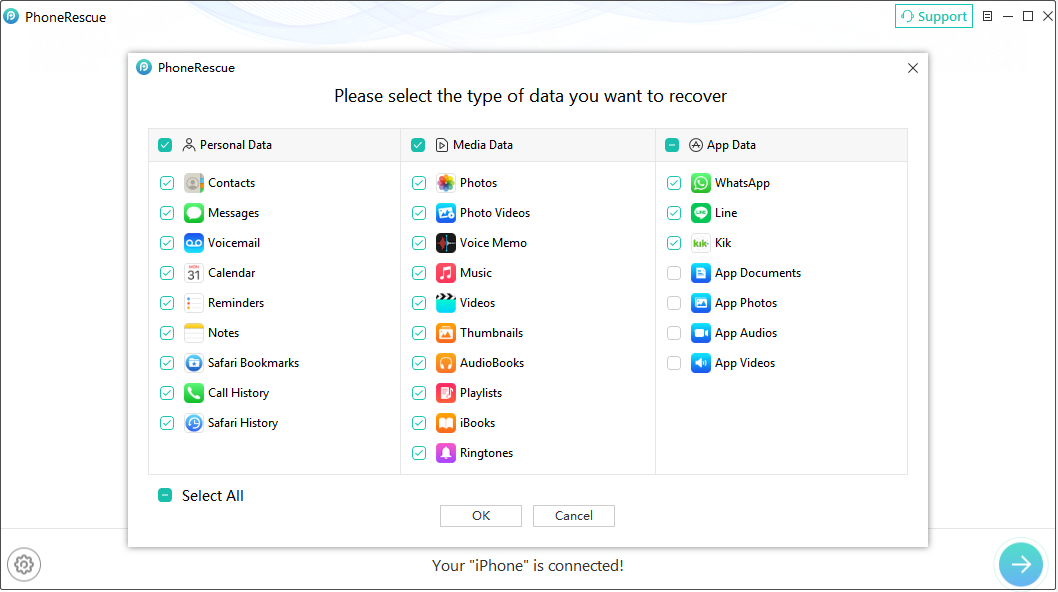
Step 3. After scanning, browse the results and preview the available files. Select the items you want to recover, then click Restore to device or Restore to computer, depending on where you want to save the recovered data.
Module 2: Recover from Backup
Unlike the standard iTunes restore process, PhoneRescue for iOS lets you scan an available iTunes backup, preview its contents, and selectively recover the files you need without restoring the entire backup.
Step 1. Run the software and select Recover from Backup.
Step 2. Choose the backup that may contain your lost data to scan. Make sure you select a backup created before the data disappeared.
The software allows you to scan the backup and list all available files or compare the backup with the data currently on your iPhone to identify the differences.
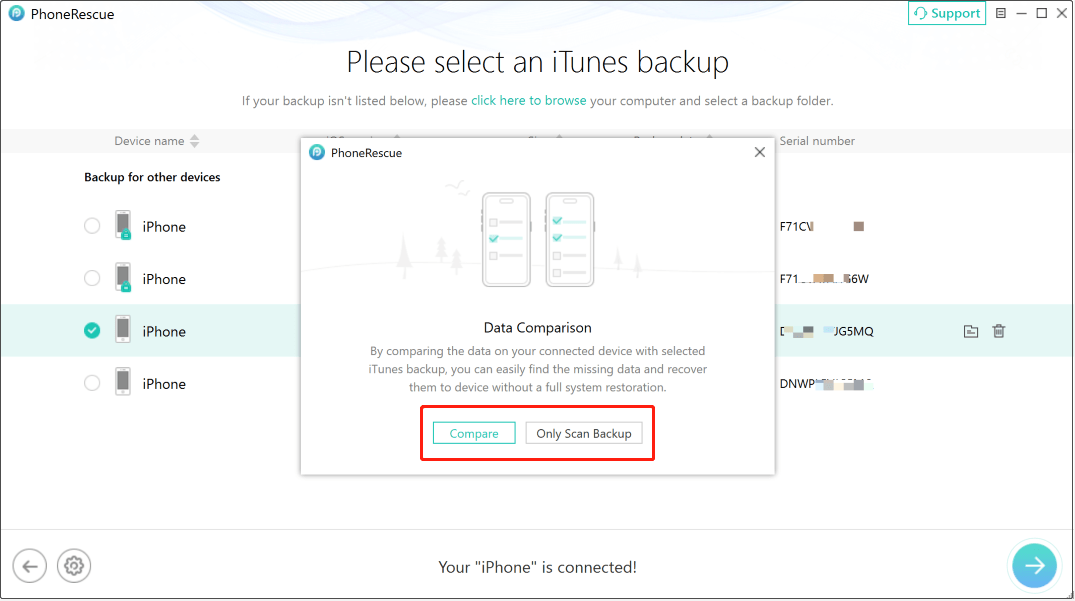
Step 3. Select the data types you want to recover to scan.
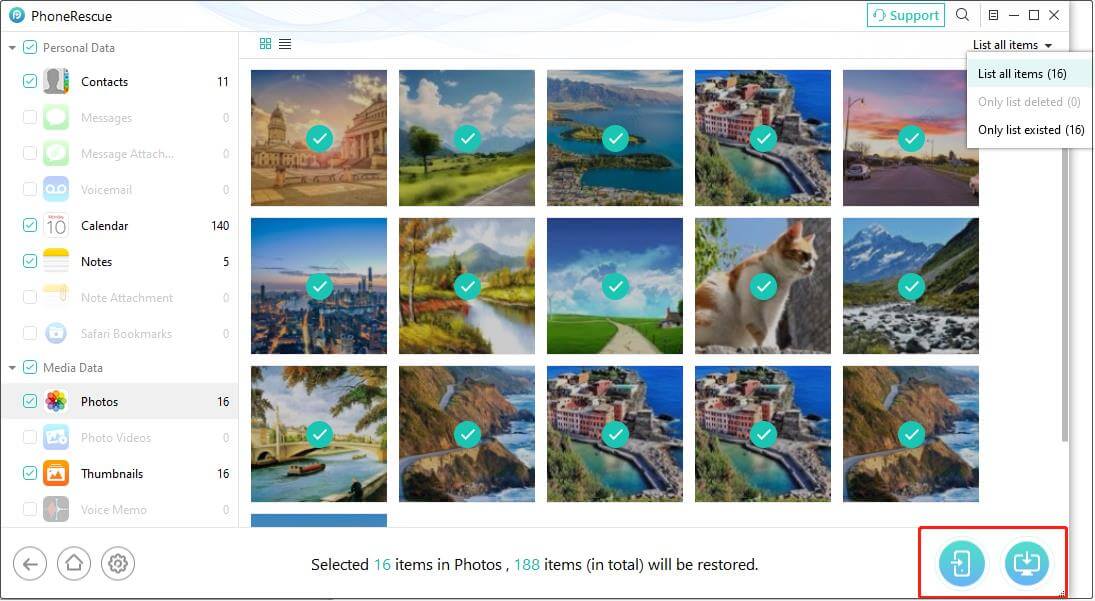
Step 4. Once the scan is complete, browse the results, preview the recoverable files, and restore desired items.
Module 3: Recover from iCloud
Instead of restoring an entire iCloud backup and replacing current data on your device, PhoneRescue for iOS lets you preview available data and select specific files to recover.
Step 1. Choose the Recover from iCloud mode and click the arrow button to continue.
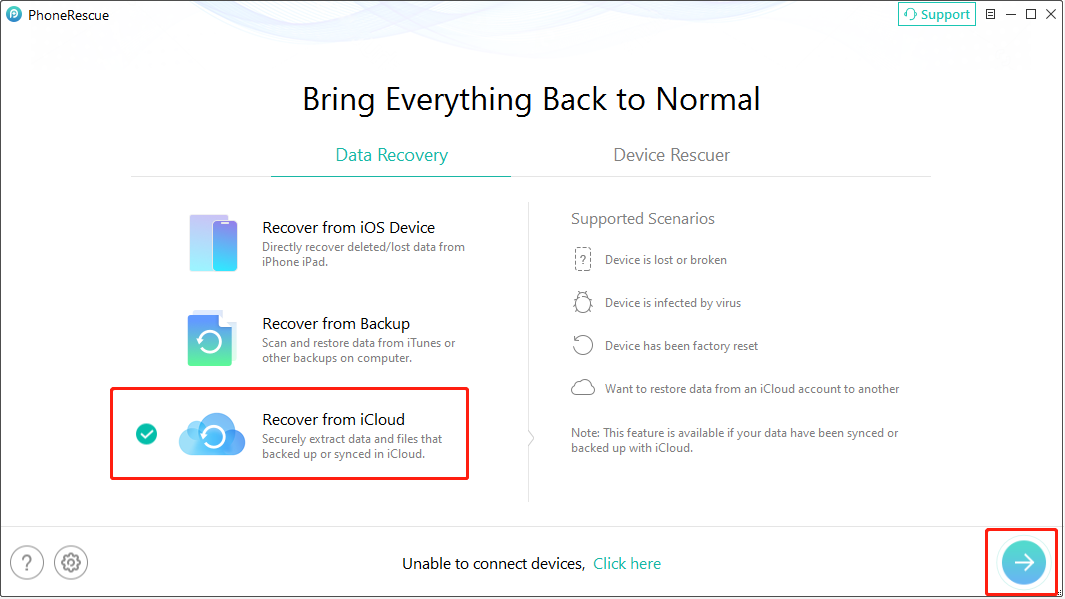
Step 2. Follow the on-screen instructions to sign in with your Apple account and complete any required verification.
Step 3. Choose the relevant data categories or available iCloud data that you want to recover, then start scanning or download the iCloud backup.
Step 4. After scanning, preview the available results and save required files.

Further Reading – How to Back up iOS Data
It’s important to understand that despite the excellence of iOS, data loss can still occur occasionally. Therefore, it is recommended to back up your iPhone, iPad, and other file storage devices. By doing this, you will have a copy of the information to use if your device is replaced, lost, or damaged.
Listed below are effective methods to back up iOS data.
Method 1. Make a Backup Using iCloud.
To do this, you can follow the steps below.
Step 1: Connect your device to a Wi-Fi network.
Step 2: Tap Settings > [Your name] > iCloud > iCloud Backup.
Step 3: Make sure that iCloud Backup is turned on.
Step 4: Tap Back Up Now. Stay connected to your Wi-Fi network until the process completes.
Step 5: Make sure the backup has been finished by tapping Settings > [Your name] > iCloud > Manage Account Storage > Backups.
On the other hand, you can automatically back up your iPhone data with iCloud.
Step 1: Go to Settings > [your name] > iCloud > iCloud Backup to make sure that iCloud Backup is turned on.
Step 2: Ensure the device is connected to both a power source and a Wi-Fi network.
Step 3: Make sure that your device’s screen is locked. Meanwhile, there should be enough space on iCloud to save the backup files on your iPhone.
Method 2. Make a Backup Using iTunes.
To make a backup of iOS data with iTunes, follow these steps:
Step 1: Update to the latest version of iTunes. Then open iTunes and connect your iOS device to your computer.
Step 2: Select your iPhone or iPad when it appears in iTunes.
Step 3: To encrypt the backup file, you can select Encrypt local backup and create a memorable password. If you do not want to make an encrypted backup, just click Back Up Now.
Conclusion
Having read the preceding introduction, you should now be familiar with how to recover files after iOS upgrade. It is recommended to use PhoneRescue for iOS to carry out lost iOS data recovery when you do not have a backup file. Also, you are supposed to make backup files regularly.
About The Author

Position: Columnist
Shirley holds a bachelor’s degree in English and has been an editor at the MiniTool Team for many years. She specializes in IT-related content, with a focus on data recovery, file backup, disk management, and other technical topics. She is committed to delivering clear, accurate, and practical solutions to help users resolve common computer issues.
User Comments :