
Can You Recover Data After Factory Resetting an iPhone
A factory reset is a useful iPhone feature that erases all personal data and settings, allowing you to set up the device as new.
However, this process permanently removes photos, messages, contacts, apps, and other data stored on the iPhone. If you need to recover lost data after a factory reset, the possibility depends largely on whether you have a backup.
Why iPhone Data Is Difficult to Recover Without a Backup
After an iPhone is restored to factory settings, the device’s data is erased, and the storage is encrypted. Unlike some traditional storage devices, iPhones do not keep easily accessible deleted files after a reset. Therefore, without an available iCloud or iTunes backup, recovering data after a factory reset is usually impossible.
In this guide, we will show you how to recover iPhone data after a factory reset using iCloud, iTunes, and professional iOS recovery software.
Method 1: Restore iPhone from iCloud Backup after Factory Reset
If there is an available iCloud backup file, you can restore your iPhone from iCloud directly. The iCloud backup file will replace all your current iPhone data after using this method.
You need to follow these steps to do this job:
Step 1. Just turn on your iPhone, follow the on-screen setup steps until you get the Apps & Data screen. Then tap Restore from iCloud Backup. If you have already set up your iPhone, you have to first reset it to factory settings.
Step 2. Sign in to iCloud by using your Apple ID. Then select the most relevant backup. You can recognize it by the date and size of the backups. Then just follow the next guides to continue.
Keep Wi-Fi connected during the restoring process. The time to restore depends on the size of the backup and the network speed. When the progress bar completes and all settings are finished, you’ll find your previous data is restored to your iPhone.
Method 2: Restore iPhone from iTunes Backup after Factory Reset
Likewise, this method will also delete all your current files on the iPhone. To do this jog you need to follow these steps:
Step 1. Open iTunes on the Mac or PC that you used to back up your iPhone, and then connect your iPhone to the Mac or PC with a USB cable. Allow your iPhone to trust this computer. If you have set up a passcode for your iPhone, there may be a message that asks you to enter it. Just enter it.
Step 2. Select your iPhone when iTunes recognizes it. Click Restore Backup in iTunes. Then choose the backup file you want to restore. The date and size of each backup are listed there for your judgment.
Step 3. Click Restore, and then the restoring process will start. Please keep your iPhone connected to iTunes to guarantee its sync with your computer. Disconnect them when the sync finishes.
Disadvantages of These Two Methods
The two ways above are the official restoring methods introduced to restore iPhone data after restoring to factory settings.
However, you are not allowed to choose the specified files you want to restore. Restoring your iPhone from iCloud backup or iTunes backup just recovers all your backup files to your iPhone. If you don’t want all of them, you still need to spend time deleting the useless ones.
Besides, these two methods don’t allow you to restore your iPhone data to your computer.
Is there any way to recover your iPhone data to your computer to specific categories after restoring it to factory settings? Is it possible to select what you want to recover? Can you even recover the deleted data from the iCloud or iTunes backup?
Fortunately, technicians designed some pieces of mobile recovery software for iOS. Among all these good and bad software, the professional PhoneRescue for iOS is a good recommendation for you.
Method 3. Restore iTunes/iCloud Backups Using PhoneRescue for iOS
PhoneRescue for iOS is a professional iPhone data recovery tool designed to recover lost or deleted data from iOS devices, iTunes backups, and iCloud backups.
Unlike Apple’s official restore methods, PhoneRescue for iOS allows you to preview backup contents and selectively recover specific files instead of restoring an entire backup to your iPhone.
PhoneRescue for iOS supports all iOS devices with iOS version 5 and above. It can recover various types of iOS data, including:
- Personal Data: Contacts, Call History, Messages, Message Attachment, Voicemail, Calendar, Reminders, Notes, Note Attachment, Safari History, Safari Bookmarks
- Media Data: Photos, Photo Videos, Thumbnails, Music, Videos, AudioBooks, Playlists, Ringtones, iBooks, Voice Memo
- App Data: App Documents, App Photos, App Audios, App Videos, WhatsApp, WhatsApp Attachment, Line, Line Attachment, Kik, Kik Attachment
Download and install the appropriate version of PhoneRescue for iOS on your Windows PC or Mac, then launch the program to start data recovery.
Phone Rescue for iOS (Windows)Click to Download100%Clean & Safe
Phone Rescue for iOS (Mac)Click to Download100%Clean & Safe
1. Restore files from iTunes backup:
Step 1 (optional). Connect your device
Connect your iPhone to your computer and make sure it is detected.
Step 2. Select a recovery mode
On the main interface, choose Recover from Backup and click the Arrow button to proceed.
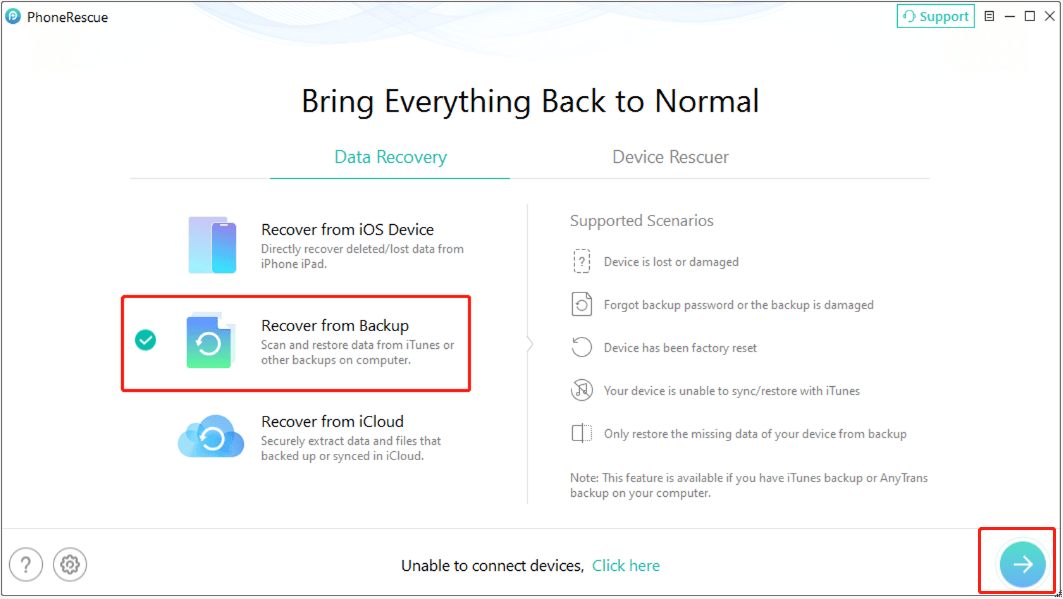
Step 3. Choose an iTunes backup
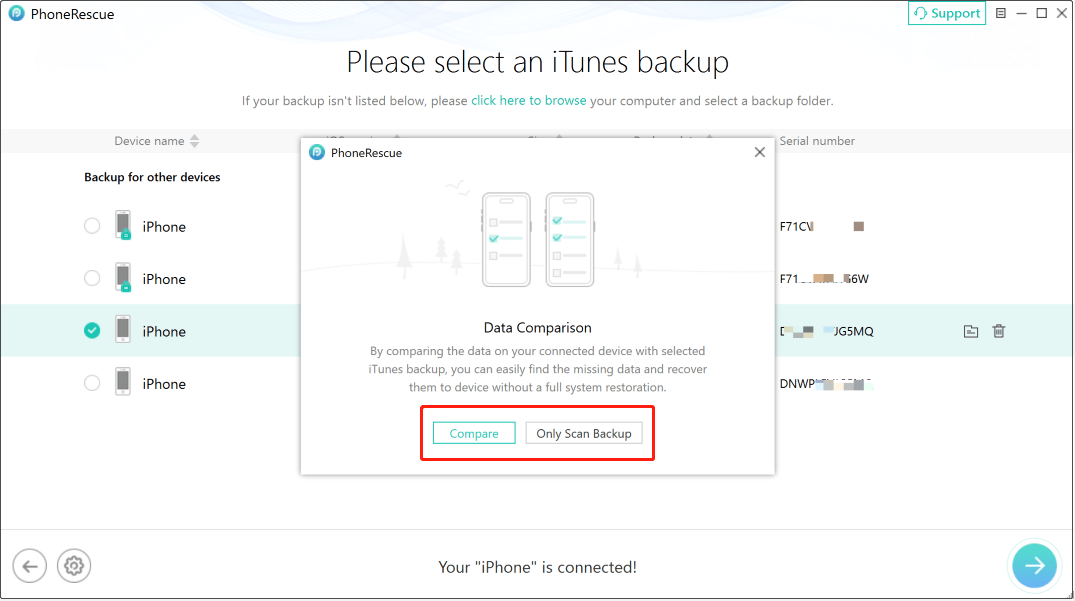
PhoneRescue for iOS will automatically detect the iTunes backups stored on your computer. Select the backup you want to scan based on its backup date.
After selecting an iTunes backup, PhoneRescue for iOS provides two scanning options:
- Compare: This option compares the data in the iTunes backup with the existing data on your iPhone. After comparison, PhoneRescue only shows files that are not currently available on your device.
- Only Scan Backup: This option scans the selected iTunes backup and displays all available data stored in the backup.
Choose the scanning mode based on your recovery needs.
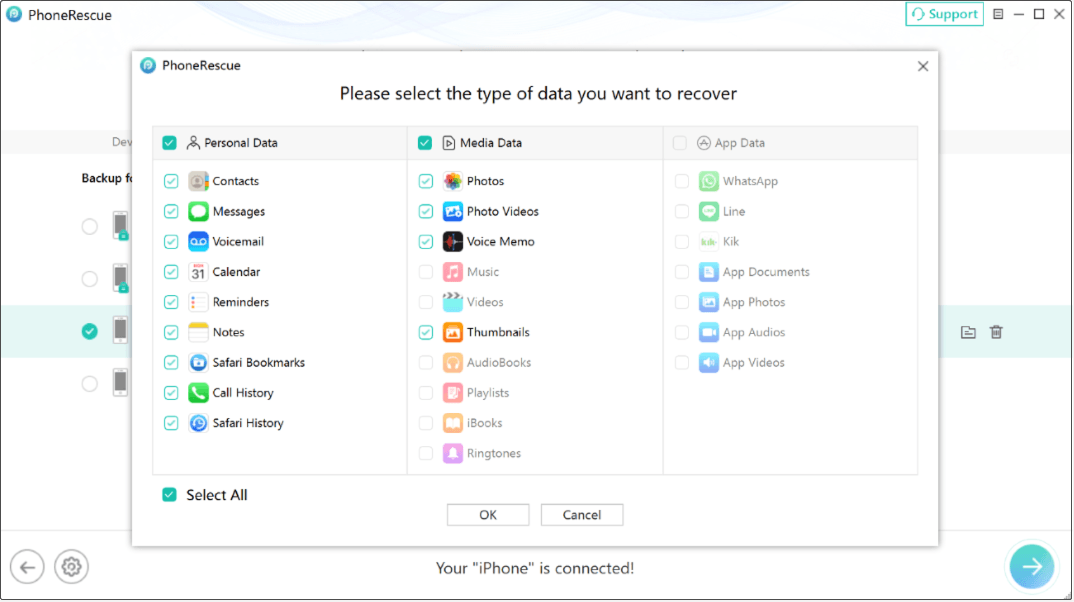
Step 4. Select the file types to scan
Choose the categories of files you want to recover, such as photos, messages, contacts, videos, notes, or other supported data types. PhoneRescue for iOS will start scanning the selected iTunes backup for available files.
Step 5. Recover selected files
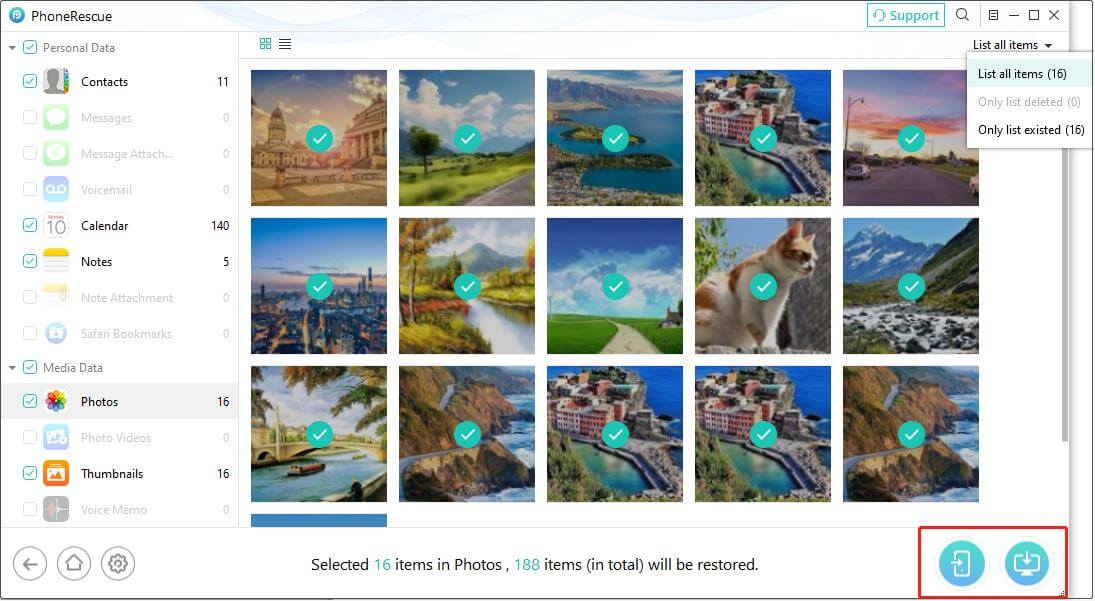
After the scan finishes, preview the found files and select the items you want to recover. Click Restore to device or Restore to computer to save the selected files.
2. Restore files from iCloud backup:
Step 1. Choose the recovery mode
On the main interface of the iPhone data recovery software, choose Recover from iCloud to proceed.
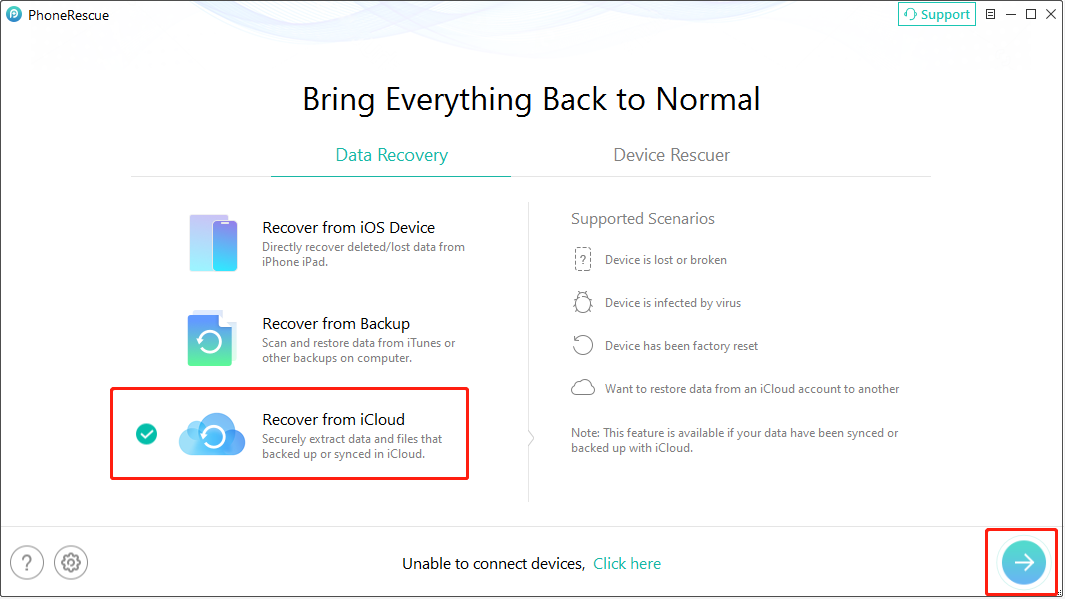
Step 2. Choose the file category
Sign in to iCloud with your account and password. Next, choose a category to recover your content from iCloud. Select iCloud Backup to scan for more types of data.
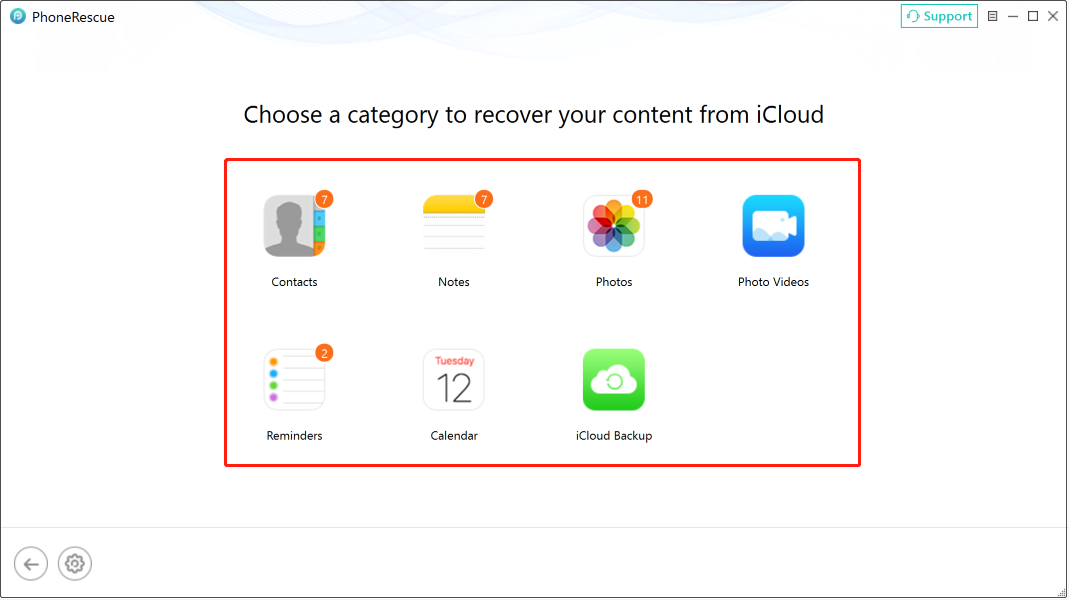
Step 3. Scan and recover files
Download the target iCloud backup and scan it for files. After that, preview the file contents and save the files you want to recover.
How to Avoid Data Loss on Your iPhone
Although we have iOS mobile recovery software, it is still important to take measures to keep your iPhone data safe. There are some suggestions for your reference.
- Make sure that you have made an iCloud backup and iTunes backup of all your important files before restoring your iPhone to factory settings or updating your device to the latest version.
- Keep on updating your iCloud backup and iTunes backup to make sure that you get the latest backup files.
For more information, you can see this post: How to back up your iPhone, iPad, and iPod touch.
Thanks to this powerful iCloud backup and iTunes backup technology, you can retrieve the lost and deleted important data at any time. So don’t forget to make full use of them.
Bottom Line
Factory resetting an iPhone erases all personal data and settings. If you have an iCloud or iTunes backup, you can restore your lost data after the reset.
Without a backup, recovering data after a factory reset is much more difficult because iPhone storage is encrypted and does not provide direct access to erased files.
Recover Photos after Factory Reset iPhone FAQ
You can connect your iPhone to your computer and then use iTunes to restore your iPhone from the iTunes backup.
You can also use PhoneRescue for iOS to restore your files selectively.
About The Author

Position: Columnist
Shirley holds a bachelor’s degree in English and has been an editor at the MiniTool Team for many years. She specializes in IT-related content, with a focus on data recovery, file backup, disk management, and other technical topics. She is committed to delivering clear, accurate, and practical solutions to help users resolve common computer issues.
User Comments :