
Microsoft Office Error Code 0x80048823
Some of you might receive such an error message: “Something went wrong. Please try again later. 0x80048823” when running Microsoft Office 365. It usually indicates there was a problem with the login process. If you are on the same boat, the following solutions might be helpful to you.
This error might lead to some significant disruption to your work or personal files. Therefore, it is highly recommended to create a backup of your important files. When you encounter the similar issue, you can restore your data with the backup image files easily. To do this, you can rely on a piece of PC backup software – MiniTool ShadowMaker. Click the following button to get the freeware now
MiniTool ShadowMaker TrialClick to Download100%Clean & Safe
How to Fix Microsoft Office 365 Error Code 0x80048823?
Fix 1: Check Microsoft Server
Chances are that the Microsoft servers are undergoing maintenance at the moment. In this case, you can either visit the official Microsoft Server status page or follow @MSFT365Status on Twitter to check if the servers are active.
Fix 2: Verify Microsoft Account
Make sure to enter the correct user ID and password when trying to launch Microsoft Office error code 365. Here’s how to verify your Microsoft account:
Step 1. Launch Office 365 from your desktop and hit Settings from the top right corner of the Home page.
Step 2. Go to Email and Accounts to see if your Microsoft account is synced properly.
Step 3. If it needs attention, hit Account and re-enter your account to see if error 0x80048823 in Microsoft Office 365 still exists.
Fix 3: Perform a Clean Boot
To exclude the interference of third-party software, it is a good solution to perform a clean boot. Here’s how to restrict certain third-party functionality on your PC:
Step 1. Press Win + R to open the Run dialog.
Step 2. Type msconfig and hit Enter to launch System Configuration.
Step 3. Under the Services tab, tick Hide all Microsoft services and hit Disable all.
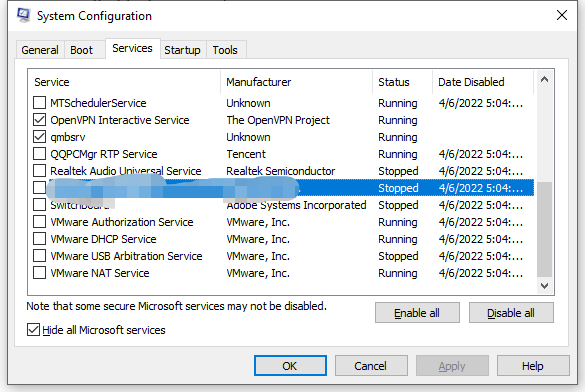
Step 4. Go to the Startup tab and hit Open Task Manager.
Step 5. Right-click on each program and choose Disable.
Step 6. Go back to System Configuration and hit Apply & OK to save the changes.
Fix 4: Disable VPN and Proxy Server
Another fix for Office 365 error code 0x80048823 is to disable VPN and proxy server. To do so:
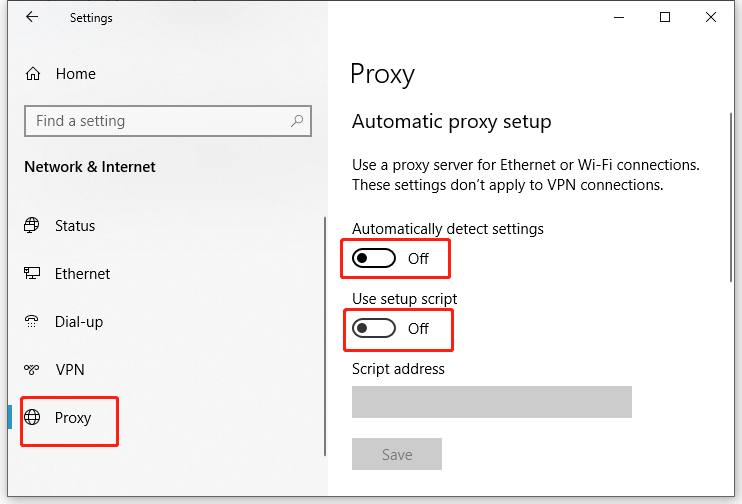
Step 1. Press Win + I to launch Windows Settings.
Step 2. In the settings menu, click on Network & Internet.
Step 3. Under the Proxy tab, disable Automatically detect settings and Use a proxy server.
Fix 5: Enable Administrative Access
If you don’t have enough administrative rights, enable administrative access with the steps below:
Step 1. Type cmd in the search bar to locate Command Prompt and right-click on it to choose Run as administrator.
Step 2. In the command window, type net user administrator /active:yes and hit Enter.
User Comments :