
Sign-in errors are very common in most applications, OneDrive is no exception. In this post from MiniTool Website, we will show you the causes and solutions to OneDrive sign in error 0x8004da9a. Without further delay, let's dive right into it!
OneDrive Sign in Error 0x8004da9a
OneDrive is a very handy way to store backups of your important data between different devices. Sometimes, when you are trying to launch OneDrive, you might be prompted by error code 0x8004da9a. Before applying the troubleshooting measure, you should figure out the main culprit of this error:
- Weak internet connection
- Corrupted OneDrive cache files
- Outdated OneDrive version
- Corruption in Microsoft Office installation
MiniTool ShadowMaker TrialClick to Download100%Clean & Safe
How to Fix OneDrive Sign in Error 0x8004da9a on Windows 10/11?
Fix 1: Check Internet Connection and OneDrive Server Status
Make sure you have a strong and stable connection to the internet because OneDrive relies highly on the internet connection. Also, OneDrive service might go down during the maintenance process, so you can go to the official OneDrive services status website to check if it is under the downtime.
Fix 2: Update OneDrive to the Latest Version
OneDrive also releases some app updates at times to fix some minor bugs or improve its performance, so you need to update OneDrive in time. Follow these steps:
Step 1. Launch OneDrive and click on the gear icon at the top-right corner.
Step 2. Go to Settings > About > the version link under About Microsoft OneDrive to open the Microsoft Support page.
Step 3. Click on Download OneDrive for Windows if any new version is available.
Fix 3: Reset OneDrive Cache
Although the cached data stored in OneDrive provides a faster and smoother user experience, it might also result in issues like OneDrive sign in error 0x8004da9a. In this case, you need to clear OneDrive cache.
Step 1. Press Win + R to open the Run dialog.
Step 2. Type the following command and hit Enter.
%localappdata%\Microsoft\OneDrive\onedrive.exe /reset
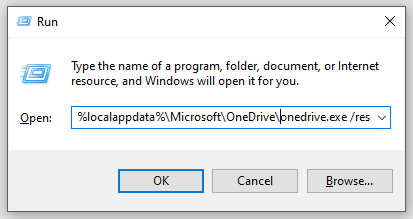
Step 3. Restart your computer and relaunch OneDrive to check if error 0x8004da9a disappears.
Fix 4: Repair Office
OneDrive is part of Microsoft Office, so incorrect installation of Office can also cause some errors in OneDrive. Here’s how to repair your Office:
Step 1. Press Win + R to open the Run box.
Step 2. Type appwiz.cpl and hit Enter to launch Programs and Features.
Step 3. Now, you can see all the applications and programs installed on your computer. Find Microsoft Office, hit it and click on Change.
Step 4. Tick Quick Repair and hit Repair.
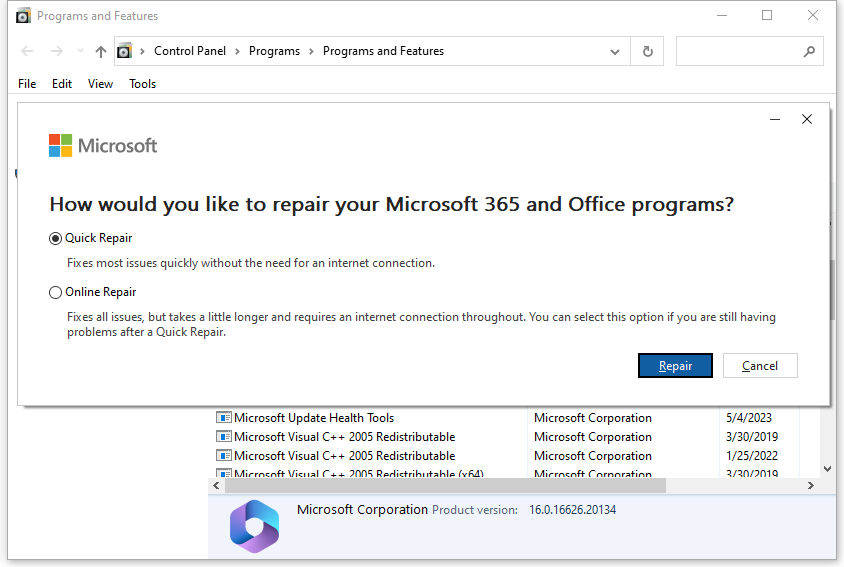
Step 5. If OneDrive error code 0x8004da9a after the completion, run the Online Repair tool.
Fix 5: Reinstall OneDrive
The last resort is to reinstall this application on your computer. Here’s how to do it:
Move 1: Uninstall OneDrive
Step 1. Run Command Prompt as an administrator.
Step 2. In the command window, type the following command and hit Enter to quit the OneDrive process.
taskkill /f /im OneDrive.exe
Step 3. Copy & paste the following command and don’t forget to hit Enter.
On a 64-bit system:
%Systemroot%\SysWOW64\OneDriveSetup.exe /uninstall
On a 32-bit system:
%Systemroot%\System32\OneDriveSetup.exe /uninstall
Step 4. After the process is done, close Command Prompt.
Move 2: Rename the OneDrive Folder
Step 1. Press Win + E to open File Explorer and open your profile folder (C: \User\%Username%\).
Step 2. Double-click on the OneDrive folder and rename it as OneDrive.OLD.
Move 3: Download and Install OneDrive
Step 1. Go to the official Microsoft webpage to download OneDrive.
Step 2. After downloading, click on the OneDrive icon and follow the installation wizard to install it on your computer.
Step 3. Sign in to your account and then move all your files from the OneDrive.OLD folder to the OneDrive folder.

Final Words
Now, you must remove OneDrive error 0x8004da9a from your computer. Which method works for you? We are looking forward to receiving your good news!
User Comments :