
What causes the error code 0xc190020e? How to fix the Windows update error 0xc190020e? This post from MiniTool will show you the solutions. In addition, you can use MiniTool program to get more free space for system partition.
Some users complain that they encounter the error code 0xc190020e when updating Windows. As a matter of fact, the error code 0xc190020e occurs because there is not enough space to install the updates.
Hence, in the following section, we will show you how to free up disk space so as to fix the Windows 10 upgrade error 0xc190020e.
Top 6 Ways to Solve Windows 10 Update Error 0xc190020e?
In order to fix the error code 0xc190020e, you can read the following solutions.
Way 1. Increase Disk Space Usage
In order to fix the Windows 10 upgrade error 0xc190020e, you can try to increase disk space usage.
Now, here is the tutorial.
- Right-click This PC on desktop and choose Properties.
- On the left panel, choose Advanced system settings.
- In the pop-up window, go to the System Protection tab.
- Then select the system volume under Protection Setting tab.
- Then choose Configure… to continue.
- In the pop-up window, drag the slider to increase the amount of space allocated to System Protection.
- Then click Apply and OK to confirm the change.
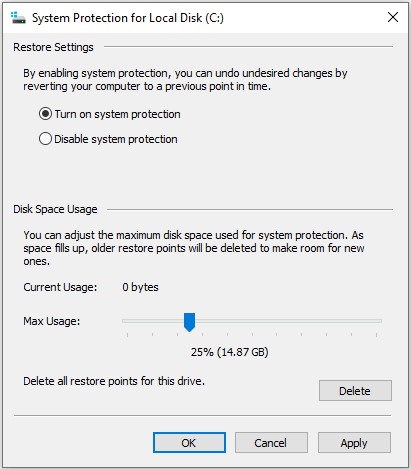
When it is finished, try reinstalling the Windows update again and check whether the error 0xc1900020e is solved.
If this solution is not effective, try other solutions.
Way 2. Delete $Windows.~BT
$Windows.~BT is a temporary folder that is created when updating the system with the responsibility of storing update logs and required files. This folder is hidden by default so that you can’t see it.
However, in order to fix the error code 0xc190020e, you can choose to delete the $Windows.~BT folder.
Now, here is the tutorial.
- Press Windows key and R key together to open Run dialog, then type C:\$Windows.~BT in the box and click OK to continue.
- Once you have accessed this folder, empty this folder.
When all steps are finished, try update again and check whether the error code 0xc190020e is solved.
Way 3. Run Disk Cleanup
In order to clean up the computer so as to fix the Windows 10 upgrade error 0xc190020e, you can try to use the Disk Cleanup utility to clean up unnecessary files.
Now, here is the tutorial.
- Type Disk Cleanup in the search box of Windows and choose the best-matched one.
- Then open it and select which drive you want to clean up. Then click OK.
- Disk Cleanup will begin to scan the hard drive.
- In the pop-up window, select the Temporary files. Then click OK to continue.
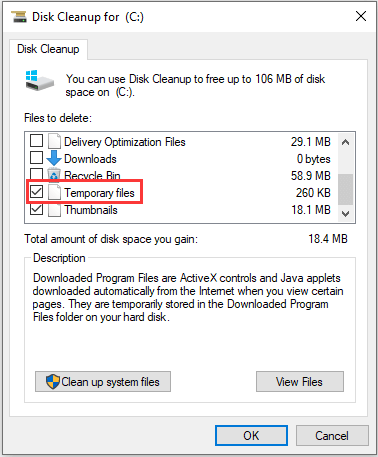
When it is finished, try reinstalling Windows update again and check whether the error code 0xc190020e is solved.
Related article: 9 Ways to Clean up Disk Space in Windows 10, #1 Is Excellent
Way 4. Uninstall Unnecessary Programs
In order to free up disk space, you can also choose to uninstall the unnecessary programs.
Now, here is the tutorial.
- Type Control Panel in the search box of Windows and choose the best-matched one.
- In the pop-up window, choose Uninstall a program under Programs to continue.
- In the pop-up window, right-click the unnecessary programs and choose Uninstall to continue.
After uninstalling the unnecessary programs, try installing Windows update again and check whether the error code 0xc190020e is solved.
Way 5. Modify the Registry
In order to fix the Windows 10 upgrade error 0xc190020e, you can choose to modify the registry.
Now, here is the tutorial.
- Press Windows key and R key together to open Run dialog.
- Type regedit in the box and click OK to continue.
- In the pop-up window, navigate to the Computer\HKEY_LOCAL_MACHINE\SOFTWARE\Microsoft\Windows\CurrentVersion\WindowsUpdate\OSUpgrade folder.
- Right-click the right-panel and choose New > DWORD (32-bit) Value.
- Then name it as the AllowOSUpgrade.
- Double-click it to change its value data to 1.
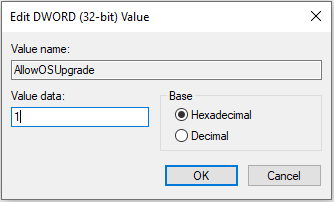
When all steps are finished, try installing Windows update again and check whether the error code 0xc190020e is solved.
Way 6. Extend System Partition
In order to expand disk space and solve the Windows 10 upgrade error 0xc190020e, you can choose to extend the system partition. To extend system partition, you can use the professional partition manager – MiniTool Partition Wizard.
MiniTool Partition Wizard enables you to extend system partition without data loss.
Now, here is the tutorial.
1. Click here to urchase MiniTool Partition Wizard and install it on your computer.
2. Launch it to enter its main interface.
3. Then choose Media Builder to create the bootable media.
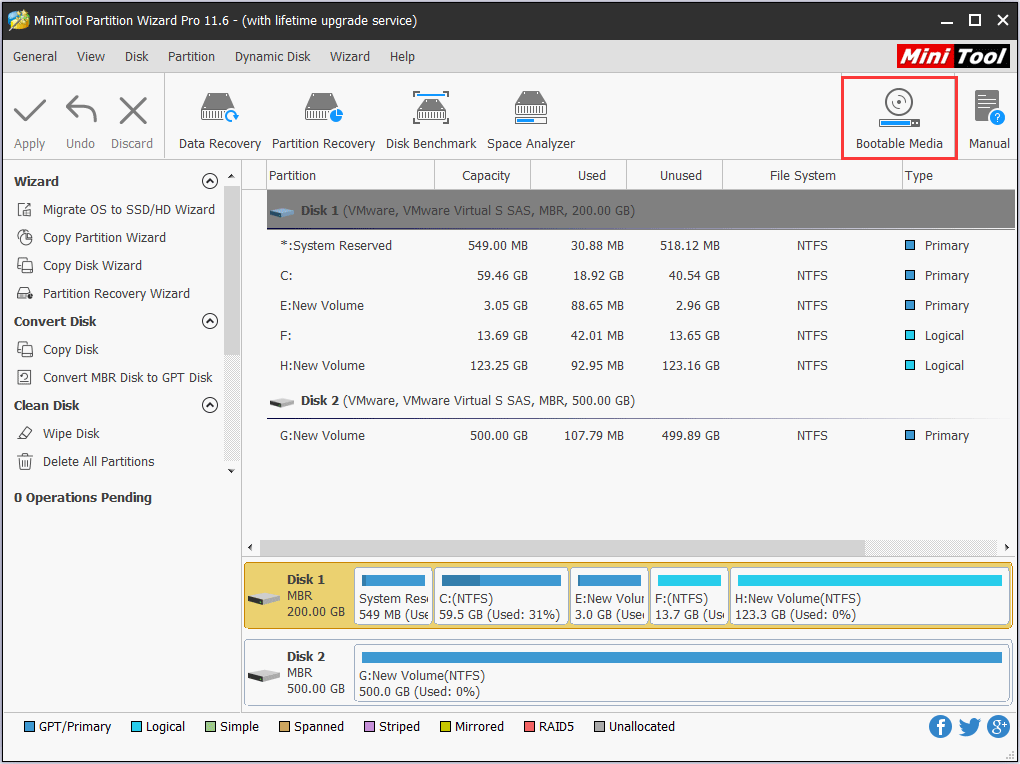
4. Then boot the computer from the bootable media.
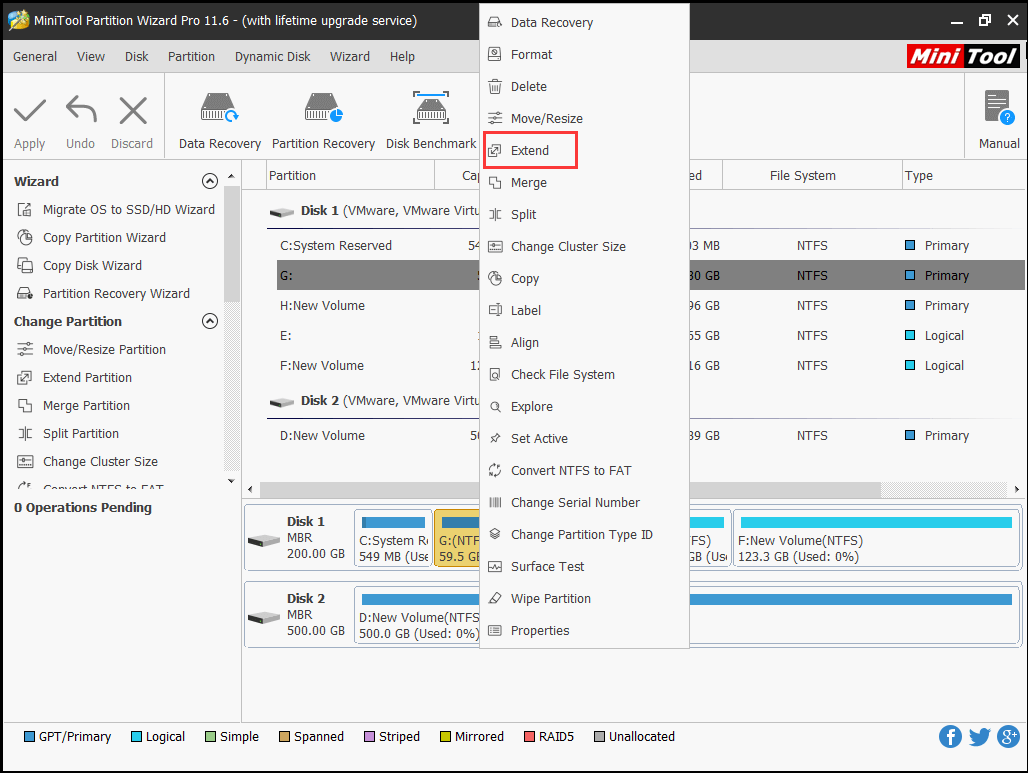
5. After that, select the system partition and choose Extend from the context menu to continue.
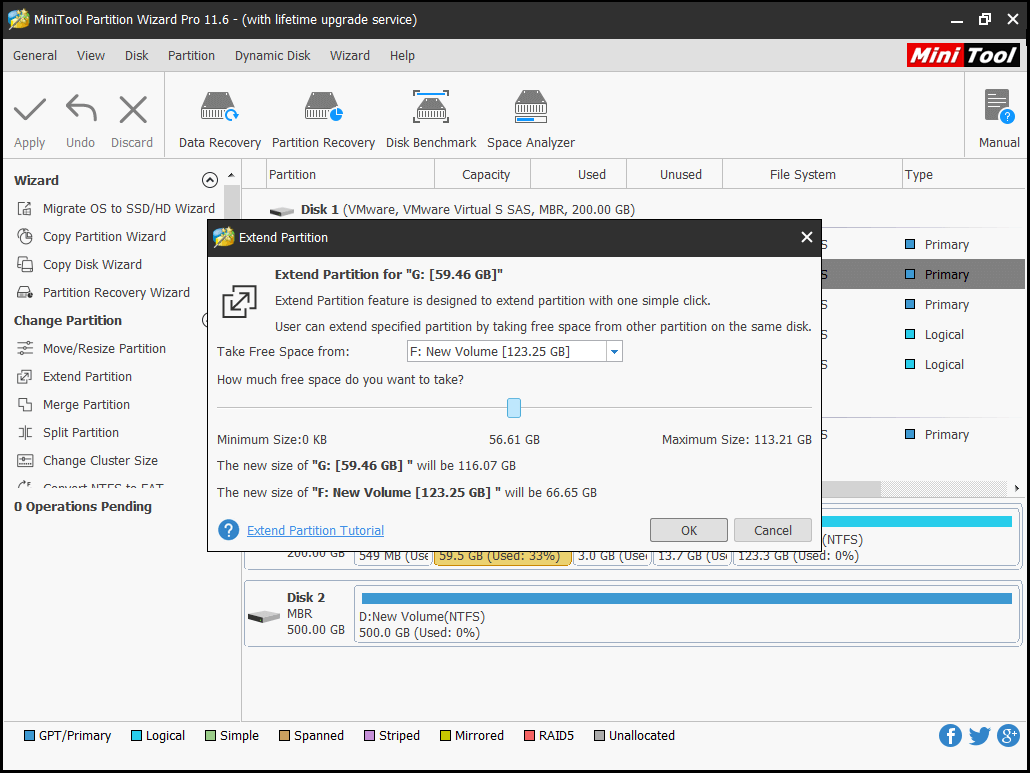
6. Then you can take free space from other partitions or the unallocated space and click OK to continue.
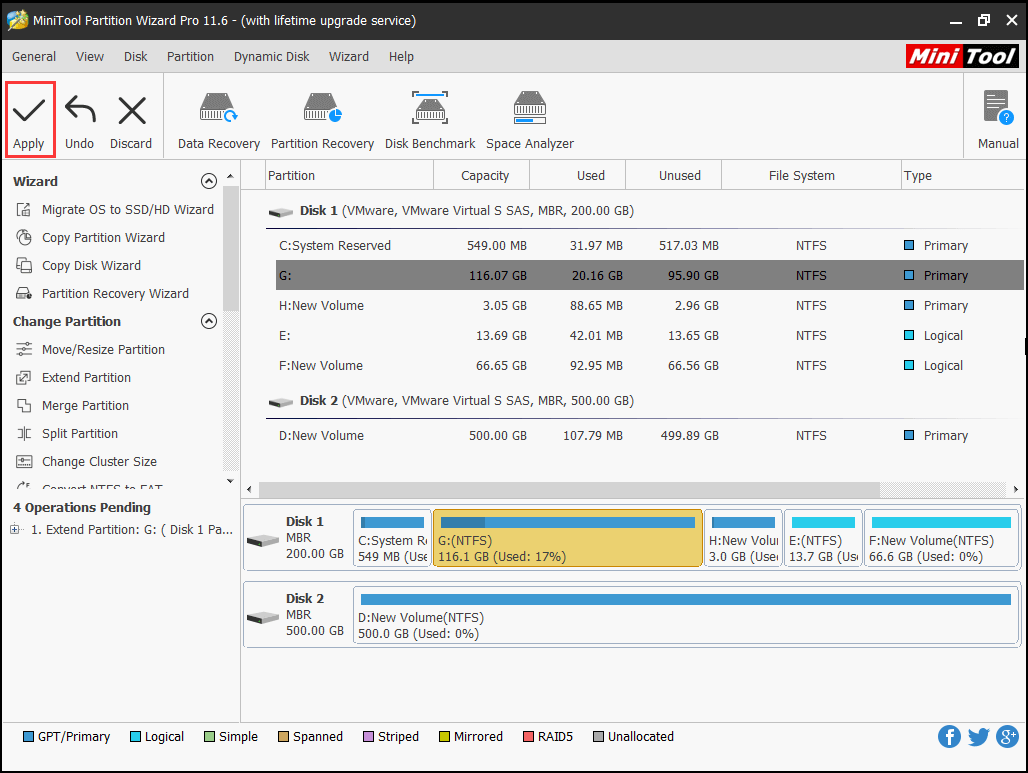
7. After that, you can see that the system partition has been extended. Click Apply to confirm the changes.
When all steps are finished, reboot your computer and try installing Windows update again, and check whether the Windows 10 update error 0xc190020e is solved.
Final Words
To sum up, this post has introduced that the Windows 10 upgrade error 0xc190020e is caused by the insufficient disk space on the hard drive. In addition, we have introduced 6 ways to fix this error code 0xc190020e. If you have any better solution to fix this error, please share it in the comment zone.
User Comments :