
What does code 100 mean in the Apex Legends? How to fix Apex Legends code 100? This post from MiniTool shows how to fix Apex Legends code 100 on PC, PS4 and Xbox One. In addition, you can visit MiniTool to find more Windows tips and solutions.
What Does Code 100 Mean in Apex Legends?
Some users reported that they come across the Apex Legends code 100 when playing it. This Apex code 100 error prevents them from being able to drop into games of Respawn Entertainment’s popular battle royale.
The Apex Legends code 100 is related to players being unable to complete their EA Account sign in, which is annoyed for players. In addition, EA has not yet noted the issue and much less acknowledged that they have their own fix coming in an update.
The Apex Legends code 100 may occur on PC, PS4 and the Xbox One. So, how to fix this code 100 Apex Legends?

Fixed – Apex Legends Code 100 on PC, PS4 and Xbox One
In this section, we will show you how to solve the Apex Legends code 100 on PC, PS4 and Xbox One.
Apex Legends Code 100 on PC
First of all, we will show you how to solve the Apex Legends code 100 on PC.
Now, here is the tutorial.
- Press Windows key and R key together to open Run dialog.
- Type ncpa.cpl in the box and click OK to continue.
- In the pop-up window, select the Internet connected to your computer and right-click on it.
- Then choose Properties.
- In the pop-up window, choose Internet Protocol Version 4 (TCP/IPv4) and click Properties to continue.
- Then check the option Use the following DNS server address.
- Input the Preferred DNS Server: 8.8.8.8
- Input the Alternate DNS Server: 8.8.4.4
- Then click OK to save the changes.
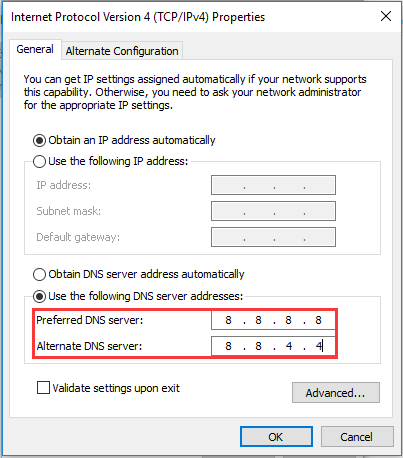
When all steps are finished, reboot your computer and re-launch the Apex Legends to check whether the Apex Legends code 100 is fixed.
Apex Legends Code 100 Xbox One
The Apex Legends code 100 also occurs on the Xbox One. So in the part, we will show you how to fix Apex Legends code 100 Xbox One. To fix this issue, you also need to change the DNS server.
Now, here is the tutorial.
- Open Xbox One.
- Then go to the Settings > Network.
- Then choose Advanced Settings and DNS settings.
- Then change the DNS settings to the following:
- Primary DNS: 8.8.8.8
- Secondary DNS: 8.8.4.4
- At last, save the settings.
When it is finished, re-launch the Apex Legends to check whether the Apex Legends code 100 is fixed.
Apex Legends Code 100 on PS4
The Apex Legends code 100 also occurs on PS4. This method is similar to the above ones, but they also a little difference.
Now, here is the tutorial.
- Open PS4.
- Go to Settings > Network > Set up Internet Connection.
- Select the Internet connection you used: WiFi or LAN cable.
- Click custom to continue.
- Change IP Address Settings to Automatic.
- Change DHCP Host Name to Do Not Specify.
- Change DNS Settings to Manual.
- Set the Primary DNS to 8.8.8.8
- Set the Secondary DNS to 8.8.4.4
- Then change MTU Settings to Automatic.
- At last, change Proxy Server to Do Not Use.
When all steps are finished, reboot the PS4 and re-start the Apex Legends and check whether the code 100 Apex Legends is removed.
Related article: Top 4 Solutions to Apex Legends Crashing on Windows 10/8/7
Final Words
To sum up, the Apex Legends code 100 may occur on PC, Xbox One and PS4. This post has shown how to fix Apex Legends code 100 in different situations. If you come across the same error, try these solutions. If you have any better idea to fix this problem, you can share it in the comment zone.
User Comments :