
Battlefield 4 (BF4) not launching is a common issue in Windows 10. If you play this game and find it won’t launch on your PC, don’t worry and you can go to read this post. MiniTool Solution will show you multiple useful ways to help you out.
Battlefield 4 Not Launching Windows 10
As a first-person shooter game, Battlefield 4 (BF4) is widely used by many users all over the world on Windows PCs, Xbox One, and PlayStation 4/5. Perhaps you are also a player among them.
However, this game doesn’t always function properly. According to reports, this game won’t launch when trying to open Battlefield 4. To be specific, when running this game on Steam or Origin, you are taken to the battle log website instead of loading the game and going to the game menu.
What if Battlefield 4 won’t load and launch in Windows 10? Don’t panic and go to the following part to look for some useful fixes.
How to Fix Battlefield 4 Not Launching
Run BF4 and Origin/Steam as an Administrator
This way can make sure you have necessary permissions to run this game properly since a lack of admin rights can lead to BF4 not launching.
Step 1: Go to C:\Program Files (x64)\Origin Games\Battlefield 4, right-click on the exe file of this game and choose Properties.
Step 2: Navigate to the Compatibility tab, tick the checkbox of Run this program as an administrator, and click Apply > OK.
Step 3: Right-click on your Steam or Origin client and choose Properties.
Step 4: Also check the box of Run this program as an administrator and save the change.
Change Game Properties
According to users, changing the game properties is a good solution to fix Battlefield 4 not launching on PC. If you install this game via Origin, follow the steps below.
Step 1: Launch Origin and go to My Game Library.
Step 2: Right-click on Battlefield 4 and choose Game Properties.
Step 3: Choose Battlefield 4™ (x86) from the When launching this game section and click OK.
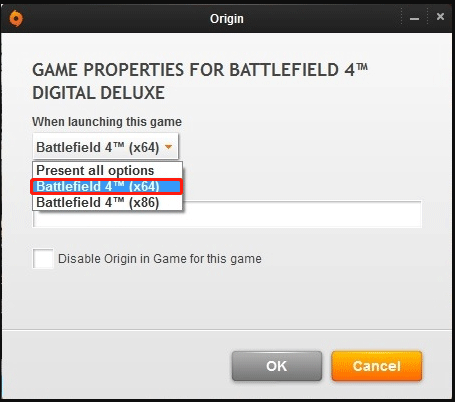
Step 4: Restart this game client and then change the game properties to Battlefield 4™ (x64).
Verify Integrity of Game Files
To fix Battlefield 4 not launching in Windows 10, you can try to verify the integrity of game files.
On Steam
Go to Library, right-click Battlefield 4, and choose Properties. Then, go to Local Files and click Verify integrity of game files.
On Origin
Go to My Games Library, right-click Battlefield 4, and choose Repair Game. This can automatically verify game files and replace missing or corrupt game files.
Upgrade Graphics Card Driver
If the graphics card driver is faulty, outdated, or corrupted, Battlefield 4 won’t launch on your PC. To fix this issue, you can try to upgrade the GPU driver. To do this work, the ways are various and you can find some in this related post – How to Update Graphics Card Drivers (NVIDIA/AMD/Intel).
Change Origin to Offline/ Online Mode
This is another useful solution that has been proved to be helpful.
Step 1: Launch Origin.
Step 2: Click Origin and choose Go Offline.
Step 3: Run Battlefield 4.
Step 4: When the screen says you are offline, go to the Origin menu and choose Go Online.
Step 5: Try to launch this game again.
Bottom Line
In addition, you can also try to uninstall this game via Steam or Origin and reinstall it to see if your issue is solved. After trying these fixes, Battlefield 4 can run properly. If you are running into Battlefield 4 not launching, take action!
About The Author

Position: Columnist
Vera has been working at the MiniTool Team for over 10 years as a technical editor and content writer. She mainly focuses on disk and partition management, data recovery, Windows backup and restore, and PC troubleshooting. Through in-depth software testing and hands-on experience, she has helped users solve a wide range of computer problems and better protect their data on Windows devices.
User Comments :