
If you want to fix the bioenrollmenthost.exe error, this article will introduce you three useful methods to do this work - going back to the previous state of Windows, running System File Checker and performing a Windows Update.
Fix the Bioenrollmenthost.exe Error
Maybe you are encountering an application error – faulting application name: BioEnrollmentHost.exe with the faulting module name: msvcrt.dll, this article is going to help you to fix this issue.
The bioenrollmenthost.exe fault always occurs when you set up the Facial Recognition system in Microsoft Windows 10. It is also possible that this error is due to driver malfunction or Windows update. Generally, if you don’t fix this error, Windows won’t start.
The following part will show you some methods to repair bioenrollmenthost.exe error.
Go Back to the Previous State of Windows to Fix the Bioenrollmenthost.exe Error
If the bioenrollmenthost.exe error starts to occur after you upgrade to the latest Windows operating system build, the problem may be Windows build related, but not your system.
Step 1: Click the Start button and then click Settings.
Step 2: Choose Update and Security.
Step 3: Click Recovery and select Get Started under Go Back to the previous version of Windows.
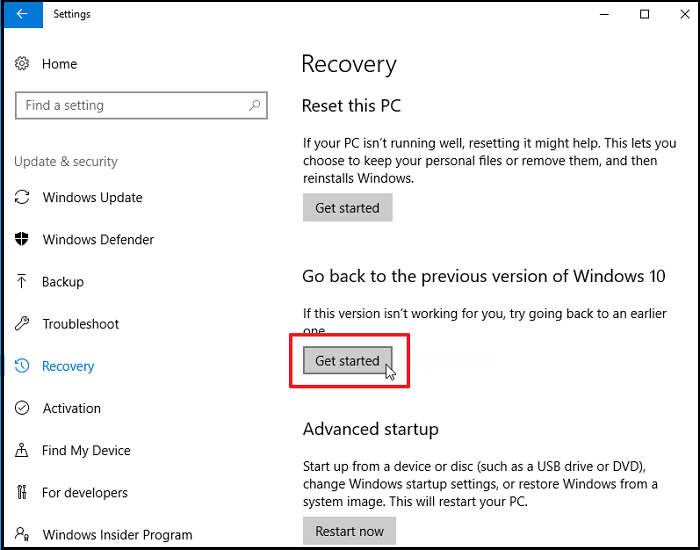
After you finish restarting, check if you can set up Biometric sign-in feature.
Run System File Checker (SFC) to Fix the Bioenrollmenthost.exe Error
If Windows crashes or some Windows functions aren’t working, you can use System File Checker to scan Windows and repair missing or corrupted system files.
Thus, you can also try to run SFC tool to repair your missing or corrupt BioEnrollmentHost.exe files.
Step 1: Type cmd in the search bar, right-click Command Prompt and click Run as administrator.
Step 2: If you are running Windows 10/8.1//8, type the command DISM.exe /Online /Cleanup-image /Restorehealth and press Enter to run the inbox Deployment Image Servicing and Management (DISM) tool firstly. If you are running Windows 7/Vista, you should skip to Step 3.
Step 3: Type sfc /scannow and press Enter.
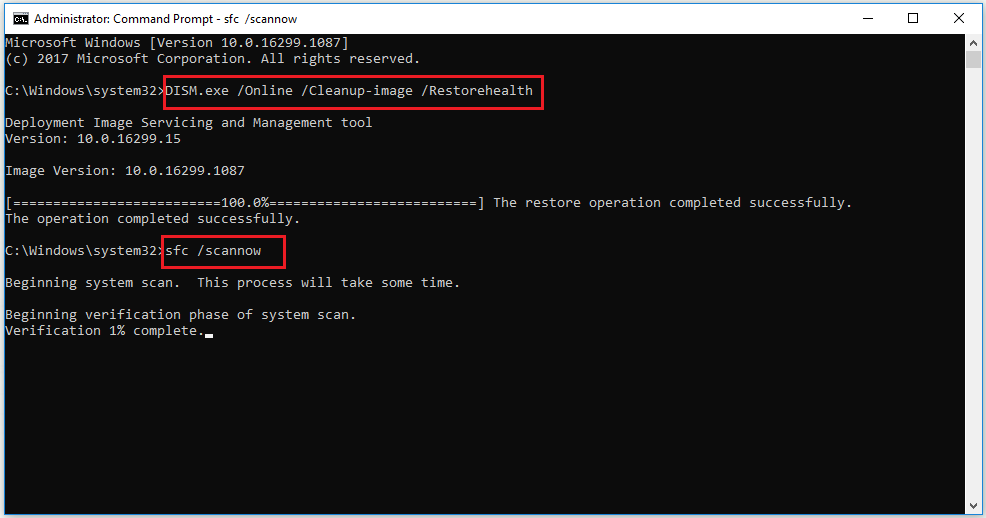
After you complete the process above, SFC will scan for BioEnrollmentHost.exe and other system file issues.
If this method fails, please try the method below.
Update Camera Driver to Fix the Bioenrollmenthost.exe Error
If Windows 10 Face Recognition setup crashes, you can also try to update camera driver to fix this setup issue in Windows 10.
Step 1: Press Windows Key + R, then type devmgmt.msc and press OK to enter the Device Manager interface.
Step 2: In the Device Manager interface, click Cameras to expand it.
Step 3: Right-click your camera driver and choose Update driver.
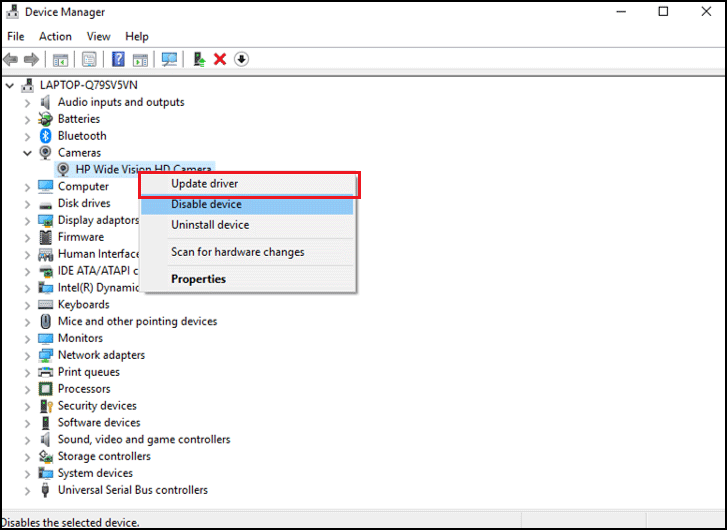
Step 4: Select Search automatically for updated driver software to continue.
Wait patiently, Windows will automatically look for any pending updates and install them. After this process is finished, you need to reboot your system, and then bioenrollmenthost.exe msvcrt.dll error will not occur.
Bottom Line
To sum up, this article offers you 3 useful methods to repair the bioenrollmenthost.exe error. These three methods are going back to the previous state of Windows, running System File Checker and performing a Windows Update. If you are also bothered by this issue, you can try the methods above.
User Comments :