
Find Citizen Sleeper 2: Starward Vector Save File Location
Citizen Sleeper is a low-intensity, minimalist kind of chill-hop sci-fi game. The game puts you in the role of a Sleeper – a cybernetic artificial human that had previously been serving out a term of indentured servitude in a hazardous environment, with the consciousness of an actual human uploaded into their brain.
On January 31st, a sequel to it, Starward Vector was released for multiple platforms. If you wonder about its save file location on PC for protecting your game achievements, follow the steps below to locate it now.
Option 1. Via File Explorer
Step 1. Press Win + E to open File Explorer.
Step 2. Type the following path into the address bar, and hit Enter.
C:\Users\username\AppData\Local\Jump Over the Age\Citizen Sleeper 2
The saved game files are located in your unique Steam ID folder and are in the .dat file format.
If you are not seeing the save folder, it could be due to the AppData folder being hidden by default to protect your data from unexpected errors. You can go to the View tab and uncheck Hidden items in the File Explorer window.
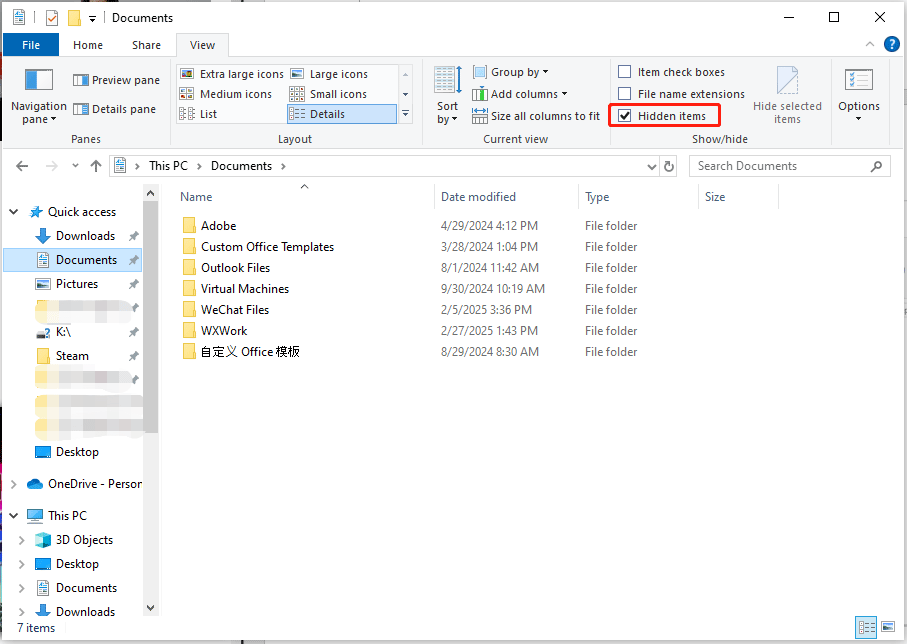
After that, go to the specific path again and you should see your Citizen Sleeper 2: Starward Vector save file location.
Option 2. Via Run
Step 1. Press Win + R to launch the Run box.
Step 2. Type %USERPROFILE%/AppData/LocalLow/Jump Over the Age/Citizen Sleeper 2 and press Enter.
Back up Citizen Sleeper 2: Starward Vector Saves
When it comes to backup files to avoid Citizen Sleeper 2: Starward Vector save file missing, you should never miss a powerful backup software – MiniTool ShadowMaker. It’s a dedicated tool for making backups of systems, files, folders, partitions, and disks.
For frequently updated game files, you can set up an automatic backup so that you don’t need to add the new game data manually. By the way, MiniTool ShadowMaker offers a 30-day free trial for those who are downloading it for the first time.
Now, let me show you how to use it to back up your Citizen Sleeper 2: Starward Vector save files.
Step 1. Click on the download button below to install MiniTool ShadowMaker.
MiniTool Partition Wizard FreeClick to Download100%Clean & Safe
Step 2. Tap on Keep Trial to access its main interface.
Step 3. Head over to the Backup page > select the SOURCE module > click on Folders and Files. Then you can choose the files you want to protect.
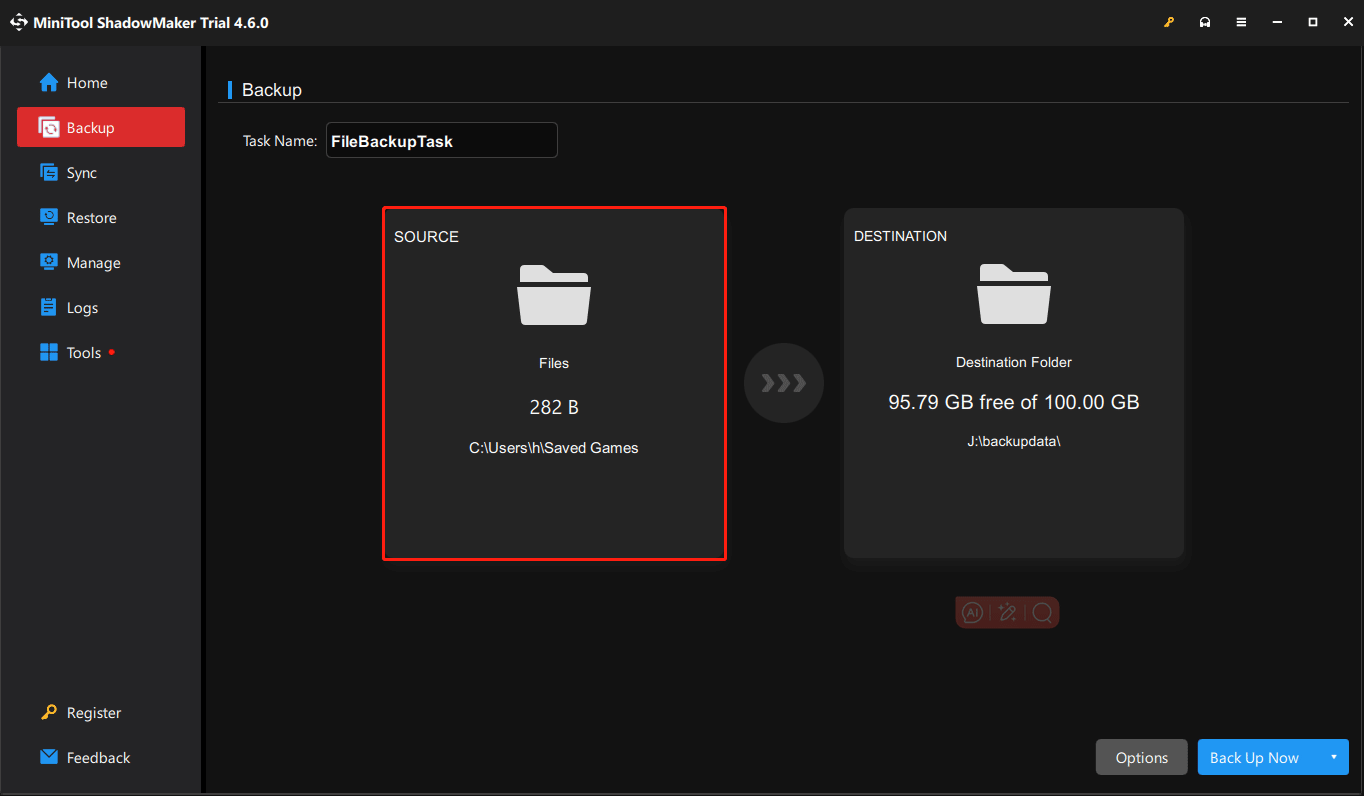
Next up, click on OK > go to choose the DESTINATION module > select a location to hold the backup task.
Step 4. Click on Back Up Now to carry out the backup task at once.
Step 5. If you want to restore the backup files, go to the Restore tab which allows you to restore your game saves.
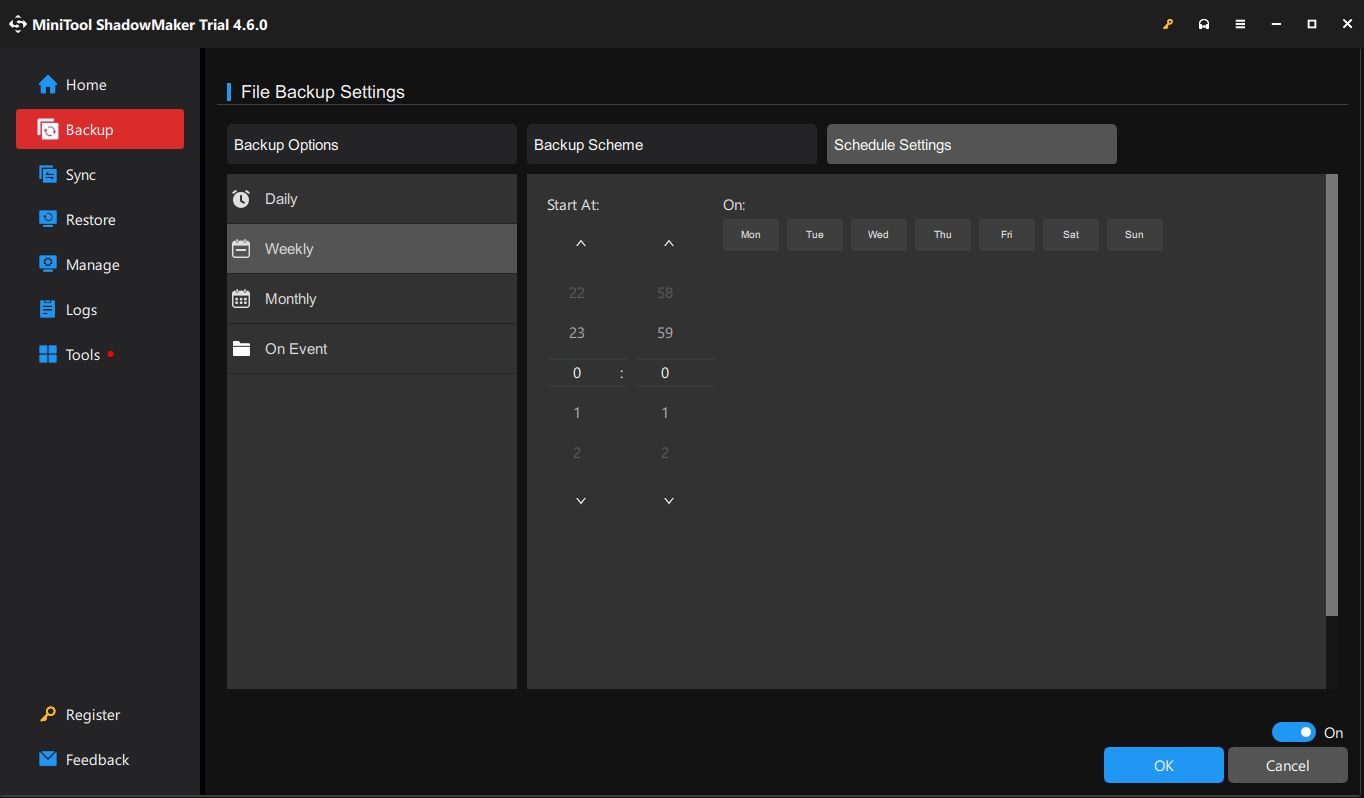
Related article: How to Backup Game Saves on PC? See the Step-by-Step Guide!
Wrapping Things Up
How to locate and back up Citizen Sleeper 2: Starward Vector save file location? Now, you should have a clear understanding of the steps. Appreciate your support!
User Comments :