
It can be frustrating when the sign-in window appears in the middle of your screen constantly and you are not sure how to get rid of it. You can easily click off it, but that doesn’t mean it won’t prompt again later. What can you do? This post on MiniTool will explain and show you how to fix the continuous Sign-In Required pop-up.
Continuous Sigh-In Required Pop-up on Windows
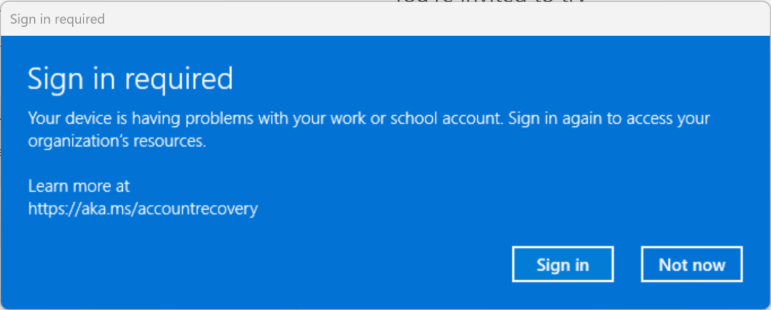
Help: I have a persistent pop-up stating "Sign in required, my device is having an issue with a work or school account" There was an old work account that had me log in to Go Daddy, and that is where this prompt ends up if I follow thru with it. I am no longer employed with the company and I have no reason to ever need it again. This thing is messing up my scripts and blocking the movies I'm watching - anyone have a solution??learn.microsoft.com
If your PC keeps popping up with a blue Sign-In Required despite Windows indicating that your account is already connected, it indicates there’s an issue with the connection between your device and your organization-linked account.
This pop-up appears when Windows or an application attempts to access the account but fails due to insufficient access rights. This problem commonly be triggered by outdated login details or modifications in the account permissions established by the organization. Below is the detailed information on this issue:
Having pinpointed the likely causes and the detailed information on this issue, let’s dive into the methods to address the continuous Sign-In Required pop-up.

How to Fix Continuous Sign-In Required Pop-up
Workaround 1. Resetting the Windows Credential Manager
If the credentials for your work or school account are outdated, corrupted, or invalid, Windows may not authenticate the account correctly, causing the continuous “Sign-in Required” pop-up. Deleting these saved credentials allows Windows to ask for new authentication information, which can fix the problem.
Step 1. Type Control Panel in the Windows Search bar and press Enter.
Step 2. In the new window, go to User Accounts > Credential Manager.
Step 3. In the Manage your credentials section, select Windows Credentials. This part includes login information for work or school accounts, Microsoft services, and various applications.
Step 4. Find the entries associated with your Work or School Account, Office 365, Azure AD, or Intune. Choose each relevant credential and click Remove.
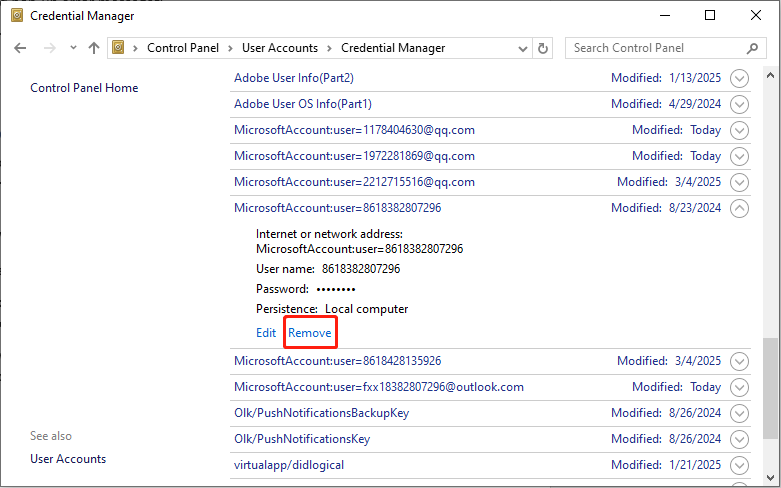
Step 5. In the pop-up window, click the Yes button to confirm the action.
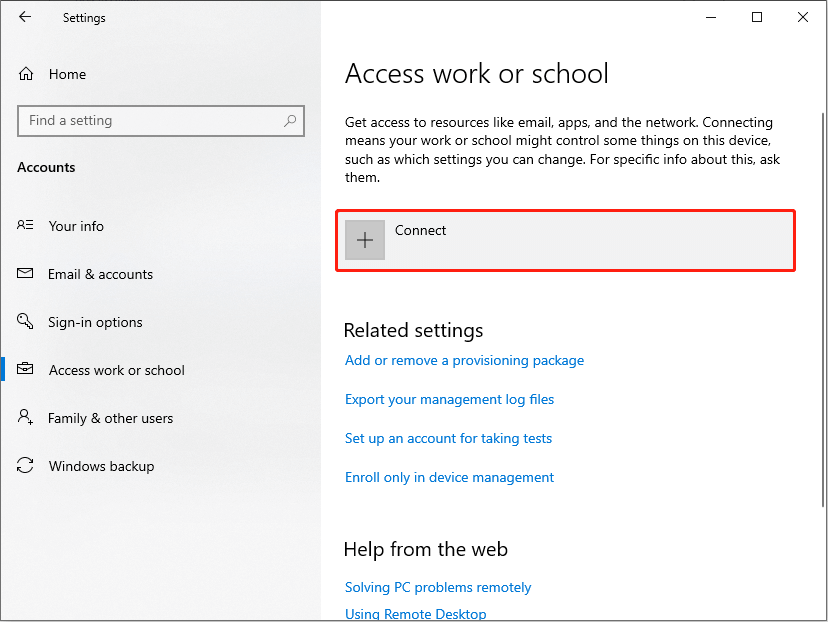
Step 6. Reboot your computer, then navigate to Settings > Accounts > Access work or school and log in once more. This enables Windows to re-establish a correct connection with your account.
MiniTool System Booster TrialClick to Download100%Clean & Safe
Workaround 2. Re-login Your Work or School Account
The easiest and most efficient method to resolve the continuous Sign-in Required pop-up is to reconnect your work or school account after it has been disconnected from the system. Although the account seems to be linked, the pop-up continues to appear due to a misunderstanding between the device and the account. By signing in again, you can refresh the connection and fix the problem. Here’s the way to do it:
Step 1. Press Win + I to open Windows Settings.
Step 2. Navigate to Accounts > Access work or school.
Step 3. If your account appears on the list, choose Manage your account and log in to update the connection. Alternatively, click Disconnect to eliminate the account, and then click Connect to sign in again and restore the connection.

Workaround 3. Sign out of Your Account in Word or Outlook
Some users reported encountering the continuous Sign-In Require pop-up when they use Outlook or Work. Therefore, consider signing out of your account in Word or Outlook to fix this problem and changing the Outlook security settings. By doing so, you can refresh your session and potentially eliminate the recurring prompt, allowing for a smoother and uninterrupted experience while using these programs.
MiniTool ShadowMaker TrialClick to Download100%Clean & Safe
Step 1. Navigate to File > Account.
Step 2. Press Sign out (the tab is referred to as Account in Outlook).
Step 3. Go to File > Info > Account Settings.
Step 4. Click Account Settings, then select the Account Settings… option from the drop-down menu.
Step 5. Click Change… located on the Email tab.
Step 6. Click on More Settings….
Step 7. Choose the Security tab and uncheck the option that says Always prompt for logon credentials.

Final Words
This post offers three solutions to fix the continuous Sign-In Require pop-up issue on Windows. Hope everything can be useful for you.
User Comments :