
What is Copilot Designer? Why are prompts blocked? How to resolve Copilot Designer blocked prompt? If you are confused about this issue like me, this guide from MiniTool shares some insights with you.
What Is Copilot Designer?
Copilot Designer, previously called Bing Image Creator, is an AI-powered tool integrated into Microsoft Designer that helps you effortlessly create professional quality social media posts, invitations, digital postcards, graphics, and more.
However, recently, some users have reported that they are encountering an error message – “This prompt has been blocked”. Why would they confront this issue?
What’s the Cause of Copilot Designer Blocked Prompt?
In order to restrict the generation of inappropriate, violent, or sexual imagery, Microsoft makes stringent review standards. When your behavior or words trigger the policies, it will throw up some warnings. For instance,
- Inappropriate, vulgar, violent, or sexual content
- Politically or socially sensitive or controversial topics like “pro-choice” or “pro-life”
After the first understanding of the error, this guide is about to walk you through a list of solutions to it.
How to Solve the Prompts Blocked?
Solution 1. Do Not Use Inappropriate Expression
First, you should check your wording and make sure they are not violent, sexual, or controversial. Try to use explicit phrases and avoid ambiguous words since a few alternative phrases can make a world of difference.
Solution 2. Wait a Minute
Sometimes, frequently switching between tabs, refreshing repeatedly, or juggling requests simultaneously can overload the AI. It might respond with delays or even repetitive outputs. To reduce such cases, you’d better give the AI more time to process it after entering your needs, not refresh the page continuously, change to another tab and be patient.
Solution 3. Clear Browsers’ Cache
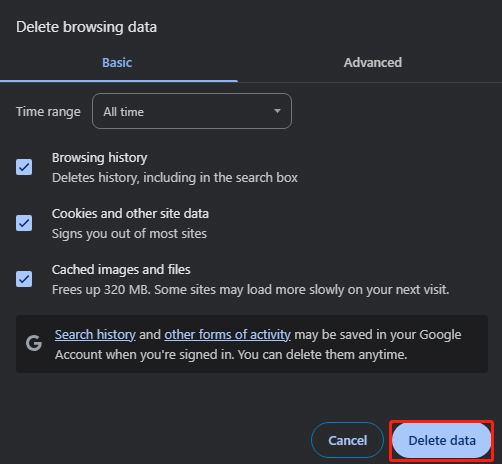
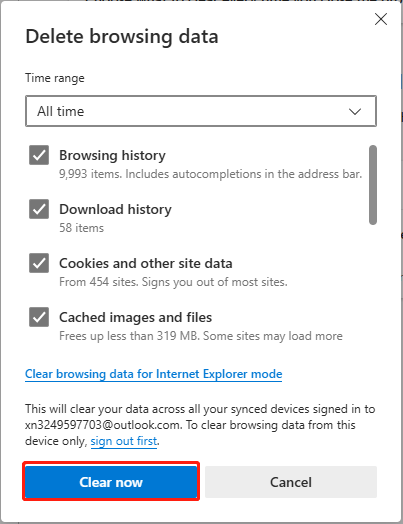
Tidying up your browsers’ cache may be a good idea as certain corrupted cache can interfere with the communications between the browser and the AI tool and cause Copilot Designer blocked prompt. Let’s see how to clear browser cache:
For Chrome Google:
Step 1. Go to Chrome > click the three-dot icon > select Settings from the drop-down menu.
Step 2. Tap on Privacy and security > Delete browsing data > set the Time range to All time.
Step 3. Check all boxes (browsing history, cookies, cached images, files) > click on Delete data.
For Microsoft Edge:
Step 1. Launch Edge > open the three-dot menu > choose Settings.
Step 2. Go to Privacy, search, and services > Clear browsing data > Choose what to clear.
Step 3. Change Time range to All time > choose all boxes (browsing history, cookies, cached images, files) > hit Clear now.
Solution 4. Log Out and Log Back in
Sometimes, a simple log-in and log-out can do the trick in resetting any session-related glitches that might trigger the blocked prompt error. Completely exit the Copilot Designer and then sign in to your Microsoft again.
After that, check if the error message still pops up. If this way doesn’t work, try the next one.
Solution 5. Create a New Local Account
If your user profile file is damaged or misconfigured, this may cause Copilot Designer blocked prompt or other potential issues. For this reason, creating a new local account on Windows might work like magic. Follow the steps below:
Step 1. Press Windows and I keys to bring up Settings.
Step 2. Navigate to Accounts > choose Family & other users > click on Add someone else to this PC under Other users.
Step 3. In the new window, click I don’t have this person’s sign-in information > Add a user without a Microsoft account.
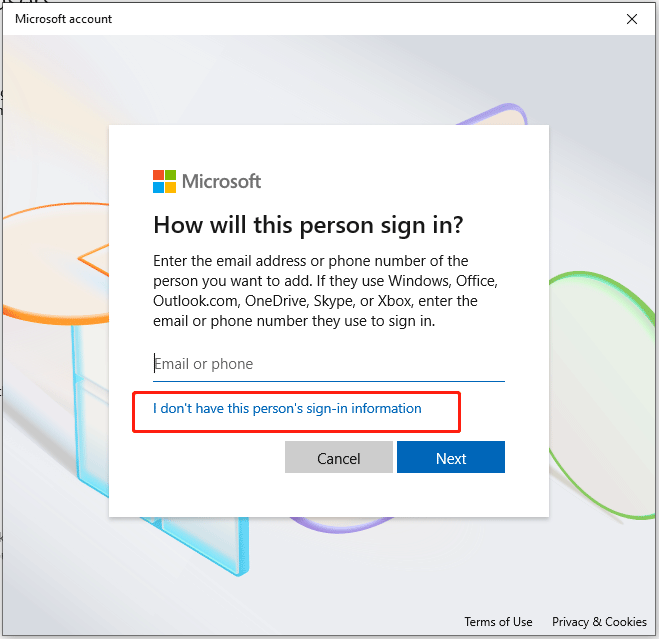
Step 4. Enter your new credentials and follow its on-screen wizard to complete.
When finishing, log in with the new local account and launch Copilot Designer to see if the prompt persists.
MiniTool ShadowMaker TrialClick to Download100%Clean & Safe
Bottom Line
Now, you should be free from the Copilot Designer blocked prompt problem after trying these methods in this guide. If they don’t work, then maybe you need to report to Microsoft support.
User Comments :