
When you use Firefox, you may encounter some errors, such as “Corrupted Content Error” or “Network Protocol Error”. If you encounter the error, don’t worry, you can read this post from MiniTool to find some feasible methods to fix it. Now, keep on your reading.
When you try to open a few specific websites in Firefox, you may receive the Corrupted Content Error message. The error message is that “The site at [URL] has experienced a network protocol violation that cannot be repaired”. Now, read the following part to find some methods to fix it.
Method 1: Check If the Webpage Is Down
When the website is down, the Firefox Corrupted Content Error may appear. Then, the first thing you need to do is to check if the website is down or not. To do that, open the “Is It Down Right Now” website in a browser. Then enter the website’s URL and click the Check button. Now, the server status check will you if the website is down or not.
Method 2: Hard Refresh the Webpage
If the website isn’t down, then you can try to hard refresh the webpage to fix Network Protocol Error Firefox. You need to press the Ctrl + F5 keys at the same time in Firefox to hard refresh the page. After that, you can check to see if the Gmail Corrupted Content Error persists.
Method 3: Clear Firefox’s Cache
Then, you can try to clear Firefox’s cache to fix the Corrupted Content Error. Now, follow the steps below to do that:
Step 1: Open the Firefox browser, click the Options icon at the upper-right corner and choose Privacy & Security.
Step 2: Scroll down to find the Cookies and Site Data section, and click the Manage Data button.
Step 3: Select the target site, click Remove Selected, and click the Save Changes button. Click Yes in the pop-up window to clear the cache for this site.
Now, check to see if the Corrupted Content Error has been fixed. Maybe you are interested in this post – How to Clear Cache for One Site Chrome, Firefox, Edge, Safari.
Method 4: Clear the DNS Cache
If there is a corrupt local DNS cache, then the Corrupted Content Error will occur. Therefore, you can try to clear the DNS cache to fix the error. Here is the tutorial:
Step 1: Type cmd in the Search box and right-click Command Prompt to choose Run as administrator.
Step 2: Click Yes to open the Command Prompt window.
Step 3: Type ipconfig /flushdns and then press the Enter key.
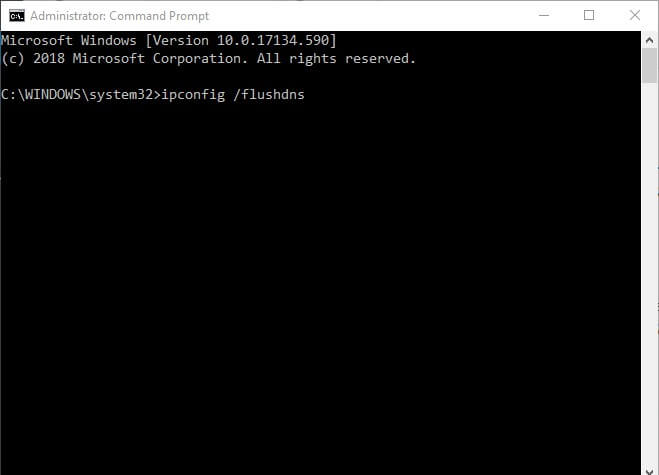
Step 4: Wait for the process to complete successfully until you see a message saying that Windows IP Configuration. Successfully flushed the DNS Resolver Cache.
Now just relaunch Firefox to check whether the Corrupted Content Error is gone.
Also see: How to Flush DNS Resolver Cache in Windows 10/8.1/7
Final Words
To sum up, this post has introduced 4 ways to fix the Corrupted Content Error. If you have come across the same error, try these solutions. If you have any better ideas to fix the error, you can share it in the comment zone.
User Comments :