
This post introduces what digital TV tuner device registration application is, how to deal with ehPrivJob.exe high usage, and whether you can remove digital TV tuner device registration application on Windows 10. If you need a professional data recovery software, disk partition manager, system backup and restore software, video editor, video converter, video downloader, etc. you can turn to MiniTool software.
What Is Digital TV Tuner Device Registration Application?
Digital TV Tuner Device Registration application is a scheduled task that is a part of the Windows Media Center. ehPrivJob.exe is the main process of Digital TV Tuner Device Registration application. It is used to detect digital cable tuners that may be attached to a computer.
Generally you don’t need to remove Digital TV Tuner Device Registration application or the ehPrivJob.exe process.
However, some third-party antivirus software indicate that Digital TV Tuner Device Registration application is slowing down the Windows 10/8/7 computer. The ehPrivJob.exe may affect the boot up time.
Can You Remove Digital TV Tuner Device Registration Application?
If ehPrivJob.exe is resource-consuming and you don’t need to use the TV tuning feature, you can remove it. But if you need to use TV turning when you watch TV channels on your PC, then you should not remove Digital TV Tuner Device Registration application.
To determine if the Digital TV Tuner Device Registration application consumes high system resources, you can use Task Manager.
- You can press Ctrl + Shift + Esc keyboard shortcut at the same time to open Windows Task Manager.
- Click Process tab, and look for if there is a process named ehPrivJob.exe or Digital TV Tuner Device Registration application.
- If you find it, you can check the CPU and Memory usage of this application. If it uses much CPU and Memory of your computer, you can consider to remove it.
How to Remove Digital TV Tuner Device Registration Application
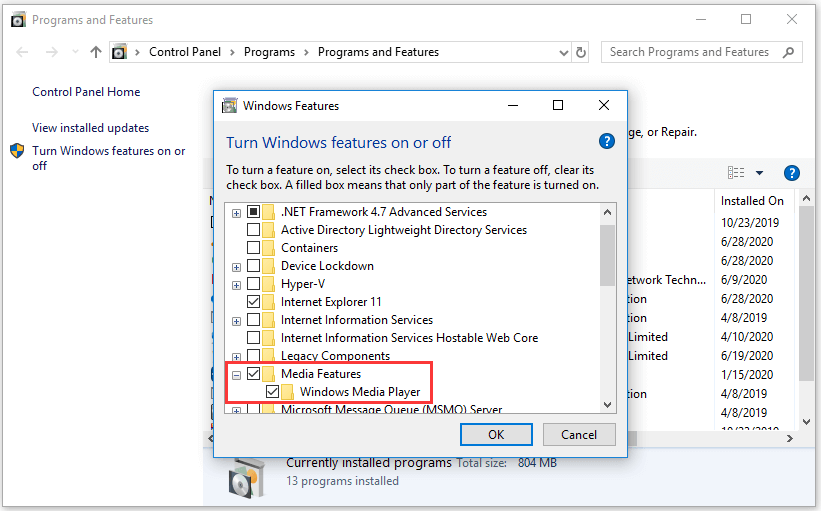
- Press Windows + R, type cpl in Run dialog, and press Enter to open Programs and Features window.
- Next you can click Turn Windows features on or off in the left panel.
- Click Media Features and uncheck Windows Media Player and Media Features. Click OK to save the changes.
If You Want to Recover Lost or Delete Data
If you want to recover deleted files or lost data on Windows 10 or other devices, you can use a free data recovery software.
MiniTool Power Data Recovery is a professional data recovery software compatible with Windows 10. It allows you to recover any deleted/lost files from Windows PC or laptop, external hard drive, SSD, USB pen drive or flash drive, SD card, memory card, and more.
This free data recovery program helps you deal with various data loss situations like system crash, malware/virus attack, disk error, etc. Intuitive interface and 100% clean.
You can download and install MiniTool Power Data Recovery on your Windows 10 computer, and follow the easy steps below to recover lost/deleted data.
To recover data from external hard drive, you need to connect it to your computer at first.
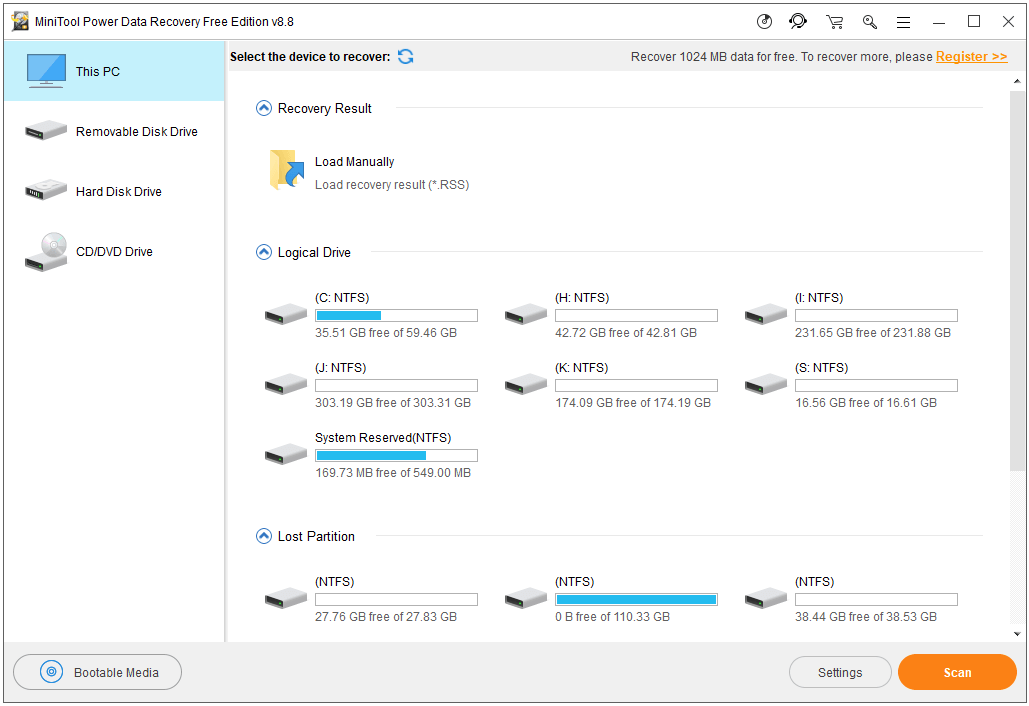
- Launch MiniTool Power Data Recovery, and click the device category from the left pane. Choose the target drive or device in the right window.
- Click Scan button and this smart software will automatically scan data on the drive.
- After the scan, you can check the needed files and click Save button to store the recovered files to a new place.
User Comments :