
If you want to disable the blur effect on the Windows 10 login screen, this article will show you 3 useful methods to do this work. The first one is making a simple change in Settings, and the other two methods are editing the Windows Registry and Group Policy settings.
The Blur Effect on The Windows 10 Login Screen
If you have got the May 2019 Update (version 1903), you may notice one particular change: Windows 10 blurred login screen background image by default. That means you can’t see a clear background picture.
The acrylic blur effect is new with Windows 10 version 1903, but not all users like this effect. Thus, if you want to disable the blur effect on the Windows 10 login screen, there are 3 available ways for you to do this work.
Method 1: Disable the Blur Effect on The Windows 10 Login Screen with Settings
The first way is the easiest one among these 3 methods to disable the blur effect on the Windows 10 login screen. However, it will also disable the transparency effect on Settings, Start and other places. Thus, if you only want to disable acrylic blur effect Windows 10, you can refer to method 2 or method 3 directly.
The following part will show you how to disable the blur effect on the Windows 10 login screen with Settings.
Step 1: Firstly, click the Start button in the Windows 10 desktop lower left-hand area and select Settings to enter its interface.
Step 2: Now click Personalization under the Windows Settings section and click Colors from the left navigation menu.
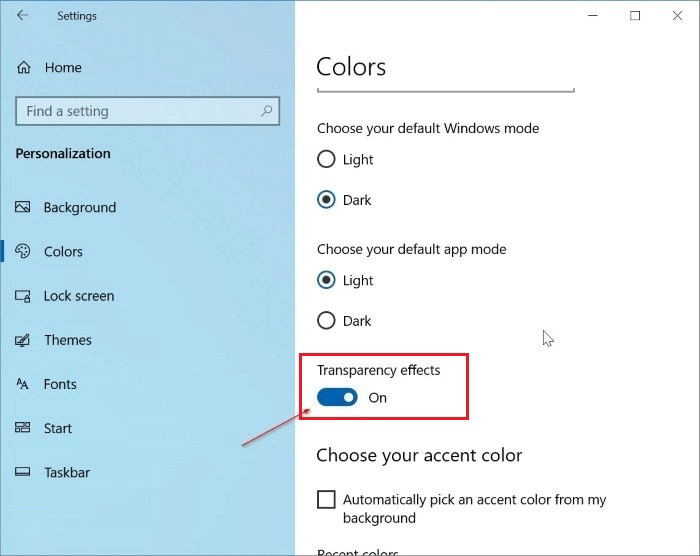
Step 3: Turn off Transparency effects to disable the blur effect on the Windows 10 login screen and the transparency effects on the other areas.
Method 2: Disable the Blur Effect on the Windows 10 Login Screen with Registry
The second method is changing Windows Registry Editor which is compatible with all Windows 10 editions. And just to warn you, this is a serious undertaking. Thus, before you perform this method, you’d better create a valid restore point and back up your Windows 10 Registry file in advance.
Follow the steps shown below to disable the blur effect on the Windows 10 login screen.
Step 1: Firstly, click regedit in the search bar and click regedit to enter its interface.
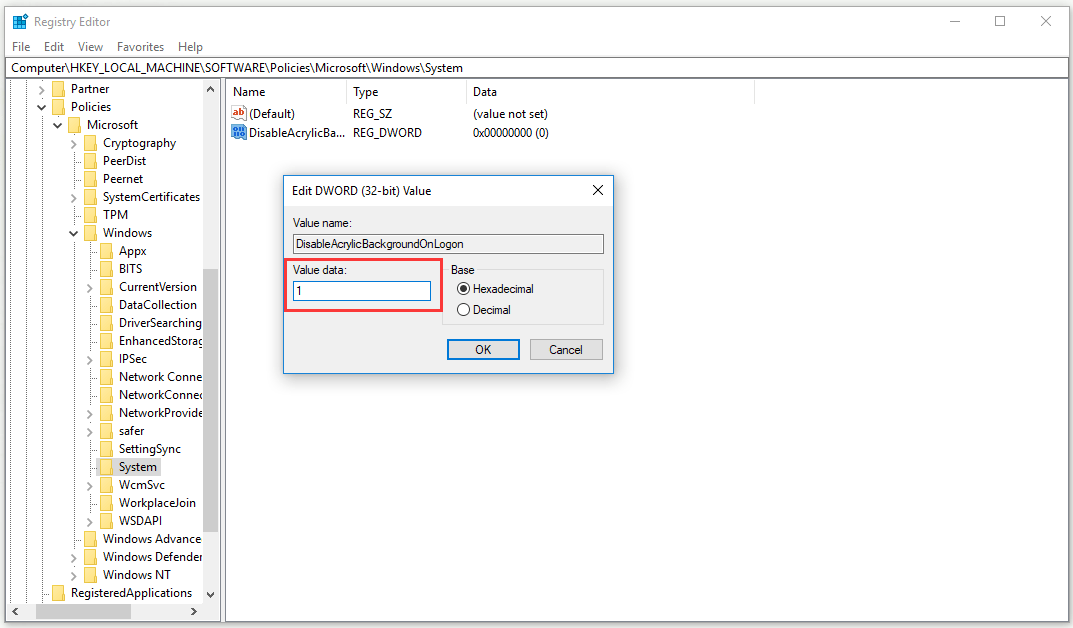
Step 2: In the Registry Editor window, navigate to the folder: HKEY_LOCAL_MACHINE\SOFTWARE\Policies\Microsoft\Windows\System.
Step 3: Right-click the System folder, select New, select DWORD (32-bit) Value and give it the name DisableAcrylicBackgroundOnLogon.
Step 4: Double click DisableAcrylicBackgroundOnLogon you just created, and change its Value data from 0 to 1 to turn off the acrylic blur effect. You can also change from 1 to 0 to turn on the login screen blur effect. Finally, click OK to perform the change.
Method 3: Disable the Blur Effect on the Windows 10 Login Screen with Group Policy settings
The following part will show you how to disable the blur effect on the Windows 10 login screen by modifying Group Policy settings.
Step 1: Firstly, type group policy in the search bar and click Edit group policy to enter its interface.
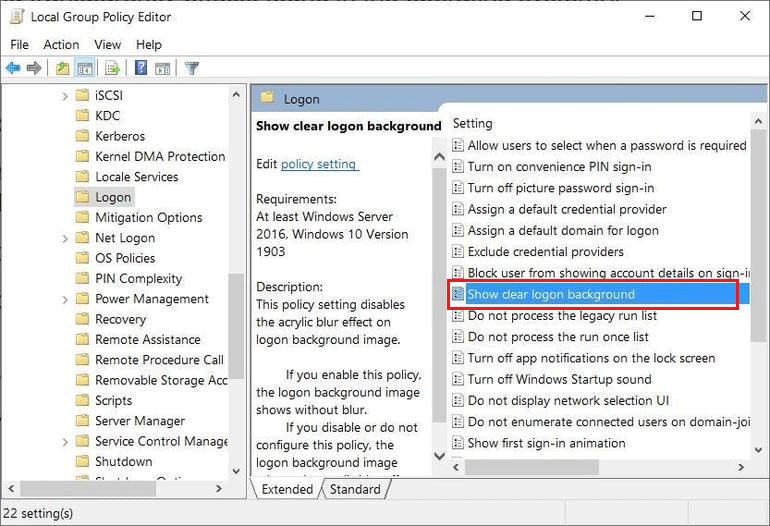
Step 2: Now find the folder: Computer Configuration\Administrative Templates\System\Logon and then click the Logon folder.
Step 3: Double click Show clear logon background and check Enable from the pop-up window. Finally, click OK to disable the blur effect on the Windows 10 login screen.
Bottom Line
To sum up, this article shows you 3 useful methods to disable the blur effect on the Windows 10 login screen. If you are also bothered by this blur effect, you can try the methods above.
User Comments :