
If dropdown menus malfunction in Windows 11 or 10, it can be annoying, causing problems like menus not showing up, vanishing too fast, or appearing in the wrong places. This guide from MiniTool will help you resolve the “dropdown menus not working in Windows 11” issue.
In Windows 11, dropdown menus may freeze or become unresponsive because of corrupt system files, outdated drivers, or software incompatibilities. This problem can disrupt productivity by hindering access to key features.
Fixing the “dropdown menus not working in Windows 11” issue helps regain smooth menu operation and improves overall usability. Now, let’s see how to fix it.
Fix 1: Restart File Explorer
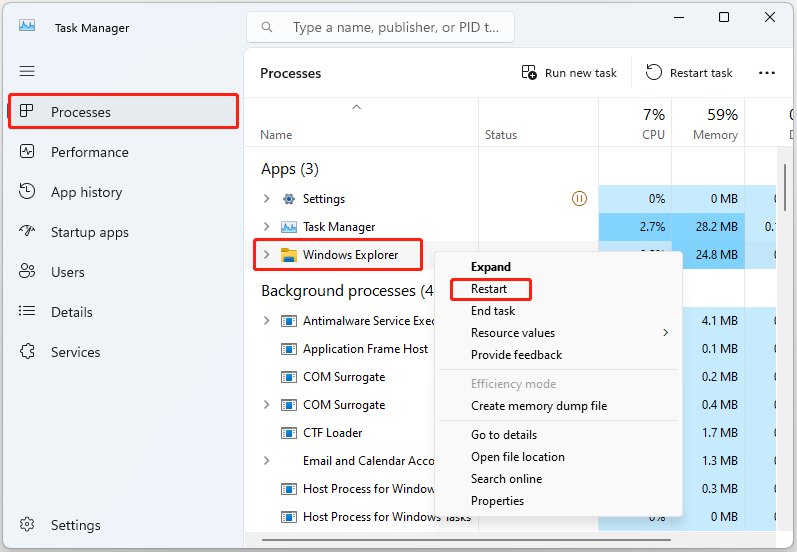
Restarting the File Explorer process should help you resolve the “File Explorer keeps opening up in the foreground on Windows 11 22H2” issue.
Step 1: Right-click the Start menu to choose Task Manager to open it.
Step 2: Go to the Processes tab. Find Windows Explorer and right-click it to choose Restart.
Fix 2: Run SFC
If you want to fix the “unresponsive or missing dropdown menus in Windows 11” issue, you can try to use the System File Checker (SFC) tool. It is a Windows built-in utility that checks system file integrity. After executing the command, it will check and replace the corrupt system files it finds during the scan.
Step 1: Type cmd in the Search box and choose Run as administrator.
Step 2: Copy and paste the following command into the Command Prompt and press Enter:
sfc /scannow
Fix 3: Update Graphics Drivers
You have to ensure that you are using the latest version of the graphics driver. You will meet the “dropdown menus not working in Windows 11” issue if you have incompatible, corrupt, missing, or outdated drivers. To solve the issue, you need to update the driver.
Step 1: Open the Run box and type devmgmt.msc. Then press Enter to go to Device Manager.
Step 2: Double-click Display adapters to expand it. Then right-click your graphics card driver and choose Update driver.
Step 3: You will be asked how you want to search for drivers in the pop-up window. You should choose Search automatically for updated driver software and then follow the instructions to complete the process.
Then, you can check to see if the issue has been fixed.
Fix 4: Disable AutoSuggest
As an alternative solution, you can adjust the Windows registry to turn off File Explorer’s AutoSuggest feature. This may resolve problems such as stuck dropdown menus, old suggestions appearing, or other related malfunctions.
Step 1: Open the Run box by pressing Windows + R together and type regedit in it.
Step 2: After opening Registry Editor, go to the following path:
HKEY_CURRENT_USER\Software\Microsoft\Windows\CurrentVersion\Explorer
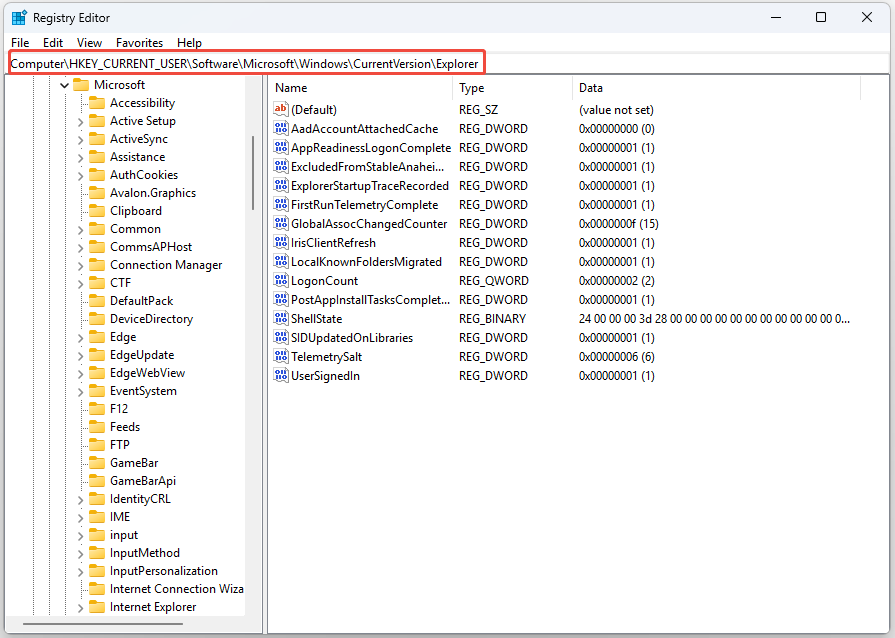
Step 3: Right-click Explorer and select New > Key, and name it AutoComplete.
Step 4: Right-click the right pane, select New > String Value, and name it AutoSuggest.
Step 5: Double-click AutoSuggest and set its value to No.
Fix 5: Reinstall Windows
If none of the above methods work, you may consider reinstalling your operating system. Reinstalling will reformat the hard drive, so it is best to back up the important data before reinstalling. To keep significant data safe, you can use the best backup software – MiniTool ShadowMaker to back up your PC. It supports performing the data backup and recovery, cloning HDD to SSD, etc.
MiniTool ShadowMaker TrialClick to Download100%Clean & Safe
After backing up the important data, you can start to reinstall Windows 11/10.
Final Words
How to fix the “dropdown menus not appearing in Windows 11” issue. Now after reading this post, you know 5 methods to get rid of it. Just choose one based on your actual situation to fix the annoying issue.
User Comments :