
Struggling with the Elden Ring: Nightreign controller not working issue can be quite frustrating. To find solutions to fix it is the reason you are here. This guide from MiniTool will explain the available methods for resolving the controller issues.
Elden Ring: Nightreign Controller Not Working
In order to operate smoothly, most players will choose to use the controller to play the game. But Nightfarers have encountered a bumpy ride in Elden Ring Nightreign. Since the game’s launch, many players have reported glitches and bugs. One of the frequent technical issues is the Elden Ring: Nightreign controller not working issue.
These problems considerably disrupt the gaming experience and detract from what could otherwise be an enjoyable game. This guide will examine potential solutions for the Elden Ring: Nightreign gamepad not working issue.
How to Fix Controller Not Working in Elden Ring: Nightreign
#1. Disable the VJoy Device (If Necessary)
Some players reported on Steam Community that disabling the VJoy device helped them fix the Elden Ring: Nightreign controller not working problem. If you enabled it, consider trying this method to resolve the issue.
- Press Win + X to open the Power User menu and select Device Manager.
- Scroll down to locate and expand the Human Interface Devices.
- Scroll down to locate the VJoy device, right-click it, and choose Disable device. then it will say Restart Windows. Hit Yes and restart.
- Start Elden Ring: Nightreign to check whether the issue is fixed.
#2. Unplug Any Other Controller
Sometimes, other controllers may conflict with the controller you want to use. Opt for disabling any other controller to fix the issue:
- Go to Windows Search, type in “set up USB game controllers” and press Enter. It’ll show you a list of every controller type thing connected to your PC.
- There are reports about USB headphones conflicting with the controller in Elden Ring. Therefore, unplug EVERYTHING on that list except the controller you want to use.
- Also, make sure all the controller options are enabled in Steam settings.
#3. Enable the Steam Big Picture mode & Xbox Configuration Support
Ensure you have enabled your controller in Steam. Go to Big Picture Mode, tap the cog icon on the top right to open settings. From the settings menu, click on Controller Settings. Make sure the box that says Xbox Configuration Support is checked. Afterward, restart Steam.
#4. Replace the steam_emu.ini File (For the RUNE Version)
Some players reported that the Elden Ring: Nightreign controller not working problem basically due to RUNE forgetting to add the control interface in the code.
MiniTool ShadowMaker TrialClick to Download100%Clean & Safe
- Replace the steam_emu.ini file (C:\Program Files (x86)\Steam\steamui or in the game file location) with this file.
- Launch the game and check if the issue is gone. If it doesn’t work, just open this file and add the [Controller] session from the INI file.
#5. Change the steam_emu.ini File
If the above method does not work, you need to replace the new file with the old backup steam emu.ini file.
- Make sure to copy all the RUNE files into the game files. Usually, the location is: C:\Program Files (x86)\Steam\steamapps\common\ELDEN RING NIGHTREIGN
- Next, open the steam_emu.ini file.
- Locate SteamApps=STEAMAPPS_INTERFACE_VERSION008 and change it to SteamApps=STEAMAPPS_INTERFACE_VERSION007.
#6. Move VDF Files
To fix the Elden Ring: Nightreign controller not working issue, try the method provided by Skuff:
- Go to the game directory. It is usually in the following location: C:\Games\ELDEN RING NIGHTREIN\Game. Locate the VDF files with the name “steam_input”.
- Press the Ctrl key and choose all the VDF files, right-click them, and choose Copy.
- Navigate to the directory: C:\Program Files (x86)\Steam\controller_base\templates.
- Paste the VDF files by pressing Ctrl + V together or right-clicking the space and selecting Paste. Find and right-click the “steam_input_manifest.vdf” file, and then select Copy.
- Go back to the Steam root folder: C:\Program Files (x86)\Steam. Right-click the space, choose New > Folder, and name it “controller_config”. If you have this folder, you can open it directly. Double-click the new controller_config folder to enter it, press Ctrl + V or right-click the space and choose Paste to paste the steam_input_manifest.vdf file.
- Right-click the pasted steam_input_manifest.vdf file, choose Rename, and name it “game_actions_480.vdf”.
- Restart Steam. Launch Elden Ring: Nightreign. In the Spacewar game, go to the Controller Settings option.
- Under the Current Button Layout section, click Using Template to change the preset. Go to the Templates tab and select ELDEN RING NIGHTREIGN Official Settings.
For those who have an Xbox 360 controller or any controller that is recognized by Steam as an Xbox 360 controller, you can do the following:
- Go to the templates folder (C:\Program Files (x86)\Steam\controller_base\templates).
- Make a copy of the steam_input_for_xboxone_controller.vdf file in the templates folder and name the new one “steam_input_for_xbox360_controller.vdf”.
- Open the steam_input_for_xbox360_controller.vdf file with a numpad.
- In the 11th line, you will see this line: …”controller_type” …”controller_xboxone”.
- You change the “controller_xboxone” value to “controller_xbox360“. It should now look like this: “controller_type” “controller_xbox360”.
- Now, save the file.
- Open the game. In the Templates tab, you will see the official layout for Nightreign. Select it and it will work as intended.
#7. Update Your Controller Device
Outdated devices can lead to compatibility problems. If your controller is not current, the PC may have difficulty recognizing it, or the game may experience conflicts with it. Thus, it’s advisable to use the PlayStation Accessories app or Xbox Accessories app to perform updates on your controller.
- Obtain and install the PlayStation Accessories app or Xbox Accessories app from the Microsoft Store based on your controller’s brand.
- Once installed, open the application and connect your controller to your PC using a USB cable.
- Check for any available updates for the controller, and if there are any, download and apply the update.
In addition, if you’re not using a PlayStation or Xbox controller, you can easily update it via Device Manager. Here’s how to do that:
- Connect your controller to your PC, press Win + X to access the Power User menu, and select Device Manager.
- In the window that appears, expand the Human Interface Devices section.
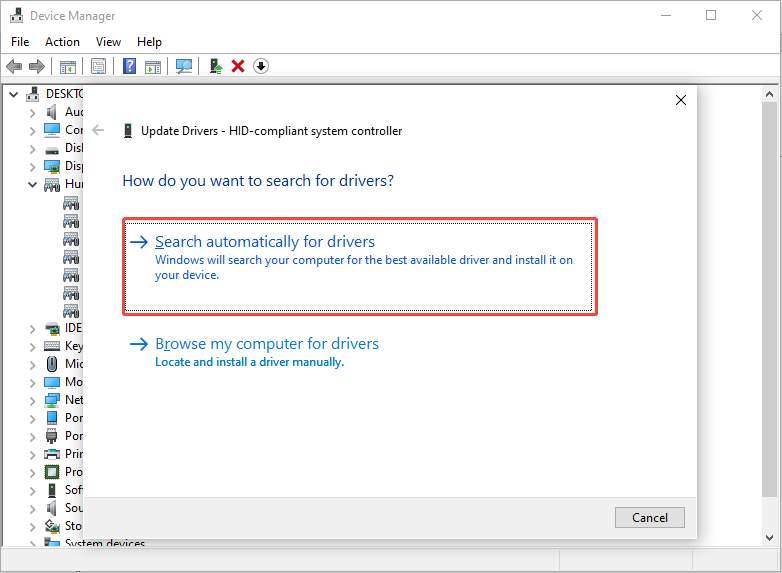
- Right-click on your controller and select Update driver.
- Then choose Search automatically for drivers.
- Follow the on-screen prompts to finish the update.
#8. Disable/Enable Steam Input
Disabling or enabling the Steam input might be a good idea. This approach can resolve many gaming problems, especially with controllers. Follow these steps:
- Launch Steam and navigate to your Steam Library.
- Right-click Elden Ring: Nightreign and choose Properties.
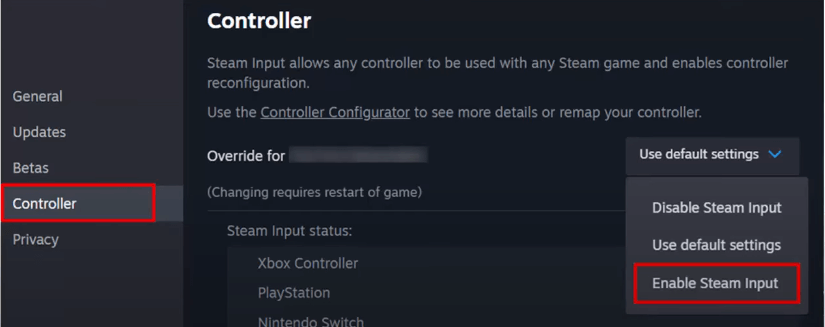
- In the Properties window, select the Controller tab.
- Click on the Steam Input option next to Override for Elden Ring: Nightreign.
- Choose the type of controller you are using from the options available and set it to Disabled Steam Input. If you don’t enable it, you can set it to Enable Steam Input.
#9. Use a Wired Controller (Alternative)
It’s possible that the game is experiencing some bugs or glitches at the moment, and your wireless controller may not be functioning correctly. If you have a wired controller available, plug it in and play the game for now.
#10. Verify the Integrity of Game Files
Corrupted files can cause some issues, like the Elden Ring: Nightreign controller not working issue. Therefore, consider verifying the game files on Steam.
- Open Steam and go to your Library.
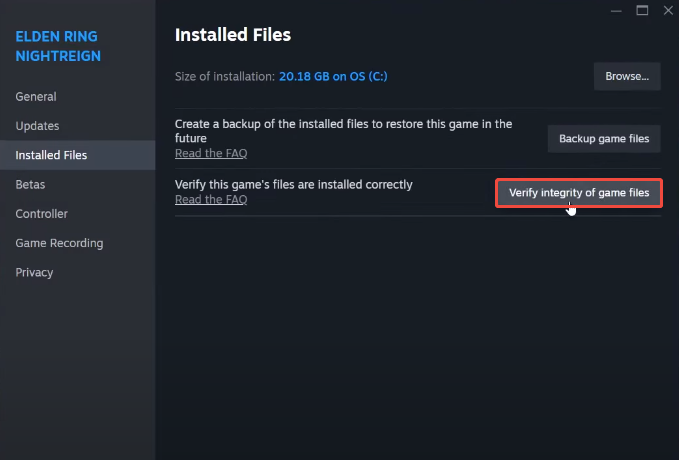
- Right-click Elden Ring: Nightreign and select Properties.
- Under the Local Files tab, click the Verify integrity of game files button.
- Wait for the process to complete, then launch the game to see if the issue persists.
#11. Install the Game from DODI Repacks
Some players reported that installing Elden Ring: Nightreign from DODI Repacks helped them resolve any controller issues. Therefore, you can go to the DODI website and obtain this game to play it without any issues.
Final Words
This guide provides ten methods to fix the Elden Ring: Nightreign controller not working issue on PC. Hope these solutions can get your game back on track.
User Comments :