
EXODUS: The Traveler's Creed out of video memory should be a super annoying issue, as video memory stores and manages data related to graphics and video processing. But fret not, this guide from MiniTool covers some solutions for you.
EXODUS: The Traveler’s Creed Out of Video Memory
Exodus is being described as an action-adventure RPG full of third-person gunfights and melee combat as well as exploration and social interactions. And the upcoming EXODUS: The Traveler’s Creed is much grander than we anticipated.
However, out of video memory is not a new thing when playing RPG games. It could arise from various causes. To cope with the out of memory error, we will elaborate on all you can do when it occurs in the following paragraph.
MiniTool ShadowMaker TrialClick to Download100%Clean & Safe
How to Fix the Out of Memory Error on EXODUS: The Traveler’s Creed?
Fix 1. Reduce Display Resolution
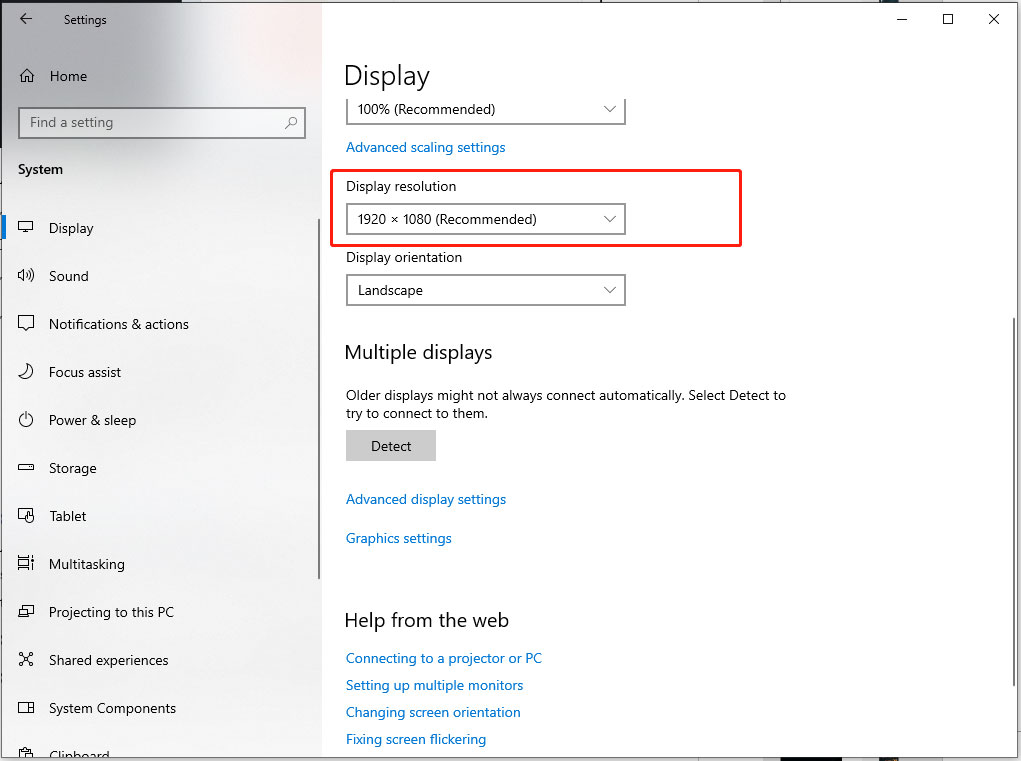
Higher resolution often requires more video memory to render the image. To relieve the pressure on your GPU, you can consider reducing the resolution to free up more memory. Here’s how to adjust it:
Step 1. Press Win + I to open Settings and select System.
Step 2. In the Display section, click on the dropdown menu of Display resolution and change to a lower display resolution.
Fix 2. Run the Game in a Borderless Windowed Mode
Sometimes, running the game in a borderless windowed mode can also fix EXODUS: The Traveler’s Creed out of memory. Follow the instructions below:
Step 1. Right-click on the executable file of EXODUS.
Step 2. Select Properties from the drop-down menu.
Step 3. Head to the Compatibility tab and check the Disable fullscreen optimization option.
Fix 3. Add Virtual Memory
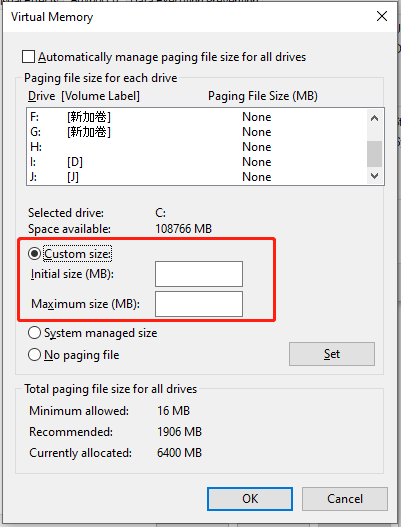
How to get more video memory? Virtual memory makes use of a portion of your hard disk to effectively expand your RAM, thereby supplementing the GPU’s memory. Sometimes, increasing virtual memory can also solve common game problems like EXODUS: The Traveler’s Creed out of video memory. Here’s how to do it:
Step 1. Press Win + R to open the Run dialog and enter sysdm.cpl in the address bar to open System Properties.
Step 2. Under the Advanced tab, click on the Settings button in the Performance table.
Step 3. Go to the Advanced tab in the new window and hit Change under Virtual memory.
Step 4. Uncheck Automatically manage paging file size for all drives > check Custom size > enter the initial size and maximum size you need > tap on Set & OK to apply.
Related article: How to Fix Exodus Kodi Not Working [Easily and Quickly]
Fix 4. Change a Power Plan
The power plan of Windows can adjust the way CPU and GPU are allocated power. Therefore, if you adjust the current power plan you are using, it might free up more resources for the graphics card and allow EXODUS to utilize more video memory when needed. To do so:
Step 1. Press Win + S to open the Windows Search box and search Control Panel.
Step 2. Open Control Panel and go to System and Security.
Step 3. Choose Power Options from the right side and then change to another power plan to see if it works for EXODUS: The Traveler’s Creed out of video memory.
Wrapping Up
We hope these measures in this guide can help you fix EXODUS: The Traveler’s Creed out of video memory successfully. Appreciate your support and have a nice day!
User Comments :