
When you use Netflix, you may receive the error code: F7111-5059. Like other problems, you can easily fix this error. In this post, MiniTool Solution will show you some useful methods to solve the Netflix error. Now, keep on your reading.
Netflix is one of the most popular movie streaming services. However, you may also meet many issues when using it, such as error code: M7111-5059. Recently, many people report that they encounter the F7111-5059 error code.
What causes the error code: M7111-5059? VPN, proxy, Tunnel Broker, and IPv6 Proxy Tunnel can be the reason. Now, follow the fixes below to get rid of the F7111-5059 error code.
Fix 1: Turn off VPN and Proxies
It’s recommended to turn off VPN ad proxies to fix the error code: F7111-5059 since certain service providers, especially banking institutions, have rejected private connections that require full Internet access for reasons of transparency. Here is how to do that.
Step 1: Open the Settings application by pressing the Windows + I keys at the same time.
Step 2: Then, click the Network & Internet part to open it.
Step 3: Click the Proxy tab and turn off the Use a proxy server option.
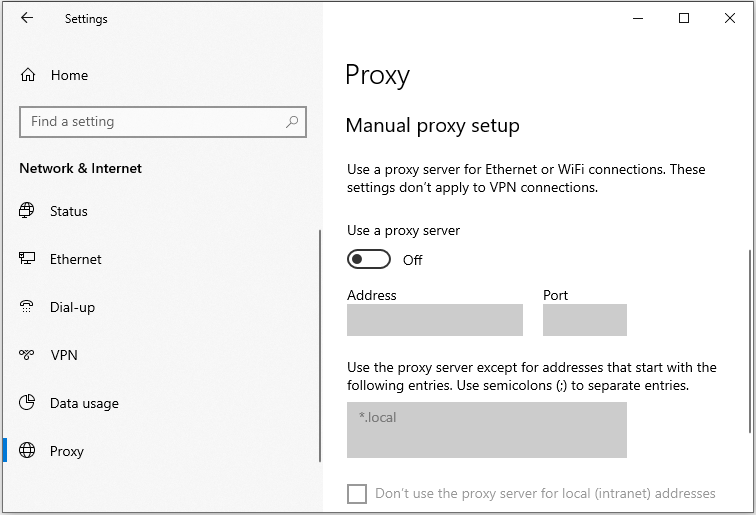
After that, check if the error code: F7111-50591has gone.
Also see: Proxy vs VPN: The Main Differences Between Them
Fix 2: Clear Browser Cache
A large amount of cache and cookies in your browser is one of the reasons for the Netflix error code F7111-5059. You can try clearing the browser cache and cookies to fix it. Here I take Google Chrome as an example, and you can follow the steps below:
Step 1: Open Google Chrome and click the three-dot button in the upper right corner.
Step 2: Choose More tools and click Clear browsing data.
Step 3: In the pop-up window, set Time range to All time. Check the Cookies and other site data and Cached images and files options. Then click Clear data.
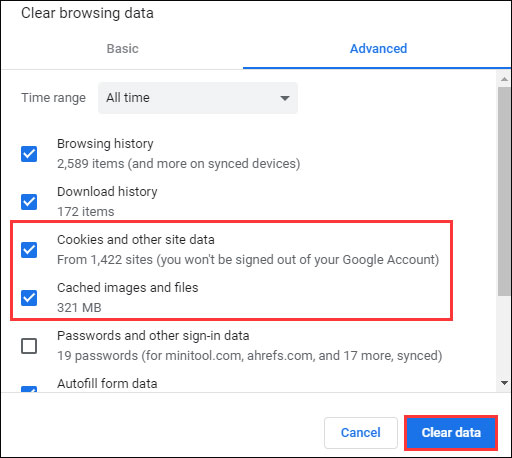
After that, Restart your browser and check if the error code F7111-5059has been fixed or not.
Also see: How to Clear System Cache Windows 10 [2020 Updated]
Fix 3: Turn off Third-Party Antivirus Software
If you have installed third-party antivirus software on your computer, then it’s likely that the culprit of the error code: F7111-5059 is your antivirus software. Antivirus software is an important tool to ensure computer security. However, they may sometimes inadvertently interfere with Netflix. Updating or temporarily replacing security software may solve these problems.
Fix 4: Update Your Windows System
Windows updates can help you fix a lot of system issues and bugs. When you encounter the F7111-5059 error code, you can try installing the latest Windows updates.
Step 1: Right-click the Start menu and choose Settings.
Step 2: On the Settings window, select Update & Security.
Step 3: Under the Windows Update section, click the Check for updates button to check if there are any new updates. Then Windows will search for available updates. Just follow the on-screen instructions to finish the process.
After installing the latest Windows updates, restart your computer and check if the F7111-5059 error gets fixed.
Final Words
In order to fix the F7111-5059 error code, this post has shown 4 reliable solutions. If you have come across the same error, try these solutions. If you have any better ideas to fix it, you can share it in the comment zone.
User Comments :