
Facebook Live Not Working
You may enjoy living stream on Facebook but what will you do when Facebook live is not working? The potential culprit might be a poor internet connection, local data corruption, lack of permissions, server-side problems and more. According to different situations, we come up with corresponding solutions for you. Without any delay, let’s dive right in.
How to Fix Facebook Live Not Working?
Fix 1: Check Your Internet Connection
Since Facebook live depends on the internet connection, so you had better check your internet connection first. Click here and hit the GO button to run a speed test. If the connection is slow, you can follow the instructions below to improve it:
Step 1. Turn off your phone or computer.
Step 2. Turn off your router & modem and then unplug the power cable.
Step 3. Wait for several minutes, plug in the power cable and turn on the router, modem and your phone/computer.
Fix 2: Clear Data & Cache
The corrupted data or cache might be the culprit of Facebook live not working on iPhone/Android/Windows. Here’s how to clear the data and cache:
On Google Chrome
Step 1. Launch your Google Chrome.
Step 2. Click on the three-dot icon to select Settings in the drop-down menu.
Step 3. Go to Privacy and security > Clear browsing data.
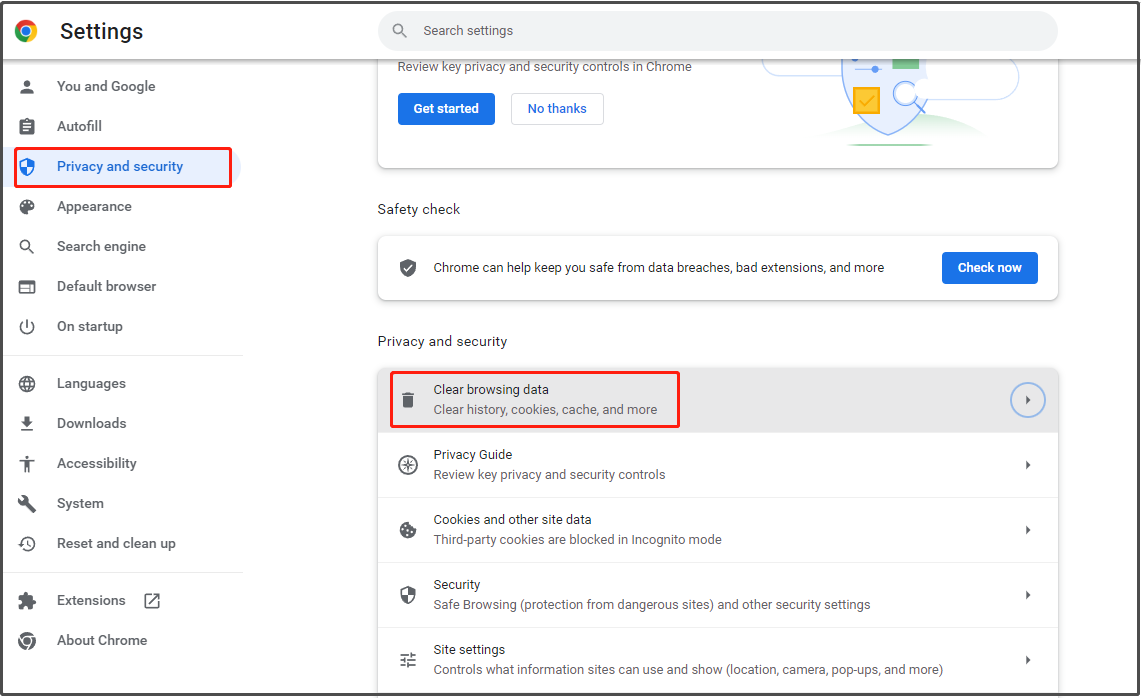
Step 4. Select the time range and tick the items you want to clear according to your needs.
Step 5. Press Clear data.
On Phone
Step 1. Go to Settings and find Facebook from App management.
Step 2. Click Facebook and hit Storage.
Step 3. Press Clear data and Clear cache.
Fix 3: Check Antivirus & Firewall
Sometimes, the antivirus or firewall may prevent Facebook from going live due to security factors. Turning off the real-time scan is also a feasible fix for Facebook live map not working.
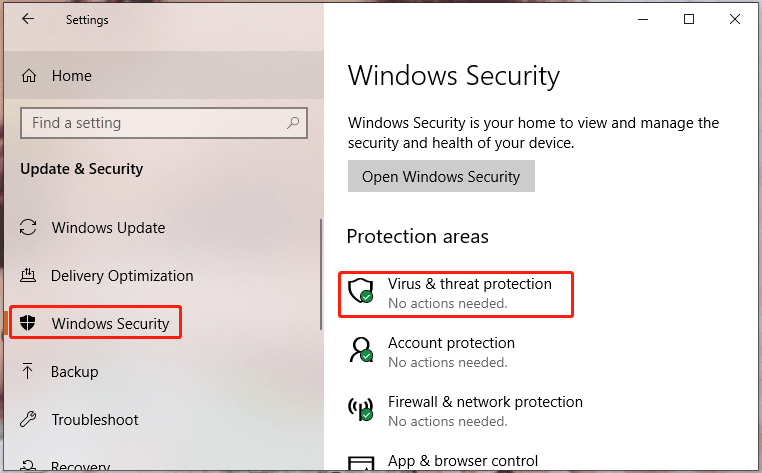
Step 1. Go to Windows Settings > Update & Security > Windows Security.
Step 2. In Windows Security, hit Virus & threat protection > Manage settings > turn off Real-time protection.
Fix 4: Use a VPN Connection
Facebook live stream not working crops up because of extra routes or relays on your internet connection to the Facebook servers. In this case, you can try a VPN service to reconnect with the Facebook server. VPN sets up an encrypted connection between the server and your device. At the same time, it can also protect your data and help you to establish a secure connection.
Fix 5: Try Another Browser or Reinstall Facebook
If you open Facebook live via the browser, it may stop working due to insufficient permissions. Then, you can choose to switch to another browser and launch Facebook live from it.
If you are a phone user, reinstalling the app is also a fix. Just go to Settings > Apps > Apps & features > find Facebook and hit it > press Uninstall. After the uninstallation process is done, download it from Google Play Store (Android) or App Store (iPhone).
User Comments :