
Final Fantasy VII Rebirth will wrap you in a one-winged embrace of pure nostalgia, right? But what if encountering the issue is that the game keeps silent? Merging into this interesting game but finding no sound can be annoying. Fret not; this post from MiniTool can help you fix Final Fantasy VII Rebirth audio not working.
Some players encountered and complained about an issue: Final Fantasy VII Rebirth audio not working. As FFVII Rebirth is an excellent video game, coming to a sound issue can be frustrating. If you are among them, you can attempt a few tweaks and fixes to hopefully find a means to work around this problem – which can be found discussed below.
Workaround 1. Update Audio Driver
Audio drivers may become outdated over time, causing compatibility issues. Thus, to resolve the issue of Final Fantasy VII sound not working, you need to update your driver and make sure it meets the game’s system requirements.
Step 1: Press Win + X simultaneously to access the WinX menu and select Device Manager from the options.
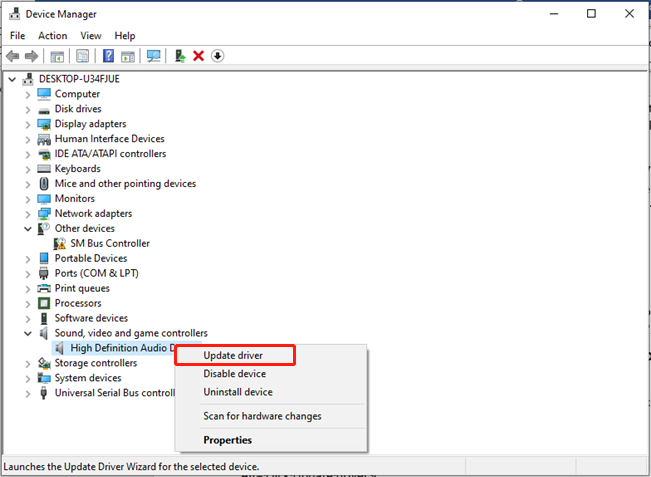
Step 2: Expand the Sound, video and game controllers category, right-click on your audio driver, and choose Update driver.
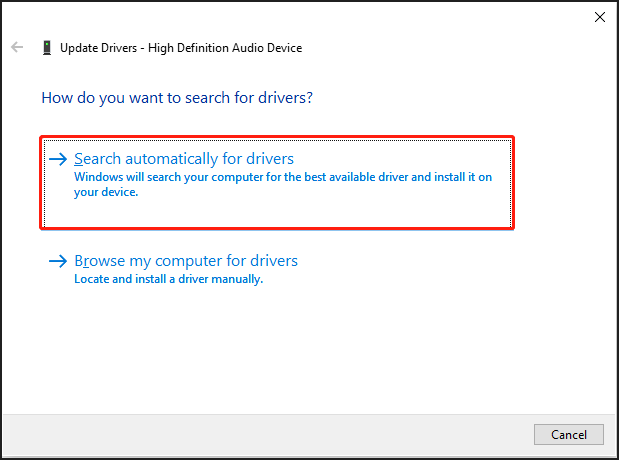
Step 3: In the pop-up window, select Search automatically for drivers.
Workaround 2. Check In-Game Audio Settings
Incorrect game audio settings may affect the performance of a video game. Therefore, checking in-game audio settings may fix the Final Fantasy VII Rebirth audio not working issue.
Step 1: Open the audio settings in the game and ensure that the volume sliders are set to appropriate levels for master, effects, and music.
Step 2: Ensure the output device is set to the correct audio device.
Workaround 3. Verify the Integrity of Game Files
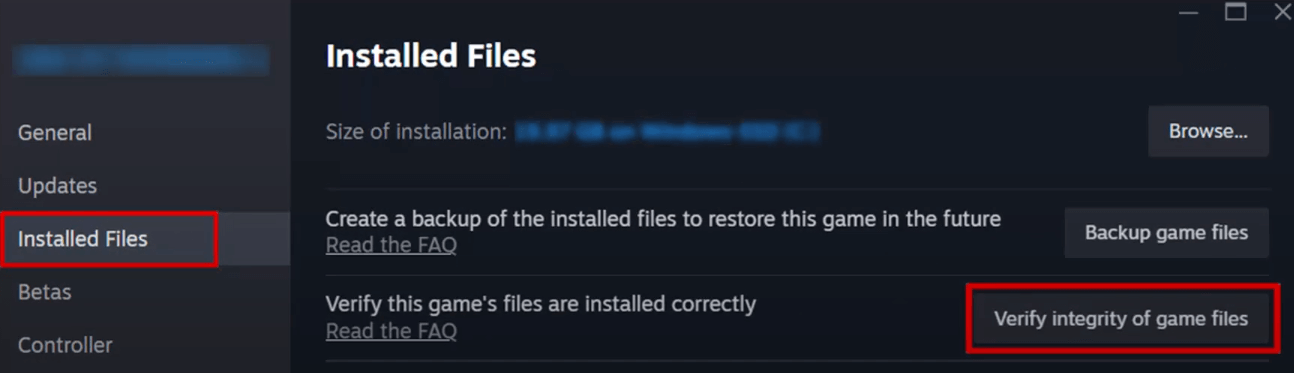
One potential reason could be that the game wasn’t installed correctly. We recommend verifying the integrity of the files through Steam to make sure you haven’t missed any essential configuration files during the download and installation process. Here are the steps to perform this repair.
Step 1: Open Steam, go to your Library, right-click on Final Fantasy VII Rebirth, and choose Properties.
Step 2: Select the Installed Files tab on the left and click on the Verify integrity of game files… button on the right.
Step 3: While this process is taking place, the game files will be checked for any problems, and a download will start if needed.
Bonus Tip: Recover Missing Saved Game Files
Should you lose any of your files, it’s important to recover them promptly using MiniTool Power Data Recovery. Start by downloading the free version of this software to perform a deep scan of your disk, and then recover your files if needed.
MiniTool Power Data Recovery FreeClick to Download100%Clean & Safe

Workaround 4. Adjust Audio Sample Rate
To resolve the audio issue in Final Fantasy VII Rebirth, it’s essential to perform a comprehensive test of the sound quality. This involves checking different audio configurations within the game, as well as confirming that your device’s audio output is working correctly. Follow these instructions:
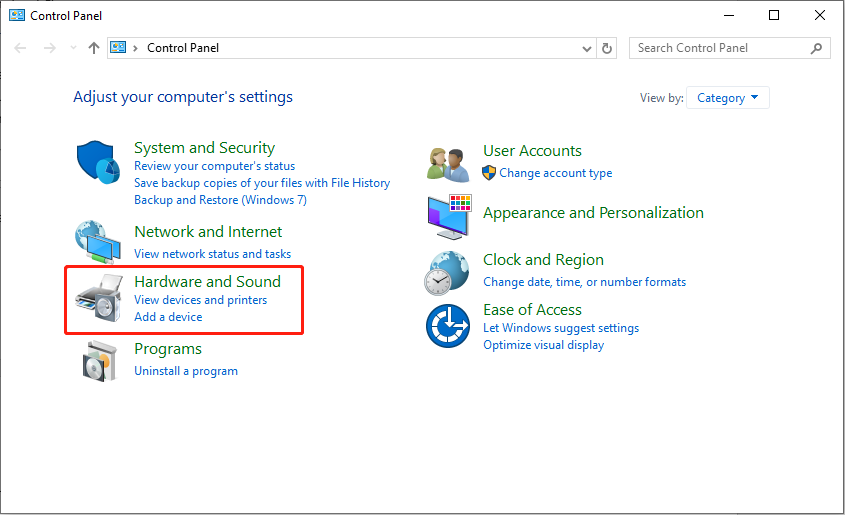
Step 1: Type Control Panel in the Windows Search bar and hit Enter.
Step 2: Click on Hardware and Sound.
Step 3: Choose Sound.
Step 4: Select your audio device, right-click on it, and select Properties.
Step 5: Navigate to the Advanced tab.
Step 6: From the Default Format drop-down menu, select the 24 bit, 48000 Hz (DVD Quality) or 24 bit, 44000 Hz (DVD Quality) bitrate and then press Test to check the sound.
Step 7: Click Apply and OK to confirm and save the changes.
Workaround 5. Disable All Audio Enhancements
Several players have reported that turning off all audio enhancements can be beneficial for their PCs. You might want to give this method a try to resolve Final Fantasy VII Rebirth audio not working. Here’s how to do it:
Step 1: Press Win + S at the same time to open the Windows Search box, type Control Panel, and hit Enter.
Step 2: Go to the Hardware and Sound section.
Step 3: Click on Sound.
Step 4: Right-click on your audio device and select Properties.
Step 5: Navigate to the Enhancements tab.
Step 6: Tick the box that says Disable all enhancements.
Step 7: Click the Apply button, then select OK.
Launch Final Fantasy VII Rebirth again and see if the problem persists.
Workaround 6. Run the Built-in Audio Troubleshooter
Windows has built-in troubleshooting tools that can identify and fix some minor glitches or issues in a program like Final Fantasy VII Rebirth. Therefore, you can run the Audio troubleshooter to fix the Final Fantasy VII Rebirth audio not working issue.
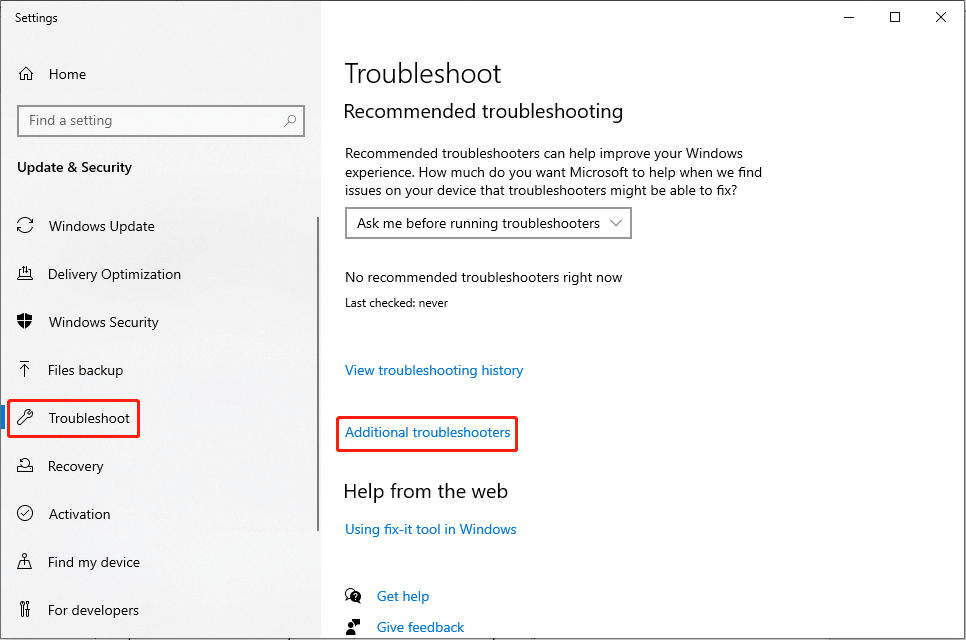
Step 1: Open Troubleshoot settings in the Windows Search bar and select the most relevant option.
Step 2: In the right panel, click Additional troubleshooters.
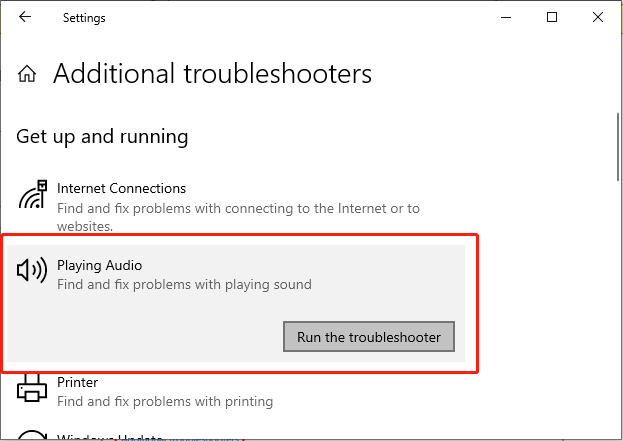
Step 3: In the following window, choose the Playing Audio option and click Run the troubleshooter.
Step 4: Follow the prompts that appear on the screen to let the troubleshooter identify and correct the issue.
Workaround 7. Uninstall the Audio Driver
If updating the audio driver didn’t work, consider reinstalling your driver to fix this issue. This process can help eliminate any conflicts or corruptions that may be affecting sound playback in the game.
Step 1: Press Win + X together to open the WinX menu and choose Device Manager from the list.
Step 2: Expand the Sound, video and game controllers section and double-click your audio driver to open the Properties interface.
Step 3: Navigate to the Driver tab and click Uninstall Device.
Step 4: In the pop-up interface, choose Uninstall to confirm the action.
Restart your computer and check if the issue is fixed.
Workaround 8. Disable Windows Sonic or Spatial Sound
Windows Sonic may sometimes interfere with other spatial audio features, resulting in a less immersive experience than specialized alternatives. To turn off Windows Sonic:
Step 1: Press Win + I to open Windows Settings.
Step 2: Navigate to System > Sound.
Step 3: In the right panel, choose Sound Control Panel under the Related Settings section.
Step 4: Choose your audio device in the Playback tab and click the Properties button.
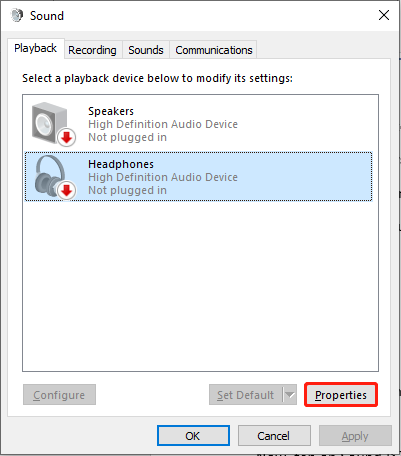
Step 5: Go to the Spatial sound tab, expand the drop-down menu under the Spatial Sound format section, and choose Off.
Step 6: Click Apply > OK.
Final Words
This post introduces 8 ways to fix the Final Fantasy VII Rebirth audio not working issue. Hope one of them can work for you.
User Comments :